Category Archives: Computer

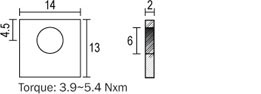
Terminals

What is the difference between F1 and F2 Terminals?

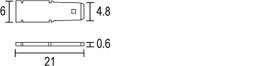
F1 and F2 represent the type of connector that is located on the top of the battery. F1 terminals are .187 inch wide (the contact towards the end narrows) and F2 terminals are .250 inch wide (the contact towards the end narrows). Most emergency light applications use a F1 terminal and most emergency power backup (UPS) applications use F2 terminals.

FASTON CONNECTOR
F1
FASTON CONNECTOR

F2

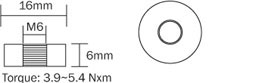
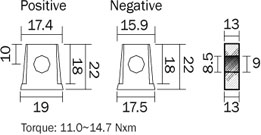
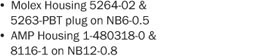
What other common terminals are available?

NUT AND BOLT

NB
THREADED INSERT

IT
U CONNECTOR

U
INSULATED WIRE LEADS

WL
FASTON CONNECTOR

F1/0

Source: Terminals

DHCP Options in Plain English

DHCP Options in Plain English

Published on 18 May 2013

The following tables list common, configurable DHCP options. Non-configurable options or TLVs have not been included, even though these may be present in a file or on the wire. The following tables also do not include options that are only necessary for the operation of the DHCP protocol. For example, DHCPv4 option 53 is the DHCP message type option that declares whether a particular message is a discovery, request, or other message type. However, the administrator can’t configure this option, so therefore it isn’t included in the lists below.
Of course, there will be some DHCPv4, DHCPv6, and internal DHCP options that are not listed at all. This is because this document aims to act as a guide for the most commonly-used options only. For further information on other DHCP options, refer to the IETF website.

Table 1 – DHCPv4 Options

The table below describes DHCP options commonly used in IPv4 networks. Please note: Certain classes of devices will use particular subsets, as listed below:

  • Cable Modems: 1, 2, 3, 4, 6, 7, 51, 66, 67, 122.1, 122.2
  • MTAs: 1, 2, 3, 4, 6, 7, 51, 122.3, 122.6.  If in BASIC mode, also 66, 67
  • Generic devices: 1, 3, 6, 51
Option Number Option Name Source Description
1 Subnet Mask RFC 2132 The subnet mask to apply to the address that is assigned to the client.
2 Time Zone Offset RFC 2132 Informs the client about the time zone offset, in seconds.  For example, Pacific Standard Time is GMT – 8 hours.  This field would be filled with “- 28800”.  (Eight hours * 60 minutes/hour * 60 seconds/minute)
3 Gateway RFC 2132 Tells the client which router is the default router.
4 Time Server RFC 2132 Tells the client the IP address of a time server that can determine the client’s current time. This is related to the Time Zone Offset option.
6 Domain Name Server RFC 2132 Carries the IP address(es) of the DNS servers that the client uses for name resolution.
7 Log Server RFC 2132 Carries the IP address of the syslog server that receives the client’s log messages.
12 Hostname RFC 2132 Carries the hostname portion of a client’s fully qualified domain name (FQDN). For example, the “www” part of “www.example.com”.
15 Domain Name RFC 2132 Carries the domain name portion of a client’s fully qualified domain name (FQDN).  For example, the “example.com” portion of “www.example.com”.
43 Vendor Specific Information RFC 2132 Carries some configuration data that is not defined in the standard DHCP RFCs.  Individual vendors can define different pieces of data that may be found in this option. CableLabs’ eDOCSIS specification, for example, defines certain sub-options that appear in this option.
51 Lease Time Option RFC 2132 This defines the maximum amount of time that the client may use the IP address.
60 Vendor Class Identifier RFC 2132 Carries some identifier from the client that may identify the client’s device class. The DHCP specification does not define what values go into this field, but other specifications do. For example, the DOCSIS specifications state that if the device is DOCSIS-compliant, option 60 must start with “docsis” (and also include other details).
66 TFTP Server Name RFC 2132 Carries the FQDN or IP address (or cluster identifier) that the device should use to download the file specified in option 67.  Note that often the data put into option 66 does not actually appear in the DHCP packet as option 66, but may have been moved into the “sname” field of the DHCP packet.  Additionally, the FQDN may have been resolved to an IP address and also placed in the “siaddr” field of the DHCP packet.
67 Filename RFC 2132 Carries the filename that is to be downloaded from the server specified in option 66. Note that often data put into option 67 does not actually appear in the DHCP packet as option 67, but may be moved into the “file” field of the DHCP packet.  (Note: Address Commander can do some dynamic file name generation for this name.)
82 Relay Agent Information Option RFC 3046 This option carries many other sub-options that are added by relay agents and not the clients themselves.  Some of the common options are listed below.
82.1 Circuit ID RFC 3046 This is an identifier added by the relay agent to indicate which interface the client is on. This is commonly used as a subscriber identifier in DSL-based networks.
82.2 Remote ID RFC 3046 This is an identifier added by the relay agent to identify the client. It is commonly used as a subscriber identifier in DOCSIS-based networks.  DOCSIS mandates that this option is filled with the MAC address of the cable modem and applies to all traffic from the cable modem, or any device appearing from behind that cable modem.
122 CableLabs Client Configuration Option RFC 3495 This is an option defined by CableLabs to carry the information necessary to configure PacketCable devices. The sub-options are listed below.
122.1 TSP Primary DHCP Server RFC 3495 The multimedia telephony adapter (MTA) portion of the device listens to this IP address of the DHCP server. This has two special values, 0.0.0.0 (which will disable the MTA), and 255.255.255.255 (which will instruct the MTA to accept replies from any DHCP server).
122.2 TSP Secondary DHCP Server RFC 3495 A second DHCP server’s IP address.  Otherwise the same as option 122.1
122.3 TSP Provisioning Server’s Address RFC 3495 The MTA contacts the server listed to complete its provisioning process. This is the FQDN of a multimedia provisioning service (MPS), whether a specific MPS, or a cluster identifier.
122.6 TSP Kerberos Realm Name RFC 3495 For PacketCable secure mode provisioning, the name of the Kerberos Realm. There are four more special values that may be in this field: BASIC.1, BASIC.2, HYBRID.1, and HYBRID.2.  This indicates whether the device is in basic, hybrid, or secure mode provisioning. The “.1” and “.2” parts indicate whether the MTA notified the provisioning server upon completion of the provisioning process.


Table 2: DHCPv6 Options

The table below describes DHCP options commonly used in IPv6 networks.

Option Number Option Name Source Description
17 Vendor Specific Information Option RFC 3315 This option contains vendor-specific option data, much like DHCPv4 option 43.  There is an extra difference in that in DHCPv6, this option carries a vendor ID as well, which allows for data from multiple vendors to be provided to the device.
17[4491] CableLabs Vendor-Specific Information Option CL-SP-CANN-DHCP-Reg-I08-111117 CableLabs has specified a set of sub-options for use with DOCSIS-compliant DHCPv6 devices.  The vendor ID for CableLabs is 4491.
17[4491].32 TFTP Server Addresses option CL-SP-CANN-DHCP-Reg-I08-111117 This is a list of IPv6 addresses that the client will use to try to download its boot file (specified in 17[4491].33) using TFTP.
17[4491].33 Configuration File Name CL-SP-CANN-DHCP-Reg-I08-111117 The name of the file to download using the TFTP servers specified in 17[4491].32.
17[4491].34 Syslog Server Addresses CL-SP-CANN-DHCP-Reg-I08-111117 This is the DHCPv6 analogue to the DHCPv4 option 7.
17[4491].37 RFC868 Servers CL-SP-CANN-DHCP-Reg-I08-111117 This is the DHCPv6 analogue to the DHCPv4 option 4
17[4491].38 Time Offset CL-SP-CANN-DHCP-Reg-I08-111117 This is the DHCPv6 analogue to the DHCPv4 option 2.
23 DNS Recursive Name Server Option RFC 3646 This is the DHCPv6 analogue to the DHCPv4 option 6.
24 Domain Search List RFC 3646 This option specifies the list of domain names that the client should use when attempting to resolve basic host names.
39 DHCPv6 FQDN option RFC 4704 This option specifies the clients host and domain names. This is the analogue of both DHCPv4 option 12 and DHCPv4 option 15 combined. 

References

RFC 2132: http://datatracker.ietf.org/doc/rfc2132/
RFC 3046: http://datatracker.ietf.org/doc/rfc3046/
RFC 3495: http://datatracker.ietf.org/doc/rfc3495/
RFC 3646: http://datatracker.ietf.org/doc/rfc3646/
RFC 4704: http://datatracker.ietf.org/doc/rfc4704/
CL-SP-CANN-DHCP-Reg-I08-111117: http://www.cablelabs.com/specifications/CL-SP-CANN-DHCP-Reg-I08-111117.pdf

Source: DHCP Options in Plain English – Incognito Software

Suricata inline versus legacy IPS mode | Netgate Forum

 I will just add a little more detail to the explanation to highlight the differences between inline IPS mode and the legacy IDS/IPS hybrid mode.

In legacy mode, the pcap library is used to make a copy (clone if you will) of every packet as it comes in from the NIC on its way to the pf firewall engine.  The original packet continues on to the pf firewall engine and is either passed or blocked depending on the current rules in the firewall.  Meanwhile, the cloned packet is sent over to Suricata (or Snort if using that package) for inspection against the IDS/IPS rules.  Should the cloned packet (or packets, since sometimes Suricata needs to see a group of packets before a decision can be made) be judged as “bad” by the Suricata engine, then a system call is made to insert the offending IP address from the packet into a special table in the pf firewall engine called snort2c.  IP addresses in this special table are blocked.  However, note that this decision making and subsequent insertion of the IP address into the snort2c table has happened well after the original packet (or packets if a group of packets was required to make a decision) has traversed the pf engine.  So that original packet will have already gotten past the IPS mechanism.  Packets that subsequently come through from the same IP address will now get blocked, though.  Hence I use the term “hybrid IDS/IPS” because a true IPS would never leak a packet.  A true IPS would hold up the original packet while it was being inspected, and then either pass it or drop it.  Legacy mode does not hold up the original packet.  It is allowed to continue on to the firewall while the cloned copy is used to make the decision for blocking future packets from the IP address.

With the new inline IPS mode, Suricata activates and uses the relatively new Netmap mechanism that was added to FreeBSD.  Netmap is a way for applications to create a highspeed pipe between the NIC driver layer and the rest of the system.  So packets coming and going on a given network interface must pass through the Netmap pipe.  Suricata inline-mode controls the “door” in this pipe.  Each packet stream coming from the NIC (or going to the NIC) is inspected by Suricata and a “pass” or “drop” decision is made.  If a packet is dropped, it is never forwarded on to the pfSense kernel and thus never makes it to the pf engine.  Since every single packet must traverse this Netmap pipe, there is no leakage.  No copies of the packets are made for examination.  Everything occurs with the original packet.

The downside of the new inline mode is that for now only some NIC drivers support working with the Netmap API mechanism.  So while legacy mode is pretty much NIC card and driver agnostic (meaning it works with any hardware), the inline mode is highly dependent on your firewall having a NIC driver that supports Netmap.  Another problem that currently exists is the Netmap pipe seems to break traffic shaping on the interface.  I suspect this is a fixable problem, but no solution is in place yet.

So consider these two issues before choosing to use the inline IPS mode:  (1) do I have a supported NIC and driver; and (2) can I do without traffic shaping on interfaces where I run Suricata?

Source: Suricata inline versus legacy IPS mode | Netgate Forum

Note:

Important Information About IPS Inline Mode Blocking

When using Inline IPS Mode blocking, you must manually change the rule action from ALERT to DROP for every rule which you wish to block traffic when triggered.

The default action for rules is ALERT. This will produce alerts but will not block traffic when using Inline IPS Mode for blocking.

Use the “dropsid.conf” feature on the SID MGMT tab to select rules whose action should be changed from ALERT to DROP. If you run the Snort rules and have an IPS policy selected on the CATEGORIES tab, then rules defined as DROP by the selected IPS policy will have their action automatically changed to DROP when the “IPS Policy Mode” selector is configured for “Policy”.

How the browser renders a web page – DEV

How the browser renders a web page

My thinking: if I’m going to build websites that are fast and reliable, I need to really understand the mechanics of each step a browser goes through to render a web page, so that each can be considered and optimised during development. This post is a summary of my learnings of the end-to-end process at a fairly high level.


A lot of this is based on the fantastic (and FREE!) Website Performance Optimization course by Ilya Grigorik and Cameron Pittman on Udacity. I’d highly recommend checking it out.

Also very helpful was the article How Browsers Work: Behind the scenes of modern web browsers by Paul Irish and Tali Garsiel. It’s from 2011 but many of the fundamentals of how browsers work remain relevant at the time of writing this blog post.

Ok, here we go. The process can be broken down into these main stages:

  1. Start to parse the HTML
  2. Fetch external resources
  3. Parse the CSS and build the CSSOM
  4. Execute the JavaScript
  5. Merge DOM and CSSOM to construct the render tree
  6. Calculate layout and paint

Source: How the browser renders a web page – DEV

Vim Stuff

Since the 1970s, Vi and Vim are popular amongst developers and are present on most UNIX-based servers.

These free and open source modal text editors can be a bit hard to use at first, but they are extremely powerful.

Table of Contents  show 

A Quick Intro to Vim

Vi is a modal text editor first released in 1976 for Unix systems. Vim, (Vi Improved) Vi’s successor, was first released in 1991. Despite its very old age, Vim is extremely popular among web developers and system administrators, as it is installed by default on all Unix-based systems (Mac OS and Linux distros).Unlike classic text editors, Vim features different modes used for different operations. Vim has a total of 12 modes, although you will mostly use the following:

  • Insert Mode: This mode is used to insert text by typing, like you would do on any other text editor. To enter insert mode, type i while in command mode.
  • Command Mode: Also named Normal Mode, this mode is used to type Vim commands such as those you’ll find in our Vim Cheat Sheet. To exit insert mode and enter command mode, hit the Esc key of your keyboard.
  • Visual Mode: Similar to command mode, but used to highlight areas of text. Normal commands are run on the highlighted area, which, for instance, can be used to move or edit a selection. Press the v key to start visual mode. To exit visual mode, press the Esc key.

Basics

Let’s start with basic commands that will allow you to write, save and quit files. Remember that these Vim commands need to be typed while in command or visual mode. Exit insert mode by hitting the Esc key, then type the command of your choice.

:e filename Open filename for edition
:w Save file
:q Exit Vim
:q! Quit without saving current file
😡 Write/Save file (if changes has been made) and exit
:sav filename Save current file as filename
. Repeat the last change made in normal mode
5. Repeat 5 times the last change made in normal mode

Moving In The File

Vim features powerful commands that allow you to easily move the cursor position to any desired location within the current file, making it quick and easy to insert text.

k or Up Arrow move cursor up one line
j or Down Arrow move cursor down one line
e move cursor to the end of the word
b move the cursor to the beginning of the word
0 move the cursor to the first non-blank character of the line
G move the cursor to the end of the file
gg move the cursor position to the beginning of the file
L move the cursor to the bottom of the screen
:59 move cursor to line 59. Replace 59 by the desired line number.
% Move cursor to matching parenthesis
[[ Jump to function start
[{ Jump to block start

Cut, Copy & Paste

Vim features powerful functions to cut, copy, and paste. This section of our Vim Cheat Sheet will show you how to easily perform those operations. Please note that y stands for yank in Vim, which in other editors is usually called copy.

y Yank/Copy the selected text to clipboard
p Paste clipboard contents
dd Cut current line
yw Yank/Copy word
yy Yank/Copy current line
y$ Yank/Copy to end of line
D Cut to end of line

Search

Searching a string within a huge file or multiple files can be tricky. Thanks to Vim, using a few commands you can easily find whatever you’re looking for.

/word Search word from top to bottom
?word Search word from bottom to top
* Search the word under cursor
/\cstring Search STRING or string, case insensitive
/jo[ha]n Search john or joan
/\< the Search the, theatre or then
/the\> Search the or breathe
/\< the\> Search the
/\< ¦.\> Search all words consisting of 4 letters
/\/ Search fred but not alfred or frederick
/fred\|joe Search fred or joe
/\<\d\d\d\d\> Search exactly 4 digits
/^\n\{3} Find 3 empty lines
:bufdo /searchstr/ Search in multiple files
bufdo %s/something/somethingelse/g Search something in all the open buffers and replace it with somethingelse

Replace

Similar to Search, Vim features powerful commands to replace any given text. This part of our cheat sheet contains Vim commands for replacing any portion of text with another.

:%s/old/new/g Replace all occurrences of old with new in file
:%s/onward/forward/gi Replace onward with forward, case insensitive
:%s/old/new/gc Replace all occurrences with confirmation
:2,35s/old/new/g Replace all occurrences between lines 2 and 35
:5,$s/old/new/g Replace all occurrences from line 5 to EOF
:%s/^/hello/g Replace the beginning of each line by hello
:%s/$/Harry/g Replace the end of each line by Harry
:%s/onward/forward/gi Replace onward with forward, case insensitive
x Delete character
:%s/ *$//g Delete all white spaces and keep any non-blank character
:g/string/d Delete all lines containing string
:v/string/d Delete all lines not containing string
:s/Bill/Steve/ Replace the first occurrence of Bill with Steve in current line
:s/Bill/Steve/g Replace Bill with Steve in current line
:%s/Bill/Steve/g Replace Bill with Steve in all of the file
:%s/^M//g Delete DOS carriage returns (^M)
:%s/\r/\r/g Transform DOS carriage returns in returns
:%s#<[^>]\+>##g Delete HTML tags but keep text
:%s/^\(.*\)\n\1$/\1/ Delete lines that appear twice
Ctrl+a Increment number under the cursor
Ctrl+x Decrement number under cursor
ggVGg? Change text to Rot13

Case

Vim provides very interesting commands to deal with case. Let’s continue to explore our Vim Cheat Sheet with super useful case-related commands.

Vu Lowercase line
VU Uppercase line
g~~ Invert case
vEU Switch word to uppercase
vE~ Modify word case
ggguG Set all text to lowercase
gggUG Set all text to uppercase
:set ignorecase Ignore case in searches
:set smartcase Ignore case in searches except if an uppercase letter is used
:%s/\<./\u&/g Sets the first letter of each word to uppercase
:%s/\<./\l&/g Sets the first non-blank character of each word to lowercase
:%s/.*/\u& Sets the first character of the line to uppercase
:%s/.*/\l& Sets the first character of the line to lowercase

Read and Write Files

Vim allows easy manipulation of files. Listed below are a few examples of file manipulation with Vim.

:1,10 w outfile Save lines 1 to 10 in outfile
:1,10 w >> outfile Append lines 1 to 10 to outfile
:r infile Insert the content of infile
:23r infile Insert the content of infile under line 23

File Explorer

Vim features a built-in file explorer that allows its users to quickly visualize and open files in the editor.

:e . Open integrated file explorer
:Sex Split window and open integrated file explorer
:Sex! Same as :Sex but splits window vertically
:browse e Graphical file explorer
:ls List buffers
:cd .. Move to parent directory
:args List files
:args *.php Open file list
:grep expression *.php Return a list of .php files contening expression
gf Open file name under cursor

Interacting With Unix

As Vi and Vim were initially built for Unix systems, the text editor can interact with the OS.

:!pwd Execute the pwd Unix command, then return to Vi
!!pwd Execute the pwd unix command and insert output in file
:sh Temporary return to Unix
$exit Return to Vi

Alignment

Using Vim, it’s possible to automatically align lines using a few simple commands. Here are the main important ones:

:%!fmt Align all lines
!}fmt Align all lines at the current position
5!!fmt Align the next 5 lines

Tabs and Windows

Vim can use various tabs and windows, which is very useful for working with many files at once.

:tabnew Create/Open a new tab
gt Show next tab
:tabfirst Show first tab
:tablast Show last tab
:tabm n(position) Rearrange tabs
:tabdo %s/foo/bar/g Execute a command in all tabs
:tab ball Puts all open files in tabs (Each in a new tab)
:new abc.txt Edit abc.txt in new window

Window Spliting

As a web developer, I always like to split my Vim editor in two parts, one for my HTML and one for my CSS stylesheet. This part of our Vim Cheat Sheet describes how to split the main editor window.

:e filename Edit filename in current window
:split filename Split the window and open filename
ctrl-w up arrow Put cursor in top window
ctrl-w ctrl-w Put cursor in next window
ctrl-w_ Maximize current window vertically
ctrl-w| Maximize current window horizontally
ctrl-w= Gives the same size to all windows
10 ctrl-w+ Add 10 lines to current window
:vsplit file Split window vertically
:sview file Same as :split in Read Only Mode
:hide Close current window
:­nly Close all windows, except current
:b 2 Open #2 in this window

Auto Completion

Like much more modern editors, Vim can auto-complete your code and use dictionaries.

Ctrl+N Ctrl+P (in insert mode) Complete word
Ctrl+x Ctrl+l Complete line
:set dictionary=dict Define dict as a dictionary
Ctrl+x Ctrl+k Complete with dictionary

Markers

Vim allows its users to set marks at a position of their choice, so they can easily jump back to that predefined position. A must when working with large files.

m {a-z} Marks current position as {a-z}
‘ {a-z} Move to position {a-z}
Move to previous position

Abbreviations

Another handy Vim function is the possibility to define abbreviations.

:ab mail mail@provider.org Define mail as abbreviation of mail@provider.org

Text Indent

Indentation is the key to readable and easy-to-maintain code. Vim possesses a few commands that will come in handy for indenting any file.

:set autoindent Turn on auto-indent
:set smartindent Turn on intelligent auto-indent
:set shiftwidth=4 Define 4 spaces as indent size
ctrl-t, ctrl-d Indent/un-indent in insert mode
>> Indent
<< Un-indent
=% Indent the code between parenthesis
1GVG= Indent the whole file

Syntax Highlighting

Syntax highlighting is often very useful for preventing coding mistakes and typos. Vim can work with many different syntax highlighting modes, depending on which programming language you are coding with.

:syntax on Turn on syntax highlighting
:syntax off Turn off syntax highlighting
:set syntax=perl Force syntax highlighting

130+ Vim Commands

Essential Vim Commands

Since the 1970’s, Vi and its successor Vim have been included by default on many operating systems, including almost all GNU/Linux distributions.

Vim is free and open-source and is one of the most popular code editors. It can be downloaded on Vim official site.

Table of Contents  show 

Vim is a modal text editor, which means that it has a mode for writing text, a mode for running commands, etc.

Vim has a total of 12 different editing modes.

The three main modes are:

  • Command mode (also sometimes referred to as Normal mode) is where you can run commands. This is the default mode in which Vim starts up.
  • Insert mode is the mode where you insert/write your text.
  • Visual mode is where you visually select a bunch of text so that you can run a command/operation only on that part of the text.

Basic Vim Commands

Let’s start with an easy set of Vim commands to open, save, and exit Vim.

:e filename Open filename for edition
:w Save file
:q Exit Vim
:q! Quit without saving
😡 Write file (if changes has been made) and exit
:sav filename Saves file as filename
. Repeats the last change made in normal mode

Moving in the File

While in command mode, the following set of commands will allow you to easily move the cursor in the file, jump to a particular line number, or set the cursor position at the beginning of the file.

k or Up Arrow move the cursor position up one line
j or Down Arrow move the cursor down one line
e move the cursor to the end of the word
b move the cursor to the beginning of the word
0 move the cursor to the beginning of the line
G move the cursor to the end of the file
gg move the cursor to the beginning of the file
L move the cursor to the bottom of the screen
:59 move cursor to line number 59. Replace 59 by the desired line number.
% Move cursor to matching parenthesis
[[ Jump to function start
[{ Jump to block start

Cut, Copy & Paste

Here are some basic Vim commands to cut, copy and paste portions of text. All the commands below has to be ran in command mode.

y Copy the selected text to clipboard
p Paste clipboard contents
dd Cut current line
yy Copy current line
y$ Copy to end of line
D Cut to end of line

Search

In command mode, you can easily search for any string within a file. This is extremely useful for developers and sysadmins alike.

/word Search word from top to bottom
?word Search word from bottom to top
* Search the word under cursor
/\cstring Search STRING or string, case insensitive
/jo[ha]n Search john or joan
/\< the Search the, theatre or then
/the\> Search the or breathe
/fred\|joe Search fred or joe
/\<\d\d\d\d\> Search exactly 4 digits
/^\n\{3} Find 3 empty lines
:bufdo /searchstr/ Search in all open files
bufdo %s/something/somethingelse/g Search something in all the open buffers and replace it with somethingelse

Replace

Vim command line tool is extremely useful to replace many occurrences of a string by another within a file. Using more advanced commands, there are a lot of search and replace options available.

:%s/old/new/g Replace all occurrences of old by new in file
:%s/onward/forward/gi Replace onward by forward, case insensitive
:%s/old/new/gc Replace all occurrences with confirmation
:%s/^/hello/g Replace the beginning of each line by hello
:%s/$/Harry/g Replace the end of each line by Harry
:%s/onward/forward/gi Replace onward by forward, case insensitive
:%s/ *$//g Delete all white spaces
:g/string/d Delete all lines containing string
:v/string/d Delete all lines containing which didn’t contain string
:s/Bill/Steve/ Replace the first occurrence of Bill by Steve in current line
:s/Bill/Steve/g Replace Bill by Steve in current line
:%s/Bill/Steve/g Replace Bill by Steve in all the file
:%s/^M//g Delete DOS carriage returns (^M)
:%s/\r/\r/g Transform DOS carriage returns in returns
:%s#<[^>]\+>##g Delete HTML tags but keeps text
:%s/^\(.*\)\n\1$/\1/ Delete lines which appears twice
Ctrl+a Increment number under the cursor
Ctrl+x Decrement number under cursor
ggVGg? Change text to Rot13

Case

Vim has some powerful commands to modify the case of text. All the commands below have to be run in command mode.

Vu Lowercase line
VU Uppercase line
g~~ Invert case
vEU Switch word to uppercase
vE~ Modify word case
ggguG Set all text to lowercase
gggUG Set all text to uppercase
:set ignorecase Ignore case in searches
:set smartcase Ignore case in searches excepted if an uppercase letter is used
:%s/\<./\u&/g Sets first letter of each word to uppercase
:%s/\<./\l&/g Sets first letter of each word to lowercase
:%s/.*/\u& Sets first letter of each line to uppercase
:%s/.*/\l& Sets first letter of each line to lowercase

Read and Write Files

Vim is clearly one of the most powerful text editors available. This section shows how you can manipulate files, insert the content of a file into another, and export portions of a file into a new file.

:1,10 w outfile Saves lines 1 to 10 in outfile
:1,10 w >> outfile Appends lines 1 to 10 to outfile
:r infile Insert the content of infile
:23r infile Insert the content of infile under line 23

File Explorer

Vim features a built in file explorer, which allows you to explorer the content of your server without exiting the text editor.

:e . Open integrated file explorer
:Sex Split window and open integrated file explorer
:Sex! Same as :Sex but split window vertically
:browse e Graphical file explorer
:ls List buffers
:cd .. Move to parent directory
:args List files
:args *.php Open file list
:grep expression *.php Returns a list of .php files containing expression
gf Open file name under cursor

Interact With Unix

Vim is installed by default on most Unix based operating systems, including Mac OS and most GNU/Linux distros. It therefore feature various commands that allows you to interact with the OS.

:!pwd Execute the pwd unix command, then returns to Vi
!!pwd Execute the pwd unix command and insert output in file
:sh Temporary returns to Unix
$exit Retourns to Vi

Alignment

In command mode, you can quickly and easily align a file’s lines for better clarity.

:%!fmt Align all lines
!}fmt Align all lines at the current position
5!!fmt Align the next 5 lines

Tabs and Windows

One of my favorite Vim options is the ability to use tabs to edit various files at the same time. The following Vim commands will let you open, close, and organize your tabs for better productivity.

:tabnew Creates a new tab
gt Show next tab
:tabfirst Show first tab
:tablast Show last tab
:tabm n(position) Rearrange tabs
:tabdo %s/foo/bar/g Execute a command in all tabs
:tab ball Puts all open files in tabs
:new abc.txt Edit abc.txt in new window

Window Spliting

Vim allows you to split the screen horizontally or vertically, so you can edit many files at once using the insert mode.

:e filename Edit filename in current window
:split filename Split the window and open filename
ctrl-w up arrow Puts cursor in top window
ctrl-w ctrl-w Puts cursor in next window
ctrl-w_ Maximize current window vertically
ctrl-w| Maximize current window horizontally
ctrl-w= Gives the same size to all windows
10 ctrl-w+ Add 10 lines to current window
:vsplit file Split window vertically
:sview file Same as :split in readonly mode
:hide Close current window
:­nly Close all windows, excepted current
:b 2 Open #2 in this window

Auto-Completion

Vim can use external dictionaries to provide auto-completion. This can be a real time saver, so pay attention to the commands below if you want to speed up your workflow.

Ctrl+n Ctrl+p (To be used in insert mode) Complete word
Ctrl+x Ctrl+l Complete line
:set dictionary=dict Define dict as a dictionary
Ctrl+x Ctrl+k Complete with dictionary

Marks

When editing large files, it can be tricky to move in the file and remember important sections. Happily, Vim allows its users to create marks that can easily be accessed later. No need to remember a dozen of line numbers anymore!

m {a-z} Marks current position as {a-z}
‘ {a-z} Move to position {a-z}
Move to previous position

Abbreviations

This little known trick lets you define abbreviations that can be reused later and as many times as needed.

:ab mail mail@provider.org Define mail as abbreviation of mail@provider.org

Text Indentation

Text indentation is vital when it comes to code readability. Luckily, Vim has a set of commands for the text editor to indent your lines in a clear and readable manner.

:set autoindent Turn on auto-indent
:set smartindent Turn on intelligent auto-indent
:set shiftwidth=4 Defines 4 spaces as indent size
ctrl-t, ctrl-d Indent/un-indent in insert mode
>> Indent
<< Un-indent
=% Indent the code between parenthesis
1GVG= Indent the whole file

Frequently Asked Questions

Vim basic commands

How do I Type Commands in Vim?

To type commands, you have to first activate Vim’s command mode. To do so, press the Esc key of your keyboard. You can then type any command of your choice.

How do I Start Typing Text in Vim?

Vim must be in insert mode for you to type text. Simply press the i key when in command mode to enter the insert mode.