Category Archives: Tech

PCB Tracer: Reverse Engineering, Troubleshooting & Repair

Free browser-based Printed Circuit Board (PCB) reverse engineering tool for electronics. Trace signal paths through multi-layer PCBs with virtual X-Ray view. Annotate components, vias, traces, and pads. Perfect for PCB reverse engineering, circuit board reverse engineering, PCB analysis, PCB troubleshooting, PCB documentation, circuit board analysis, electronics troubleshooting, circuit board repair, PCB repair, and PCB learning. Features include: PCB trace, PCB tracing, printed circuit board trace, printed circuit board tracing, signal path tracing, via tracing, trace analysis, component annotation, PCB component identification, multi-layer PCB analysis, PCB x-ray view, X-Ray view, virtual X-Ray, PCB X-Ray, PCB annotation, PCB design, electronics reverse engineering, electronics tool, electronics learning, PCB viewer, PCB editor, online PCB tool, browser PCB tool, free PCB software, PCB reverse engineering software, PCB trace tool, PCB netlist, PCB schematic, KiCad export, BOM export, Bill of Materials, circuit connections, copper traces, SMD pads, through-hole pads, voltage buses, ground connections, board dimensions, PCB measurements, PCB scaling, debugging circuits, test points, component placement, pin connections, power nodes, ground nodes, PCB photographs, circuit documentation, PCB analysis tool, PCB reverse engineering tool, AI-powered component identification, artificial intelligence, Gemini, Claude, supervised learning, connection tracking, pin-to-pin connections, net building, net naming, assign meaningful names to nets, named nets, record measurements, identify components, generate BOM, generate netlist, generate schematic, KiCad schematic generation, two-point measurement, error checking, check for errors, explain circuit, troubleshoot circuit, circuit analysis, analyze circuit. No installation required.

Source: PCB Tracer: Reverse Engineering, Troubleshooting & Repair
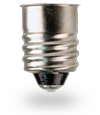
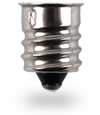
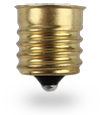
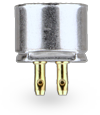
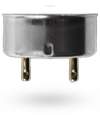
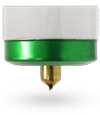
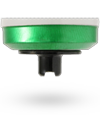
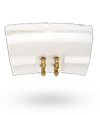
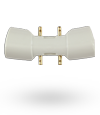
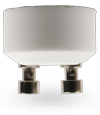
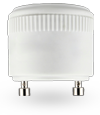
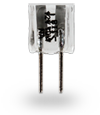
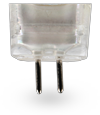
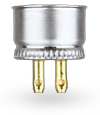
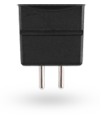
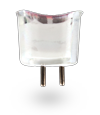
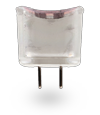
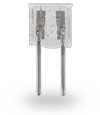
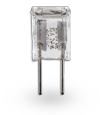
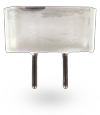
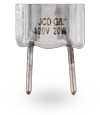
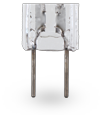
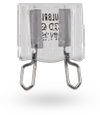
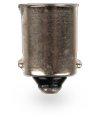
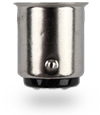
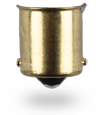
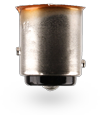
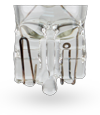
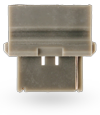
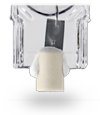
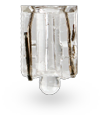
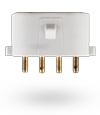
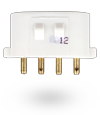
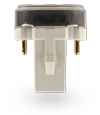
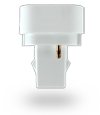
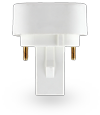
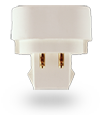
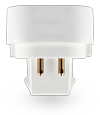
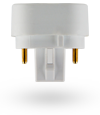
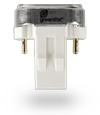
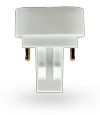
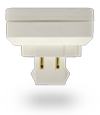
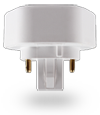
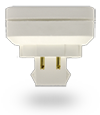
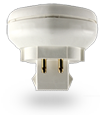
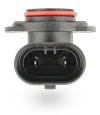
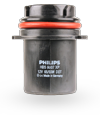
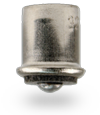
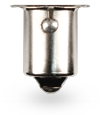
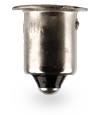
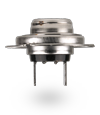
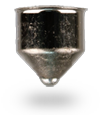
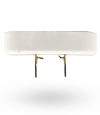
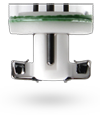
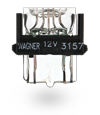
Light Bulb Base Chart | Reference Charts | Bulbs.com

Light Bulb Base Chart

Source: Light Bulb Base Chart | Reference Charts | Bulbs.com

How to Unlock SPA2102

To reset the SPA-2102 to factory defaults follow these steps:

Plug in power adapter.
Plug in a phone to ‘Phone 1′ port of the SPA-2102.

Dial **** You should hear ‘Configuration Option Menu’.

Dial 73738# (RESET#) Press 1 to confirm the reset.

The SPA-2102 should now have been reset to factory default settings.

You may need to do the following to set up web management depending on which interface you are coming in on:

Dial **** into the phone connected to the ATA device. You should hear ‘Configuration Option Menu’.

Dial 7932 then press 1 to enable. Hang up when you hear option saved.

2. Get access to your SPA-2102 web interface. Plug in Ethernet cable to router and wait for several seconds.

Dial ****110# Listen to IP Address which is read back to you.

Plug your PC into the LAN (Ethernet) port of the SPA-2102. Enter IP Address into your web browser (For example. http://192.168.1.10). You should now see the Linksys SPA-2102 Web Interface


Show “Copy as Path” Always in Right-Click Menu Without Shift Key » Winhelponline

Show “Copy as Path” Always in Right-Click Menu Without Shift Key

This post tells you how to always show the Copy Path option in the right-click menu by default in Windows 10, without needing to press Shift every time.

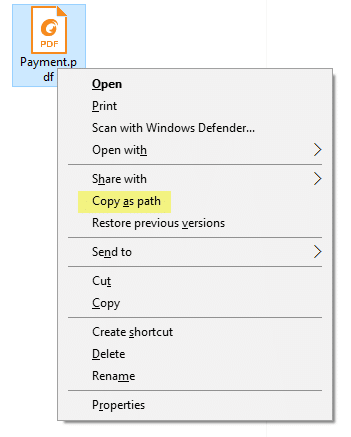
The much useful “Copy as Path” built-in context menu exists in all versions of Windows. It’s an extended command which means you need to hold down the Shift key to access the extended menu item. Press and hold Shift, and right-click on a file or folder. Click “Copy as Path option” in the context menu. The object’s (file or folder) full path is now copied to the Clipboard.

Here is how the standard “Copy as Path” option appears.

copy-as-path-always-show-windows-10
Copy as path right-click menu with Shift pressed.

Always Show “Copy as Path” in the Right-click Menu

If you frequently use Copy as Path, having to access it by pressing the Shift key every time can be annoying like hell. There is a registry tweak to show the menu by default without having to press the Shift key down.

  1. Copy the following lines to Notepad.
    Windows Registry Editor Version 5.00
    
    ;Show Copy as Path always in the right-click menu, without pressing SHIFT
    ;Ramesh Srinivasan, Winhelponline.com
    
    [HKEY_CLASSES_ROOT\Allfilesystemobjects\shell\windows.copyaspath]
    @="Copy &as path"
    "Icon"="imageres.dll,-5302"
    "InvokeCommandOnSelection"=dword:00000001
    "VerbHandler"="{f3d06e7c-1e45-4a26-847e-f9fcdee59be0}"
    "VerbName"="copyaspath"
    
  2. Save the file as copyaspath.reg – see also How to use .REG files
  3. Double-click the registry file to run it.

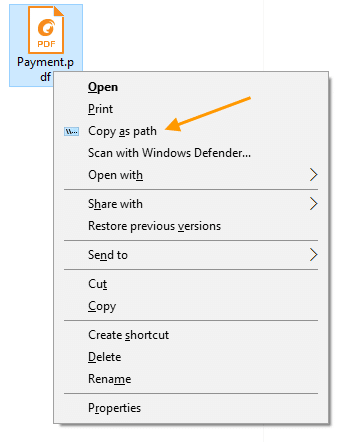
Here is how the new “Copy as path” command appears in the context menu of a file or folder.

copy-as-path-always-show-windows-10
Copy as Path menu option without using Shift.

(The above registry tweak is based on the article How to Add a Ribbon Command to Right-click Menu)

Optionally, you can customize the menu icon by editing the “Icon” path in the REG file or the registry directly.

openvpn – How to force all traffic through VPN?

How to force all traffic through OpenVPN


Add the following directive to the server configuration file:

push “redirect-gateway def1”

If your VPN setup is over a wireless network, where all clients and the server are on the same wireless subnet, add the local flag:

push “redirect-gateway local def1”

Pushing the redirect-gateway option to clients will cause all IP network traffic originating on client machines to pass through the OpenVPN server. The server will need to be configured to deal with this traffic somehow, such as by NATing it to the internet, or routing it through the server site’s HTTP proxy.

If you want to configure this on the client side, put

redirect-gateway def1

in your client.ovpn file.

Some stuff about things