Category Archives: Computer

130+ Vim Commands

Essential Vim Commands

Since the 1970’s, Vi and its successor Vim have been included by default on many operating systems, including almost all GNU/Linux distributions.

Vim is free and open-source and is one of the most popular code editors. It can be downloaded on Vim official site.

Table of Contents  show 

Vim is a modal text editor, which means that it has a mode for writing text, a mode for running commands, etc.

Vim has a total of 12 different editing modes.

The three main modes are:

  • Command mode (also sometimes referred to as Normal mode) is where you can run commands. This is the default mode in which Vim starts up.
  • Insert mode is the mode where you insert/write your text.
  • Visual mode is where you visually select a bunch of text so that you can run a command/operation only on that part of the text.

Basic Vim Commands

Let’s start with an easy set of Vim commands to open, save, and exit Vim.

:e filename Open filename for edition
:w Save file
:q Exit Vim
:q! Quit without saving
😡 Write file (if changes has been made) and exit
:sav filename Saves file as filename
. Repeats the last change made in normal mode

Moving in the File

While in command mode, the following set of commands will allow you to easily move the cursor in the file, jump to a particular line number, or set the cursor position at the beginning of the file.

k or Up Arrow move the cursor position up one line
j or Down Arrow move the cursor down one line
e move the cursor to the end of the word
b move the cursor to the beginning of the word
0 move the cursor to the beginning of the line
G move the cursor to the end of the file
gg move the cursor to the beginning of the file
L move the cursor to the bottom of the screen
:59 move cursor to line number 59. Replace 59 by the desired line number.
% Move cursor to matching parenthesis
[[ Jump to function start
[{ Jump to block start

Cut, Copy & Paste

Here are some basic Vim commands to cut, copy and paste portions of text. All the commands below has to be ran in command mode.

y Copy the selected text to clipboard
p Paste clipboard contents
dd Cut current line
yy Copy current line
y$ Copy to end of line
D Cut to end of line

Search

In command mode, you can easily search for any string within a file. This is extremely useful for developers and sysadmins alike.

/word Search word from top to bottom
?word Search word from bottom to top
* Search the word under cursor
/\cstring Search STRING or string, case insensitive
/jo[ha]n Search john or joan
/\< the Search the, theatre or then
/the\> Search the or breathe
/fred\|joe Search fred or joe
/\<\d\d\d\d\> Search exactly 4 digits
/^\n\{3} Find 3 empty lines
:bufdo /searchstr/ Search in all open files
bufdo %s/something/somethingelse/g Search something in all the open buffers and replace it with somethingelse

Replace

Vim command line tool is extremely useful to replace many occurrences of a string by another within a file. Using more advanced commands, there are a lot of search and replace options available.

:%s/old/new/g Replace all occurrences of old by new in file
:%s/onward/forward/gi Replace onward by forward, case insensitive
:%s/old/new/gc Replace all occurrences with confirmation
:%s/^/hello/g Replace the beginning of each line by hello
:%s/$/Harry/g Replace the end of each line by Harry
:%s/onward/forward/gi Replace onward by forward, case insensitive
:%s/ *$//g Delete all white spaces
:g/string/d Delete all lines containing string
:v/string/d Delete all lines containing which didn’t contain string
:s/Bill/Steve/ Replace the first occurrence of Bill by Steve in current line
:s/Bill/Steve/g Replace Bill by Steve in current line
:%s/Bill/Steve/g Replace Bill by Steve in all the file
:%s/^M//g Delete DOS carriage returns (^M)
:%s/\r/\r/g Transform DOS carriage returns in returns
:%s#<[^>]\+>##g Delete HTML tags but keeps text
:%s/^\(.*\)\n\1$/\1/ Delete lines which appears twice
Ctrl+a Increment number under the cursor
Ctrl+x Decrement number under cursor
ggVGg? Change text to Rot13

Case

Vim has some powerful commands to modify the case of text. All the commands below have to be run in command mode.

Vu Lowercase line
VU Uppercase line
g~~ Invert case
vEU Switch word to uppercase
vE~ Modify word case
ggguG Set all text to lowercase
gggUG Set all text to uppercase
:set ignorecase Ignore case in searches
:set smartcase Ignore case in searches excepted if an uppercase letter is used
:%s/\<./\u&/g Sets first letter of each word to uppercase
:%s/\<./\l&/g Sets first letter of each word to lowercase
:%s/.*/\u& Sets first letter of each line to uppercase
:%s/.*/\l& Sets first letter of each line to lowercase

Read and Write Files

Vim is clearly one of the most powerful text editors available. This section shows how you can manipulate files, insert the content of a file into another, and export portions of a file into a new file.

:1,10 w outfile Saves lines 1 to 10 in outfile
:1,10 w >> outfile Appends lines 1 to 10 to outfile
:r infile Insert the content of infile
:23r infile Insert the content of infile under line 23

File Explorer

Vim features a built in file explorer, which allows you to explorer the content of your server without exiting the text editor.

:e . Open integrated file explorer
:Sex Split window and open integrated file explorer
:Sex! Same as :Sex but split window vertically
:browse e Graphical file explorer
:ls List buffers
:cd .. Move to parent directory
:args List files
:args *.php Open file list
:grep expression *.php Returns a list of .php files containing expression
gf Open file name under cursor

Interact With Unix

Vim is installed by default on most Unix based operating systems, including Mac OS and most GNU/Linux distros. It therefore feature various commands that allows you to interact with the OS.

:!pwd Execute the pwd unix command, then returns to Vi
!!pwd Execute the pwd unix command and insert output in file
:sh Temporary returns to Unix
$exit Retourns to Vi

Alignment

In command mode, you can quickly and easily align a file’s lines for better clarity.

:%!fmt Align all lines
!}fmt Align all lines at the current position
5!!fmt Align the next 5 lines

Tabs and Windows

One of my favorite Vim options is the ability to use tabs to edit various files at the same time. The following Vim commands will let you open, close, and organize your tabs for better productivity.

:tabnew Creates a new tab
gt Show next tab
:tabfirst Show first tab
:tablast Show last tab
:tabm n(position) Rearrange tabs
:tabdo %s/foo/bar/g Execute a command in all tabs
:tab ball Puts all open files in tabs
:new abc.txt Edit abc.txt in new window

Window Spliting

Vim allows you to split the screen horizontally or vertically, so you can edit many files at once using the insert mode.

:e filename Edit filename in current window
:split filename Split the window and open filename
ctrl-w up arrow Puts cursor in top window
ctrl-w ctrl-w Puts cursor in next window
ctrl-w_ Maximize current window vertically
ctrl-w| Maximize current window horizontally
ctrl-w= Gives the same size to all windows
10 ctrl-w+ Add 10 lines to current window
:vsplit file Split window vertically
:sview file Same as :split in readonly mode
:hide Close current window
:­nly Close all windows, excepted current
:b 2 Open #2 in this window

Auto-Completion

Vim can use external dictionaries to provide auto-completion. This can be a real time saver, so pay attention to the commands below if you want to speed up your workflow.

Ctrl+n Ctrl+p (To be used in insert mode) Complete word
Ctrl+x Ctrl+l Complete line
:set dictionary=dict Define dict as a dictionary
Ctrl+x Ctrl+k Complete with dictionary

Marks

When editing large files, it can be tricky to move in the file and remember important sections. Happily, Vim allows its users to create marks that can easily be accessed later. No need to remember a dozen of line numbers anymore!

m {a-z} Marks current position as {a-z}
‘ {a-z} Move to position {a-z}
Move to previous position

Abbreviations

This little known trick lets you define abbreviations that can be reused later and as many times as needed.

:ab mail mail@provider.org Define mail as abbreviation of mail@provider.org

Text Indentation

Text indentation is vital when it comes to code readability. Luckily, Vim has a set of commands for the text editor to indent your lines in a clear and readable manner.

:set autoindent Turn on auto-indent
:set smartindent Turn on intelligent auto-indent
:set shiftwidth=4 Defines 4 spaces as indent size
ctrl-t, ctrl-d Indent/un-indent in insert mode
>> Indent
<< Un-indent
=% Indent the code between parenthesis
1GVG= Indent the whole file

Frequently Asked Questions

Vim basic commands

How do I Type Commands in Vim?

To type commands, you have to first activate Vim’s command mode. To do so, press the Esc key of your keyboard. You can then type any command of your choice.

How do I Start Typing Text in Vim?

Vim must be in insert mode for you to type text. Simply press the i key when in command mode to enter the insert mode.

Beyond basic modal editing. Using vim’s command-line mode.

Vim is famous for its fabulous modal editing. Its normalinsert, and visual modes quickly become magic in the hands of an able user. But many are unaware or ignore the existence of vim’s command-line mode with its Ex commands.

Whereas vim’s normal and insert mode work in the locale of your cursor, vim’s command-line mode can help you deal with things far from your cursor. Or as Drew Neil puts it in his Practical Vim book,

Vim’s Ex commands strike far and wide.

Let’s look at a few of them.

Copy (copy, t), move (m), and delete (d)

We’ll start by copying, moving, and deleting lines. You access vim’s command-line mode with :. Copying, moving, and deleting can be intuitive. What would you say this command did?

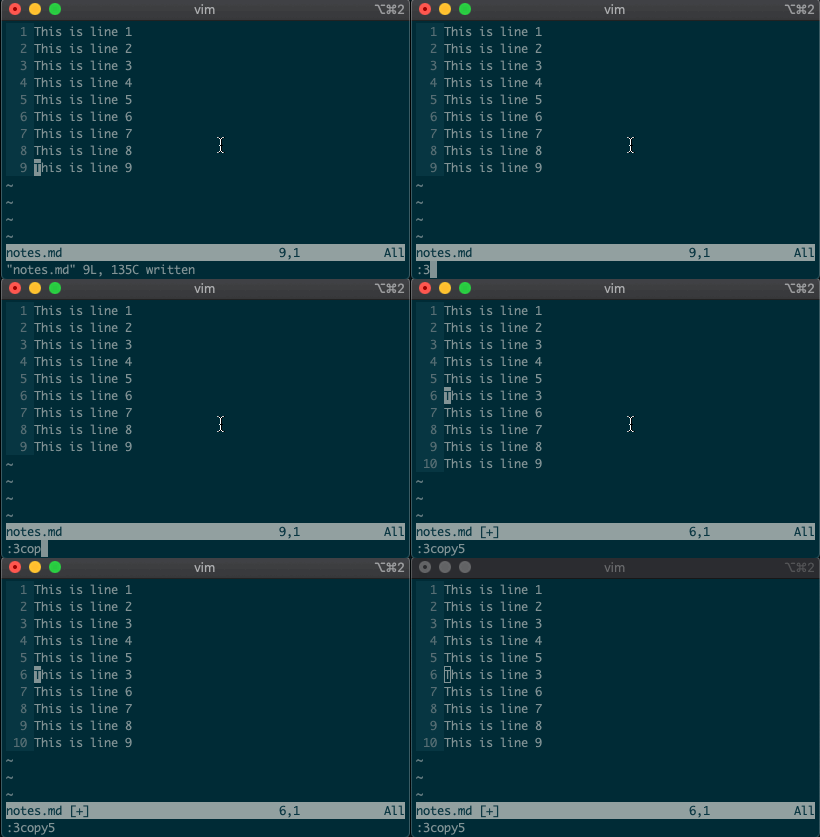
:3copy5

If you guessed copy line three to line five, then you got it!

Copying line 3 to 5 with `:3copy5`

t is shorthand for copy (think copy to). So :3t5 does the same thing as the command above.

Do move and delete work the same way? You betcha.

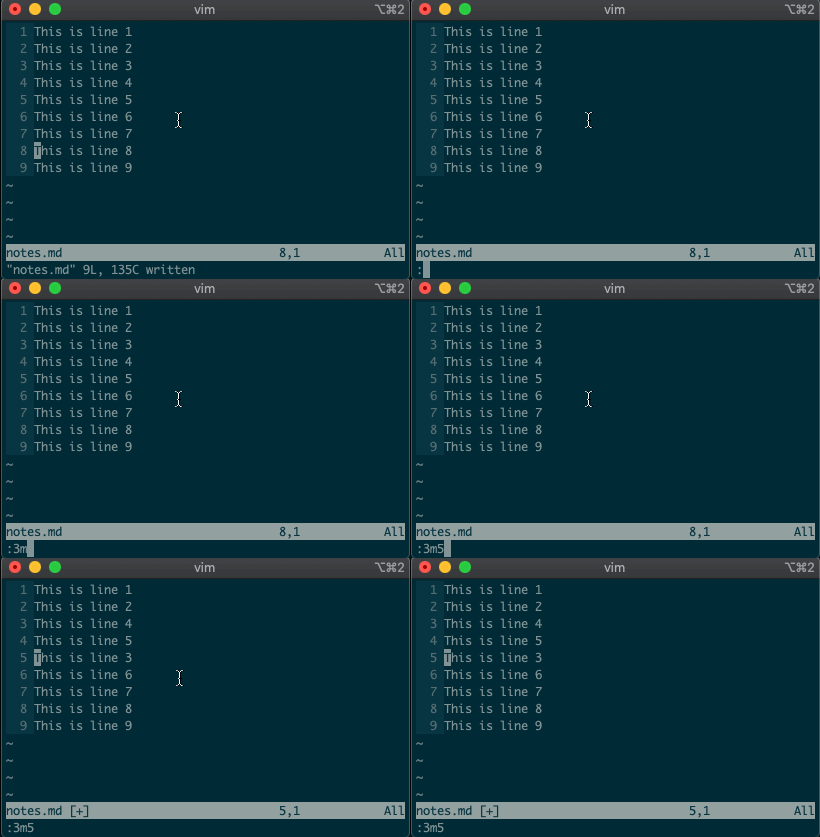
Try moving a line with :3m5.

Moving line 3 to 5 with `:3m5`

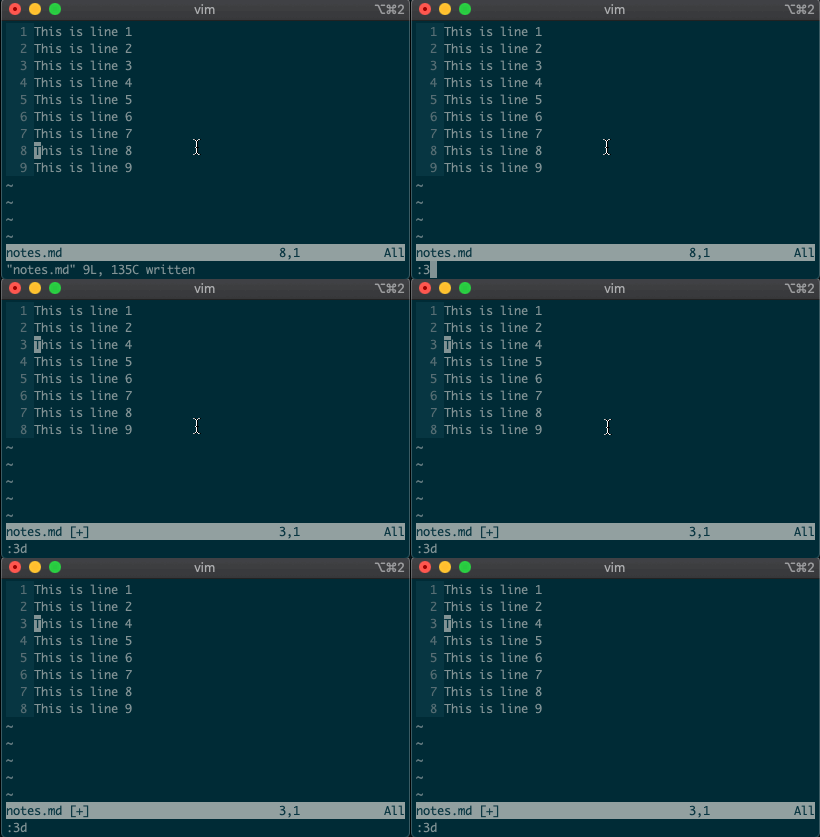
Now try deleting a line with :3d.

Deleting line 3 with `:3d`

Acting on ranges

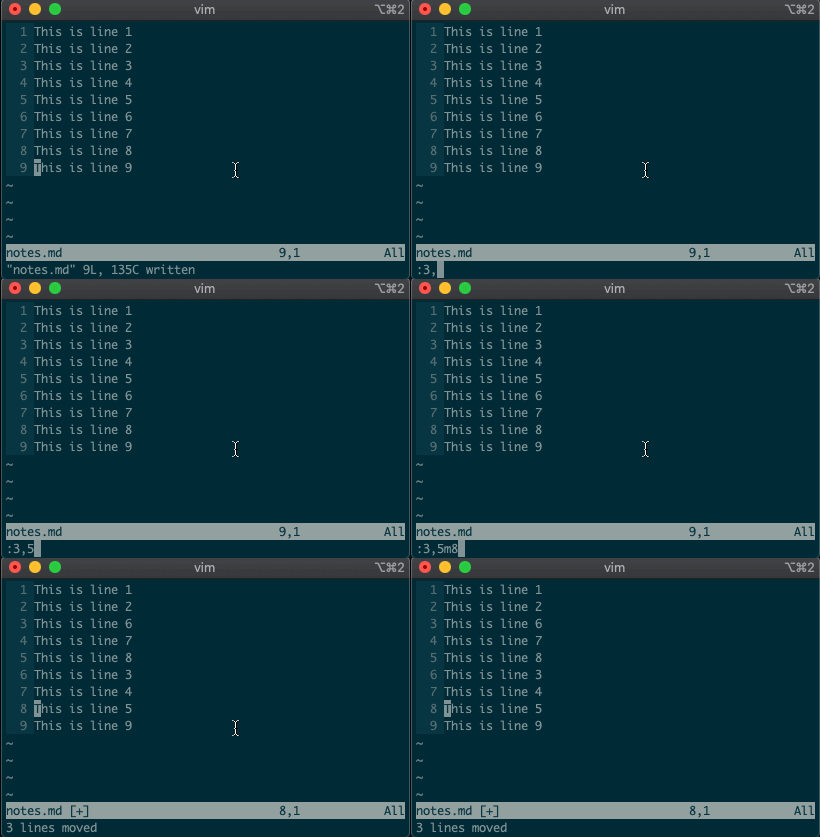
But that’s not all. Ex commands aren’t limited to single lines. They can act on ranges. Want to move lines 3-5 to line 8? You got it:

:3,5m8

Moving lines 3-5 to 8 with `:3,5m8`

Relative ranges

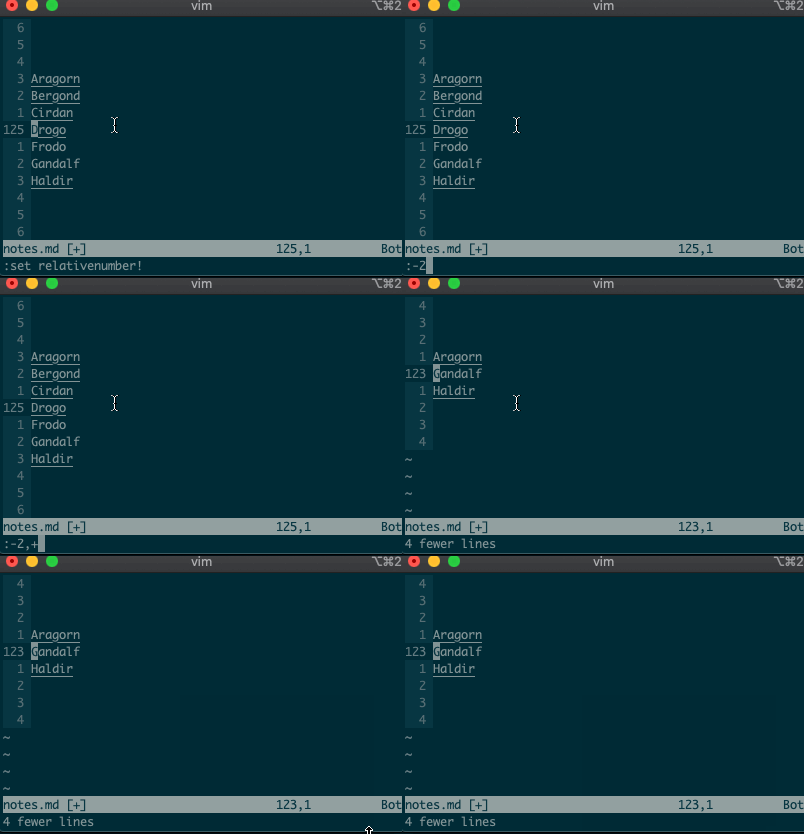
I know what you’re thinking, “But what if I’m on line 125, and I use relative numbers!” Not to worry. Vim has a range for you too:

:-2,+1d

Delete the two previous line and the next line with `:-2,+1d`

The visual range

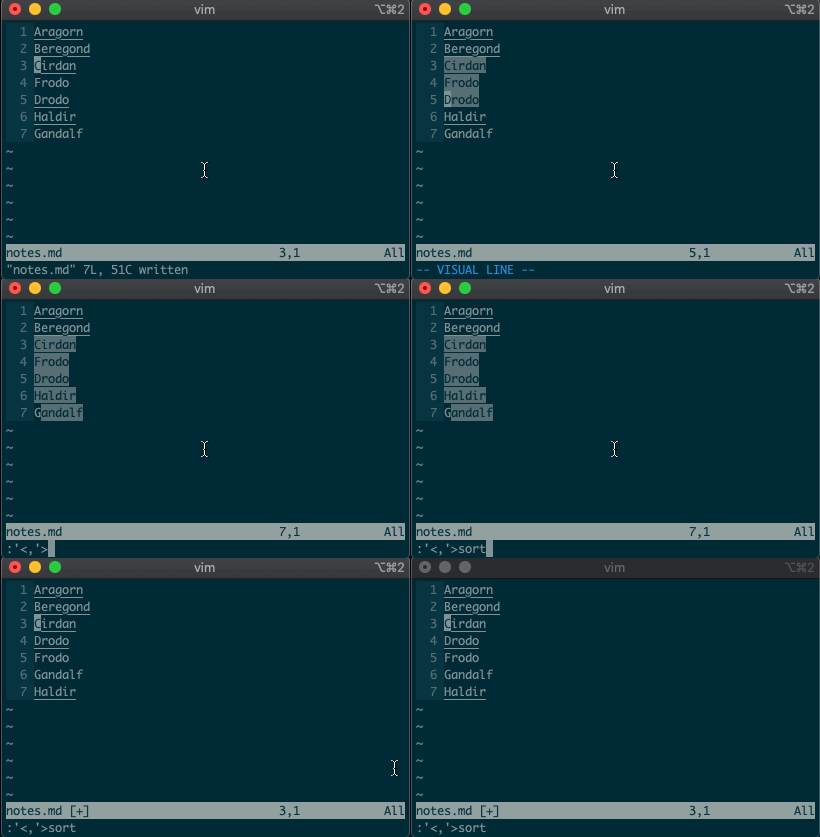
What about using a visual selection as a range? If you’re like me, you’ve probably used vim to help you sort lines by visually selecting them and typing :sort. Did you ever notice the range vim inserts for us? It’s the special visual selector range:

:'<,'>sort

Visually select lines 3-7 and sort with `:sort`

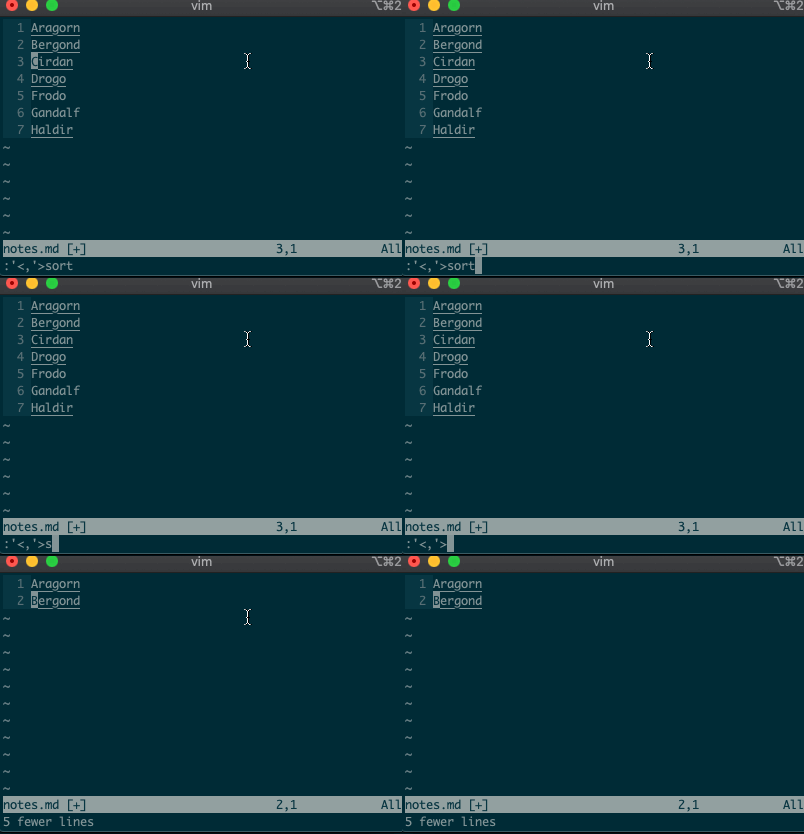
Want to perform other actions on that same visual block? The visual selector range ('<,'>) continues to operate on the previous visual selection, even when that range is no longer selected! Let’s delete the lines we sorted last time:

:'<,'>d

Delete lines previously visually selected with `:'<,'>d`

Want to learn more about the visual selector range? As it turns out, ranges can be delimited by marks, and '< and '> are just a couple of special marks. That opens ranges to a world of possibilities! Try '{,'} for paragraphs and '(,') for sentences.

Search and replace

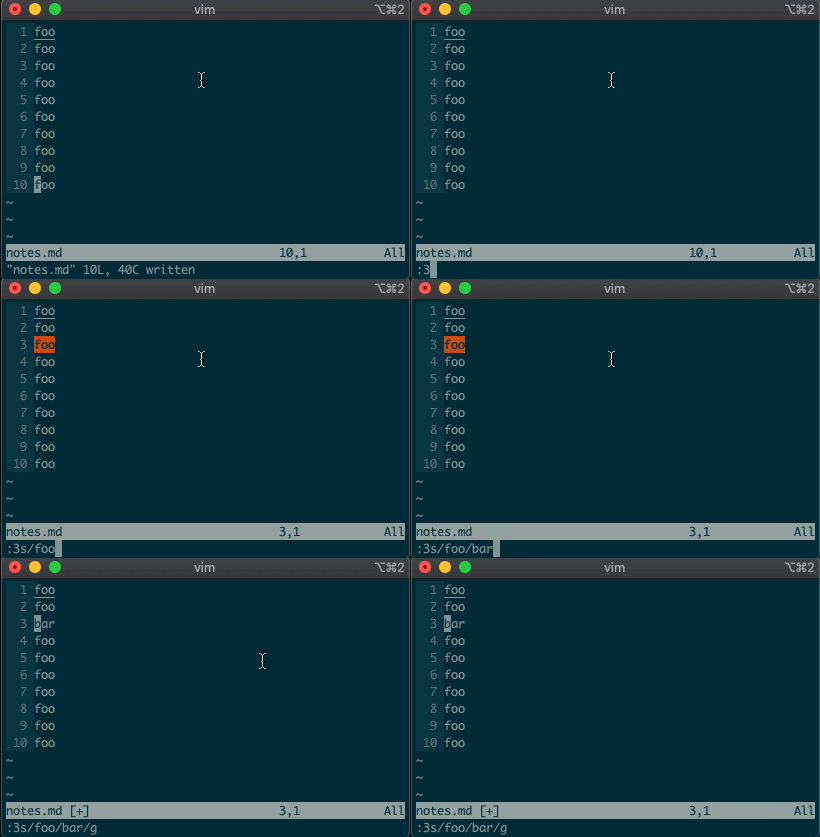
Perhaps you’ve never stopped to think about the magical incantation you use to search and replace words in a file. Well, we can finally uncover the mystery: s will replace things (think substitute). Want to replace foo with bar on line 3?

:3s/foo/bar/g

Replace foo with bar on line 3 with `:3s/foo/bar/g`

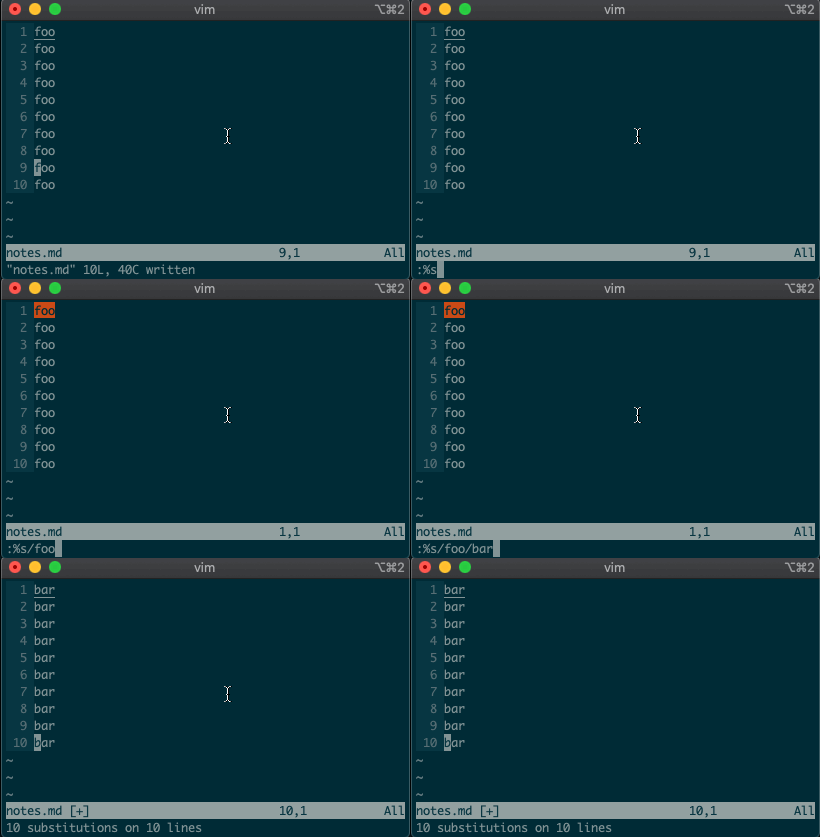
What if you want to search and replace in the entire file? We can use a range from the first line to the end of the file: 1,$, or even better, we can use vim’s shorthand for the whole file: %. Go ahead. Type it in, and see the magic work:

:%s/foo/bar/g

Replace foo with bar on all lines with `:%s/foo/bar/g`

Repeat a normal command

In addition to modal editing, vim is known for its ability to repeat the last command with .. Maybe you delete a line with dd, then you realize you need to delete the next one. No need to press dd again, just type . and you’re good to go.

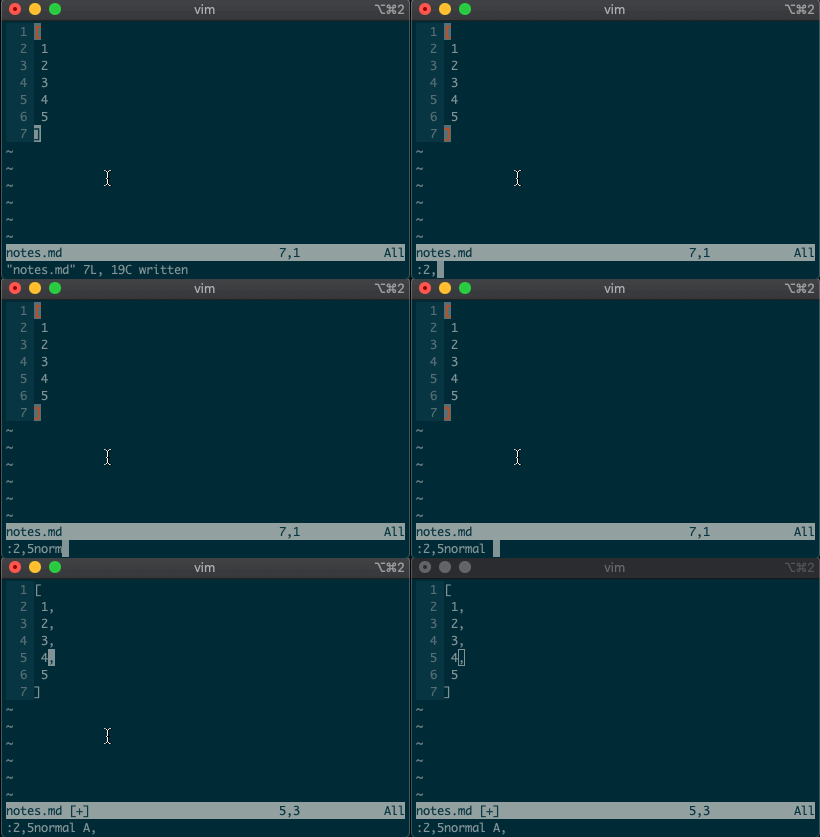
But what about repeating the same command across many lines? What would you do if you wanted to append a comma at the end of each line in a list? Ex commands are here to help you:

:2,5normal A,

Append comma on lines 2-5 with `:2,5normal A,`

Repeat the last Ex command

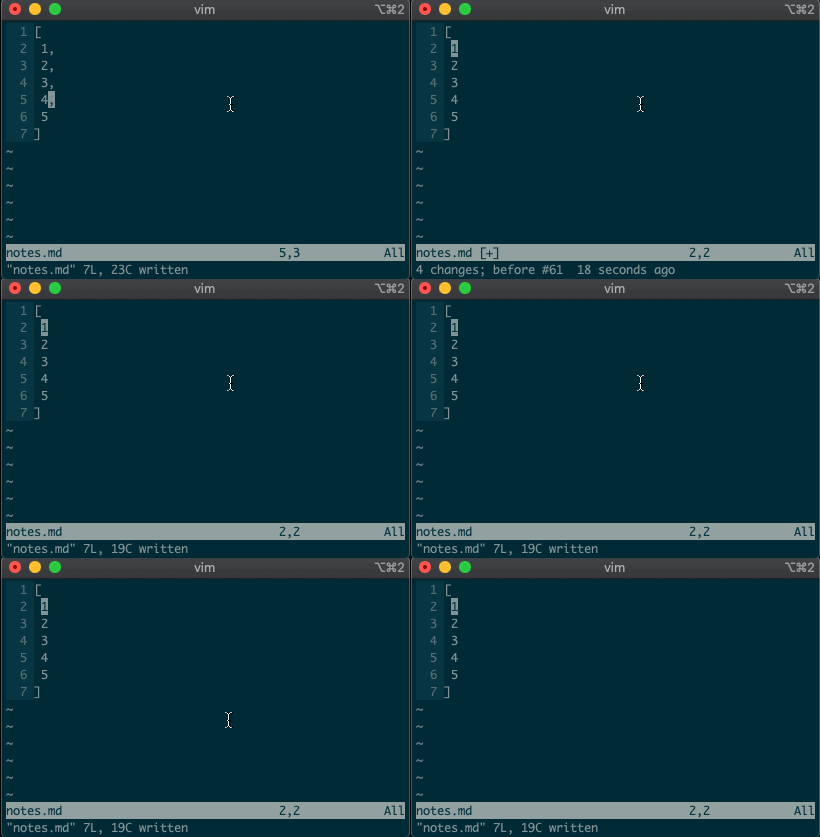
. repeats the last normal command. What if we want to repeat the last Ex command? We can do that too.

@:

Repeat last command with `@:`

If you’ve ever used macros in vim, you might notice this looks like a macro for the : register. Find that interesting? Take a look at your registers (:reg) and see what you find for :.

What next?

I hope you see the power of Ex commands. Instead of typing 2Gdd to go to the second line and delete it, you can delete it from afar with :2d. And instead of going to line 3, visually selecting lines 3-5, yanking them, going down to line 10, and pasting the lines with 3GVjjjy10Gp, you can just do it from anywhere in the file with :3,5t10.

If you want to learn more, I highly recommend Drew Neil’s Practical Vim book, or take a look at the excellent documentation for different vim modes and for the Ex commands copymovedeletesubstitute. And if you want to dig deeper, help is just a :help away.

Until next time!

Source: Beyond basic modal editing. Using vim’s command-line mode.

The Ultimate Guide to Robocopy

Common Robocopy Syntax Reference

Why such a long blog post on a single utility? Just feast your eyes on the tables below. You have a lot of options to copy or move files with robocopy! You will more options in the individual sections.

These tables were built from the help syntax returned from robocopy /?. They’ve been broken up into more meaningful sections, added to over time and cleaned up to provide more useful info.

Source Options

Switch Explanation Default Behavior Equivalent Switch Notes
/S Copy subfolders
/E Copy subfolders including empty subfolders
/COPY:[DATSOU] Copy options /COPY:DAT D=Data, A=Attributes, T=Timestamps S=Security=NTFS ACLs, O=Owner info, U=aUditing info. File Data (D) always includes file Timestamps (T)
/SEC Copy files with SECurity /COPY:DATS
/DCOPY:T Copy directory timestamps
/COPYALL Copy ALL file info /COPY:DATSOU This will prevent dehydrating offline files and will instead copy the file’s tag (on emc VNX/Unity systems at least). This is not officially documented! If dehydration is what you need (reason i found this issue), you can’t copy the ACLs along your files. CREDIT: Monsieurx (Reddit)
/NOCOPY Copy NO file info useful with /PURGE
/A Copy only files with the Archive attribute set
/M like /A, but remove Archive attribute from source files
/LEV:n Only copy the top n LEVels of the source tree
/MAXAGE:n MAXimum file AGE – exclude files older than n days/date
/MINAGE:n MINimum file AGE – exclude files newer than n days/date If n < 1900 then n = no of days, else n = YYYYMMDD date
/FFT Assume FAT File Times 2-second date/time granularity. This replaces NTFS timestamps. Seems to be more reliable when transferring over a network.
/256 Turn off very long path (> 256 characters) support

Destination Options

Switch Explanation Default Behavior Equivalent Switch Notes
/A+:[RASHCNET] Set file attribute(s) on destination files + add
/A-:[RASHCNET] Remove file attribute(s) on destination files
/FAT Create destination files using 8.3 FAT file names only
/CREATE Create directory tree structure + zero-length files only
/DST Compensate for one-hour DST time differences

Copy Options

Switch Explanation Default Behavior Equivalent Switch Notes
/L List files only Don’t copy, timestamp or delete any files
/MOV Move files Delete from source after copying
/MOVE Move files and directories Delete from source after copying
/sl Copy file symbolic links instead of the target
/Z Copy files in restartable mode Survive a network glitch
/B Copy files in backup mode
/J Copy using unbuffered I/O Recommended for large files
/NOOFFLOAD Copy files without using the Windows copy offload mechanism https://docs.microsoft.com/en-us/previous-versions/windows/it-pro/windows-server-2012-R2-and-2012/hh831628(v=ws.11)
/EFSRAW Copy any encrypted files using EFS RAW mode
/TIMFIX Fix file times on all files, even skipped files
/XO Exclude older if destination file exists and is the same date or newer than the source – don’t bother to overwrite it.
/XC Exclude changed files
/XN Exclude newer files
/XX Exclude files present in destination but not source /XX
/XF file [file]… Exclude files matching given names/paths/wildcards
/XD dirs [dirs]… Exclude directories matching given names/paths. /XF and /XD can be used in combination e.g. ROBOCOPY c:\source d:\dest /XF *.doc *.xls /XD c:\unwanted /S
/IA:[RASHCNETO] Include files with any of the given attributes
/XA:[RASHCNETO] Exclude files with any of the given attributes
/IS Overwrite files even if they are already the same
/IT Include tweaked files
/XJ Exclude junction points from source /XJ
/XJD Exclude junction points from source directories
/XJF Exclude junction points from source files
/MAX:n Exclude files bigger than n bytes
/MIN:n Exclude files smaller than n bytes
/MAXLAD:n Exclude files unused since n
/MINLAD:n Exclude files used since n If n < 1900 then n = n days, else n = YYYYMMDD date
/MIR Mirror a directory tree /PURGE /E
/PURGE Delete dest files/folders that no longer exist in source
/XL Exclude files present in source but not destination
/SECFIX Robocopy /secfix fixes file security on all files, even skipped files. Specify the type of security information you want to copy by also using one of these options: /COPYALL /COPY:O /COPY:S /COPY:U /SEC
/ZB Use restartable mode; if access denied use Backup mode

Monitoring Options

Switch Explanation Default Behavior Equivalent Switch Notes
/R:n Number of retries on failed copies /R:1000000 Always try to set this option. I recommend setting this to 10-20 to not waste time retrying.
/W:n Wait time between retries /W:30 Always try to set this option to a lower number to retry more quickly. I suggest 5-10.
/REG Save /R:n and /W:n in the Windows registry as default settings
/RH:hhmm-hhmm times when new copies can be started
/TBD Wait for sharenames to be defined retry error 67
/PF Check run hours on a per file (not per pass) basis
/MON:n Run again when more than n changes seen
/MOT:m Run again in m minutes, if changed

Source: The Ultimate Guide to Robocopy

mod_rewrite Cheat Sheet by DaveChild

A mod_rewrite Cheat Sheet – a quick reference guide for mod_rewrite, with rewrite flags, regular expression syntax and sample rules.

mod_re­write Tutorials

mod_re­write Rewrit­eRule Flags

C
Chained with next rule
CO=cookie
Set specified cookie
E=var:­value
Set enviro­nmental variable “var” to “value”
F
Forbidden (403 header)
G
Gone – no longer exists
H=handler
Set handler
L
Last – stop processing rules
N
Next – continue processing
NC
Case insens­itive
NE
Do not escape output
NS
Ignore if subrequest
P
Proxy
PT
Pass through
R[=code]
Redirect to new URL, with optional code (see below)
QSA
Append query string
S=x
Skip next x rules
T=mime­-type
Set mime type

mod_re­write Rewrit­eCond Flags

NC
Case insens­itive
OR
Combine with next rule using ‘OR’ instead of the default of ‘AND’

Redire­ction Header Codes

301
Moved perman­ently
302
Moved tempor­arily (default)

mod_re­write Directives

Rewrit­eEngine
RewriteMap
Rewrit­eOp­tions
Rewrit­eBase
RewriteLog
Rewrit­eCond
Rewrit­eLo­gLevel
Rewrit­eRule
Rewrit­eLock

Regular Expres­sions Syntax

^
Start of string
$
End of string
.
Any single character
(a|b)
a or b
(…)
Group section
[abc]
In range (a, b or c)
[^abc]
Not in range
\s
White space
a?
Zero or one of a
a*
Zero or more of a
a*?
Zero or more, ungreedy
a+
One or more of a
a+?
One or more, ungreedy
a{3}
Exactly 3 of a
a{3,}
3 or more of a
a{,6}
Up to 6 of a
a{3,6}
3 to 6 of a
a{3,6}?
3 to 6 of a, ungreedy
\
Escape character
[:punct:]
Any punctu­ation symbol
[:space:]
Any space character
[:blank:]
Space or tab
There’s an excellent regular expression tester at: http:/­/re­gex­pal.com/

mod_re­write Server Variables: HTTP Headers

%{HTTP­_US­ER_­AGENT}
%{HTTP­_RE­FERER}
%{HTTP­_CO­OKIE}
%{HTTP­_FO­RWA­RDED}
%{HTTP­_HOST}
%{HTTP­_PR­OXY­_CO­NNE­CTION}
%{HTTP­_AC­CEPT}

mod_re­write Server Variables: Server Internals

%{DOCU­MEN­T_ROOT}
%{SERV­ER_­ADMIN}
%{SERV­ER_­NAME}
%{SERV­ER_­ADDR}
%{SERV­ER_­PORT}
%{SERV­ER_­PRO­TOCOL}
%{SERV­ER_­SOF­TWARE}

mod_re­write Sample Rule: Site Moved

# Site moved perman­ently
Rewrit­eCond %{HTTP­_HOST} ^www.d­oma­in.com$ [NC]
Rewrit­eRule ^(.*)$ http:/­/ww­w.d­oma­in2.com/$1 [R=301,L]
Rewrites domain.com to domain­2.com

mod_re­write Sample Rule: Temporary Page Move

# Page has moved tempor­arily
Rewrit­eRule ^page.h­tml$ new_pa­ge.html [R,NC,L]
Rewrites domain.co­m/p­age.html to domain.co­m/n­ew_­pag­e.html

mod_re­write Sample Rule: Nice URLs

# Nice URLs (no query string)
Rewrit­eRule ^([A-Z­a-z­0-9­-]+)/?$ catego­rie­s.p­hp?­name=$1 [L]
Rewrites domain.co­m/c­ate­gor­y-n­ame-1/ to domain.co­m/c­ate­gor­ies.ph­p?n­ame­=ca­teg­ory­-name-1

mod_re­write Server Variables: Special

%{API_­VER­SION}
%{THE_­REQ­UEST}
%{REQU­EST­_URI}
%{REQU­EST­_FI­LENAME}
%{IS_S­UBREQ}
%{HTTPS}

mod_re­write Server Variables: Request

%{REMO­TE_­ADDR}
%{REMO­TE_­HOST}
%{REMO­TE_­PORT}
%{REMO­TE_­USER}
%{REMO­TE_­IDENT}
%{REQU­EST­_ME­THOD}
%{SCRI­PT_­FIL­ENAME}
%{PATH­_INFO}
%{QUER­Y_S­TRING}
%{AUTH­_TYPE}

mod_re­write Server Variables: Time

%{TIME­_YEAR}
%{TIME­_MON}
%{TIME­_DAY}
%{TIME­_HOUR}
%{TIME­_MIN}
%{TIME­_SEC}
%{TIME­_WDAY}
%{TIME}

Source: mod_rewrite Cheat Sheet by DaveChild – Download free from Cheatography – Cheatography.com: Cheat Sheets For Every Occasion

How to rotate and flip videos using Handbrake – IT Support Guides

How to rotate and flip videos using Handbrake

HandBrake is a free tool that’s available for Windows, Mac OS and Ubuntu that allows you to take a video in various formats and convert it to an MP4.

The steps below show how to rotate the video being processed.

Before beginning, you need to download and install HandBrake.

  1. Open HandBrake and load your video using the ‘Source’ button to select the video you want to rotate or flip
  2. Choose where to save the rotated video by clicking on the ‘Browse’ button to select where the converted file will be saved.
  3. Open the ‘Filters’ tab
  4. The ‘Rotate’ option allows you to choose four different options
    1. 0 – do nothing
    2. 90 – rotate to the right
    3. 180 – turn upside down
    4. 270 – rotate to the left
  5. Choose the rotate option you require
  6. Click ‘Start Encode’ to begin
  7. At the bottom of the window you will see the progress


Help! It didn’t work

Try the manual way of rotating, by applying manual filters.

  1. Open the ‘Video’ tab
  2. We’ll be working with the ‘Extra Options’ setting.
  3. Once you have the required command entered, click ‘Start Encode’ to begin.
  4.  

Rotate 90 degrees clockwise

To rotate 90 degrees clockwise, enter the following command into the ‘Extra Options’ setting:

, --rotate=4

Rotate 90 degrees anti-clockwise

To rotate 90 degrees anti-clockwise, enter the following command into the ‘Extra Options’ setting:

, --rotate=7

Rotate 180 degrees (upside down)

To rotate 180 degrees so that the video is upside down, enter the following command into the ‘Extra Options’ setting:

, --rotate=3

Other options?

The official HandBrake documentation has more detail on what other options are available.

1 : x flip
2 : y flip
3 : 180 degrees rotate (also the DEFAULT)
4 : 90 degrees rotate (clockwise)
5 : 90 degrees rotate + y flip
6 : 270 degrees rotate + y flip
7 : 270 degrees rotate

Source: How to rotate and flip videos using Handbrake – IT Support Guides