Source: 20 Best Operating Systems You Can Run on Raspberry Pi in 2020
Monthly Archives: April 2021
Prusa Knowledge Base
Source: Prusa Knowledge Base
OpenSCAD – Documentation
Source: OpenSCAD – Documentation
GitHub – Aircoookie/WLED: Control WS2812B and many more types of digital RGB LEDs with an ESP8266 or ESP32 over WiFi!
Development Boards | Espressif Systems
ESP32-DevKitC
How to Use the Polygon Commands in Fusion 360 (all 3 explained)

By the end of this video, you’ll know how to use all 3 Polygon commands that are available in Fusion 360 – Circumscribed, Inscribed, and Edge Polygons.
Source: How to Use the Polygon Commands in Fusion 360 (all 3 explained)
Slic3r Manual
Source: Slic3r Manual – Overview
Making Parametric Models In Fusion 360
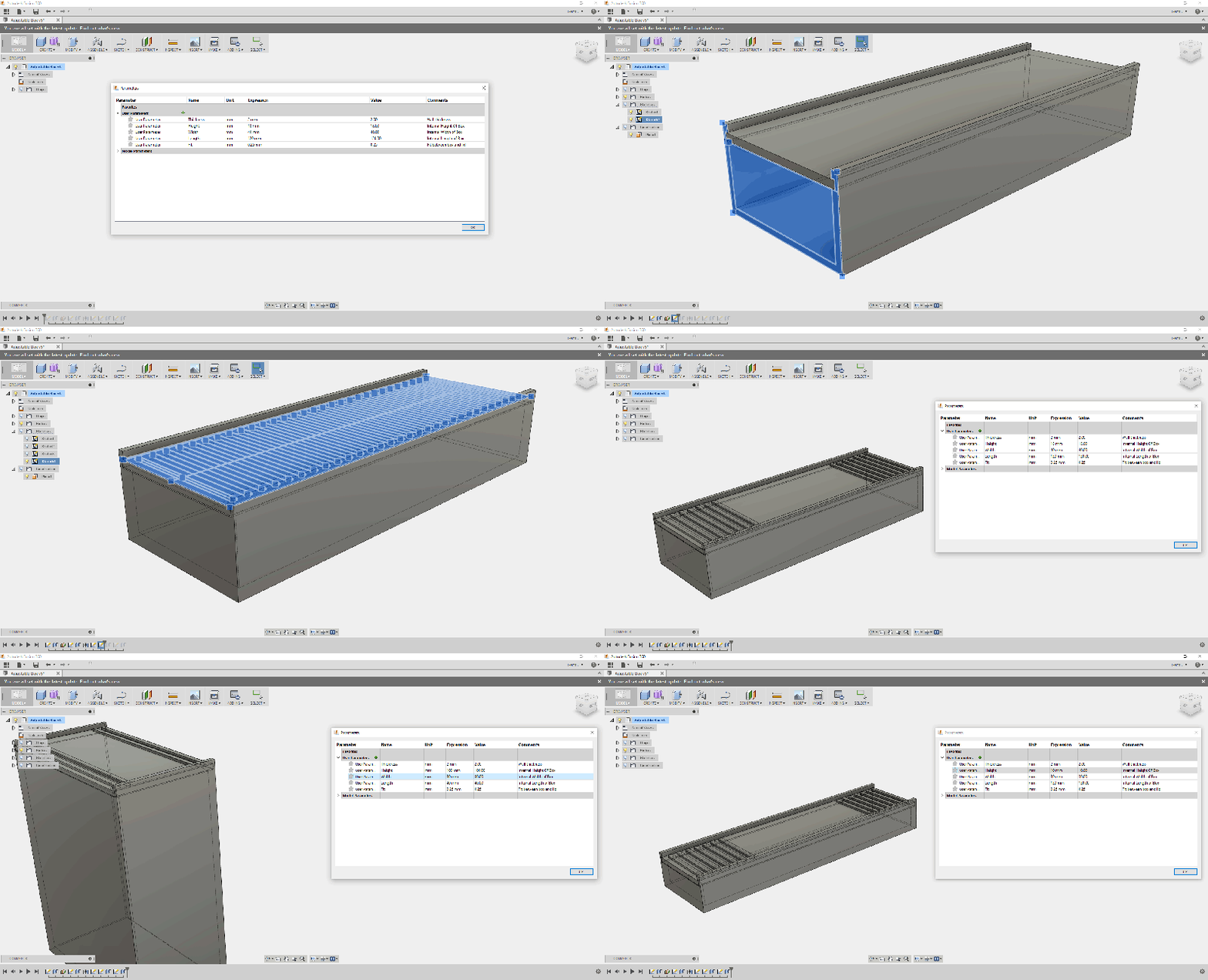
We all know and love OpenSCAD for its sweet sweet parametrical goodness. However, it’s possible to get some of that same goodness out of Fusion 360. To do this we will be making a mathematical mode…
Mount an NFS Share on Windows
Requirements
- Windows computer running server or desktop OS that is in support.
Mounting the NFS Share
- Make sure that the NFS Client is installed.
- Open a Powershell command prompt.
- Run the appropriate command for your situation:
- Server OS: Install-WindowsFeature NFS-Client
- Desktop OS: Enable-WindowsOptionalFeature -FeatureName ServicesForNFS-ClientOnly, ClientForNFS-Infrastructure -Online -NoRestart
- Mount the share using the following command, after making the required modifications (Note – mount cmd from CMD shell, not powershell):
- mount -o anon nfs.share.server.name:/share-name X:
- Replace nfs.share.server.name with the name of the server the NFS share is on (eg. files.umn.edu)
- Replace share-name with the name of the NFS share (eg. OIT-Test)
- Replace X: with the desired drive letter.
- mount -o anon nfs.share.server.name:/share-name X:
Enable Write Permissions for the Anonymous User
With the default options you will only have read permissions when mounting a UNIX share using the anonymous user. We can give the anonymous user write permissions by changing the UID and GID that it uses to mount the share.
The image below shows the a share mounted using the default settings.
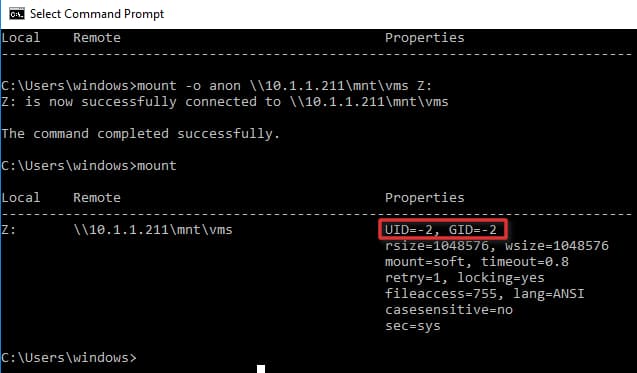
To change the UID and GID we need to make a simple change to the Windows registry by performing the following steps:
- Open regedit by typing it in the search box end pressing Enter.
- Browse to HKEY_LOCAL_MACHINE\SOFTWARE\Microsoft\ClientForNFS\CurrentVersion\Default.
- Create a new New DWORD (32-bit) Value inside the Default folder named AnonymousUid and assign the UID found on the UNIX directory as shared by the NFS system. (Use Decimal values)
- Create a new New DWORD (32-bit”) Value inside the Default folder named AnonymousGid and assign the GID found on the UNIX directory as shared by the NFS system. (Use Decimal values).
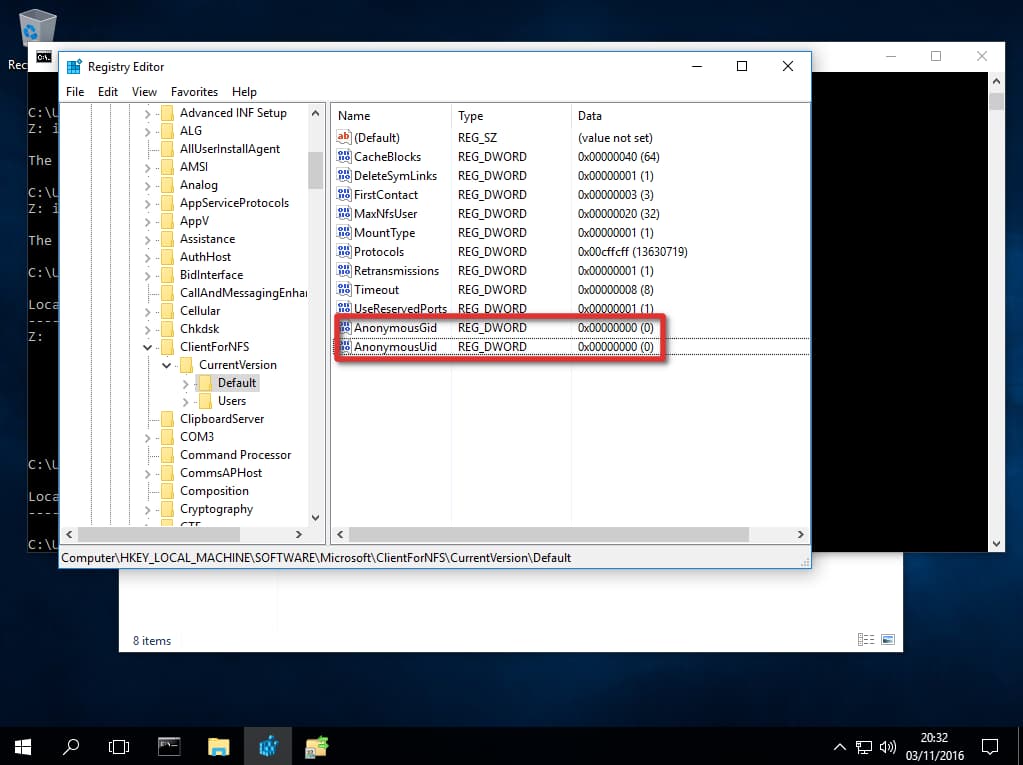
- Restart the NFS client or reboot the machine to apply the changes.
- To Restart NFS client without having to restart Windows:
- net stop nfsclnt
net stop nfsrdr
net start nfsrdr
net start nfsclnt
- net stop nfsclnt
How to Mount an NFS Share
Assuming your NAS device is on the same network as your Windows machine and the IP address of the device is 10.1.1.211, the following command will mount a share on the NFS system at /mnt/vms.
C:\Users\windows> mount -o anon \\10.1.1.211\mnt\vms Z:
Z: is now successfully connected to \\10.1.1.211\mnt\vms

The command completed successfully.
The share is now mounted and we can access the data by navigating to the Z: drive.