Show “Copy as Path” Always in Right-Click Menu Without Shift Key
This post tells you how to always show the Copy Path option in the right-click menu by default in Windows 10, without needing to press Shift every time.
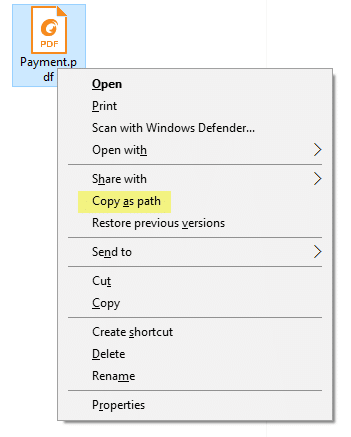
The much useful “Copy as Path” built-in context menu exists in all versions of Windows. It’s an extended command which means you need to hold down the Shift key to access the extended menu item. Press and hold Shift, and right-click on a file or folder. Click “Copy as Path option” in the context menu. The object’s (file or folder) full path is now copied to the Clipboard.
Here is how the standard “Copy as Path” option appears.
Copy as path right-click menu with Shift pressed.
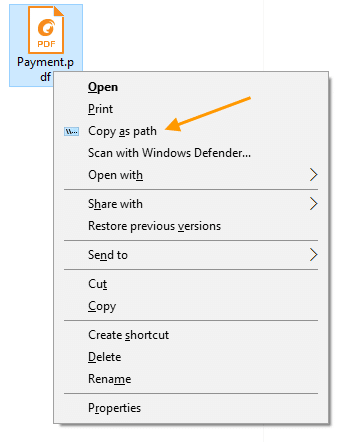
Always Show “Copy as Path” in the Right-click Menu
If you frequently use Copy as Path, having to access it by pressing the Shift key every time can be annoying like hell. There is a registry tweak to show the menu by default without having to press the Shift key down.
Copy the following lines to Notepad.
Windows Registry Editor Version 5.00

;Show Copy as Path always in the right-click menu, without pressing SHIFT
;Ramesh Srinivasan, Winhelponline.com

[HKEY_CLASSES_ROOT\Allfilesystemobjects\shell\windows.copyaspath]
@="Copy &as path"
"Icon"="imageres.dll,-5302"
"InvokeCommandOnSelection"=dword:00000001
"VerbHandler"="{f3d06e7c-1e45-4a26-847e-f9fcdee59be0}"
"VerbName"="copyaspath"