Why such a long blog post on a single utility? Just feast your eyes on the tables below. You have a lot of options to copy or move files with robocopy! You will more options in the individual sections.
These tables were built from the help syntax returned from robocopy /?. They’ve been broken up into more meaningful sections, added to over time and cleaned up to provide more useful info.
Source Options
Switch
Explanation
Default Behavior
Equivalent Switch
Notes
/S
Copy subfolders
/E
Copy subfolders including empty subfolders
/COPY:[DATSOU]
Copy options
/COPY:DAT
D=Data, A=Attributes, T=Timestamps S=Security=NTFS ACLs, O=Owner info, U=aUditing info. File Data (D) always includes file Timestamps (T)
/SEC
Copy files with SECurity
/COPY:DATS
/DCOPY:T
Copy directory timestamps
/COPYALL
Copy ALL file info
/COPY:DATSOU
This will prevent dehydrating offline files and will instead copy the file’s tag (on emc VNX/Unity systems at least). This is not officially documented! If dehydration is what you need (reason i found this issue), you can’t copy the ACLs along your files. CREDIT: Monsieurx (Reddit)
/NOCOPY
Copy NO file info
useful with /PURGE
/A
Copy only files with the Archive attribute set
/M
like /A, but remove Archive attribute from source files
/LEV:n
Only copy the top n LEVels of the source tree
/MAXAGE:n
MAXimum file AGE – exclude files older than n days/date
/MINAGE:n
MINimum file AGE – exclude files newer than n days/date
If n < 1900 then n = no of days, else n = YYYYMMDD date
/FFT
Assume FAT File Times
2-second date/time granularity. This replaces NTFS timestamps. Seems to be more reliable when transferring over a network.
/256
Turn off very long path (> 256 characters) support
Destination Options
Switch
Explanation
Default Behavior
Equivalent Switch
Notes
/A+:[RASHCNET]
Set file attribute(s) on destination files + add
/A-:[RASHCNET]
Remove file attribute(s) on destination files
/FAT
Create destination files using 8.3 FAT file names only
/CREATE
Create directory tree structure + zero-length files only
/DST
Compensate for one-hour DST time differences
Copy Options
Switch
Explanation
Default Behavior
Equivalent Switch
Notes
/L
List files only
Don’t copy, timestamp or delete any files
/MOV
Move files
Delete from source after copying
/MOVE
Move files and directories
Delete from source after copying
/sl
Copy file symbolic links instead of the target
/Z
Copy files in restartable mode
Survive a network glitch
/B
Copy files in backup mode
/J
Copy using unbuffered I/O
Recommended for large files
/NOOFFLOAD
Copy files without using the Windows copy offload mechanism
Edge Chromium is a decent web browser. I’d even go as far as to say it’s worth swapping over to from Google Chrome, given its improvements with memory usage. However, Microsoft has been incredibly annoying about stuffing Edge Chromium down everyone’s throats, and a recent Windows update locks this browser into your OS even more.
Sure, you could just set another app like Firefox or Opera as your default web browser and ignore Edge’s presence (and Windows 10’s incessant notifications to “try the new Edge”), but it’s better to remove Edge Chromium entirely if you never plan to use it.
The thing is, if you try to uninstall the browser from the Apps & Features menu in system settings, the “Uninstall” button next to Edge is now grayed out. If you’re like me, you probably hopped over to the Control Panel to uninstall it via the “Programs and Features” tab…except the update also removed Edge from the list of installed programs, so it can’t be uninstalled that way, either.
There’s a reason for this: some Microsoft apps require Edge to run properly, so Microsoft made it harder to uninstall Edge to avoid unnecessary issues that could be caused by its absence (and it just really wants you to use Edge).
This doesn’t mean Edge Chromium has to take up permanent residence on your computer—you’ll just have to get a little more creative to delete it. And no, you won’t break Windows by uninstalling Edge, though if all you intend to do is disable it and set a different browser as your default app, we’ll show you how to do that, too.
How to disable Edge and set a different default browser
Screenshot: Brendan Hesse
Given Windows 10’s bug-ridden history and the OS’s reliance on Edge, it may be safer to just switch to a new browser instead of uninstalling it completely.
Open the Start Menu
Click Settings and go to Apps > Default apps.
Scroll down and click “Web browser.”
Select the browser you want to use, which you’ll obviously need to have first installed in order to make the switch. Check our lists for the best browsers for ad-blocking and the best browsers for privacy if you need recommendations.
You can also unpin Edge from your taskbar by right-clicking the taskbar icon and selecting “Unpin from taskbar.”
This will hide Edge most of the time, but Windows will still occasionally suggest using the browser, and some apps will open links in Edge even after changing the default program—but you can delete it from your PC if those behaviors bug you.
How to uninstall Edge Chromium
Despite Microsoft’s efforts to prevent users from delete Edge, you can uninstall it from Windows 10 with some simple PowerShell wizardry. We’ll cover two possible options just in case one doesn’t work for you.
Method one:
Screenshot: Brendan Hesse
Open Windows File Explorer
Type “C:\Program Files (x86)\Microsoft\Edge\Application” into the address bar and hit Enter. This should open the Edge installation folder—if not, try navigating to the folder manually, or search for “Edge” in File Explorer.
There should be a folder with a numerical name. The name is the same as the current version of Edge installed on your PC. For example, at the time of writing, the folder on my machine is “83.0.478.58.” Open that folder.
Find and open the “Installer” folder.
In this folder, click the “File” tab in the upper-left of the File Explorer window, then go to File > Open Windows PowerShell > Open Windows PowerShell as administrator.
Click “Yes” when prompted to allow the program to make changes to your system.
Type.\setup.exe -uninstall -system-level -verbose-logging -force-uninstall into PowerShell and press Enter to run the command and let it run.
Assuming everything went according to plan, Edge should now be uninstalled. However, if this method doesn’t work for you, there’s another option you can try.
Method 2:
Screenshot: Brendan Hesse
Search for “PowerShell” from the taskbar or Windows Start menu.
Right-click “Windows PowerShell” from the search results and select “Run as an administrator.”
Select “Yes” when asked if the program is allowed to make changes to your system.
In the PowerShell window, type get-appxpackage *edge* and press Enter.
Several lines of information will show up. Look for “PackageFullName” and copy the text in the column.
Type remove-appxpackage into PowerShell and paste the text you copied from the PackafeFullName column.
Press Enter to run the command. Edge should now be removed from your system.
This story was updated to add more information on why Microsoft is preventing the browser from being removed, plus two additional methods for removing/disabling the browser.
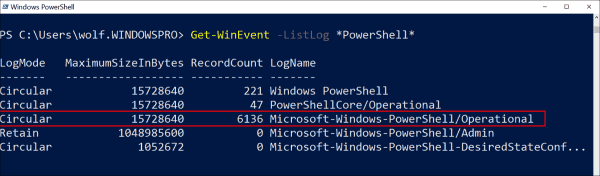
As a powerful tool, PowerShell is not only of interest for admins but also for hackers. To detect suspicious activities, it is helpful to have all executed commands recorded. In addition to recording the history in a text file, PowerShell has also supported logging in the event log since version 5.
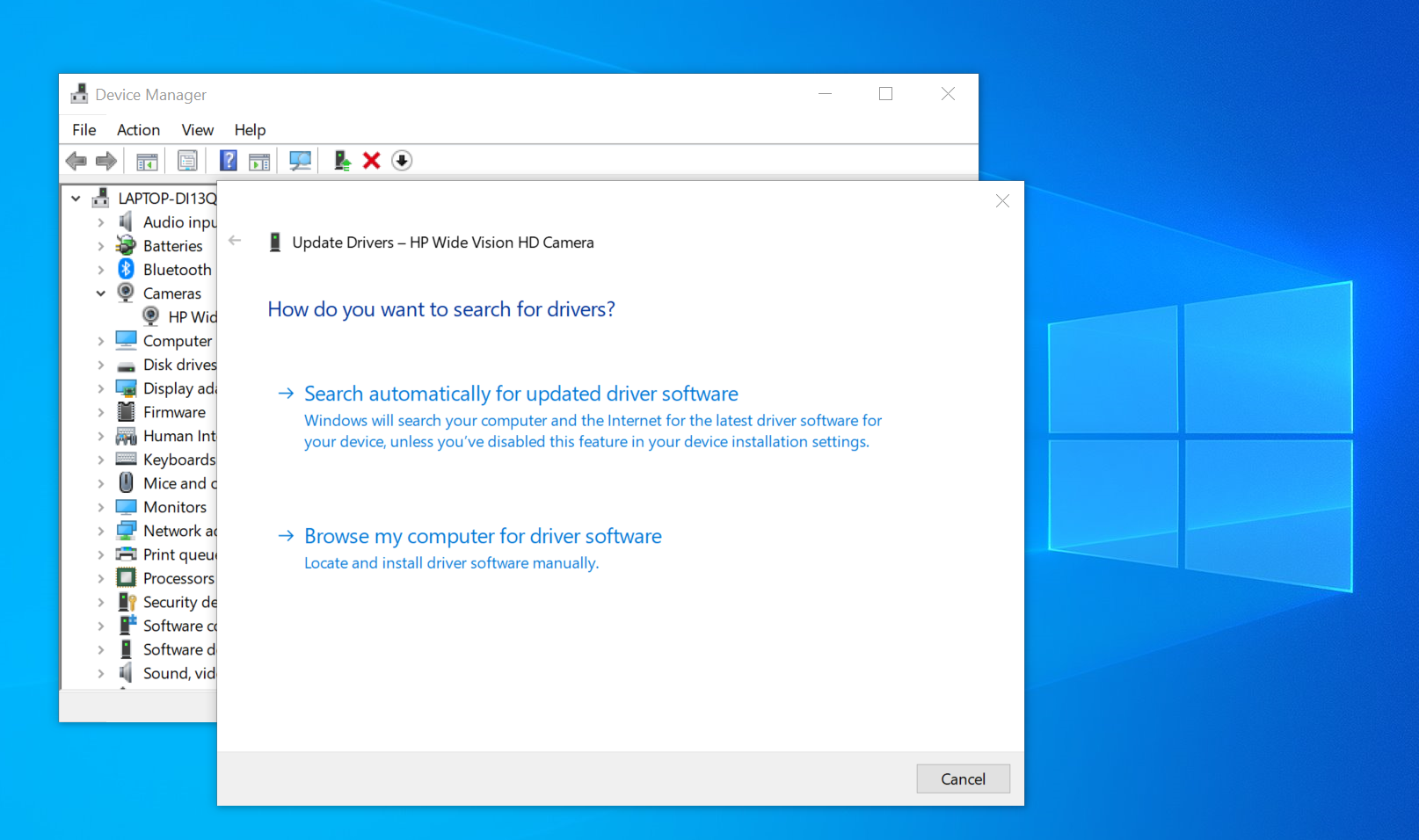
Users running the latest version of Windows 10 May Update will no longer be able to use the Device Manager to check online for driver updates. The change, spotted by WindowsLatest, seemingly went live as part of Microsoft’s recently released…
Variables that are processed for the operating system and in the context of each user
You can use these variables within sections in the .xml files with context=UserAndSystem, context=User, and context=System.
TABLE 1
Variable
Explanation
ALLUSERSAPPDATA
Same as CSIDL_COMMON_APPDATA.
ALLUSERSPROFILE
Refers to %PROFILESFOLDER%\Public or %PROFILESFOLDER%\all users.
COMMONPROGRAMFILES
Same as CSIDL_PROGRAM_FILES_COMMON.
COMMONPROGRAMFILES(X86)
Refers to the C:\Program Files (x86)\Common Files folder on 64-bit systems.
CSIDL_COMMON_ADMINTOOLS
Version 10.0. The file-system directory that contains administrative tools for all users of the computer.
CSIDL_COMMON_ALTSTARTUP
The file-system directory that corresponds to the non-localized Startup program group for all users.
CSIDL_COMMON_APPDATA
The file-system directory that contains application data for all users. A typical path Windows is C:\ProgramData.
CSIDL_COMMON_DESKTOPDIRECTORY
The file-system directory that contains files and folders that appear on the desktop for all users. A typical Windows® XP path is C:\Documents and Settings\All Users\Desktop. A typical path is C:\Users\Public\Desktop.
CSIDL_COMMON_DOCUMENTS
The file-system directory that contains documents that are common to all users. A typical path in Windows XP is C:\Documents and Settings\All Users\Documents. A typical path is C:\Users\Public\Documents.
CSIDL_COMMON_FAVORITES
The file-system directory that serves as a common repository for favorites common to all users. A typical path is C:\Users\Public\Favorites.
CSIDL_COMMON_MUSIC
The file-system directory that serves as a repository for music files common to all users. A typical path is C:\Users\Public\Music.
CSIDL_COMMON_PICTURES
The file-system directory that serves as a repository for image files common to all users. A typical path is C:\Users\Public\Pictures.
CSIDL_COMMON_PROGRAMS
The file-system directory that contains the directories for the common program groups that appear on the Start menu for all users. A typical path is C:\ProgramData\Microsoft\Windows\Start Menu\Programs.
CSIDL_COMMON_STARTMENU
The file-system directory that contains the programs and folders which appear on the Start menu for all users. A typical path in Windows is C:\ProgramData\Microsoft\Windows\Start Menu.
CSIDL_COMMON_STARTUP
The file-system directory that contains the programs that appear in the Startup folder for all users. A typical path in Windows XP is C:\Documents and Settings\All Users\Start Menu\Programs\Startup. A typical path is C:\ProgramData\Microsoft\Windows\Start Menu\Programs\Startup.
CSIDL_COMMON_TEMPLATES
The file-system directory that contains the templates that are available to all users. A typical path is C:\ProgramData\Microsoft\Windows\Templates.
CSIDL_COMMON_VIDEO
The file-system directory that serves as a repository for video files common to all users. A typical path is C:\Users\Public\Videos.
CSIDL_DEFAULT_APPDATA
Refers to the Appdata folder inside %DEFAULTUSERPROFILE%.
CSIDL_DEFAULT_LOCAL_APPDATA
Refers to the local Appdata folder inside %DEFAULTUSERPROFILE%.
CSIDL_DEFAULT_COOKIES
Refers to the Cookies folder inside %DEFAULTUSERPROFILE%.
CSIDL_DEFAULT_CONTACTS
Refers to the Contacts folder inside %DEFAULTUSERPROFILE%.
CSIDL_DEFAULT_DESKTOP
Refers to the Desktop folder inside %DEFAULTUSERPROFILE%.
CSIDL_DEFAULT_DOWNLOADS
Refers to the Downloads folder inside %DEFAULTUSERPROFILE%.
CSIDL_DEFAULT_FAVORITES
Refers to the Favorites folder inside %DEFAULTUSERPROFILE%.
CSIDL_DEFAULT_HISTORY
Refers to the History folder inside %DEFAULTUSERPROFILE%.
CSIDL_DEFAULT_INTERNET_CACHE
Refers to the Internet Cache folder inside %DEFAULTUSERPROFILE%.
CSIDL_DEFAULT_PERSONAL
Refers to the Personal folder inside %DEFAULTUSERPROFILE%.
CSIDL_DEFAULT_MYDOCUMENTS
Refers to the My Documents folder inside %DEFAULTUSERPROFILE%.
CSIDL_DEFAULT_MYPICTURES
Refers to the My Pictures folder inside %DEFAULTUSERPROFILE%.
CSIDL_DEFAULT_MYMUSIC
Refers to the My Music folder inside %DEFAULTUSERPROFILE%.
CSIDL_DEFAULT_MYVIDEO
Refers to the My Videos folder inside %DEFAULTUSERPROFILE%.
CSIDL_DEFAULT_RECENT
Refers to the Recent folder inside %DEFAULTUSERPROFILE%.
CSIDL_DEFAULT_SENDTO
Refers to the Send To folder inside %DEFAULTUSERPROFILE%.
CSIDL_DEFAULT_STARTMENU
Refers to the Start Menu folder inside %DEFAULTUSERPROFILE%.
CSIDL_DEFAULT_PROGRAMS
Refers to the Programs folder inside %DEFAULTUSERPROFILE%.
CSIDL_DEFAULT_STARTUP
Refers to the Startup folder inside %DEFAULTUSERPROFILE%.
CSIDL_DEFAULT_TEMPLATES
Refers to the Templates folder inside %DEFAULTUSERPROFILE%.
CSIDL_DEFAULT_QUICKLAUNCH
Refers to the Quick Launch folder inside %DEFAULTUSERPROFILE%.
CSIDL_FONTS
A virtual folder containing fonts. A typical path is C:\Windows\Fonts.
CSIDL_PROGRAM_FILESX86
The Program Files folder on 64-bit systems. A typical path is C:\Program Files(86).
CSIDL_PROGRAM_FILES_COMMONX86
A folder for components that are shared across applications on 64-bit systems. A typical path is C:\Program Files(86)\Common.
CSIDL_PROGRAM_FILES
The Program Files folder. A typical path is C:\Program Files.
CSIDL_PROGRAM_FILES_COMMON
A folder for components that are shared across applications. A typical path is C:\Program Files\Common.
CSIDL_RESOURCES
The file-system directory that contains resource data. A typical path is C:\Windows\Resources.
CSIDL_SYSTEM
The Windows System folder. A typical path is C:\Windows\System32.
CSIDL_WINDOWS
The Windows directory or system root. This corresponds to the %WINDIR% or %SYSTEMROOT% environment variables. A typical path is C:\Windows.
DEFAULTUSERPROFILE
Refers to the value in HKLM\SOFTWARE\Microsoft\Windows NT\CurrentVersion\ProfileList [DefaultUserProfile].
PROFILESFOLDER
Refers to the value in HKLM\SOFTWARE\Microsoft\Windows NT\CurrentVersion\ProfileList [ProfilesDirectory].
PROGRAMFILES
Same as CSIDL_PROGRAM_FILES.
PROGRAMFILES(X86)
Refers to the C:\Program Files (x86) folder on 64-bit systems.
SYSTEM
Refers to %WINDIR%\system32.
SYSTEM16
Refers to %WINDIR%\system.
SYSTEM32
Refers to %WINDIR%\system32.
SYSTEMPROFILE
Refers to the value in HKLM\SOFTWARE\Microsoft\Windows NT\CurrentVersion\ProfileList\S-1-5-18 [ProfileImagePath].
SYSTEMROOT
Refers to the root of the system drive.
WINDIR
Refers to the Windows folder located on the system drive.
Variables that are recognized only in the user context
You can use these variables in the .xml files within sections with context=User and context=UserAndSystem.
TABLE 2
Variable
Explanation
APPDATA
Same as CSIDL_APPDATA.
CSIDL_ADMINTOOLS
The file-system directory that is used to store administrative tools for an individual user. The Microsoft® Management Console (MMC) saves customized consoles to this directory, which roams with the user profile.
CSIDL_ALTSTARTUP
The file-system directory that corresponds to the user’s non-localized Startup program group.
CSIDL_APPDATA
The file-system directory that serves as a common repository for application-specific data. A typical path is C:\Documents and Settings\username\Application Data or C:\Users\username\AppData\Roaming.
CSIDL_BITBUCKET
The virtual folder that contains the objects in the user’s Recycle Bin.
CSIDL_CDBURN_AREA
The file-system directory acting as a staging area for files waiting to be written to CD. A typical path is C:\Users\username\AppData\Local\Microsoft\Windows\MasteredBurning\Disc Burning.
CSIDL_CONNECTIONS
The virtual folder representing Network Connections that contains network and dial-up connections.
CSIDL_CONTACTS
This refers to the Contacts folder in %CSIDL_PROFILE%.
CSIDL_CONTROLS
The virtual folder that contains icons for the Control Panel items.
CSIDL_COOKIES
The file-system directory that serves as a common repository for Internet cookies. A typical path is C:\Users\username\AppData\Roaming\Microsoft\Windows\Cookies.
CSIDL_DESKTOP
The virtual folder representing the Windows desktop.
CSIDL_DESKTOPDIRECTORY
The file-system directory used to physically store file objects on the desktop, which should not be confused with the desktop folder itself. A typical path is C:\Users\username\Desktop.
CSIDL_DRIVES
The virtual folder representing My Computer that contains everything on the local computer: storage devices, printers, and Control Panel. The folder may also contain mapped network drives.
CSIDL_FAVORITES
The file-system directory that serves as a common repository for the user’s favorites. A typical path is C:\Users\Username\Favorites.
CSIDL_HISTORY
The file-system directory that serves as a common repository for Internet history items.
CSIDL_INTERNET
A virtual folder for Internet Explorer.
CSIDL_INTERNET_CACHE
The file-system directory that serves as a common repository for temporary Internet files. A typical path is C:\Users\username\AppData\Local\Microsoft\Windows\Temporary Internet Files
CSIDL_LOCAL_APPDATA
The file-system directory that serves as a data repository for local, non-roaming applications. A typical path is C:\Users\username\AppData\Local.
CSIDL_MYDOCUMENTS
The virtual folder representing My Documents.A typical path is C:\Users\Username\Documents.
CSIDL_MYMUSIC
The file-system directory that serves as a common repository for music files. A typical path is C:\Users\Username\Music.
CSIDL_MYPICTURES
The file-system directory that serves as a common repository for image files. A typical path is C:\Users\Username\Pictures.
CSIDL_MYVIDEO
The file-system directory that serves as a common repository for video files. A typical path is C:\Users\Username\Videos.
CSIDL_NETHOOD
A file-system directory that contains the link objects that may exist in the My Network Places virtual folder. It is not the same as CSIDL_NETWORK, which represents the network namespace root. A typical path is C:\Users\Username\AppData\Roaming\Microsoft\Windows\Network Shortcuts.
CSIDL_NETWORK
A virtual folder representing My Network Places, the root of the network namespace hierarchy.
CSIDL_PERSONAL
The virtual folder representing the My Documents desktop item. This is equivalent to CSIDL_MYDOCUMENTS.
A typical path is C:\Documents and Settings\username\My Documents.
CSIDL_PLAYLISTS
The virtual folder used to store play albums, typically C:\Users\username\My Music\Playlists.
CSIDL_PRINTERS
The virtual folder that contains installed printers.
CSIDL_PRINTHOOD
The file-system directory that contains the link objects that can exist in the Printers virtual folder. A typical path is C:\Users\username\AppData\Roaming\Microsoft\Windows\Printer Shortcuts.
CSIDL_PROFILE
The user’s profile folder. A typical path is C:\Users\Username.
CSIDL_PROGRAMS
The file-system directory that contains the user’s program groups, which are themselves file-system directories. A typical path is C:\Users\Username\AppData\Roaming\Microsoft\Windows\Start Menu\Programs.
CSIDL_RECENT
The file-system directory that contains shortcuts to the user’s most recently used documents. A typical path is C:\Users\Username\AppData\Roaming\Microsoft\Windows\Recent.
CSIDL_SENDTO
The file-system directory that contains Send To menu items. A typical path is C:\Users\username\AppData\Roaming\Microsoft\Windows\SendTo.
CSIDL_STARTMENU
The file-system directory that contains Start menu items. A typical path in Windows XP is C:\Documents and Settings\username\Start Menu. A typical path in Windows Vista, Windows 7, or Windows 8 is C:\Users\Username\AppData\Roaming\Microsoft\Windows\Start Menu.
CSIDL_STARTUP
The file-system directory that corresponds to the user’s Startup program group. A typical path is C:\Users\Username\AppData\Roaming\Microsoft\Windows\Start Menu\Programs\Startup.
CSIDL_TEMPLATES
The file-system directory that serves as a common repository for document templates. A typical path is C:\Users\username\AppData\Roaming\Microsoft\Windows\Templates.
HOMEPATH
Same as the standard environment variable.
TEMP
The temporary folder on the computer. A typical path is %USERPROFILE%\AppData\Local\Temp.
TMP
The temporary folder on the computer. A typical path is %USERPROFILE%\AppData\Local\Temp.
USERPROFILE
Same as CSIDL_PROFILE.
USERSID
Represents the current user-account security identifier (SID). For example,
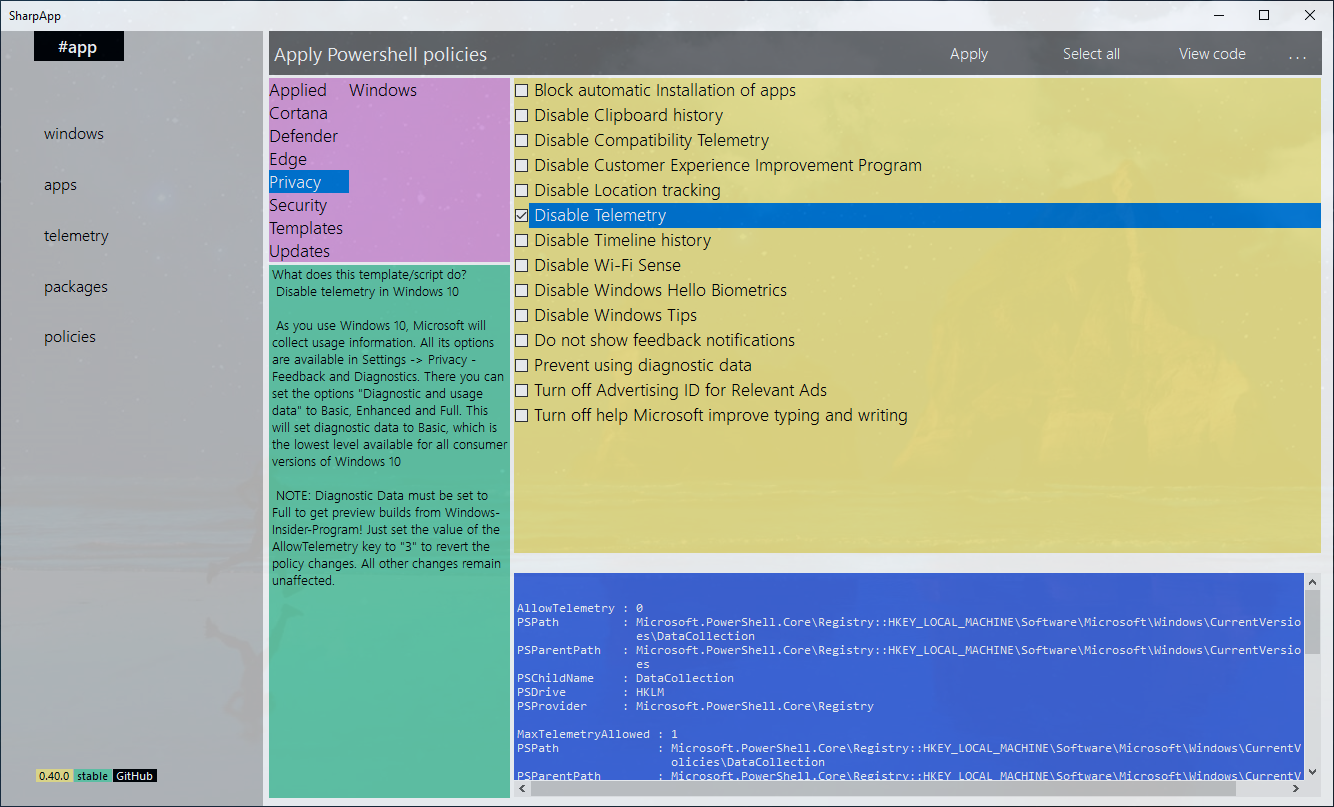
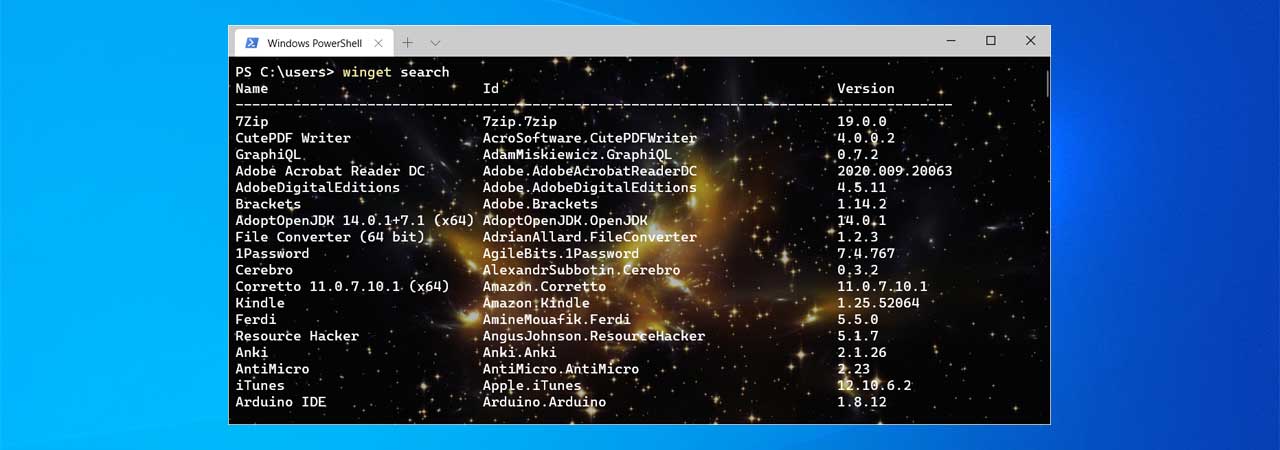
Windows 10’s Winget package manager is an excellent tool for installing popular applications, but it only works from the command line. To make it easier to find apps and install them, third-party developers have released front-ends for Windows 10’s new package manager.