 Source: MeshLab
Category Archives: Software
Image Scanner Driver for Linux – Fujitsu Global
How to rotate and flip videos using Handbrake – IT Support Guides
How to rotate and flip videos using Handbrake
HandBrake is a free tool that’s available for Windows, Mac OS and Ubuntu that allows you to take a video in various formats and convert it to an MP4.
The steps below show how to rotate the video being processed.
Before beginning, you need to download and install HandBrake.
- Open HandBrake and load your video using the ‘Source’ button to select the video you want to rotate or flip
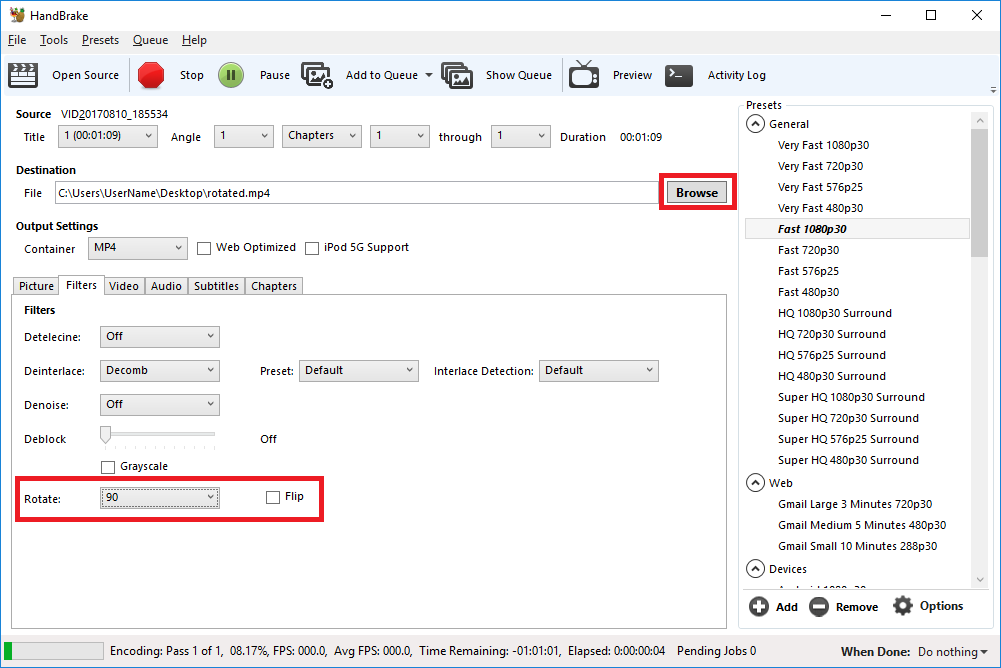
- Choose where to save the rotated video by clicking on the ‘Browse’ button to select where the converted file will be saved.
- Open the ‘Filters’ tab
- The ‘Rotate’ option allows you to choose four different options
- 0 – do nothing
- 90 – rotate to the right
- 180 – turn upside down
- 270 – rotate to the left
- Choose the rotate option you require
- Click ‘Start Encode’ to begin
- At the bottom of the window you will see the progress
Help! It didn’t work
Try the manual way of rotating, by applying manual filters.
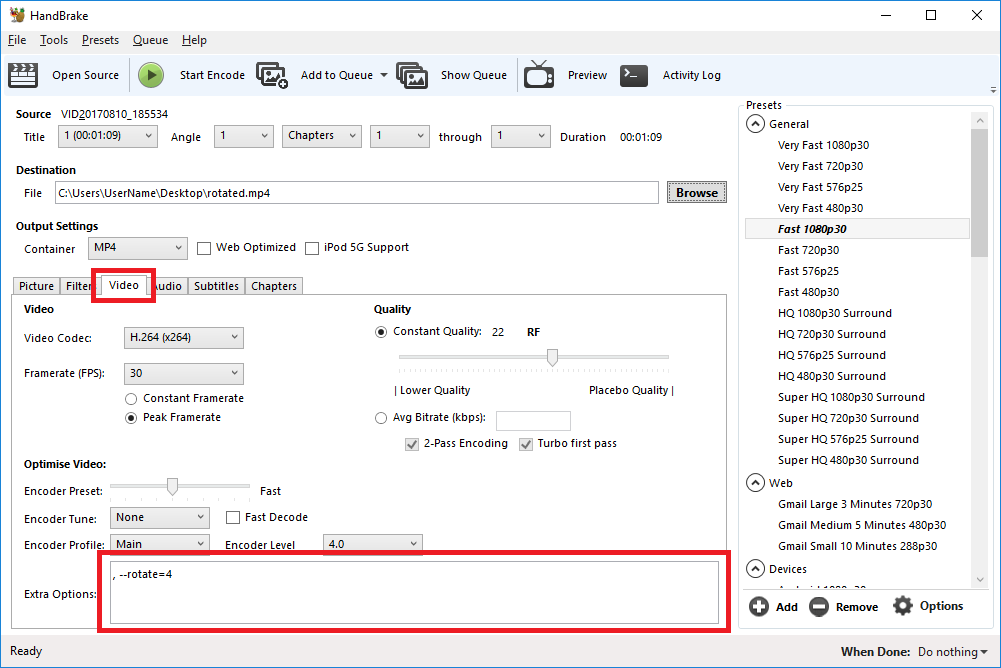
- Open the ‘Video’ tab
- We’ll be working with the ‘Extra Options’ setting.
- Once you have the required command entered, click ‘Start Encode’ to begin.
Rotate 90 degrees clockwise
To rotate 90 degrees clockwise, enter the following command into the ‘Extra Options’ setting:
, --rotate=4Rotate 90 degrees anti-clockwise
To rotate 90 degrees anti-clockwise, enter the following command into the ‘Extra Options’ setting:
, --rotate=7Rotate 180 degrees (upside down)
To rotate 180 degrees so that the video is upside down, enter the following command into the ‘Extra Options’ setting:
, --rotate=3Other options?
The official HandBrake documentation has more detail on what other options are available.
1 : x flip
2 : y flip
3 : 180 degrees rotate (also the DEFAULT)
4 : 90 degrees rotate (clockwise)
5 : 90 degrees rotate + y flip
6 : 270 degrees rotate + y flip
7 : 270 degrees rotate
Source: How to rotate and flip videos using Handbrake – IT Support Guides
Command Line Options – Mozilla | MDN
Command line options are used to specify various startup options for Mozilla applications. For example, you can use command line configuration options to bypass the Profile Manager and open a specific profile (if you have multiple profiles). You can also control how Mozilla applications open, which components open initially, and what the components do when they open. This page describes the commonly used options and how to use them. You can open the Command Line Interface by pressing Shift + F2.
ConnectionStrings.com – Forgot that connection string? Get it here!
Easily make a Windows bootable USB from within Linux Mint with WoeUSB – gHacks Tech News
WoeUSB is an application for GNU/Linux that enables you to create bootable USB media for Windows from Windows ISO images or DVDs.
Source: Easily make a Windows bootable USB from within Linux Mint with WoeUSB – gHacks Tech News
How to Find Your Lost Windows or Office Product Keys
Set WshShell = CreateObject(“WScript.Shell”) MsgBox ConvertToKey(WshShell.RegRead(“HKLM\SOFTWARE\Microsoft\Windows NT\CurrentVersion\DigitalProductId”)) Function ConvertToKey(Key) Const KeyOffset = 52 i = 28 Chars = “BCDFGHJKMPQRTVWXY2346789” Do Cur = 0 x = 14 Do Cur = Cur * 256 Cur = Key(x + KeyOffset) + Cur Key(x + KeyOffset) = (Cur \ 24) And 255 Cur = Cur Mod 24 x = x -1 Loop While x >= 0 i = i -1 KeyOutput = Mid(Chars, Cur + 1, 1) & KeyOutput If (((29 – i) Mod 6) = 0) And (i -1) Then i = i -1 KeyOutp
Source: How to Find Your Lost Windows or Office Product Keys
TeamSQL – Multi-Platform Data Client
TeamSQL is a Multi-Platform Data Client built for collaboration, usability and performance. TeamSQL supports MySQL, PostgreSQL, Microsoft SQL Server and AWS Redshift and runs on macOS, Linux and Windows.
Manage connections from Windows operating system components to Microsoft services (Windows 10) | Microsoft Docs
Manage connections from Windows operating system components to Microsoft services (Windows 10)
If you want to minimize connections from Windows to Microsoft services, or configure particular privacy settings, this article covers the settings that you could consider.
Source: Manage connections from Windows operating system components to Microsoft services (Windows 10)