Method 1: You can use the Registry Editor to remove Office Sign In Option from Office 2016.
Here are the steps to follow:
1. On your computer, notebook or laptop go to your Start Screen.
2. From there press “Win + R” dedicated keyboard keys.
3. The Run box will be displayed.
4. There enter “regedit” in order to run Registry Editor.
5. on Registry go to path “HKEY_CURRENT_USER\Software\Microsoft\Office\16.0\Common\SignIn”.
6. Then, go to the right panel of Registry and right click on a blank space.
7. Select “New” and pick “DWORD Value”.
8. Name this new value “SignInOptions”.
9. Right click on the new key and set its value to 3.
10. Close Registry Editor and Reboot your Windows 7, open an Office App to check if it works.Method 2: You can use the Group Policy to remove Office Sign In Option from Office 2016.
Here are the steps to follow:
1. Download the Office 2016 Administrative Template files and install it.
After self-extracting, we can get a folder and open the admx folder inside, where you can see some language-specific folders and Office application specific admx files.
Copy the ADMX files to C:\Windows\PolicyDefinitions
Copy the adml file under the corresponding language file to the corresponding language folder in C:\Windows\PolicyDefinitions
2.Press Windows+R to open Run>type gpedit.msc > hit Enter to launch the Group Policy Editor
3.Go to this path: Local Computer Policy > User Configuration > Administrative Templates > Microsoft Office 2016 > Miscellaneous
4. You should now see the option ‘Block signing into Office‘ > double click on it
Select ‘None allowed’ to disable the sign-in option.
5. Reboot your Windows 7, open an Office App to check if it works.Note: Blocking signing in Office may affect the use of the Office cloud service.
Category Archives: Software
Beyond basic modal editing. Using vim’s command-line mode.
Vim is famous for its fabulous modal editing. Its
normal,insert, andvisualmodes quickly become magic in the hands of an able user. But many are unaware or ignore the existence of vim’scommand-linemode with its Ex commands.Whereas vim’s
normalandinsertmode work in the locale of your cursor, vim’scommand-linemode can help you deal with things far from your cursor. Or as Drew Neil puts it in his Practical Vim book,Vim’s Ex commands strike far and wide.
Let’s look at a few of them.
Copy (copy, t), move (m), and delete (d)
We’ll start by copying, moving, and deleting lines. You access vim’s
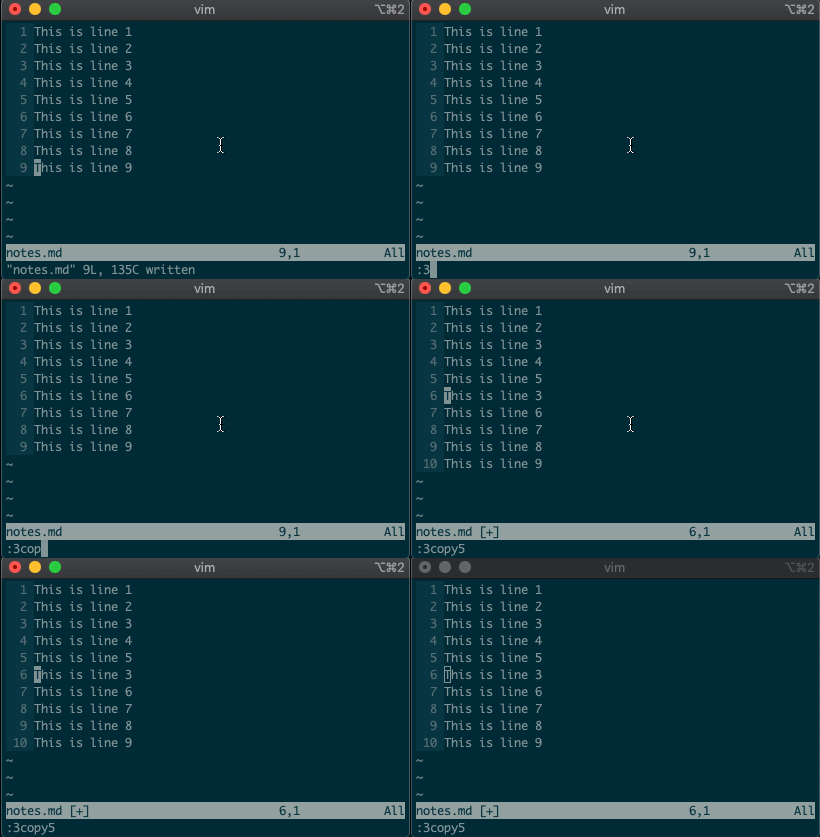
command-linemode with:. Copying, moving, and deleting can be intuitive. What would you say this command did?:3copy5If you guessed copy line three to line five, then you got it!
tis shorthand for copy (think copy to). So:3t5does the same thing as the command above.Do move and delete work the same way? You betcha.
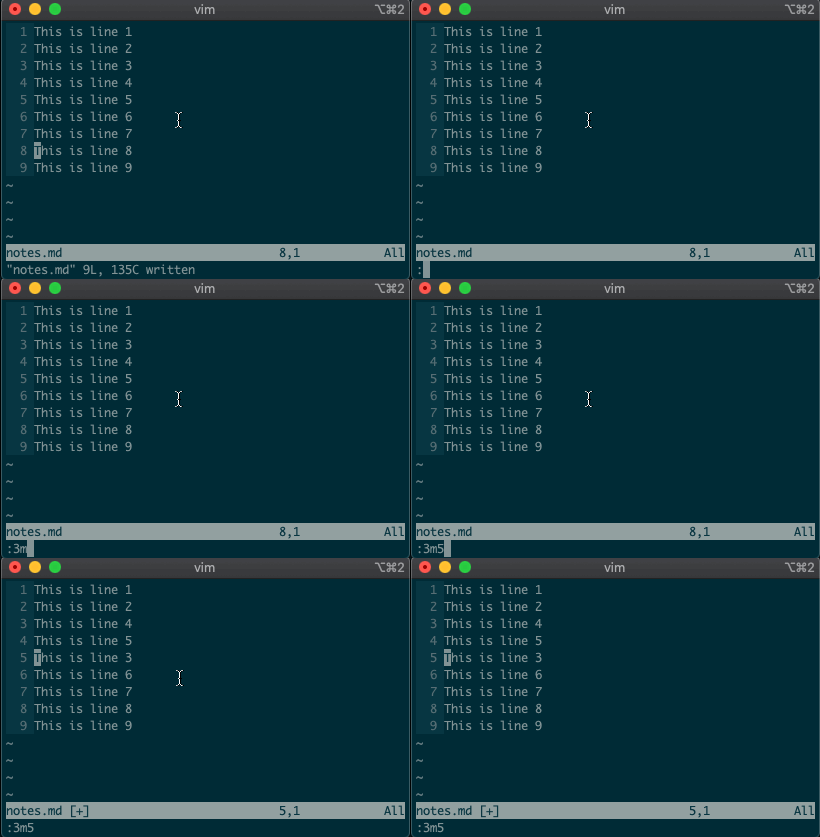
Try moving a line with
:3m5.
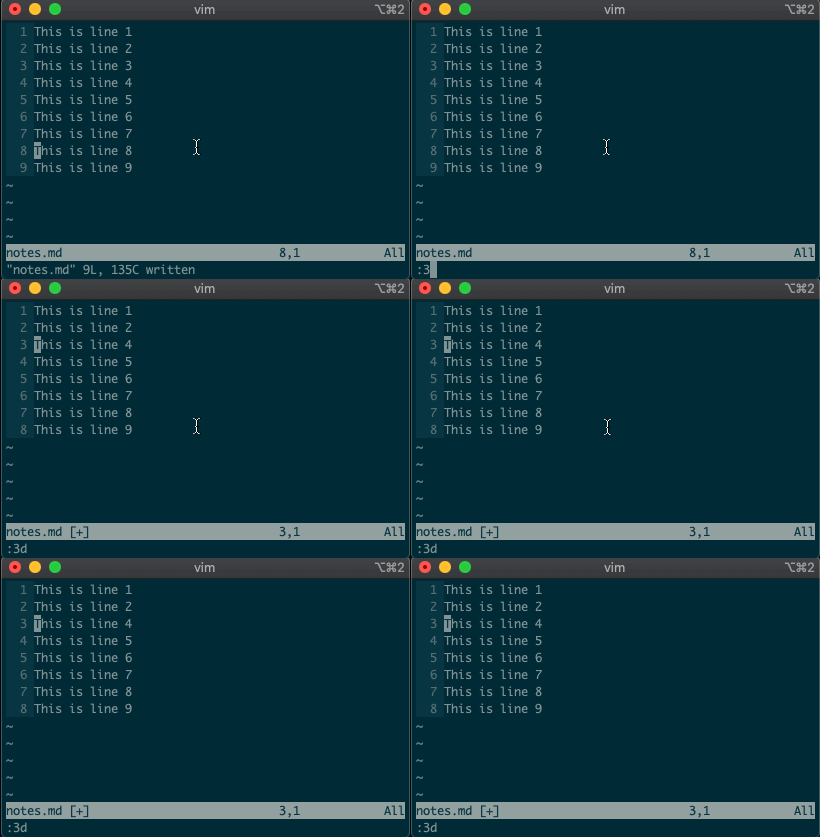
Now try deleting a line with
:3d.
Acting on ranges
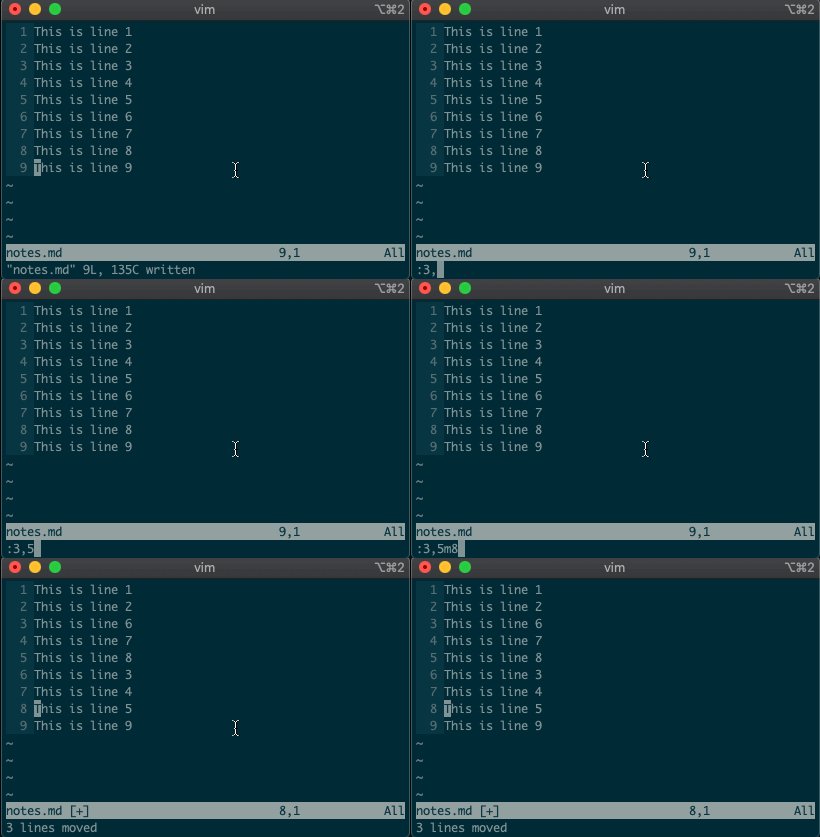
But that’s not all. Ex commands aren’t limited to single lines. They can act on ranges. Want to move lines 3-5 to line 8? You got it:
:3,5m8
Relative ranges
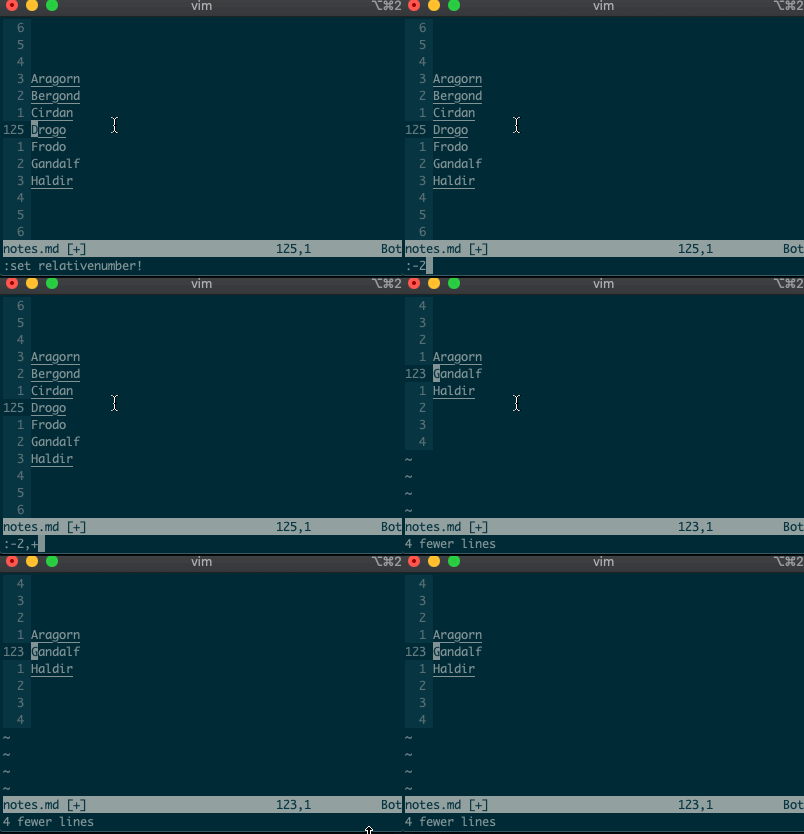
I know what you’re thinking, “But what if I’m on line 125, and I use relative numbers!” Not to worry. Vim has a range for you too:
:-2,+1d
The visual range
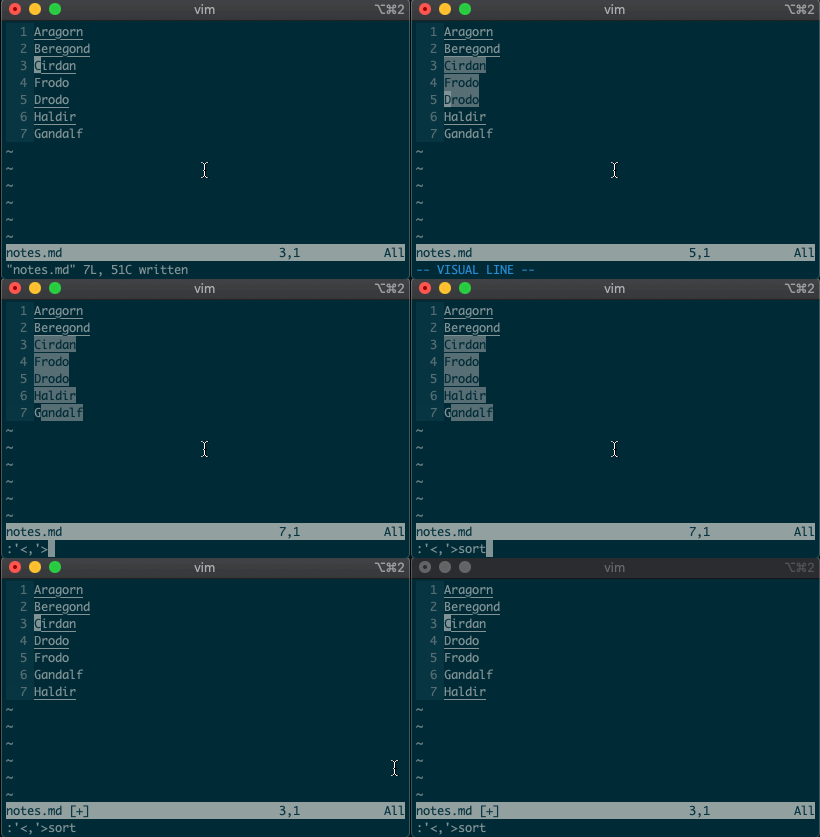
What about using a visual selection as a range? If you’re like me, you’ve probably used vim to help you sort lines by visually selecting them and typing
:sort. Did you ever notice the range vim inserts for us? It’s the special visual selector range::'<,'>sort
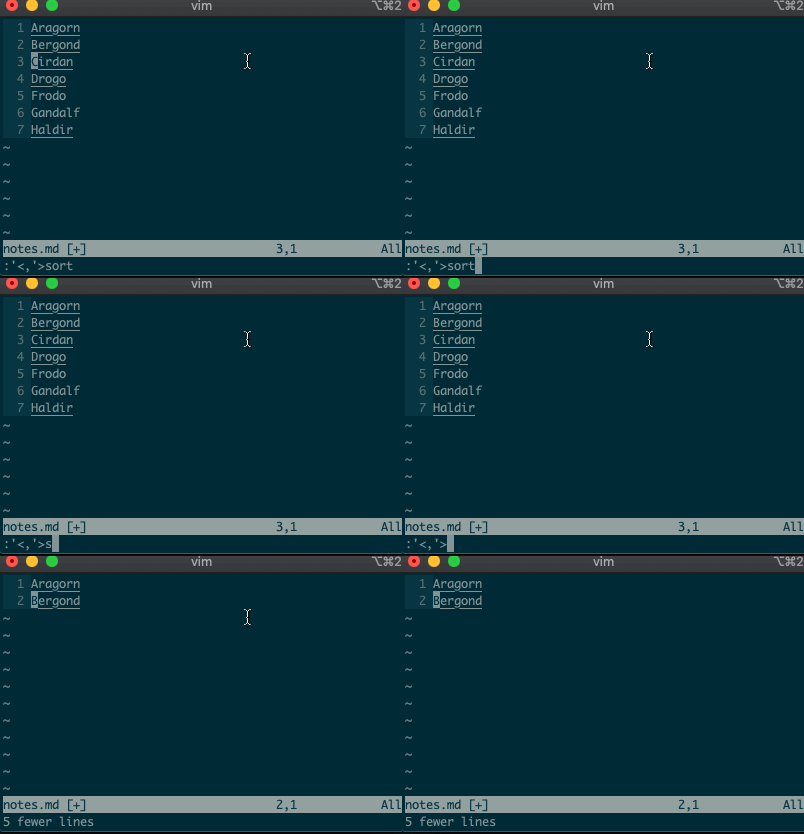
Want to perform other actions on that same visual block? The visual selector range (
'<,'>) continues to operate on the previous visual selection, even when that range is no longer selected! Let’s delete the lines we sorted last time::'<,'>d
Want to learn more about the visual selector range? As it turns out, ranges can be delimited by marks, and
'<and'>are just a couple of special marks. That opens ranges to a world of possibilities! Try'{,'}for paragraphs and'(,')for sentences.Search and replace
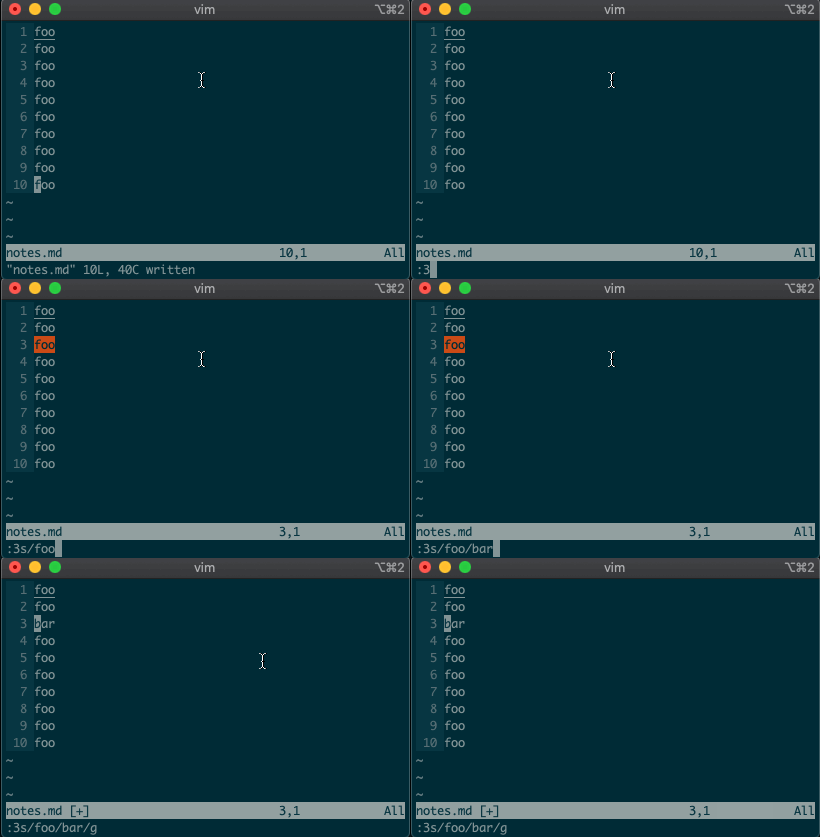
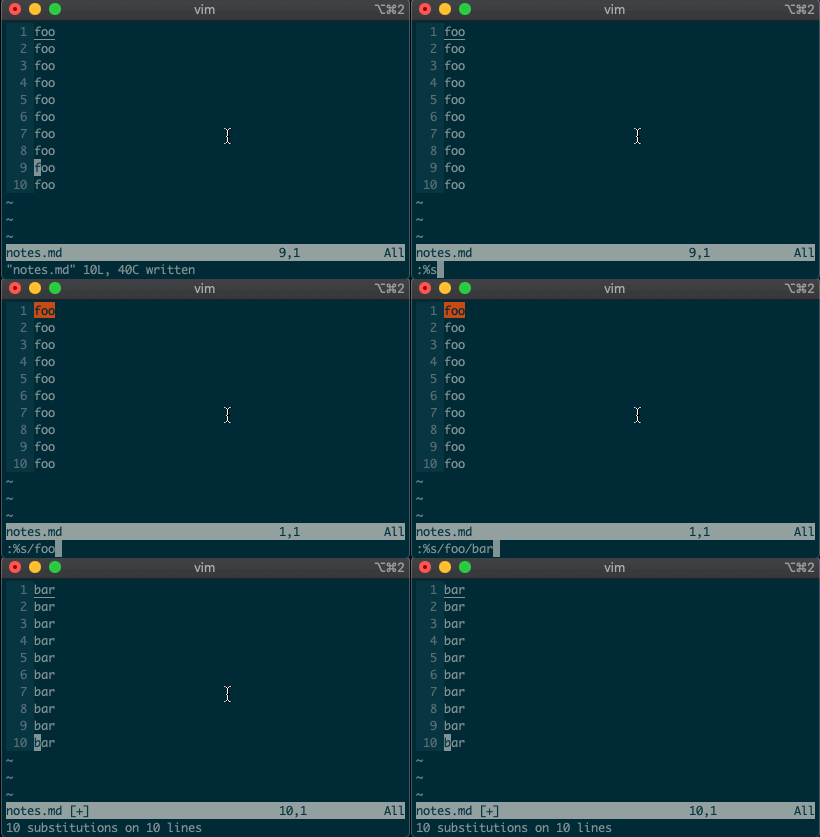
Perhaps you’ve never stopped to think about the magical incantation you use to search and replace words in a file. Well, we can finally uncover the mystery:
swill replace things (think substitute). Want to replacefoowithbaron line 3?:3s/foo/bar/g
What if you want to search and replace in the entire file? We can use a range from the first line to the end of the file:
1,$, or even better, we can use vim’s shorthand for the whole file:%. Go ahead. Type it in, and see the magic work::%s/foo/bar/g
Repeat a normal command
In addition to modal editing, vim is known for its ability to repeat the last command with
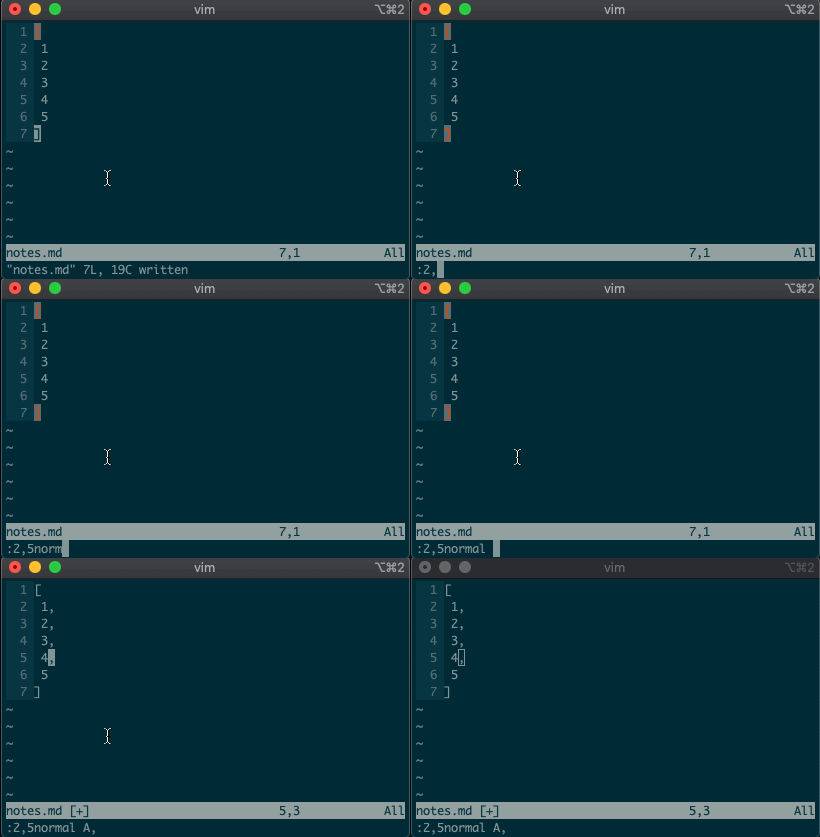
.. Maybe you delete a line withdd, then you realize you need to delete the next one. No need to pressddagain, just type.and you’re good to go.But what about repeating the same command across many lines? What would you do if you wanted to append a comma at the end of each line in a list? Ex commands are here to help you:
:2,5normal A,
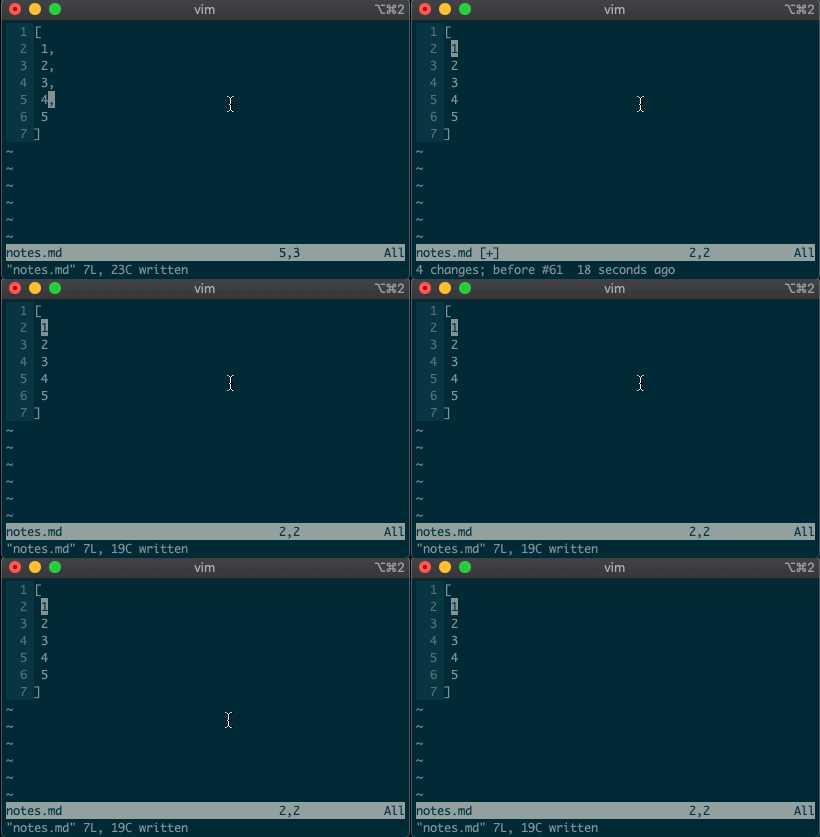
Repeat the last Ex command
.repeats the last normal command. What if we want to repeat the last Ex command? We can do that too.@:
If you’ve ever used macros in vim, you might notice this looks like a macro for the
:register. Find that interesting? Take a look at your registers (:reg) and see what you find for:.What next?
I hope you see the power of Ex commands. Instead of typing
2Gddto go to the second line and delete it, you can delete it from afar with:2d. And instead of going to line 3, visually selecting lines 3-5, yanking them, going down to line 10, and pasting the lines with3GVjjjy10Gp, you can just do it from anywhere in the file with:3,5t10.If you want to learn more, I highly recommend Drew Neil’s Practical Vim book, or take a look at the excellent documentation for different vim modes and for the Ex commands copy, move, delete, substitute. And if you want to dig deeper, help is just a
:helpaway.Until next time!
Source: Beyond basic modal editing. Using vim’s command-line mode.
QuickBooks 2016 License Registration
QuickBooks 2016 License Registration
Step 1. To start the procedure please follow these instructions:
1. Double-click on the icon labeled QuickBooks 2016 on the desktop. (You will be
prompted with a small window labeled, “QuickBooks 2016 License Agreement.”)
2. Click on View License Agreement. (When the webpage opens you can simply close
the window which will bring you back to the small window labeled “QuickBooks
2016 License Agreement.”)
3. Click “Yes” to accept the terms of the Intuit End User License Agreement.
Step 2. QuickBooks will now need to be registered. If QuickBooks is already registered
(press F2 to confirm) you may skip to Step 3.
1. Close the registration window by clicking on the “X” in the upper right-hand corner
of the registration window.
2. Click Help in the top right corner. (SEE BELOW)
3. Select About QuickBooks 2016 at the bottom of the list.
4. Next you will see a green QuickBooks 2016 splash screen appear listing your
license information. On this screen you will need to press and hold the following
sequence on the keyboard: CTRL (control) key, “R”, and then “P.”
5. On this screen enter the validation code: and click Next.
How to Reset QuickBooks Registration
How to Reset QuickBooks Registration
QuickBooks requires users to register their software within 30 days of purchase or download in order to continue using it. During the registration process — either online or by phone — QuickBooks provides a registration number the user enters into a file named “qbregistration.dat.” The registration number activates the software, allowing its continued use. If the DAT file becomes corrupted or fails to appear, you can write or rewrite it from scratch using any plain text editing app.
Error Message During Installation
Step 1
Look for the “qbregistration.dat” file. If you are using Windows Vista, 7 or 8, QuickBooks stores the file in the “C:\ProgramData\Common Files\Intuit\QuickBooks” folder.
Step 2
Right-click the “qbregistration.dat” file. Select “Rename” and renamy the file “qbregistration.old.”
Step 3
Launch a plain text editor app like Notepad and paste the following code into a blank text document:
xx.x”> version”>
YES 000-000 0000-0000-0000-000 000073adbf3f
Step 4
Replace the “xx.x” in the first line of code with “24.0” if you are using QuickBooks 2014. If you are using QuickBooks 2013. Use “22.0” if you have QuickBooks 2012. Type “atom” if you have QuickBooks Simple Start. Type “pro” if you have QuickBooks Pro.
Step 5
Replace “000-000” in the second line of code with your QuickBooks installation product number.
Step 6
Replace “0000-0000-0000-000” in the third line of code with your QuickBooks license number.
Step 7
Save the file as “qbregistration.dat” and select “All Files” in the Save as Type option. This ensures that no extra code is added to the file and that the file remains a DAT file without being changed to a DOC or TXT file. Save the file in the same folder where your “qbregistration.dat” was originally.
QuicknPerlWiz – Use ImportQIF to import transactions into Quicken
Use ImportQIF to convert and import QIF, OFX, Excel, CSV files into Quicken
Source: QuicknPerlWiz – Use ImportQIF to import transactions into Quicken
Prevent new window from hiding addons in toolbar | Firefox Support Forum | Mozilla Support
Hi Jerl, you don’t need to explain the problem to me. I still have dom.disable_window_open_feature.toolbar set to true in about:config although it no longer does anything. As support forum volunteers, we don’t get special access to developers, we have to get in line like everyone else.
Did I post this before? The reason the toolbar buttons are hidden is a built-in style rule. So as an unofficial community developed workaround, you can inject an overriding style rule to make them visible again.
Setting this up is a little bit involved, so please set aside 10 quiet minutes to work through it.
(For anyone who already has a userChrome.css file set up, you just need to add the rule under (A) to your file.)
(A) Select and copy the following style rule code
/* Override Hiding of Toolbar Buttons in Limited Feature Windows */
*|*:root[chromehidden~="toolbar"] .chromeclass-toolbar-additional {
  display: -moz-box !important; /* default is display: none */
}
(B) Generate and download a
userChrome.cssfileOpen the following page and paste the above rules into the editor, replacing the sample rule:
https://www.userchrome.org/download-userchrome-css.html
Then click “Generate CSS File” and save the userChrome.css file to your computer. (See first attached screenshot)
Use the downloads list on the toolbar to open the downloads folder directly to the new userChrome.css file. (See second attached screenshot)
Minimize that file browser window for later reference.
(C) Create a new
chromefolder in your profile folderThe following article has the detailed steps for that (#1, #2, and I recommend #3)
https://www.userchrome.org/how-create-userchrome-css.html
I have videos for both Windows and Mac in case the text is not clear.
(D) Move the
userChrome.cssfile you downloaded in Step B into thechromefolder you created in Step C(E) Set Firefox to look for userChrome.css at startup — see step #6 in the above article.
The next time you exit Firefox and start it up again, it should discover that file and apply the rule.
Success?
Once you start tweaking the interface this way, you’ll probably find more and more things you want to do. I suggest bookmarking the pages where you get the code for future reference because changes to Firefox may break them and it’s easier to request an update if you can find the source.


Source: Prevent new window from hiding addons in toolbar | Firefox Support Forum | Mozilla Support
How to Customize Firefox’s User Interface With userChrome.css
Firefox Quantum‘s interface is still extremely customizable thanks to its userChrome.css file. You can edit this file to hide unwanted menu items, move the tab bar below the navigation toolbar, view multiple rows on your bookmarks toolbar, and do other things that normally wouldn’t be possible.
Source: How to Customize Firefox’s User Interface With userChrome.css
A brief guide to Mozilla preferences – Mozilla | MDN
What is a preference?
A preference is any value or defined behavior that can be set (presumably, one setting is preferable
to another). Preference changes via user interface usually take effect immediately. The values are saved to the user profile (in prefs.js), for both Firefox and Thunderbird.
A preference is read from a file, and can call up to four methods: pref(), user_pref(), sticky_pref() and lockPref(). All preferences files may call pref(), user_pref() and sticky_pref(), while the config file in addition may call lockPref().
Source: A brief guide to Mozilla preferences – Mozilla | MDN