Category Archives: Geeky

How the browser renders a web page – DEV

How the browser renders a web page

My thinking: if I’m going to build websites that are fast and reliable, I need to really understand the mechanics of each step a browser goes through to render a web page, so that each can be considered and optimised during development. This post is a summary of my learnings of the end-to-end process at a fairly high level.


A lot of this is based on the fantastic (and FREE!) Website Performance Optimization course by Ilya Grigorik and Cameron Pittman on Udacity. I’d highly recommend checking it out.

Also very helpful was the article How Browsers Work: Behind the scenes of modern web browsers by Paul Irish and Tali Garsiel. It’s from 2011 but many of the fundamentals of how browsers work remain relevant at the time of writing this blog post.

Ok, here we go. The process can be broken down into these main stages:

  1. Start to parse the HTML
  2. Fetch external resources
  3. Parse the CSS and build the CSSOM
  4. Execute the JavaScript
  5. Merge DOM and CSSOM to construct the render tree
  6. Calculate layout and paint

Source: How the browser renders a web page – DEV

Vim Stuff

Since the 1970s, Vi and Vim are popular amongst developers and are present on most UNIX-based servers.

These free and open source modal text editors can be a bit hard to use at first, but they are extremely powerful.

Table of Contents  show 

A Quick Intro to Vim

Vi is a modal text editor first released in 1976 for Unix systems. Vim, (Vi Improved) Vi’s successor, was first released in 1991. Despite its very old age, Vim is extremely popular among web developers and system administrators, as it is installed by default on all Unix-based systems (Mac OS and Linux distros).Unlike classic text editors, Vim features different modes used for different operations. Vim has a total of 12 modes, although you will mostly use the following:

  • Insert Mode: This mode is used to insert text by typing, like you would do on any other text editor. To enter insert mode, type i while in command mode.
  • Command Mode: Also named Normal Mode, this mode is used to type Vim commands such as those you’ll find in our Vim Cheat Sheet. To exit insert mode and enter command mode, hit the Esc key of your keyboard.
  • Visual Mode: Similar to command mode, but used to highlight areas of text. Normal commands are run on the highlighted area, which, for instance, can be used to move or edit a selection. Press the v key to start visual mode. To exit visual mode, press the Esc key.

Basics

Let’s start with basic commands that will allow you to write, save and quit files. Remember that these Vim commands need to be typed while in command or visual mode. Exit insert mode by hitting the Esc key, then type the command of your choice.

:e filename Open filename for edition
:w Save file
:q Exit Vim
:q! Quit without saving current file
😡 Write/Save file (if changes has been made) and exit
:sav filename Save current file as filename
. Repeat the last change made in normal mode
5. Repeat 5 times the last change made in normal mode

Moving In The File

Vim features powerful commands that allow you to easily move the cursor position to any desired location within the current file, making it quick and easy to insert text.

k or Up Arrow move cursor up one line
j or Down Arrow move cursor down one line
e move cursor to the end of the word
b move the cursor to the beginning of the word
0 move the cursor to the first non-blank character of the line
G move the cursor to the end of the file
gg move the cursor position to the beginning of the file
L move the cursor to the bottom of the screen
:59 move cursor to line 59. Replace 59 by the desired line number.
% Move cursor to matching parenthesis
[[ Jump to function start
[{ Jump to block start

Cut, Copy & Paste

Vim features powerful functions to cut, copy, and paste. This section of our Vim Cheat Sheet will show you how to easily perform those operations. Please note that y stands for yank in Vim, which in other editors is usually called copy.

y Yank/Copy the selected text to clipboard
p Paste clipboard contents
dd Cut current line
yw Yank/Copy word
yy Yank/Copy current line
y$ Yank/Copy to end of line
D Cut to end of line

Search

Searching a string within a huge file or multiple files can be tricky. Thanks to Vim, using a few commands you can easily find whatever you’re looking for.

/word Search word from top to bottom
?word Search word from bottom to top
* Search the word under cursor
/\cstring Search STRING or string, case insensitive
/jo[ha]n Search john or joan
/\< the Search the, theatre or then
/the\> Search the or breathe
/\< the\> Search the
/\< ¦.\> Search all words consisting of 4 letters
/\/ Search fred but not alfred or frederick
/fred\|joe Search fred or joe
/\<\d\d\d\d\> Search exactly 4 digits
/^\n\{3} Find 3 empty lines
:bufdo /searchstr/ Search in multiple files
bufdo %s/something/somethingelse/g Search something in all the open buffers and replace it with somethingelse

Replace

Similar to Search, Vim features powerful commands to replace any given text. This part of our cheat sheet contains Vim commands for replacing any portion of text with another.

:%s/old/new/g Replace all occurrences of old with new in file
:%s/onward/forward/gi Replace onward with forward, case insensitive
:%s/old/new/gc Replace all occurrences with confirmation
:2,35s/old/new/g Replace all occurrences between lines 2 and 35
:5,$s/old/new/g Replace all occurrences from line 5 to EOF
:%s/^/hello/g Replace the beginning of each line by hello
:%s/$/Harry/g Replace the end of each line by Harry
:%s/onward/forward/gi Replace onward with forward, case insensitive
x Delete character
:%s/ *$//g Delete all white spaces and keep any non-blank character
:g/string/d Delete all lines containing string
:v/string/d Delete all lines not containing string
:s/Bill/Steve/ Replace the first occurrence of Bill with Steve in current line
:s/Bill/Steve/g Replace Bill with Steve in current line
:%s/Bill/Steve/g Replace Bill with Steve in all of the file
:%s/^M//g Delete DOS carriage returns (^M)
:%s/\r/\r/g Transform DOS carriage returns in returns
:%s#<[^>]\+>##g Delete HTML tags but keep text
:%s/^\(.*\)\n\1$/\1/ Delete lines that appear twice
Ctrl+a Increment number under the cursor
Ctrl+x Decrement number under cursor
ggVGg? Change text to Rot13

Case

Vim provides very interesting commands to deal with case. Let’s continue to explore our Vim Cheat Sheet with super useful case-related commands.

Vu Lowercase line
VU Uppercase line
g~~ Invert case
vEU Switch word to uppercase
vE~ Modify word case
ggguG Set all text to lowercase
gggUG Set all text to uppercase
:set ignorecase Ignore case in searches
:set smartcase Ignore case in searches except if an uppercase letter is used
:%s/\<./\u&/g Sets the first letter of each word to uppercase
:%s/\<./\l&/g Sets the first non-blank character of each word to lowercase
:%s/.*/\u& Sets the first character of the line to uppercase
:%s/.*/\l& Sets the first character of the line to lowercase

Read and Write Files

Vim allows easy manipulation of files. Listed below are a few examples of file manipulation with Vim.

:1,10 w outfile Save lines 1 to 10 in outfile
:1,10 w >> outfile Append lines 1 to 10 to outfile
:r infile Insert the content of infile
:23r infile Insert the content of infile under line 23

File Explorer

Vim features a built-in file explorer that allows its users to quickly visualize and open files in the editor.

:e . Open integrated file explorer
:Sex Split window and open integrated file explorer
:Sex! Same as :Sex but splits window vertically
:browse e Graphical file explorer
:ls List buffers
:cd .. Move to parent directory
:args List files
:args *.php Open file list
:grep expression *.php Return a list of .php files contening expression
gf Open file name under cursor

Interacting With Unix

As Vi and Vim were initially built for Unix systems, the text editor can interact with the OS.

:!pwd Execute the pwd Unix command, then return to Vi
!!pwd Execute the pwd unix command and insert output in file
:sh Temporary return to Unix
$exit Return to Vi

Alignment

Using Vim, it’s possible to automatically align lines using a few simple commands. Here are the main important ones:

:%!fmt Align all lines
!}fmt Align all lines at the current position
5!!fmt Align the next 5 lines

Tabs and Windows

Vim can use various tabs and windows, which is very useful for working with many files at once.

:tabnew Create/Open a new tab
gt Show next tab
:tabfirst Show first tab
:tablast Show last tab
:tabm n(position) Rearrange tabs
:tabdo %s/foo/bar/g Execute a command in all tabs
:tab ball Puts all open files in tabs (Each in a new tab)
:new abc.txt Edit abc.txt in new window

Window Spliting

As a web developer, I always like to split my Vim editor in two parts, one for my HTML and one for my CSS stylesheet. This part of our Vim Cheat Sheet describes how to split the main editor window.

:e filename Edit filename in current window
:split filename Split the window and open filename
ctrl-w up arrow Put cursor in top window
ctrl-w ctrl-w Put cursor in next window
ctrl-w_ Maximize current window vertically
ctrl-w| Maximize current window horizontally
ctrl-w= Gives the same size to all windows
10 ctrl-w+ Add 10 lines to current window
:vsplit file Split window vertically
:sview file Same as :split in Read Only Mode
:hide Close current window
:­nly Close all windows, except current
:b 2 Open #2 in this window

Auto Completion

Like much more modern editors, Vim can auto-complete your code and use dictionaries.

Ctrl+N Ctrl+P (in insert mode) Complete word
Ctrl+x Ctrl+l Complete line
:set dictionary=dict Define dict as a dictionary
Ctrl+x Ctrl+k Complete with dictionary

Markers

Vim allows its users to set marks at a position of their choice, so they can easily jump back to that predefined position. A must when working with large files.

m {a-z} Marks current position as {a-z}
‘ {a-z} Move to position {a-z}
Move to previous position

Abbreviations

Another handy Vim function is the possibility to define abbreviations.

:ab mail mail@provider.org Define mail as abbreviation of mail@provider.org

Text Indent

Indentation is the key to readable and easy-to-maintain code. Vim possesses a few commands that will come in handy for indenting any file.

:set autoindent Turn on auto-indent
:set smartindent Turn on intelligent auto-indent
:set shiftwidth=4 Define 4 spaces as indent size
ctrl-t, ctrl-d Indent/un-indent in insert mode
>> Indent
<< Un-indent
=% Indent the code between parenthesis
1GVG= Indent the whole file

Syntax Highlighting

Syntax highlighting is often very useful for preventing coding mistakes and typos. Vim can work with many different syntax highlighting modes, depending on which programming language you are coding with.

:syntax on Turn on syntax highlighting
:syntax off Turn off syntax highlighting
:set syntax=perl Force syntax highlighting

130+ Vim Commands

Essential Vim Commands

Since the 1970’s, Vi and its successor Vim have been included by default on many operating systems, including almost all GNU/Linux distributions.

Vim is free and open-source and is one of the most popular code editors. It can be downloaded on Vim official site.

Table of Contents  show 

Vim is a modal text editor, which means that it has a mode for writing text, a mode for running commands, etc.

Vim has a total of 12 different editing modes.

The three main modes are:

  • Command mode (also sometimes referred to as Normal mode) is where you can run commands. This is the default mode in which Vim starts up.
  • Insert mode is the mode where you insert/write your text.
  • Visual mode is where you visually select a bunch of text so that you can run a command/operation only on that part of the text.

Basic Vim Commands

Let’s start with an easy set of Vim commands to open, save, and exit Vim.

:e filename Open filename for edition
:w Save file
:q Exit Vim
:q! Quit without saving
😡 Write file (if changes has been made) and exit
:sav filename Saves file as filename
. Repeats the last change made in normal mode

Moving in the File

While in command mode, the following set of commands will allow you to easily move the cursor in the file, jump to a particular line number, or set the cursor position at the beginning of the file.

k or Up Arrow move the cursor position up one line
j or Down Arrow move the cursor down one line
e move the cursor to the end of the word
b move the cursor to the beginning of the word
0 move the cursor to the beginning of the line
G move the cursor to the end of the file
gg move the cursor to the beginning of the file
L move the cursor to the bottom of the screen
:59 move cursor to line number 59. Replace 59 by the desired line number.
% Move cursor to matching parenthesis
[[ Jump to function start
[{ Jump to block start

Cut, Copy & Paste

Here are some basic Vim commands to cut, copy and paste portions of text. All the commands below has to be ran in command mode.

y Copy the selected text to clipboard
p Paste clipboard contents
dd Cut current line
yy Copy current line
y$ Copy to end of line
D Cut to end of line

Search

In command mode, you can easily search for any string within a file. This is extremely useful for developers and sysadmins alike.

/word Search word from top to bottom
?word Search word from bottom to top
* Search the word under cursor
/\cstring Search STRING or string, case insensitive
/jo[ha]n Search john or joan
/\< the Search the, theatre or then
/the\> Search the or breathe
/fred\|joe Search fred or joe
/\<\d\d\d\d\> Search exactly 4 digits
/^\n\{3} Find 3 empty lines
:bufdo /searchstr/ Search in all open files
bufdo %s/something/somethingelse/g Search something in all the open buffers and replace it with somethingelse

Replace

Vim command line tool is extremely useful to replace many occurrences of a string by another within a file. Using more advanced commands, there are a lot of search and replace options available.

:%s/old/new/g Replace all occurrences of old by new in file
:%s/onward/forward/gi Replace onward by forward, case insensitive
:%s/old/new/gc Replace all occurrences with confirmation
:%s/^/hello/g Replace the beginning of each line by hello
:%s/$/Harry/g Replace the end of each line by Harry
:%s/onward/forward/gi Replace onward by forward, case insensitive
:%s/ *$//g Delete all white spaces
:g/string/d Delete all lines containing string
:v/string/d Delete all lines containing which didn’t contain string
:s/Bill/Steve/ Replace the first occurrence of Bill by Steve in current line
:s/Bill/Steve/g Replace Bill by Steve in current line
:%s/Bill/Steve/g Replace Bill by Steve in all the file
:%s/^M//g Delete DOS carriage returns (^M)
:%s/\r/\r/g Transform DOS carriage returns in returns
:%s#<[^>]\+>##g Delete HTML tags but keeps text
:%s/^\(.*\)\n\1$/\1/ Delete lines which appears twice
Ctrl+a Increment number under the cursor
Ctrl+x Decrement number under cursor
ggVGg? Change text to Rot13

Case

Vim has some powerful commands to modify the case of text. All the commands below have to be run in command mode.

Vu Lowercase line
VU Uppercase line
g~~ Invert case
vEU Switch word to uppercase
vE~ Modify word case
ggguG Set all text to lowercase
gggUG Set all text to uppercase
:set ignorecase Ignore case in searches
:set smartcase Ignore case in searches excepted if an uppercase letter is used
:%s/\<./\u&/g Sets first letter of each word to uppercase
:%s/\<./\l&/g Sets first letter of each word to lowercase
:%s/.*/\u& Sets first letter of each line to uppercase
:%s/.*/\l& Sets first letter of each line to lowercase

Read and Write Files

Vim is clearly one of the most powerful text editors available. This section shows how you can manipulate files, insert the content of a file into another, and export portions of a file into a new file.

:1,10 w outfile Saves lines 1 to 10 in outfile
:1,10 w >> outfile Appends lines 1 to 10 to outfile
:r infile Insert the content of infile
:23r infile Insert the content of infile under line 23

File Explorer

Vim features a built in file explorer, which allows you to explorer the content of your server without exiting the text editor.

:e . Open integrated file explorer
:Sex Split window and open integrated file explorer
:Sex! Same as :Sex but split window vertically
:browse e Graphical file explorer
:ls List buffers
:cd .. Move to parent directory
:args List files
:args *.php Open file list
:grep expression *.php Returns a list of .php files containing expression
gf Open file name under cursor

Interact With Unix

Vim is installed by default on most Unix based operating systems, including Mac OS and most GNU/Linux distros. It therefore feature various commands that allows you to interact with the OS.

:!pwd Execute the pwd unix command, then returns to Vi
!!pwd Execute the pwd unix command and insert output in file
:sh Temporary returns to Unix
$exit Retourns to Vi

Alignment

In command mode, you can quickly and easily align a file’s lines for better clarity.

:%!fmt Align all lines
!}fmt Align all lines at the current position
5!!fmt Align the next 5 lines

Tabs and Windows

One of my favorite Vim options is the ability to use tabs to edit various files at the same time. The following Vim commands will let you open, close, and organize your tabs for better productivity.

:tabnew Creates a new tab
gt Show next tab
:tabfirst Show first tab
:tablast Show last tab
:tabm n(position) Rearrange tabs
:tabdo %s/foo/bar/g Execute a command in all tabs
:tab ball Puts all open files in tabs
:new abc.txt Edit abc.txt in new window

Window Spliting

Vim allows you to split the screen horizontally or vertically, so you can edit many files at once using the insert mode.

:e filename Edit filename in current window
:split filename Split the window and open filename
ctrl-w up arrow Puts cursor in top window
ctrl-w ctrl-w Puts cursor in next window
ctrl-w_ Maximize current window vertically
ctrl-w| Maximize current window horizontally
ctrl-w= Gives the same size to all windows
10 ctrl-w+ Add 10 lines to current window
:vsplit file Split window vertically
:sview file Same as :split in readonly mode
:hide Close current window
:­nly Close all windows, excepted current
:b 2 Open #2 in this window

Auto-Completion

Vim can use external dictionaries to provide auto-completion. This can be a real time saver, so pay attention to the commands below if you want to speed up your workflow.

Ctrl+n Ctrl+p (To be used in insert mode) Complete word
Ctrl+x Ctrl+l Complete line
:set dictionary=dict Define dict as a dictionary
Ctrl+x Ctrl+k Complete with dictionary

Marks

When editing large files, it can be tricky to move in the file and remember important sections. Happily, Vim allows its users to create marks that can easily be accessed later. No need to remember a dozen of line numbers anymore!

m {a-z} Marks current position as {a-z}
‘ {a-z} Move to position {a-z}
Move to previous position

Abbreviations

This little known trick lets you define abbreviations that can be reused later and as many times as needed.

:ab mail mail@provider.org Define mail as abbreviation of mail@provider.org

Text Indentation

Text indentation is vital when it comes to code readability. Luckily, Vim has a set of commands for the text editor to indent your lines in a clear and readable manner.

:set autoindent Turn on auto-indent
:set smartindent Turn on intelligent auto-indent
:set shiftwidth=4 Defines 4 spaces as indent size
ctrl-t, ctrl-d Indent/un-indent in insert mode
>> Indent
<< Un-indent
=% Indent the code between parenthesis
1GVG= Indent the whole file

Frequently Asked Questions

Vim basic commands

How do I Type Commands in Vim?

To type commands, you have to first activate Vim’s command mode. To do so, press the Esc key of your keyboard. You can then type any command of your choice.

How do I Start Typing Text in Vim?

Vim must be in insert mode for you to type text. Simply press the i key when in command mode to enter the insert mode.
Beyond basic modal editing. Using vim’s command-line mode.

Vim is famous for its fabulous modal editing. Its normalinsert, and visual modes quickly become magic in the hands of an able user. But many are unaware or ignore the existence of vim’s command-line mode with its Ex commands.

Whereas vim’s normal and insert mode work in the locale of your cursor, vim’s command-line mode can help you deal with things far from your cursor. Or as Drew Neil puts it in his Practical Vim book,

Vim’s Ex commands strike far and wide.

Let’s look at a few of them.

Copy (copy, t), move (m), and delete (d)

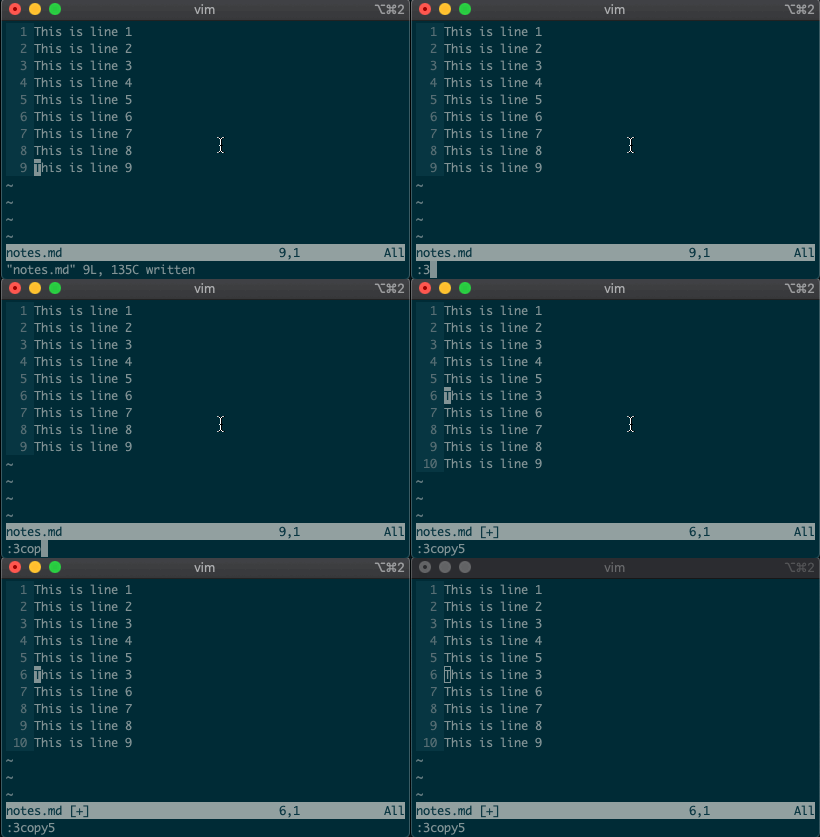
We’ll start by copying, moving, and deleting lines. You access vim’s command-line mode with :. Copying, moving, and deleting can be intuitive. What would you say this command did?

:3copy5

If you guessed copy line three to line five, then you got it!

Copying line 3 to 5 with `:3copy5`

t is shorthand for copy (think copy to). So :3t5 does the same thing as the command above.

Do move and delete work the same way? You betcha.

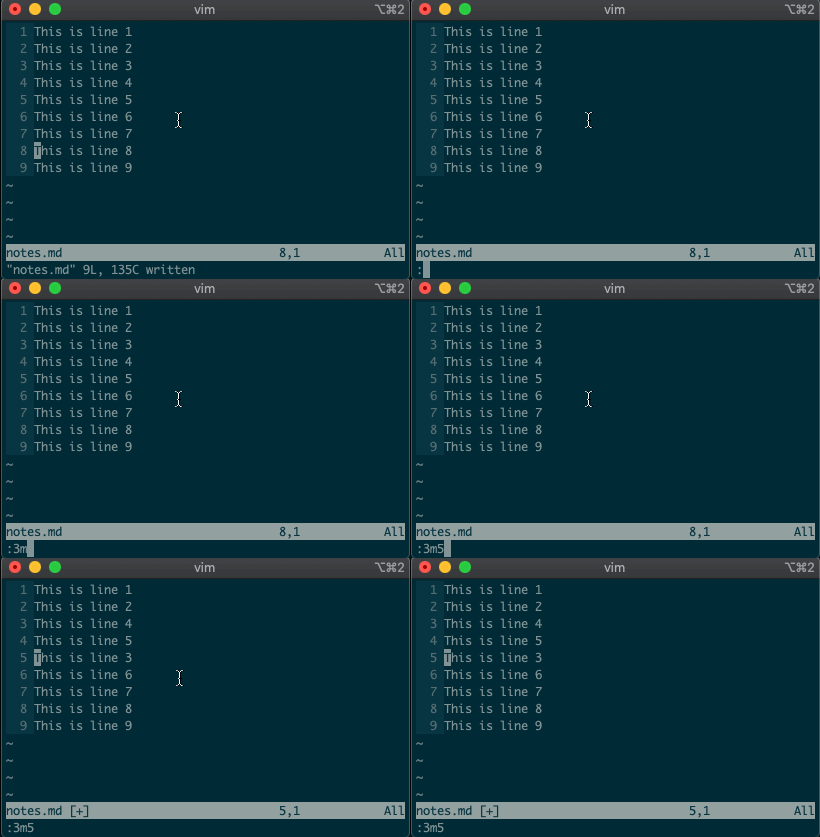
Try moving a line with :3m5.

Moving line 3 to 5 with `:3m5`

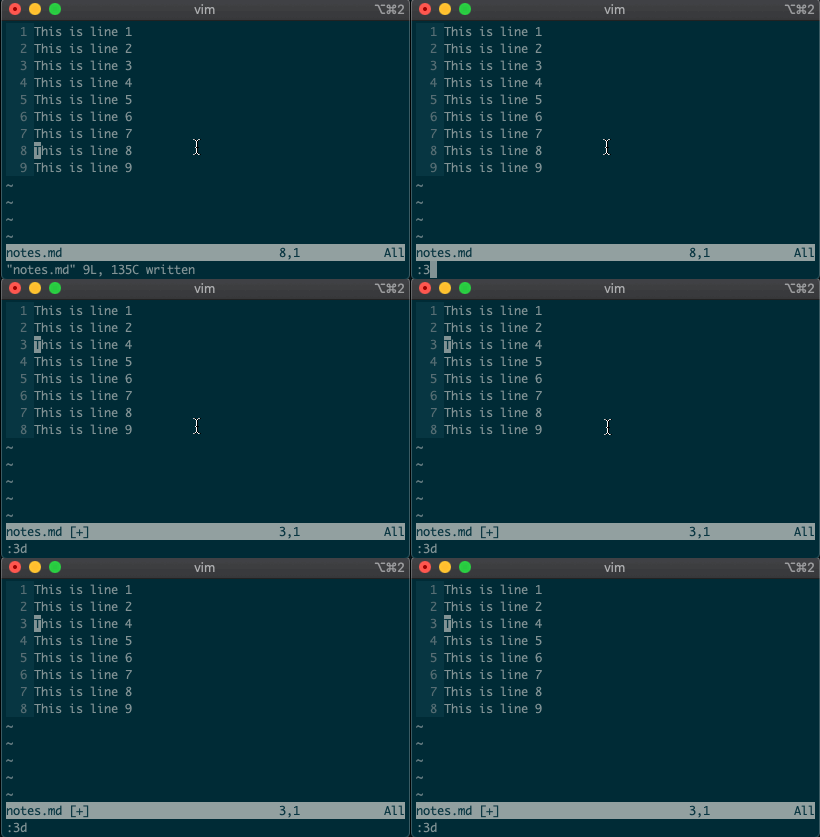
Now try deleting a line with :3d.

Deleting line 3 with `:3d`

Acting on ranges

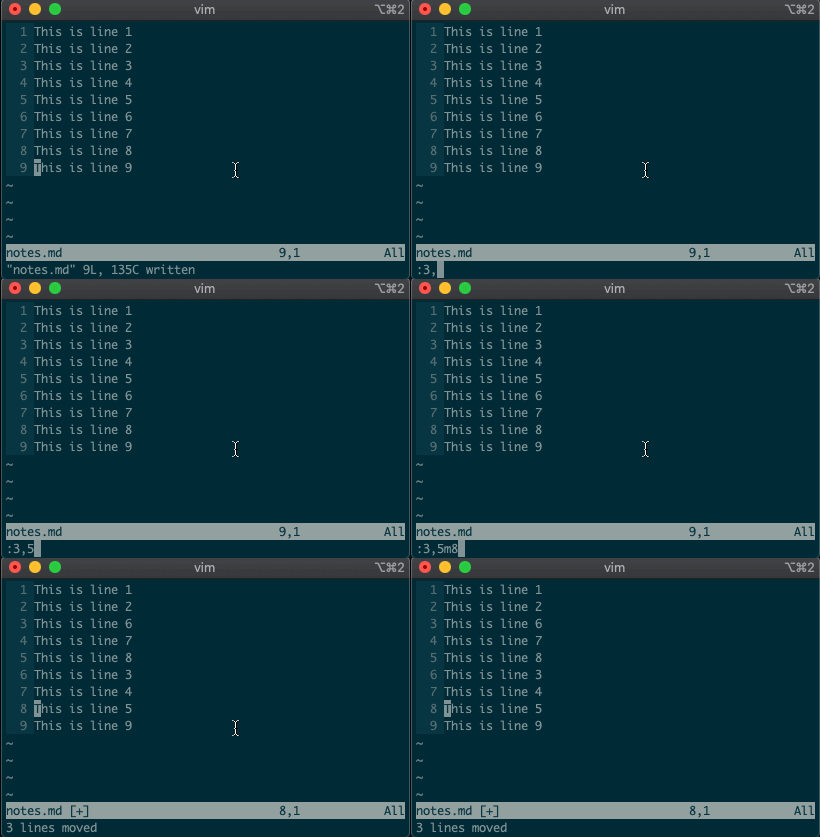
But that’s not all. Ex commands aren’t limited to single lines. They can act on ranges. Want to move lines 3-5 to line 8? You got it:

:3,5m8

Moving lines 3-5 to 8 with `:3,5m8`

Relative ranges

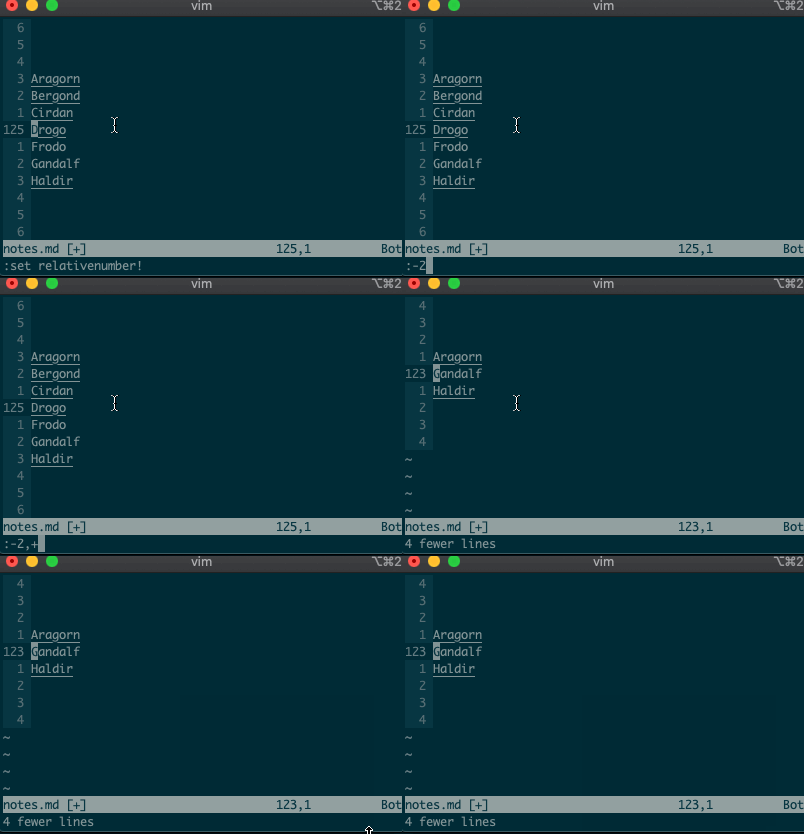
I know what you’re thinking, “But what if I’m on line 125, and I use relative numbers!” Not to worry. Vim has a range for you too:

:-2,+1d

Delete the two previous line and the next line with `:-2,+1d`

The visual range

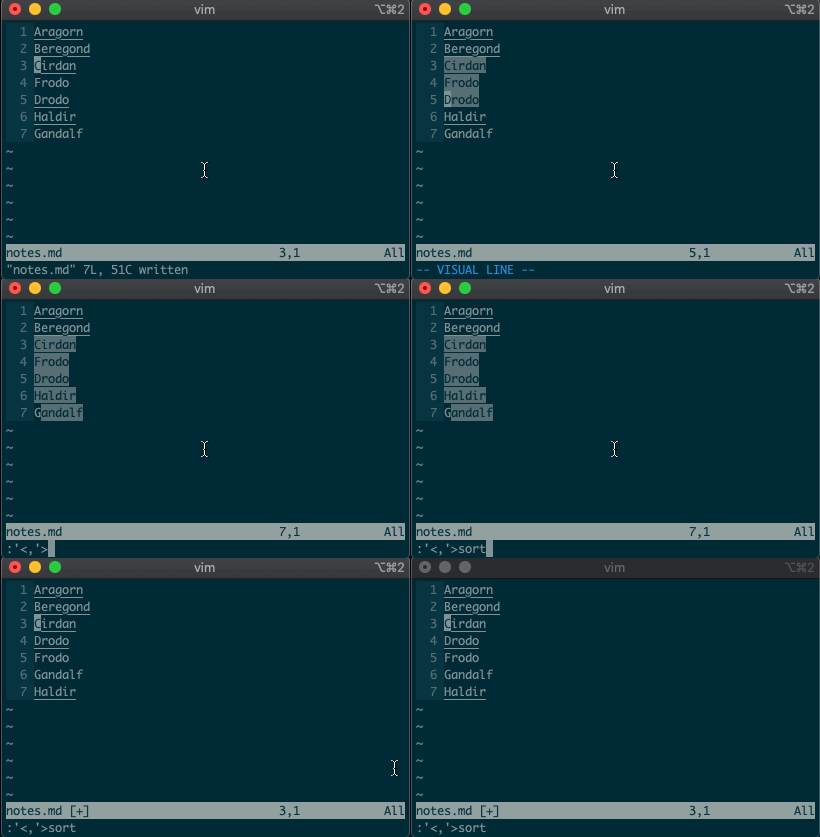
What about using a visual selection as a range? If you’re like me, you’ve probably used vim to help you sort lines by visually selecting them and typing :sort. Did you ever notice the range vim inserts for us? It’s the special visual selector range:

:'<,'>sort

Visually select lines 3-7 and sort with `:sort`

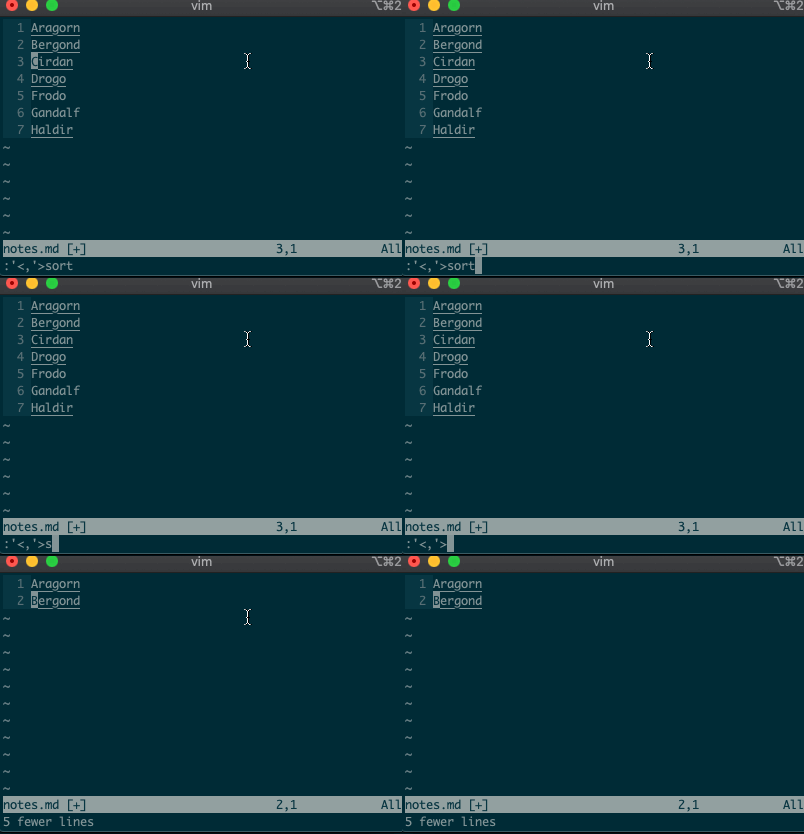
Want to perform other actions on that same visual block? The visual selector range ('<,'>) continues to operate on the previous visual selection, even when that range is no longer selected! Let’s delete the lines we sorted last time:

:'<,'>d

Delete lines previously visually selected with `:'<,'>d`

Want to learn more about the visual selector range? As it turns out, ranges can be delimited by marks, and '< and '> are just a couple of special marks. That opens ranges to a world of possibilities! Try '{,'} for paragraphs and '(,') for sentences.

Search and replace

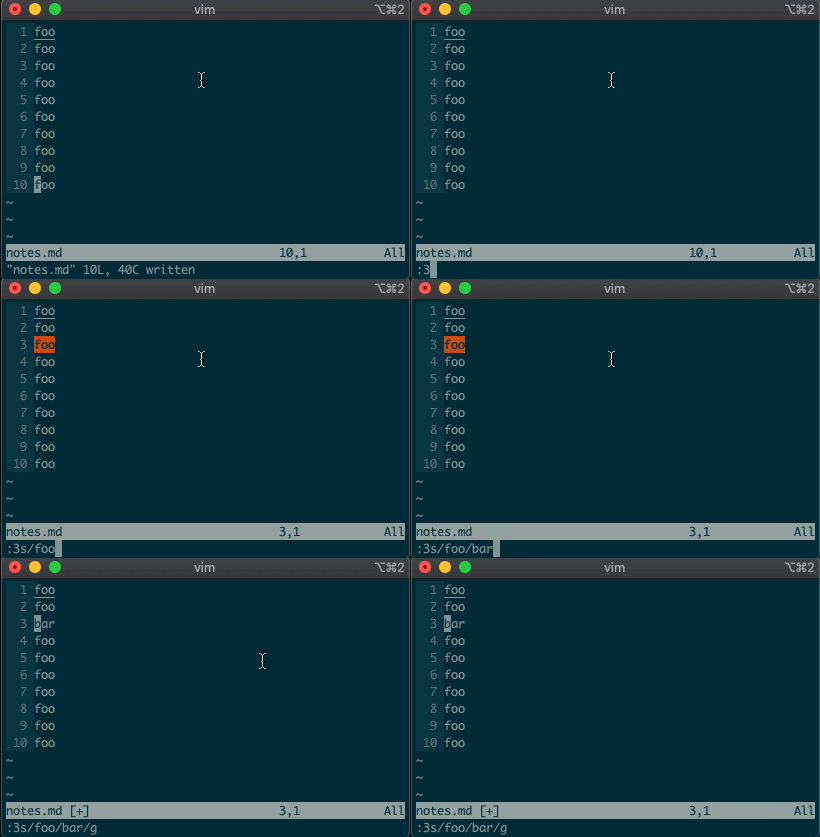
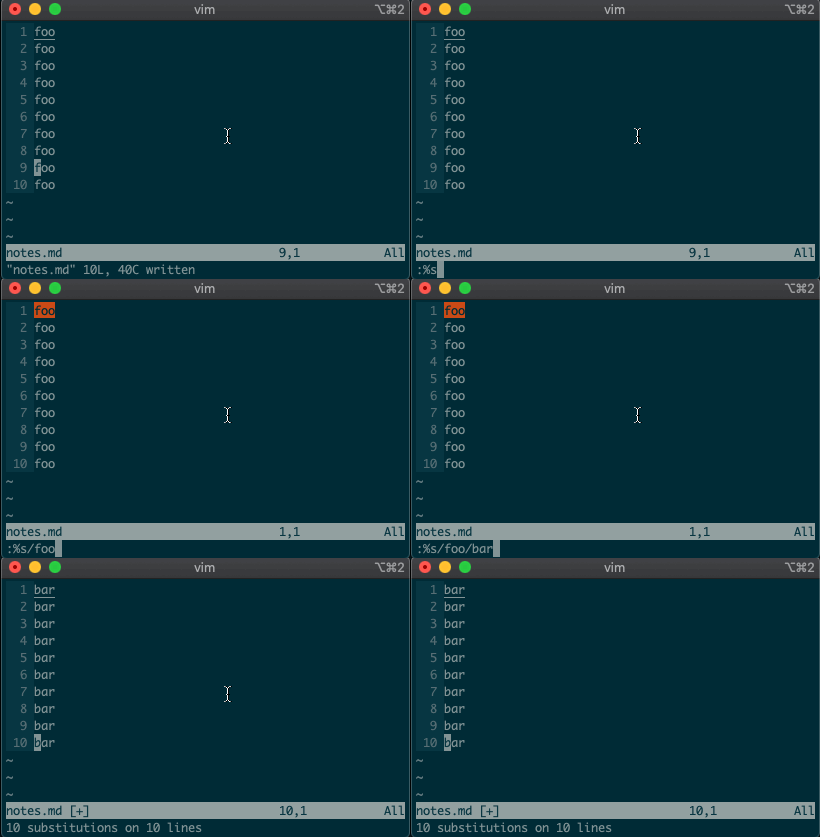
Perhaps you’ve never stopped to think about the magical incantation you use to search and replace words in a file. Well, we can finally uncover the mystery: s will replace things (think substitute). Want to replace foo with bar on line 3?

:3s/foo/bar/g

Replace foo with bar on line 3 with `:3s/foo/bar/g`

What if you want to search and replace in the entire file? We can use a range from the first line to the end of the file: 1,$, or even better, we can use vim’s shorthand for the whole file: %. Go ahead. Type it in, and see the magic work:

:%s/foo/bar/g

Replace foo with bar on all lines with `:%s/foo/bar/g`

Repeat a normal command

In addition to modal editing, vim is known for its ability to repeat the last command with .. Maybe you delete a line with dd, then you realize you need to delete the next one. No need to press dd again, just type . and you’re good to go.

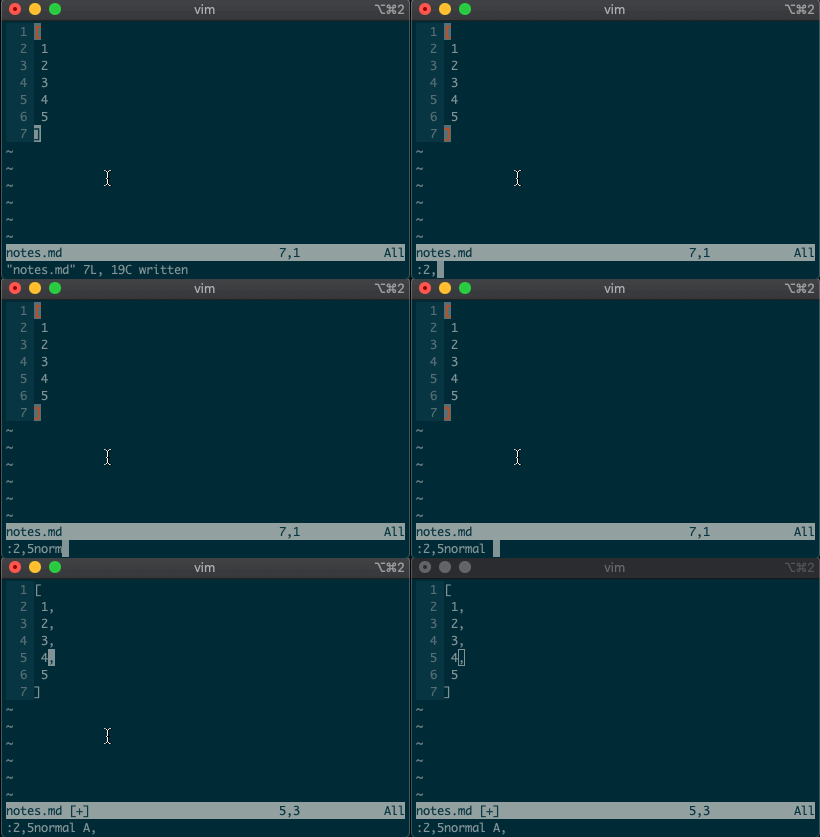
But what about repeating the same command across many lines? What would you do if you wanted to append a comma at the end of each line in a list? Ex commands are here to help you:

:2,5normal A,

Append comma on lines 2-5 with `:2,5normal A,`

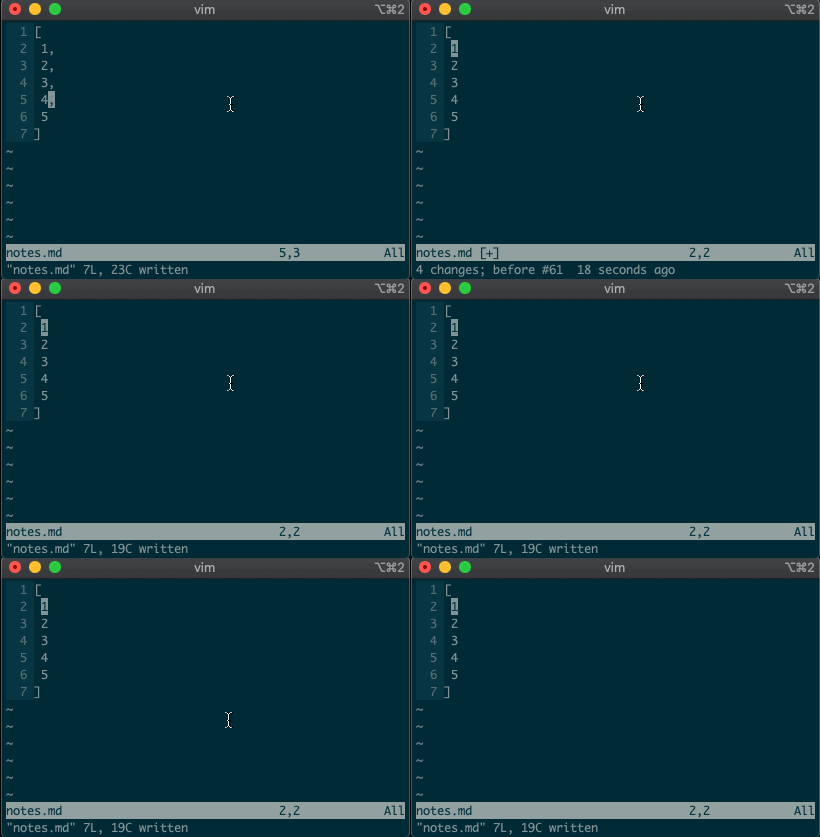
Repeat the last Ex command

. repeats the last normal command. What if we want to repeat the last Ex command? We can do that too.

@:

Repeat last command with `@:`

If you’ve ever used macros in vim, you might notice this looks like a macro for the : register. Find that interesting? Take a look at your registers (:reg) and see what you find for :.

What next?

I hope you see the power of Ex commands. Instead of typing 2Gdd to go to the second line and delete it, you can delete it from afar with :2d. And instead of going to line 3, visually selecting lines 3-5, yanking them, going down to line 10, and pasting the lines with 3GVjjjy10Gp, you can just do it from anywhere in the file with :3,5t10.

If you want to learn more, I highly recommend Drew Neil’s Practical Vim book, or take a look at the excellent documentation for different vim modes and for the Ex commands copymovedeletesubstitute. And if you want to dig deeper, help is just a :help away.

Until next time!

Source: Beyond basic modal editing. Using vim’s command-line mode.