How to rotate and flip videos using Handbrake
HandBrake is a free tool that’s available for Windows, Mac OS and Ubuntu that allows you to take a video in various formats and convert it to an MP4.
The steps below show how to rotate the video being processed.
Before beginning, you need to download and install HandBrake.
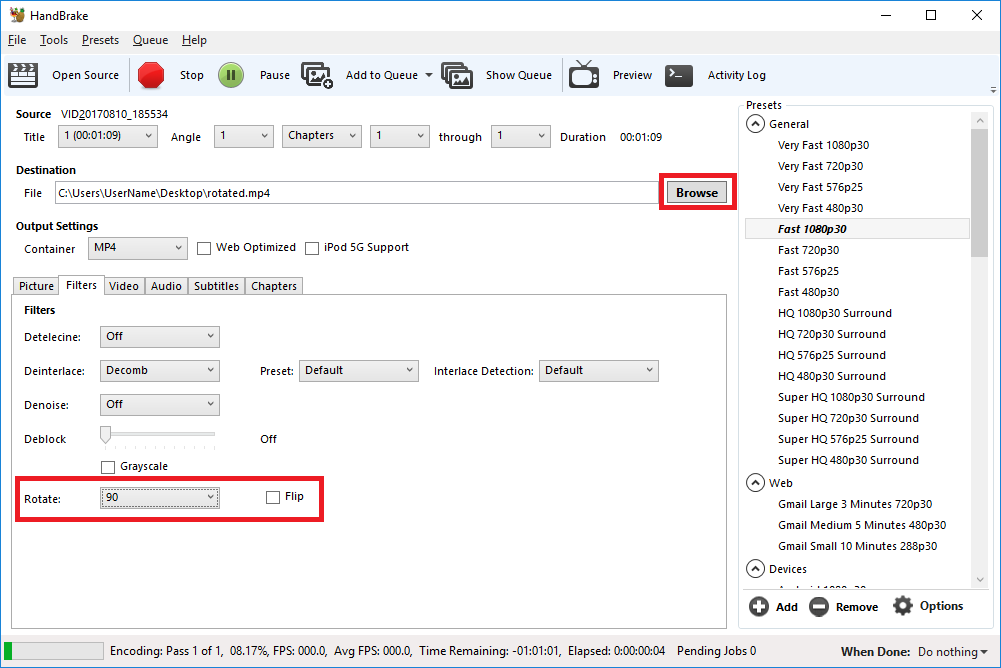
- Open HandBrake and load your video using the ‘Source’ button to select the video you want to rotate or flip
- Choose where to save the rotated video by clicking on the ‘Browse’ button to select where the converted file will be saved.
- Open the ‘Filters’ tab
- The ‘Rotate’ option allows you to choose four different options
- 0 – do nothing
- 90 – rotate to the right
- 180 – turn upside down
- 270 – rotate to the left
- Choose the rotate option you require
- Click ‘Start Encode’ to begin
- At the bottom of the window you will see the progress
Help! It didn’t work
Try the manual way of rotating, by applying manual filters.
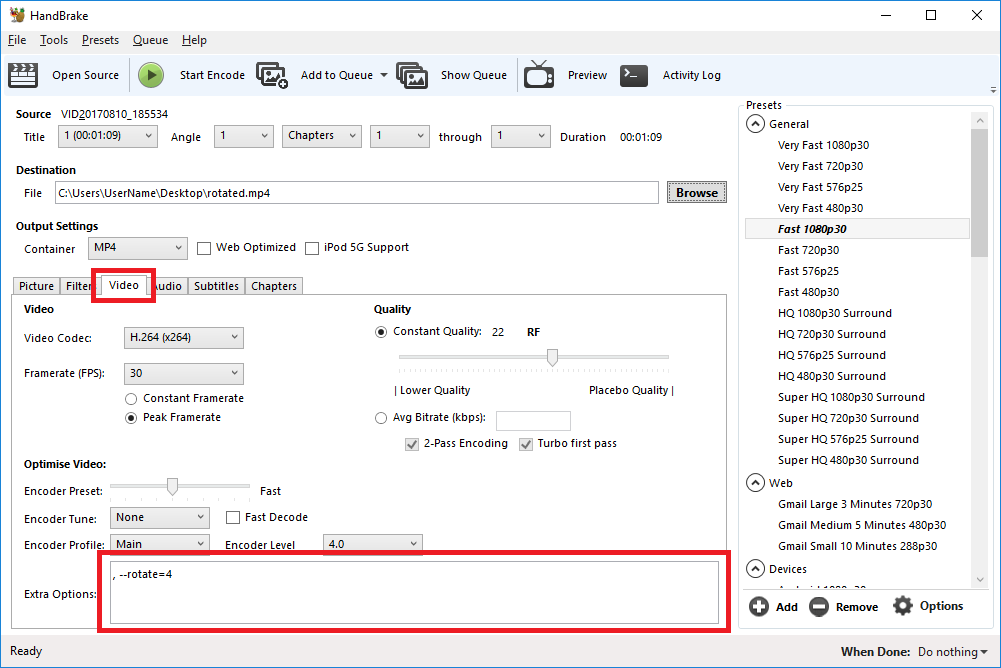
- Open the ‘Video’ tab
- We’ll be working with the ‘Extra Options’ setting.
- Once you have the required command entered, click ‘Start Encode’ to begin.
Rotate 90 degrees clockwise
To rotate 90 degrees clockwise, enter the following command into the ‘Extra Options’ setting:
, --rotate=4Rotate 90 degrees anti-clockwise
To rotate 90 degrees anti-clockwise, enter the following command into the ‘Extra Options’ setting:
, --rotate=7Rotate 180 degrees (upside down)
To rotate 180 degrees so that the video is upside down, enter the following command into the ‘Extra Options’ setting:
, --rotate=3Other options?
The official HandBrake documentation has more detail on what other options are available.
1 : x flip
2 : y flip
3 : 180 degrees rotate (also the DEFAULT)
4 : 90 degrees rotate (clockwise)
5 : 90 degrees rotate + y flip
6 : 270 degrees rotate + y flip
7 : 270 degrees rotate
Source: How to rotate and flip videos using Handbrake – IT Support Guides