A javascript web-based Atmel AVR microcontroller fuse calculator tool. Apply chip features to see fuse bit settings or apply fuse bit settings to match against known features.
Part of programming stand-alone ATmega chips is setting the fuse bytes, these are special settings that can be used to change how the ATmega chips operate.
Some of the things you can do by changing the value of the fuses include;
select different clock sources and change how fast the chip runs,
set the minimum voltage required before the chip works.
set whether or not a boot loader is used,
set how much memory is allocated to the boot loader,
disable reset.
disable serial programming
stop eeprom data being erased when uploading a new sketch.
There are many articles online but I could not find a single source that brought all the information together and fully explain what the fuses actually do.
It is important to remember that some of the fuse bits can be used to lock certain aspects of the chip and can potentially brick it (make it unusable). However, with a bit of care it is fairly straight forward to understand and use the fuse settings.
Disclaimer, I am relatively new to programming fuses and these are notes I wrote to help me remember things. The information is based on the data sheet for the ATmega chip, internet searches, and questions I asked on forums (especially the Arduino forum).
There are 3 bytes in total:
low byte fuse,
high byte fuse,
extended fuse
There is also a forth byte that is used to program the lock bits. Lock bits are not covered by this article.
Each byte is 8 bits and each bit is a separate setting or flag. When we talk about setting/not setting, programmed/not programmed fuses we are actually using binary. 1 means not set/not programmed and a 0 (zero) means set/programmed.
When programming the fuses you can use binary notation or more commonly hexadecimal notation. For 8 bits (1 byte) we can use B11111111 or 0xFF. Both are the same value.
Note: For all fuses, a value of 1 means not set and a value of 0(zero) means set.
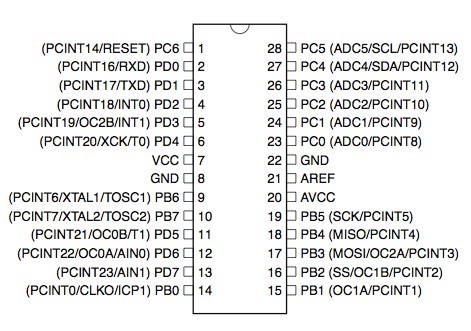
ATmega 328P 28 PDIP diagram
Low Byte Fuses
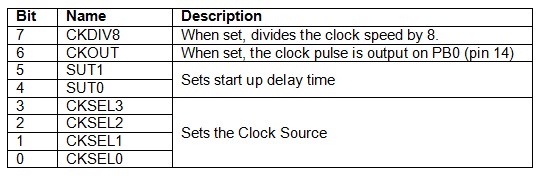
The low byte fuse deals with the clock source, how fast the chip will run, and how long it waits at startup.
The ATmega chips can be run at different speeds or frequencies and the frequency is determined by the clock source that is used. The clock source is set by using the CKSEL fuse bits.
CKSEL (Clock Sources / Clock Selection)
The clock signal can come from an internal oscillator, an external crystal/resonator, or an external signal. Arduinos normally use an external 16MHz crystal.
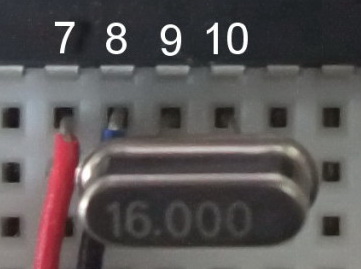
Here is a 16 MHz crystal used on a bread board Arduino connected to XTAL1 and XTAL2. The ATmega chip has to be told to use the external crystal and this is done by setting the CKSEL bits. A common mistake is to have the crystal correctly connected in the circuit but forget to tell the chip to use it.
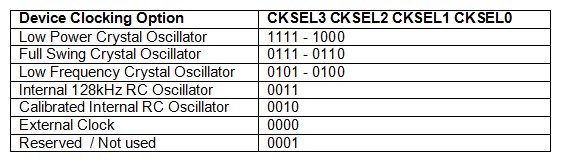
The different options for CKSEL are:
Arduinos normally use a low power crystal oscillator.
The ATmega has 2 built in oscillators, a 128kHz RC oscillator and a calibrated RC oscillator.
The external clock option allows the chip to use an external square wave clock signal. This is used when you have a circuit with its own clock that you want to sync the ATmega with or if you want to use a separate clock chip. The external clock signal needs to be connected to the CLOCK-IN pin
Crystal Oscillator Options
CKSEL3=1 CKSEL2=1 CKSEL1=1 CKSEL0=1 selects a crystal any where from 8MHz to 16MHz and is the normal setting for Arduinos.
If you want to use a slower crystal, for example 6MHz, then you would use CKSEL3=1 CKSEL2=1 CKSEL1=0 CKSEL0=1 (the 3.0 to 8.0 range).
To use the internal RC oscillator at 8MHz, the settings are CKSEL3=0 CKSEL2=0 CKSEL1=1 CKSEL0=0
SUT1/SUT0 (Start Up Time)
Crystals and oscillators require sufficient voltage to operate correctly. When you start the ATmega chip it can take a brief period of time for the voltage to get to its maximum value. While the voltage is rising the clock source may not be working at the correct speed or frequency. To allow the clock to stabilise a startup delay can be set.
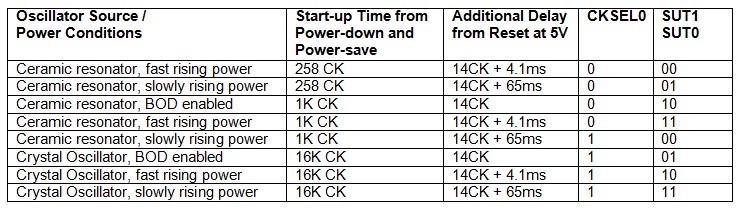
CKSEL0 is used together with SUT1 and SUT0 to set the start up delay time.
BOD is Brown Out Detection and discussed later.
The Arduino uses the maximum startup delay of 14CK + 65ms (CKSEL0=1, SUT1=1, SUT0=1) which are also the default settings for new ATmega 328/328P chips.
CHDIV8 (Clock Divide)
ATmega 328/328P chips have a built in RC oscillator which has a 8.0MHz frequency. New chips are shipped with this set as the clock source and the CKDIV8 fuse active, resulting in a 1.0MHz system clock. The startup time is set to maximum and time-out period enabled. (CKSEL = “0010”, SUT = “10”, CKDIV8 = “0”). This setting is used so that all users can make their desired clock source setting using any available programming interface.
CKDIV8 should be used if the selected clock source has a higher frequency than the maximum frequency of the ATmega chip.
The ATmega chips can be used at very low voltages, however, the lower the voltage the slower they need to work at. The CHDIV8 can be used to set a slow clock speed to match a low voltage.
CKOUT (Clock Out)
The clock signal can be routed to PB0. This is useful if you need the clock signal to drive other circuits. This works for all clock sources and the default setting for new chips is CKOUT=1 (not set).
High Byte Fuses
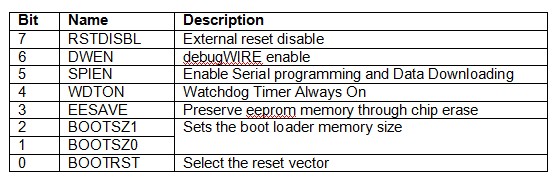
The high byte fuse has several different settings. The ones of normal interest (to me as a hobbyist at least) are the watchdog timer, preserving or erasing eeprom and the boot loader attribute settings.
RSTDISBL (External reset disable)
PC6 is a reset pin, hold it low (to ground) and the chip will reset. This is how the switch on the Arduino works. When you press the reset button it connects PC6 to ground and resets the chip.
PC6 can also be used as a regular IO pin but this means disabling the reset function which in turns means the chip can no longer be inline programmed (in line programming requires a reset). This is one of the options it is better not to change.
I imagine RSTDISBL is implemented for security reasons to stop the chip being reprogrammed or the firmware being downloaded.
When RSTDISBL is programmed the start up time (SUT1 SUT0) is increased to 14CK + 4.1ms to ensure the programming mode can be entered.
By default, the setting is RSTDISBL=1 (not set).
DWEN (debugWIRE enable)
ATmega chips have built in debugging tools which are by default turned off. The DWEN fuse is used to turn them on.
DWEN uses the same pin as reset (PC6) and when DWEN is enabled (and the lock bits are not set) the reset pin becomes a communication pin and normal reset no longer works. For example, if you enable DWEN on an Arduino the reset button no longer works.
To use the on-chip debugging you need a compatible programmer such as the AVR Dragon. Since I have never used AVR studio and do not have a suitable programmer I have never used and do not know how to use debugging. If you would like to know more then there is a good article at http://www.hilltop-cottage.info/blogs/adam/debugging-arduino-using-debugwire-atmel-studio-and-an-avr-dragon/ to get you started.
This is one of the fuses you should take care with. If you enable DWEN and also enable the lock bits you can no longer program the chip in the normal way.
If you are just starting then leave DWEN to not set. After all, reset is very useful.
SPIEN (Enable Serial programming and Data Downloading)
ATmega chips can be programmed using serial programming. Serial programming is used for on board programming using a serial protocol via an ISP (inline serial programmer) or UART (universal asynchronous receiver/transmitter).
The normal method of programming the ATmega chips is via the SPI interface using the SCK (clock), MOSI (input) and MISO (output) pins. If you disable serial programming then you can no longer use the SPI to program the chip. You can also disable serial programming using the lock bits.
For normal use and development leave SPIEN enabled, however, if you have a device that is final and no further programming is required then you can use this option to stop people accessing the chip through serial communication.
The default setting is SPIEN enabled, SPIEN=0.
The RSTDISBL, SPIEN and DWEN fuses have the potential to brick the ATmega chip, or at least make the chip very very difficult to use again. For general use, and especially if you are just starting out with programming stand-alone chips, you should not change these fuse settings. You should also double check that you are not changing them when you re-write the other fuse settings.
WDTON (Watchdog Timer Always On)
The watchdog is basically a timer that will cause the chip to reset if it does not receive an OK signal at specific times.
This can be useful when you have unstable code or have a system that must not be allowed to permanently lock up.
When the watchdog timer is enabled, should a sketch crash or freeze then the timer will time out and reset the chip causing a restart similar to pressing the reset button an a running Arduino.
The Watchdog Timer can be activated in software so the fuse settings doesn’t really need to be used. By default, the watchdog timer is off, WDTON=1.
There is a nice mini guide on the Watchdog timer by za_nic on the Arduino forum at ttp://forum.arduino.cc/index.php/topic,63651.0.html
Paul Martinsen has a guide on how to use the watchdog timer to detect lockups at http://www.megunolink.com/how-to-detect-lockups-using-the-arduino-watchdog/
EESAVE (Preserve EEPROM memory)
When the ATmega chip is programmed the memory is erased just before the new code is uploaded. Under normal circumstances the eeprom memory is erased as well as the program memory. The EESAVE fuse can be used to tell the chip not to erase the eeprom. This is useful when you want to upgrade code but keep user settings that are stored in eeprom.
The default value is EESAVE=1, not set and eeprom memory is erased during the chip erase cycle when programming.
I have got into the habit of setting this fuse; eeprom has a limited life cycle so the less you write to it the better. Erasing the eeprom has no effect on uploading new code and the majority of my projects don’t use the eeprom memory so not erasing it is not a problem. The dropController stores settings and drop times in eeprom and so I set EESAVE to preserve the data when I upload new versions of the code.
BOOTSZ1 & BOOTSZ0 (Boot loader Size)
The ATmega chips have the ability to use a boot loader, this is a small program that runs when the chip is first started or when it is reset. Boot loaders are normally used to initialize the device and check for external communication. The Arduino uses a boot loader to talk to a connected computer to see if there is a new program to be uploaded. This is the reason the Arduino resets when you upload new code, the reset runs the boot loader, the boot loader checks to see if you have new code.
The boot loader is stored in program memory, the same memory used for the user application and since the boot loader can be different sizes you can tell the ATmega chip how much space to reserve. The regular (older) Arduino boot loader is 2 kilobytes (KB) but the newer Optiboot (used on the UNO) is only 0.5KB (512 bytes). If using Optiboot and setting the boot loader size accordingly you gain an extra 1.5KB for your own program. 1.5KB can be a lot of space, running out of program space is why I started programming stand alone ATmega chips in the first place. The code for the dropController became too large for the regular Arduino so I removed the boot loader.
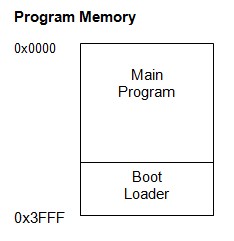
The boot loader is stored at the top of the program memory
If you have a boot loader then BOOTSZ has to be used in conjunction with BOOTRST. BOOTRST tells the ATmega chip the memory address where the boot loader starts. If BOOTRST is not set then the user application can use the whole of the memory regardless of the BOOTSZ settings.
Boot Size Configuration for the 328/328P
Note that the above sizes are in words (a word is 2 bytes) and 256 words is 512 bytes.
The default for new chips is BOOTSZ1=0 BOOTSZ0=0 which means they have 4KB reserved for a boot loader.
BOOTRST Select reset vector
ATmega chips can use a boot loader, this is a small program that runs when the chip is reset. If you have a boot loader then you need to inform the MCU and this is done by using the BOOTRST fuse setting. When the BOOTRST Fuse is set, on reset the device will jump to the Boot Loader address. If not set, the chip will jump to the program start address at 0x0000.
The default value is BOOTRST = 1 (not set).
If BOOTRST is not set (no boot loader) then the BOOTSZ fuses are ignored.
Extended Fuse Bits
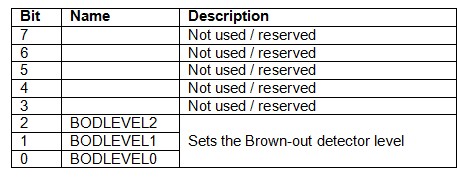
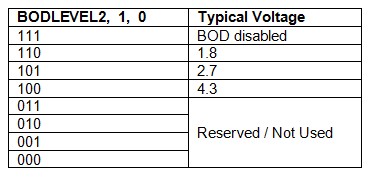
The extended fuses are only used to set the brown-out detection level (BOD).
The ATmega chips can become unstable or unreliable when used with insufficient voltage. For example, the 328/328P can run safely at 16MHz if it has at least 4V. Anything below 4V means the chip is likely to misbehave. This would be a problem if the device were being used with sensors to take measurements or relied on accurate timings.
To ensure the chip has sufficient input voltage a minimum voltage level can be set. If the voltage falls below this level then the chip will reset itself. This is called the brown-out detector level. Basically, if the supplied voltage is below the BOD the chip keeps reset low.
The default values for new chips are; BODLEVEL2=1 (not set), BODLEVEL1=1 (not set), BODLEVEL0=1 (not set).
Default Fuse Settings
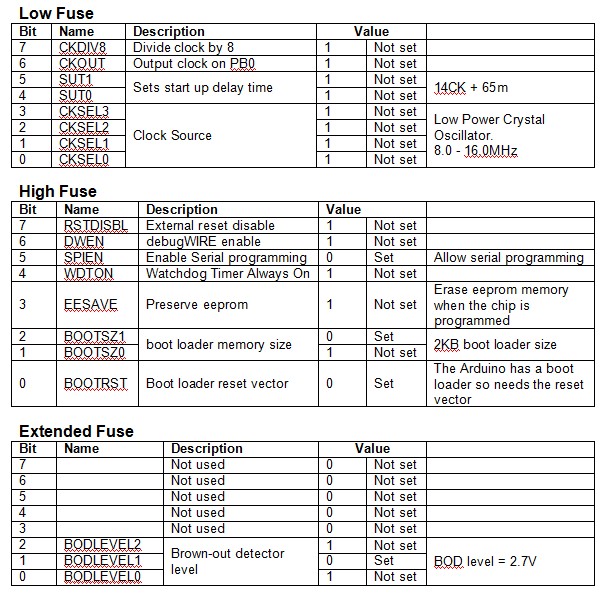
New ATmega 328P Chip.
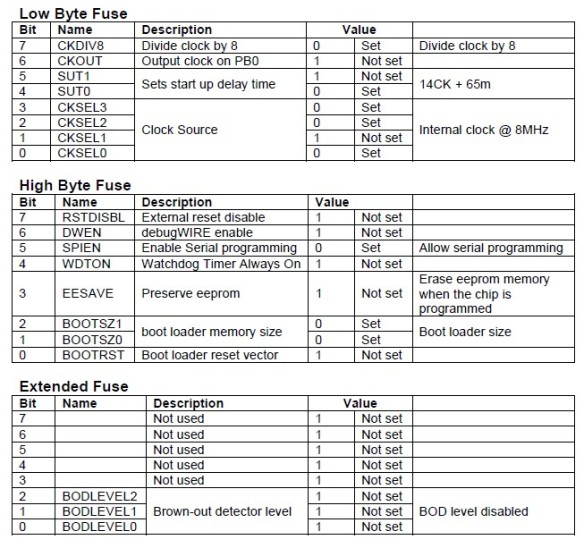
New 328/328P chips generally have the following fuse settings:
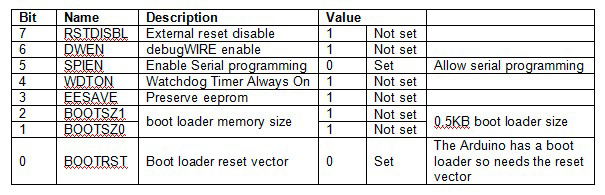
If you load the Optiboot boot loader then the high byte fuse should be set as 0xDE (B11011110). The only difference is the space allocated to the boot loader.
Lock bits can be used to restrict read/write access to the program memory. The boot section and the application section have their own lock bits and access for each area can be controlled separately.
You can brick the ATmega chip if you enable the lock bits and you should not change them.
I will try to cover lock bits in more detail in a later post.
Actually Programming The Fuses
To program stand-alone ATmega chips I used an Arduino Nano as programmer, see Arduino Nano as an ISP Programmer and found the easiest way to set the fuses was to burn a boot loader (the fuses are set as part of the process). The boot loader can then be written over later when you upload a sketch. By editing the boards.txt file in the Arduino installation folder you can use any values you desire for the fuses.
Here is the entry I added to boards.txt for use with bread board Arduinos. This has the low byte fuse at 0xFF, the hight byte fuse at 0xDF, the extended fuse at 0x05, and uses the Optiboot boot loader. The values for the lock bits were copied from the Arduino Uno entry.
The ATmega 328P data sheet can be down loaded from the Microchip website.
http://eleccelerator.com and http://www.engbedded.com both have a fuse calculator where you select what options you want and the page gives you the fuse settings to use. I prefer not to use the calculators as I think it may be easy to make mistakes but this is my personal opinion only.
NIck Gammon also has a useful sketch that detects ATmega chip types. The sketch can be found at http://www.gammon.com.au/forum/?id=11633. The sketch displays the fuse settings, the lock bits and gives information about the boot loader if one is present. I found this sketch very useful when I first started programming chips directly.
This is a beginner-to-beginner post. I can’t emphasize that enough. What I mean is I’m no expert, I’ve just put together this based on my learnings so far.
After many years of bouncing around email clients, I found myself quite dissatisfied with the options. I actually kind of liked the Mail app in Windows, it was basic but worked pretty good. When MS switched over to New Outlook, I hated it due to built in advertising. I tried a ton of new email clients like eMclient, Bluemail etc. but they all had issues on things that I didn’t like. I settled on Thunderbird (TB) just before v.115 was launched (current version 128).
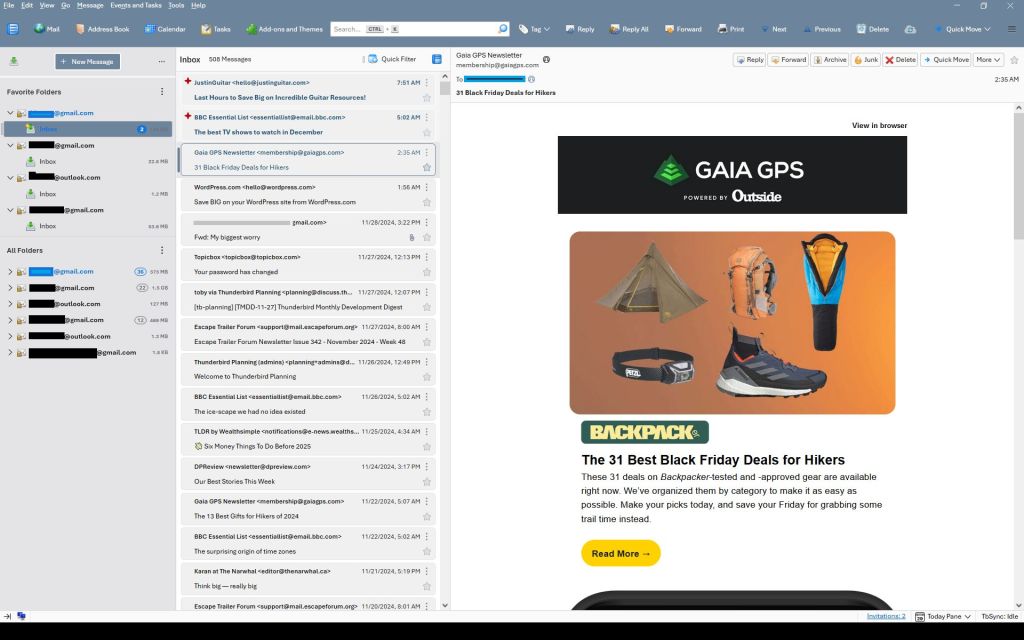
I used TB in the 2000s but forgot why I dropped it. But coming back to it was pretty good right out of the box using three gmail accounts and an outlook account. Mostly through Reddit I started compiling code to customize the UI and some behaviors. So little by little, I learned how to tweak TB to make it look better to me now:
Note just about every color you see can be changed easily if you prefer. This is just one example.
Key changes I made:
Rearranged menus, with drop down and window controls above the search bar
Filled the search bar (Unified bar) with shortcuts to make it more useful
Custom colored the menu, search bar, folder pane, message list etc.
Made sort order so new emails on top, not bottom.
Ditched threaded view
Ditched “hover” highlights when the cursor went over folders or emails
Added detailed message colors for Unread, Read and New emails
Fixed the New Message button and other buttons
Got rid of the many colored lines that occur when emails are forwarded or responded to.
Set up inboxes as favorites to avoid using unified folders
Used alternate TB buttons and icons
Changed the UI base font
Other small changes
This guide is intended to walk you through the basics of setting up TB from original state to something like above, where you can also change colors and other settings to suit your own needs. Some changes are through Settings, but some are through “CSS”. CSS (cascading style sheets) is a way of using text-based coding to make changes. It basically is a new file you add to your profile that overrides settings in the program. I’m no expert but I now know how to set it up, and it isn’t hard.
A few words of warning…this was how I did it on a Windows computer. I imagine it works the same on iOS or Linux, but I have no experience with either of those.
You’ll note I use Vertical View – Folder pane, then Message pane (in card view) then the email window. I don’t know if those are the right names are not. If you want table view of message list, or vertical view…go ahead, I don’t know how much of what follows works with that set up.
Before you start, if you follow some of these changes but don’t see the effect right away, make sure you close and restart TB as many only work after a restart.
Before starting on CSS changes, there are several settings you can make:
Where’s the drop down menu?
Right click in the empty space beside the long search bar and select Menu Bar. It’ll appear below the search bar – we’ll fix that later. Also, menu bar and search bar are the color of windows accent colors but that can be customized as well later.
Hide the Spaces toolbar:
Use View>Toolbars and choose Spaces to hide it. Or use the left pointing arrow at the bottom of it. Or keep it if you like it, but I chose to put similar buttons adjacent to the Search Bar so I don’t use the Spaces bar.
Sort Order:
Default is newest email on bottom of the list – I prefer newest on top.
Click on Tools> Settings. Settings tab opens up.
Scroll to bottom of General Settings section and click on Config Editor
type into the search box: mailnews.default_sort_type (or select it when you see it as you type)
make sure value is set to 18 by selecting the pencil icon, change value, click check mark to save it.
type into the search box: mailnews.default_sort_order (or select it when you see it as you type)
Value default is 1 (ascending), change to 2 (descending) by selecting the pencil icon, change value, click check mark to save it.
NOTE: with this change all messages will now be in descending order unless you previously clicked on the folders before making the change. If you clicked on them before changing the order, those folders will not be affected by the global change. You have to manually change them by selecting them, then View>Sort By> Descending.
Threaded/Unthreaded. Default is threaded – I prefer unthreaded. To change permanently:
View > Sort by > Unthreaded, then
Go to Config Editor (see above under Sort Order)
Type in mailnews.default_view_flags and change the value to 0. Click the check mark and restart TB.
You may need to go back to View>Sort by>Unthreaded but it should stick.
Group By. I like seeing the emails grouped by the date sorts: Today, Yesterday, Last 7 Days, Last 14 days, Older.:
View>Sort by>Group by Sort. But the problem is, it doesn’t stay that way so now you have to
View>Threads> Expand all Threads.
Add-ons Tools > AddOn and Themes > Extensions then use search bar for these – some worth exploring:
Old Icons (I like these the best and use them)
Phoenity Buttons
Phoenity Icons
Unified and or Favorite folders:
For multiple accounts and using unified folders:
Click the 3 dots to the right of the New Message box in the folder pane, then Folder Mode.
Choose both Unified Folders and Favorite Folders.
Right click on an Inbox and choose Favorite, then click on the 3 vertical dots by Favorite Folders and move up or down as you want.
Then down the list in the folders pane you should see a Unified folder structure that has a Unified Inbox. (I keep this off as I’m not a fan of unified inboxes – I have all account Inboxes set a favorites).
Unified Toolbar
I customized it with buttons. To do that, right click in a blank space on it and choose customize. You’ll see I used Mail, Address Book, Calendar, Tasks, Add Ons and Themes on the left side, and Tag, Reply, Reply All, Forward, Print, Next Previous, Delete on the right side. Do what works for you.
I also hid the side vertical Spaces menu. Now that the Unified toolbar has the items from the Spaces toolbar, you can hide it by unchecking View>Toolbars>Spaces
CSS Editing:
Customizing TB through css is quite fun and you can get quite creative. But first you have to enable it as its not ready by default (officially it’s not supported by TB and new program coding can break the following codes at any time):
Enabling css:
go to TB menu Tools > Settings > General
scroll all the way down and click the ‘Config editor’ button on the right
click the double arrow on the right to toggle the value to ‘true’
Next, locate and open your profile folder:
Menu: Help > Troubleshooting Information
Under Application Basics, click on the Open Folder button next to “Profile folder”. You should now see your profile folder being opened in your file manager.
Next, create the folder and its files:
Inside your profile folder, create a new folder named chrome (all lower case) – the chrome folder should end up in a folder that includes stuff like prefs.js and places.sqlite.
Inside the chrome folder, create two new text files (i.e. new Notepad text files) by right clicking and select “new text file”
Name one userChrome.css and userContent.css (case sensitive)
Note: In Windows, you might want to disable the “Hide extensions for known file types” setting in Explorer. Once that’s done, simply create a new text file (Right click ➝ New ➝ Text Document), then make sure to replace the .txt file-extension with .css.
You should now have two empty files called: userChrome.css; userContent.css
You are now ready to enter css code into the userChrome.css file and make changes:
Note: the code parts below are the parts written in Courier Font. Make sure you copy all the parts as there can be a “}” symbol on its own on the last line.
Working with Colors
You’ll see a lot of code includes hex color codes (e.g. #174a70 or just words like white, black, gainsboro). If you are not familiar with codes, see this page: https://htmlcolorcodes.com Note that as you select colors, it gives you the # and then a six number/letter code that comes after the # symbol (e.g. #174a70 is a shade of blue used in Windows).
Its minimal, but the eyedropper lets you select specific colors you might already be using that you want to make the same.
So if you want to change color, just replace the six character code but make sure you keep the # symbol. You can also replace the numbers in front of the “px” code to change sizing.
CSS Codes:
The first section takes the unified tool bar which has menu items etc. and puts it above the search bar. You can change the color code and replace “white” with a color code or name. Changing px values changes heights etc. The maximize, minimize and close controls are moved to the top right corner. You can also change the height and color of the unified search/tool bar:
/*******Move tool bar above unified bar*******/
toolbar#toolbar-menubar {
  Order:            -1 !important;
  background-color: #6D859C !important;  /* Color of menu bar */
  color:            white   !important;  /* Color of the text - if needed */
  padding-top:      0px     !important;
  padding-bottom:   0px     !important;
  margin:           0px     !important;
}

/***** Move window controls up to the menu bar ******/
.titlebar-buttonbox-container { position: fixed;
  top: 0px;
  right: 0px;
  height: 19px !important;
  color:            white   !important;
/******** adjust if necessary **********/ }

/******Adjust and color unified toolbar******/
#unifiedToolbar {
  height:  60px  !important;
  padding-block:   1px  !important;
  margin-block:    0px  !important;
  background:  #6D859C  !important;
  color: white  !important;
}
I’m not a fan of changing colors when you mouse over a folder. This codes makes the hover transparent. You can replace “transparent” with a hex color code if you want a hover color:
This next part changes background color on the left side folder list, changes New Message button color and border, and changes the font family used for the UI:
/*******Background color on folder list******/
#folderPane,
#folderPaneHeaderBar { background-color: #E4E4E6 !important; }

/******Fix the new message button*******/
#folderPaneWriteMessage { background-color: #6D859C !important; border: 2px solid white !important; color: white !important; }

/*******Change universal fonts *******/
*{ font-family: Arial}
This sets background and font color for selected folder:
This next group of three items changes card view from three lines to two lines. You won’t need this if you prefer 3 line card view or use table view, but I think two-line card view is a nice blend of the two standard views:
Note: as of Thunderbird V.139 2 line view option is included in the programs Tools>Settings>Appearance. This code section is no longer needed if using V.139 or newer.
This section allows you to set your message background or message text in the message list to match the color of any tags you are using. Use one or the other if you want but not both as your text and background would be the same.
This next section is what I call the “Detailed Colors” section is super detailed. It gives you total control on colors of emails depending if they are New, Unread or Read. You can change colors of text, the button if it has one, backgrounds, borders etc. The way it works is it first gives a long list of parameters you can change based on email status. E.g. – for Unread messages you can change colors and fonts for when they are default, hover over them, select them, select it and others etc. Same for Read messages, same for New messages – tons of control but a lot to go through. Following setting the conditions, they cade near the bottom applies those conditions so only make changes up to the point where it says “/*table*/”:
For new event and task buttons, this changes the button colors:
/******Fix New Event and New Task buttons***********/
#sidePanelNewEvent { background-color: #E4E4E6 !important; border: 1px solid white !important; color: white !important; }

#sidePanelNewTask { background-color: #E4E4E6 !important; border: 1px solid white !important; color: white !important; }
Hint: You can keep a copy of the userChrome.css file in the same folder and call it userChrome.old or .bak or something – in case you screw up your .css file, you can go back to the last version that worked.
Fixing the multiple lines in forwarded/replied emails:
When emails go back and forth through reply/reply/all/forward, TB adds colored vertical lines to the previous parts. After a few back and forth’s and the email chain can have a lot of these. I like them gone.
This fix is done using the userContent.css file that was created when you enabled css. This file should be alongside you userChrome.css file.