With Chrome, Safari, and Edge enabling the tracking feature called Hyperlink Auditing, or Pings, by default without a way to disable them, users will need to rely on browser extensions to block them going forward.
Content Security Policy (CSP) allows you to dictate a policy for content restrictions on a web site that is enforced by the browser. By setting a CSP header, can control the resources that are loaded when a visitor is viewing your website. The CSP spec allows you to build very specific policies for your site that can handle all of the different types of resources that a site might load. It is a valuable tool for protecting your site visitors.
In addition to blocking resources that violate the defined CSP, the CSP spec details a mechanism for sending reports of such violations. Monitoring these violations can help you ensure that your site is never serving content that violates your wishes whether those violations are the result of producer, developer, or hacker actions.
List Hard Drives using Command Prompt & PowerShell in Windows 10
If you frequently work with the Command Prompt or PowerShell, you may need to copy files from or to an external drive, at such, and many other times, you may need to display the drives within the console window. In this post, we will show you how you can list drives using Command Prompt or PowerShell in Windows 10/8/7.
List Hard Drives using Command Prompt
If you need to simply list the drives, you may use WMIC. Windows Management Instrumentation (WMI) is the infrastructure for management data and operations on Windows-based operating systems.
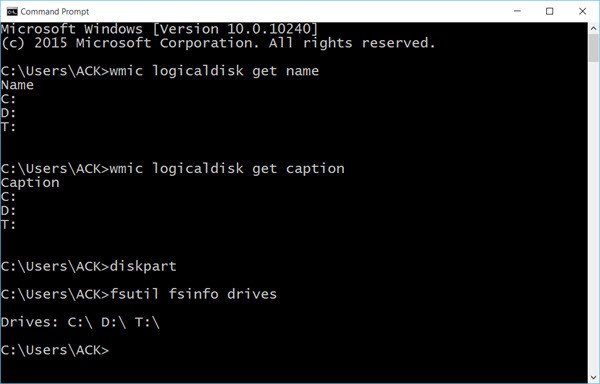
Open a command prompt, and type the following command:
wmiclogicaldisk get name
Press Enter and you will see the list of Drives.
You can also use the following parameter:
wmiclogicaldisk get caption
Using the following will display Device ID and volume name as well:
wmiclogicaldisk get deviceid, volumename, description
Windows also includes an additional command-line tool for file, system and disk management, called Fsutil. This utility helps you list files, change the short name of a file, find files by SID’s (Security Identifier) and perform other complex tasks. You can also use fsutilto display drives. Use the following command:
fsutilfsinfo drives
It will show mapped drives too.
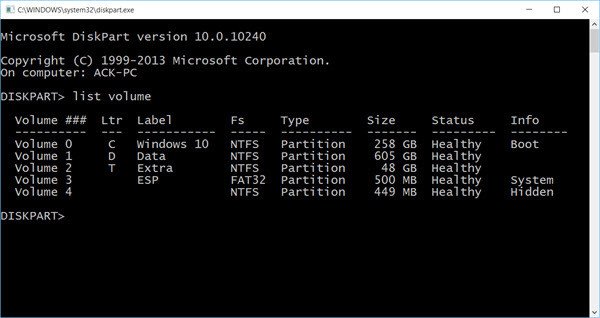
You can also use diskpart to get a list of drives along with some more details. The Diskpart utility can do everything that the Disk Management console can do, and more! It’s invaluable for scriptwriters or anyone who simply prefers working at a command prompt.
Open CMD and type diskpart. Next use the following command:
list volume
You will see that the console displays the Volume number and letter, label, formatting type, partition type, size, status, and other information.
List Hard Drives using PowerShell
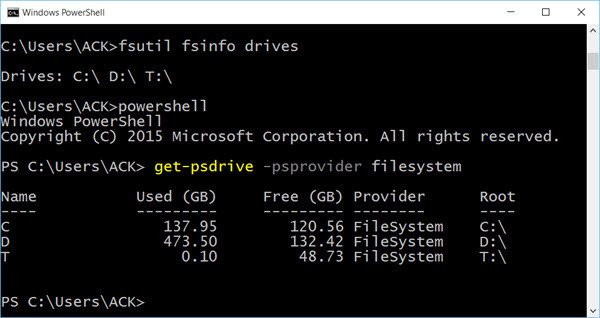
To display drives using PowerShell, type powershell in the same CMD windows and hit Enter. This will open a PowerShell window.
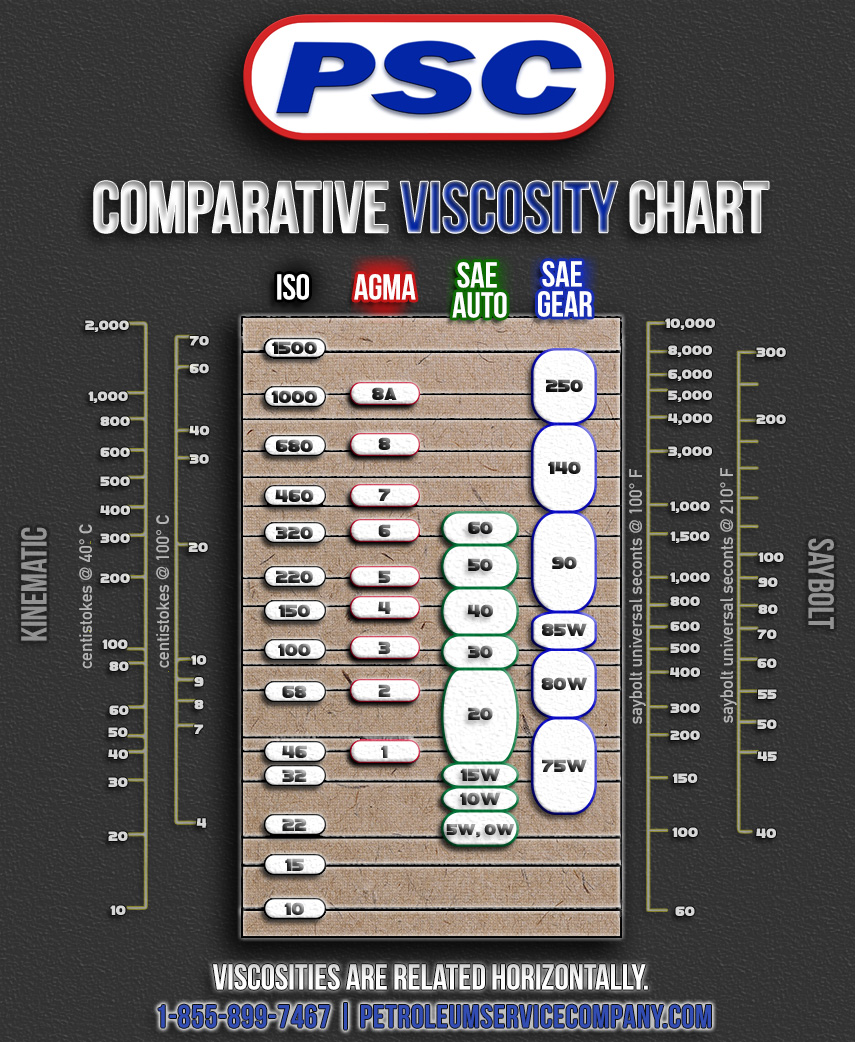
Learn more about oil thickness with our comparative oil viscosity chart. This includes finding the equivalent between ISO VG, AGMA, SAE Auto, and SAE Gear lubricants.
With Chrome, Safari, and Edge enabling the tracking feature called Hyperlink Auditing, or Pings, by default without a way to disable them, users will need to rely on browser extensions to block them going forward.