This article describes how to prevent specific settings from being modified from inside Firefox, Thunderbird, or SeaMonkey. This is commonly known as locking preferences.
Monthly Archives: November 2020
Microsoft Store – Generation Project (v1.2) [by @rgadguard & mkuba50]
Online link generator for Microsoft Store.
Enter the link from the Microsoft Store and click on the checkbox – to get all available links.
Source: Microsoft Store – Generation Project (v1.2) [by @rgadguard & mkuba50]
Quicken 2013 blocks
%ProgramFiles% (x86)\Quicken\BindContent.exe
%ProgramFiles% (x86)\Quicken\RPMMigration\MigrationTool.exe
%ProgramFiles% (x86)\Quicken\QuickenOLBackupLauncher.exe
%ProgramFiles% (x86)\Quicken\qw.exe
%ProgramFiles% (x86)\Quicken\techhelp.exe
%ProgramFiles% (x86)\Quicken\qwul.exe
Make Scrolling Bearable Again
Disable Scroll Jacking, a Chrome Extension to disable scroll jacking.
Source: Make Scrolling Bearable Again
Prusa Knowledge Base | Bed Level Correction
This calibration is for advanced users only!
Together with the Mesh Bed Leveling, the Bed Level Correction is an important feature designed to allow users to compensate for even the slightest imperfections in the first layer. It allows to virtually raise or lower the heatbed on the Left, Right, Front and Back sides, essentially enabling you to have a different Live Adjust Z value on each of the four sides of the heatbed. This feature is most beneficial if you frequently need to use the entire area of the heatbed.
Before you start the calibration, make sure there is nothing between the steel sheet and the heatbed.
How to use Bed Level Correction
Starting from firmware 3.5.2, the adjustment limit is +/- 100 microns (μm) instead of +/- 50 microns (μm) in the previous versions. Even 20 microns can make a huge difference, so when using this function, make small incremental changes. Just like in the Live-Z adjust, negative values lower the nozzle closer to the heatbed.
Before we begin, clean the entire surface of your heatbed with 90% (or more) isopropyl alcohol.
- Run a First Layer Calibration to get a good baseline calibration.
- Download and slice this test model for your printer version using the Prusa Slicer’s default PLA settings, 0.20 mm layer height.
- Print the g-code prepared in the previous step with a PLA filament (ideally light and opaque color). The print is just one layer high and takes up most of the printable surface. You do not have to print the entire file, stop the print as soon as the differences in layer height across the plate are obvious.
- Evaluate where the layer is too squished and full of scars and where there are gaps in between the lines. In the photo below, the lines are way too squished in the top-right corner, and the nozzle is too far away in the bottom-left.
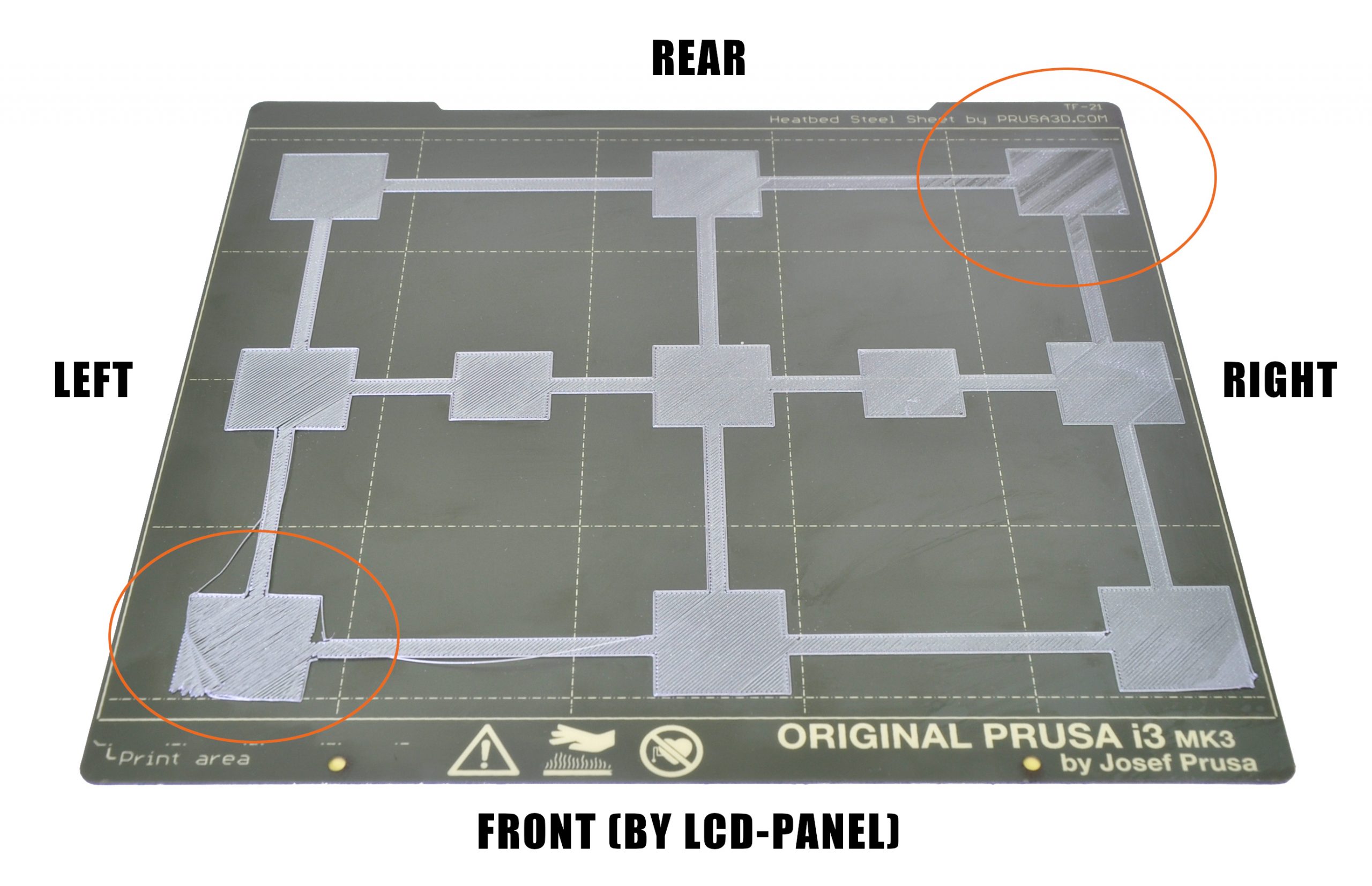
In the example above you want to adjust a minus-value on the left, bringing the nozzle closer and a plus-value on the right, moving the nozzle away. You may also need to adjust the distance front and back, but do a test print after adjusting the left and right side.
- Go to the LCD Menu -> Calibration -> Bed level correction. There, you can adjust Left/Right/Front/Rear values (understood from your point of view, as you are looking at the printers LCD).
- Edit the values, we suggest going in steps of +/- 10. These values will be added to the baseline Live Z value set in step 1. Remember, a negative value will decrease the distance between the nozzle making the layer more squished. A positive value will increase the nozzle-bed distance, curing the scars on your first layer.
- Repeat steps 3 to 6 until you are satisfied with the result (photo below for inspiration).
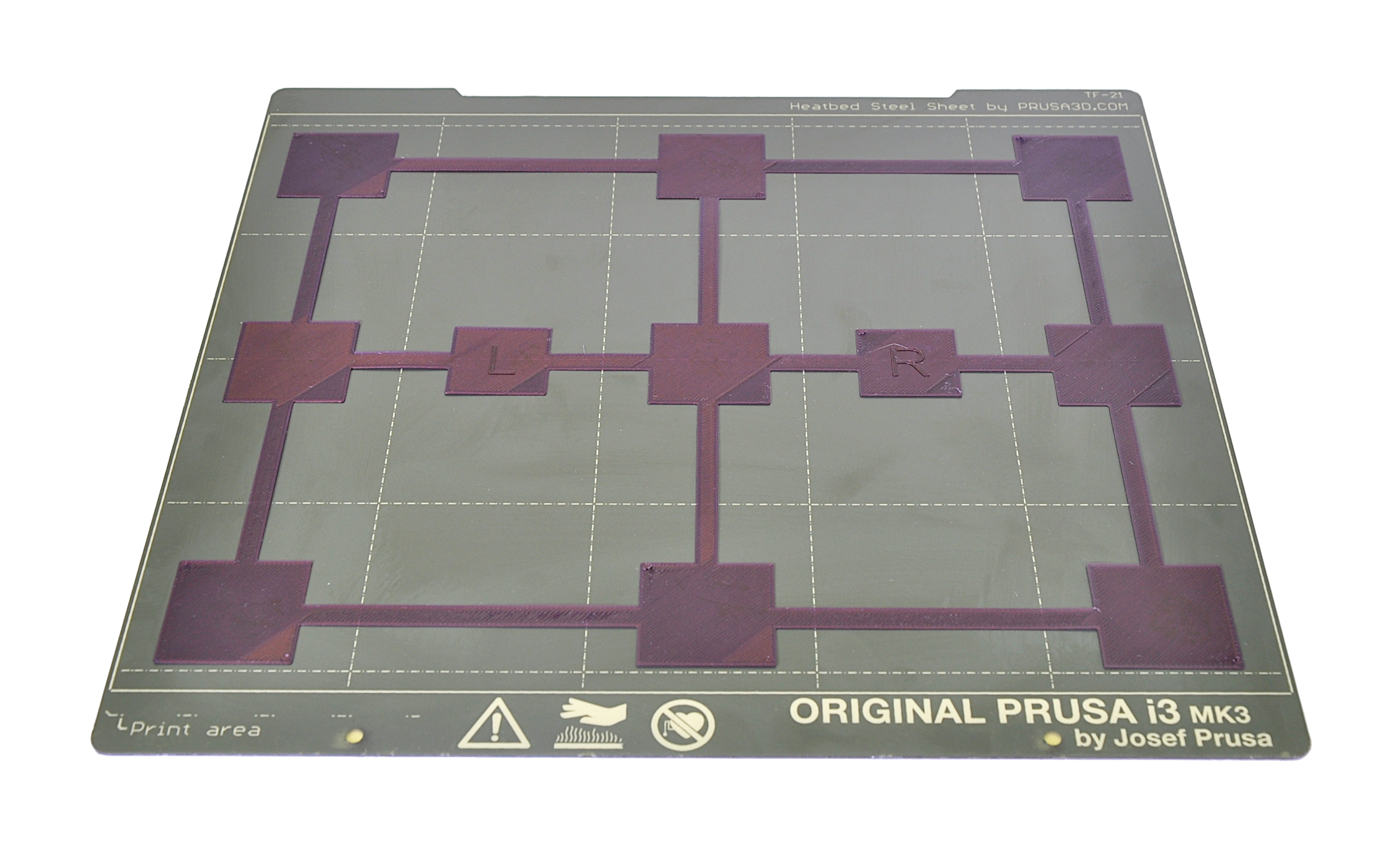
For example, let’s say your Live adjust Z value is -1.000 and that the layer is too squished in the rear and that you see gaps between the lines on the right side.
- Rear: you need to enter a positive value (at the end it will be 25 for example) to make the layer less squished
- Right: you need to enter a negative value (at the end it will be -10 for example) to make the layer more squished
The Bed Level Correction values are reset to 0 every time you start the Calibration Wizard or the XYZ calibration. Once you find your ideal values, write them down as a backup.
openvpn – How to force all traffic through VPN?
How to force all traffic through OpenVPN
Add the following directive to the server configuration file:
push “redirect-gateway def1”
If your VPN setup is over a wireless network, where all clients and the server are on the same wireless subnet, add the local flag:
push “redirect-gateway local def1”
Pushing the redirect-gateway option to clients will cause all IP network traffic originating on client machines to pass through the OpenVPN server. The server will need to be configured to deal with this traffic somehow, such as by NATing it to the internet, or routing it through the server site’s HTTP proxy.
If you want to configure this on the client side, put
redirect-gateway def1in your client.ovpn file.
Guide for Allowing Users to Install Programs without Admin Password in Windows 10
How to Allow Users to Install Software without Admin Rights in Windows 10
An admin account on a Windows PC enjoys more privileges than any other account types. This account can install apps and make modifications to the system easily without too many steps. However, sometimes you may want to enable allow users to install software without admin rights in Windows 10. It’s totally cool and possible for you. The following guide will demonstrate multiple ways to do that.
Method 1: Change Your Standard Account to Admin Account to Install Programs
One of the ways to be able to install program without admin rights in Windows 10 is to convert your standard user account to an administrator account on your PC. You can ask your administrator to do this for you by following the following steps:
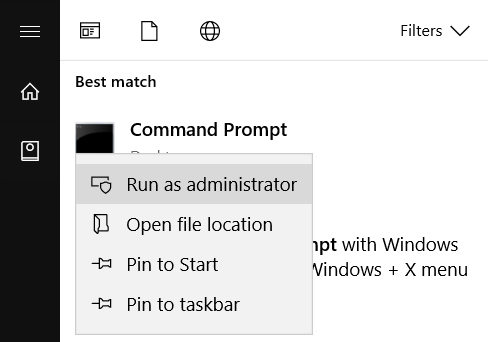
Open the Start Menu, search for Command Prompt, right-click on it and select Run as administrator.
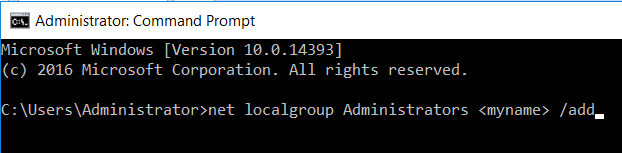
When the command prompt window opens, type in the following command and hit enter. Make sure to replace myname with the username of the account you’re converting to an admin account.
net localgroup Administrators <myname> /add
The account should instantly be converted to an admin account and you should then be able to install programs on your Windows 10 machine.
Source: Guide for Allowing Users to Install Programs without Admin Password in Windows 10
The Arcade Flyer Archive – Home
Source: The Arcade Flyer Archive – Home
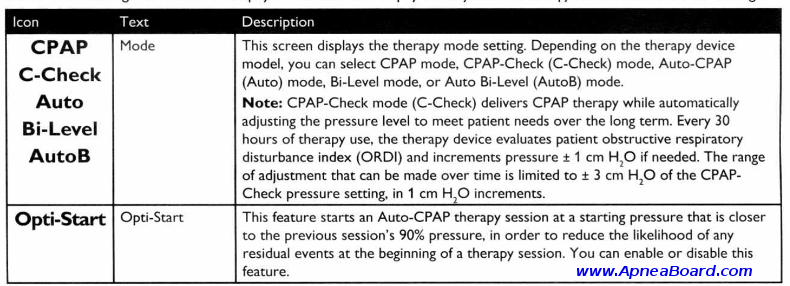
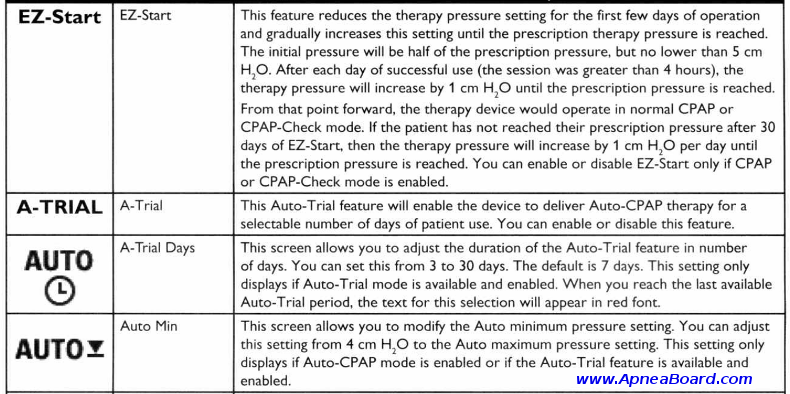
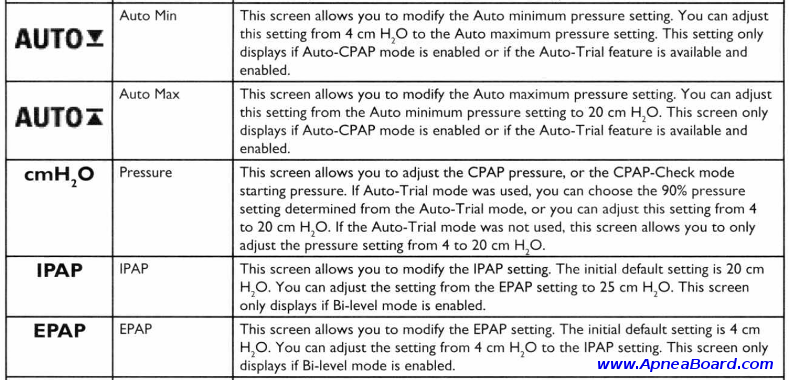
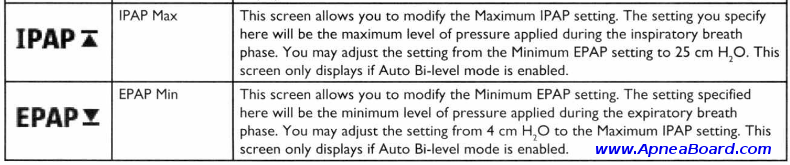
DreamStation Clinician Setup Instructions
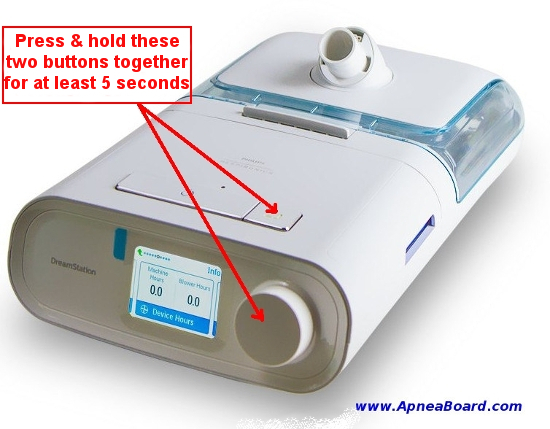
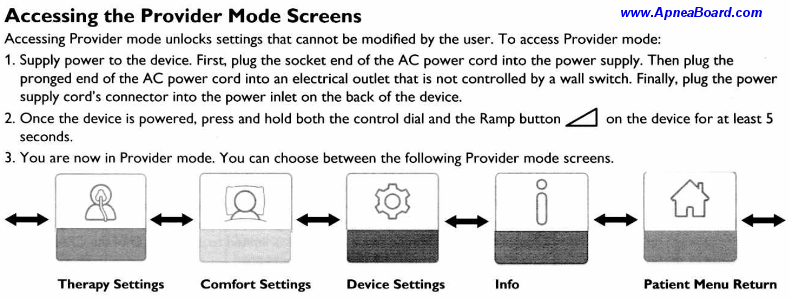
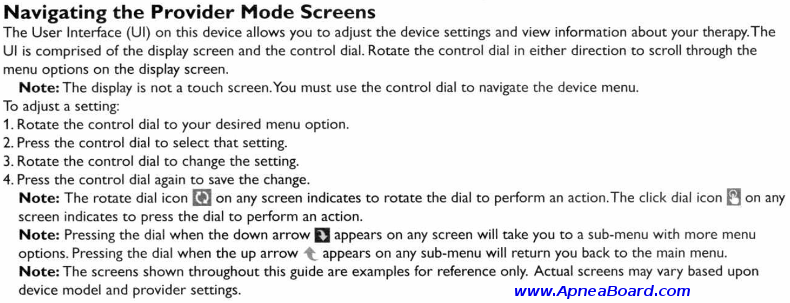
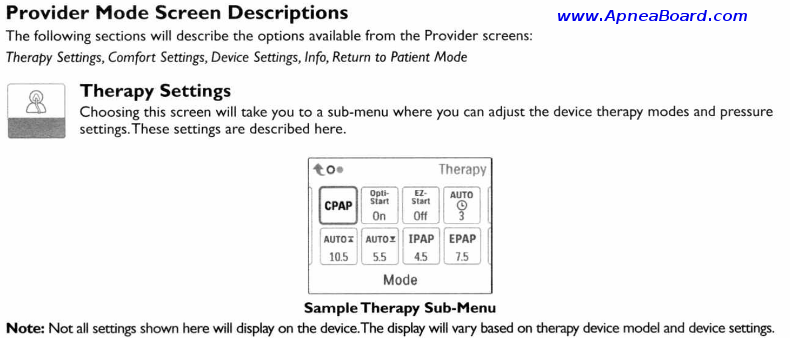
Instructions for entering the CPAP Setup / Clinician Menu of the
Philips-Respironics DreamStation Series CPAP Machines
(should work for all DreamStation machines, including the DreamStation Auto BiPAP, DreamStation BiPAP Pro, DreamStation Auto CPAP, DreamStation CPAP Pro, & DreamStation CPAP machines)
To get the detailed Clinician Setup Guide for your CPAP Machine CLICK HERE
For instructions on how to set the optimum pressure on your CPAP Machine, CLICK HERE
~ Entering the Clinician Setup Mode ~
(You must first plug in and power up your machine)
For more details, you may request the detailed Clinician Setup Guide for your DreamStation Machine HEREFor more information, or if you have questions regarding your Philips-Respironics DreamStation machine, please join the Apnea Board Forum and post your question there. We’d love to help you!
Quicken interchange format (QIF)
Q: What is the Quicken interchange format (QIF)?
A: The Quicken interchange format (QIF) is a specially formatted text (ASCII) file that lets you to move Quicken transactions:
- From one Quicken account register into another Quicken account register, or
- To/From another application that supports the QIF format.
Note: For Quicken to translate data from a text file into the Quicken register as transactions, the text file must be in the QIF format.
Required File Formatting:
- Each transaction must end with a symbol, indicating the end of entry.
- Each item in the transaction must display on a separate line.
- When Quicken exports an account register or list, it adds a line to the top of the file that identifies the type of account or list. Listed below are the header lines Quicken adds to the exported files:
Header Type of data !Type:Bank Bank account transactions !Type:Cash Cash account transactions !Type:CCard Credit card account transactions !Type:Invst Investment account transactions !Type:Oth A Asset account transactions !Type:Oth L Liability account transactions !Account Account list or which account follows !Type:Cat Category list !Type:Class Class list !Type:Memorized Memorized transaction list
You can force Quicken to import all transfers, regardless of whether Ignore Transfers is selected when the file is imported. You must add a line to the file being imported into a Quicken account. Use a text editor or word processor to put the following line right after the header line at the top of the file:
!Option:AllXfr
Items for Non-Investment Accounts
Each item in a bank, cash, credit card, other liability, or other asset account must begin with a letter that indicates the field in the Quicken register. The non-split items can be in any sequence:
Field Indicator Explanation D Date T Amount C Cleared status N Num (check or reference number) P Payee M Memo A Address (up to five lines; the sixth line is an optional message) L Category (Category/Subcategory/Transfer/Class) S Category in split (Category/Transfer/Class) E Memo in split $ Dollar amount of split ^ End of the entry Note: Repeat the S, E, and $ lines as many times as needed for additional items in a split. If an item is omitted from the transaction in the QIF file, Quicken treats it as a blank item.
Items for Investment Accounts
Field Indicator Explanation D Date N Action Y Security I Price Q Quantity (number of shares or split ratio) T Transaction amount C Cleared status P Text in the first line for transfers and reminders M Memo O Commission L Account for the transfer $ Amount transferred ^ End of the entry Items for Account Information
The account header !Account is used in two places-at the start of an account list and the start of a list of transactions to specify to which account they belong.
Field Indicator Explanation N Name T Type of account D Description L Credit limit (only for credit card accounts) / Statement balance date $ Statement balance amount ^ End of entry Items for a Category List
Field Indicator Explanation N Category name:subcategory name D Description T Tax related if included, not tax related if omitted I Income category E Expense category (if category type is unspecified, quicken assumes expense type) B Budget amount (only in a Budget Amounts QIF file) R Tax schedule information ^ End of entry Items for a Class List
Field Indicator Explanation N Class name D Description ^ End of entry Items for a Memorized Transaction List
Immediately preceding the ^ character, each entry must end with one of the following file indicators to specify the transaction type.
- KC
- KD
- KP
- KI
- KE
With that exception, memorized transaction entries have the same format as regular transaction entries (non-investment accounts). However, the Date or Num field is included. All items are optional, but if an amortization record is included, all seven amortization lines must also be included.
Field Indicator Explanation KC Check transaction KD Deposit transaction KP Payment transaction KI Investment transaction KE Electronic payee transaction T Amount C Cleared status P Payee M Memo A Address L Category or Transfer/Class S Category/class in split E Memo in split $ Dollar amount of split 1 Amortization: First payment date 2 Amortization: Total years for loan 3 Amortization: Number of payments already made 4 Amortization: Number of periods per year 5 Amortization: Interest rate 6 Amortization: Current loan balance 7 Amortization: Original loan amount ^ End of entry
Examples of QIF files
Normal Transactions Example
Transaction Item Comment (not in file) !Type:Bank Header D6/ 1/94 Date T-1,000.00 Amount N1005 Check number PBank Of Mortgage Payee L[linda] Category S[linda] First category in split $-253.64 First amount in split SMort Int Second category in split $-746.36 Second amount in split ^ End of the transaction D6/ 2/94 Date T75.00 Amount PDeposit Payee ^ End of the transaction D6/ 3/94 Date T-10.00 Amount PJoBob Biggs Payee MJ.B. gets bucks Memo LEntertain Category A1010 Rodeo Dr. Address (line 1) AWaco, Tx Address (line 2) A80505 Address (line 3) A Address (line 4) A Address (line 5) A Address (line 6) ^ End of the transaction
Investment Example
Transaction Item Comment (not in file) !Type:Invst Header line D8/25/93 Date NShrsIn Action (optional) Yibm4 Security I11.260 Price Q88.81 Quantity CX Cleared Status T1,000.00 Amount MOpening Balance Memo ^ End of the transaction D8/25/93 Date NBuyX Action Yibm4 Security I11.030 Price Q9.066 Quantity T100.00 Amount MEst. price as of 8/25/93 Memo L[CHECKING] Account for transfer $100.00 Amount transferred ^ End of the transaction
Memorized List Example
Transaction Item Comment (not in file) !Type:Memorized Header line T-50.00 Amount PJoe Hayes Payee MRent Memo KC Check transaction ^ End of the transaction T-25.00 Amount T-25.00 Company Payee LTelephone Category KP Payment transaction ^ End of the transaction