Monthly Archives: June 2019
How to rotate and flip videos using Handbrake – IT Support Guides
How to rotate and flip videos using Handbrake
HandBrake is a free tool that’s available for Windows, Mac OS and Ubuntu that allows you to take a video in various formats and convert it to an MP4.
The steps below show how to rotate the video being processed.
Before beginning, you need to download and install HandBrake.
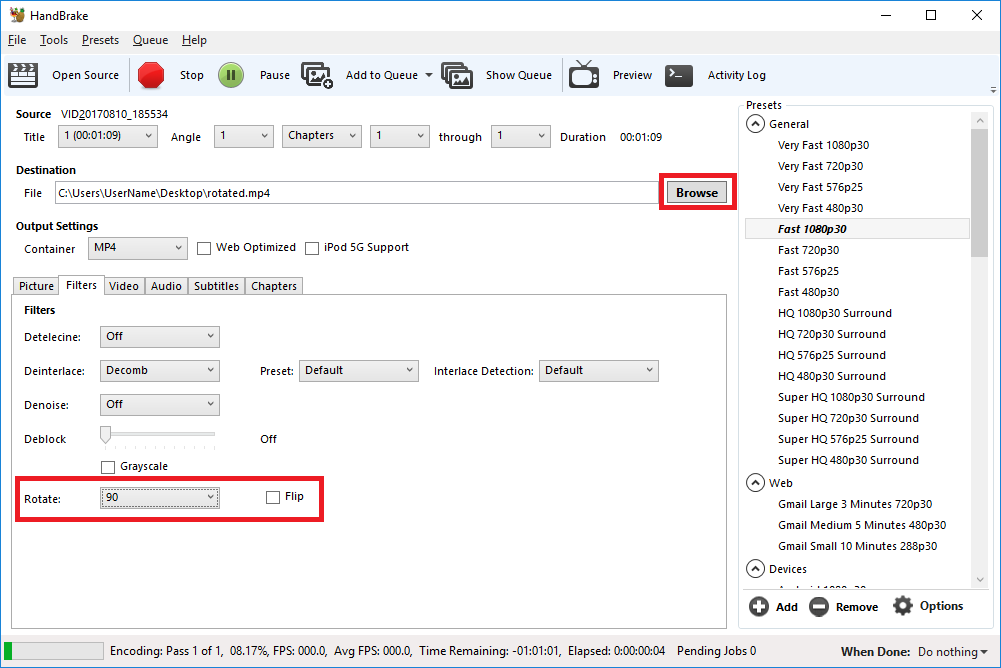
- Open HandBrake and load your video using the ‘Source’ button to select the video you want to rotate or flip
- Choose where to save the rotated video by clicking on the ‘Browse’ button to select where the converted file will be saved.
- Open the ‘Filters’ tab
- The ‘Rotate’ option allows you to choose four different options
- 0 – do nothing
- 90 – rotate to the right
- 180 – turn upside down
- 270 – rotate to the left
- Choose the rotate option you require
- Click ‘Start Encode’ to begin
- At the bottom of the window you will see the progress
Help! It didn’t work
Try the manual way of rotating, by applying manual filters.
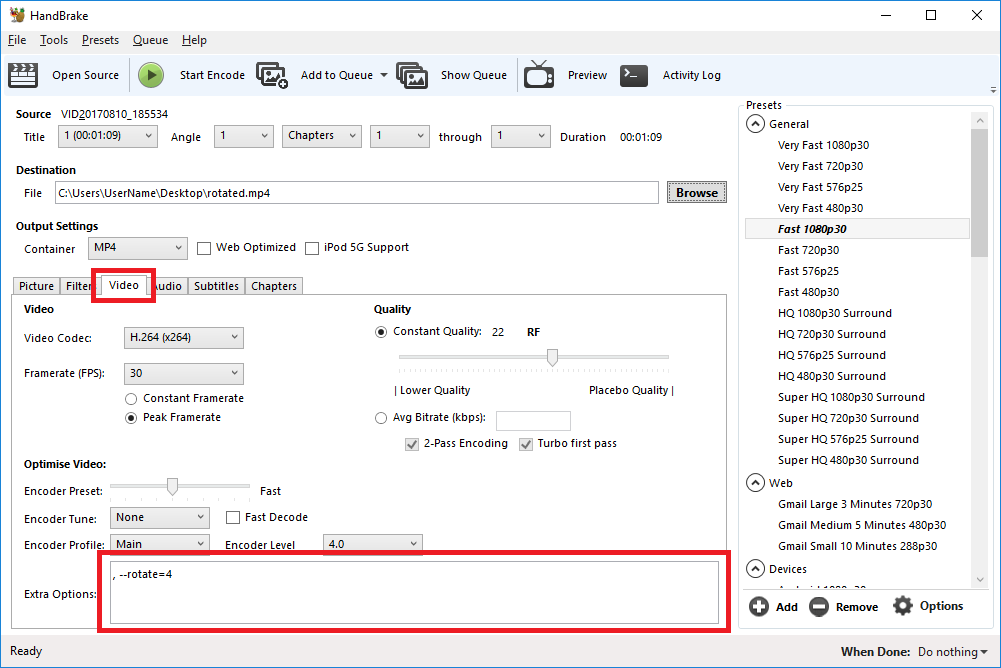
- Open the ‘Video’ tab
- We’ll be working with the ‘Extra Options’ setting.
- Once you have the required command entered, click ‘Start Encode’ to begin.
Rotate 90 degrees clockwise
To rotate 90 degrees clockwise, enter the following command into the ‘Extra Options’ setting:
, --rotate=4Rotate 90 degrees anti-clockwise
To rotate 90 degrees anti-clockwise, enter the following command into the ‘Extra Options’ setting:
, --rotate=7Rotate 180 degrees (upside down)
To rotate 180 degrees so that the video is upside down, enter the following command into the ‘Extra Options’ setting:
, --rotate=3Other options?
The official HandBrake documentation has more detail on what other options are available.
1 : x flip
2 : y flip
3 : 180 degrees rotate (also the DEFAULT)
4 : 90 degrees rotate (clockwise)
5 : 90 degrees rotate + y flip
6 : 270 degrees rotate + y flip
7 : 270 degrees rotate
Source: How to rotate and flip videos using Handbrake – IT Support Guides
How to: Purge, Flush or Delete Postfix Queue, or a Single Email
How to: Purge, Flush or Delete Postfix Queue, or a Single Email
Written by Guillermo Garron
Date: 2012-04-25 14:53:30 00:00
To flush or purge the postfix mail queue, just enter this command
postfix -fBut if you need to delete an individual email from the queue, you’ll first need to see the queue. Traditionally you use
mailqthis time we’ll use:postqueue -pAnd the output should show all messages in queue:
5642B4D8647* 1683500 Tue Jun  3 08:37:27  xxxxxx@xxxxxxx.com
                                         rrrrrrrrr@hotmail.com

9359B4D82B1* 1635730 Tue Jun  3 08:36:53  xxxxxx@xxxxxxx.com
                                         yyyyyyyy@hotmail.com
The first number is the message ID, if you only want to delete one of them, enter:
postsuper -d 5642B4D8647That will only delete one email for the queue, that specific email you want to delete from it.
If you want to delete all deferred mails, you can use:
postsuper -d deferred
Source: How to: Purge, Flush or Delete Postfix Queue, or a Single Email
How to change the BIOS boot screen logo image on Lenovo Laptops
If you want to inject some branding to your Lenovo laptops by customizing the BIOS splash screen image then here is a quick tutorial on how you can do that. Table of contentsDownload the BIOS update utilityPrepare the imageFlash the image Download the BIOS update utility Download the BIOS Update Utility from the Lenovo support website and extract the files:…
Source: How to change the BIOS boot screen logo image on Lenovo Laptops