Group policy support for MozillaPrimery project webpage https://mozillagpo.sourceforge.io/
Source: Mozilla GPO – About
Group policy support for MozillaPrimery project webpage https://mozillagpo.sourceforge.io/
Source: Mozilla GPO – About
In this post I will show you how to list and change BIOS settings for HP, Dell and Lenovo with PowerShell only.In my previous posts, I did some tools and module to list, export and change BIOS settings for local and remote computers and many manufacturers.I will now show you how to manage BIOS settings with PowerShell only:- List settings- Change settings without BIOS password – Change settings with BIOS password configured – Change settings from a CSV file that contains settings to changeI say only, because there are some tools available to manage BIOS with PowerShell. For instance for HP, there is a utility called BCU.As I don’t want any other tools to manage BIOS I just used PowerShell.
Source: List and change BIOS settings with PowerShell – Syst & Deploy
In this post I will show you how to list and change BIOS settings for HP, Dell and Lenovo with PowerShell only.In my previous posts, I did some tools and module to list, export and change BIOS settings for local and remote computers and many manufacturers.I will now show you how to manage BIOS settings with PowerShell only:- List settings- Change settings without BIOS password – Change settings with BIOS password configured – Change settings from a CSV file that contains settings to changeI say only, because there are some tools available to manage BIOS with PowerShell. For instance for HP, there is a utility called BCU.As I don’t want any other tools to manage BIOS I just used PowerShell.
Source: List and change BIOS settings with PowerShell – Syst & Deploy
Create a new user account through the Command Prompt
While creating a new user account through the Command Prompt will not actually solve the “Something went wrong” error when creating a new user account, it will, however, allow the user to successfully create a new user account which, unlike their old one, will not suffer from the “Something went wrong” issue.
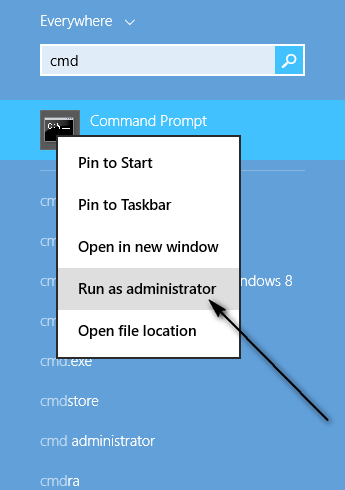
Open the Start Menu. Type cmd into the Search bar, right click on the program named Command Prompt that appears and select Run as administrator.
Type in the command net user (desired account name) (desired account password) /add.
Press the Enter. Next, to turn the newly created account into an Administrator, type in the command net localgroup administrators (name of newly created account) /add.
Press the Enter. As soon as the last command is executed, a new Administrator account will have been created on your Windows 10 computer, and this user account will not be affected by the “Something went wrong” issue that the account you were previously using was.
User Suggested Method
This method is suggested by Ahmad Barakat in the comments section. The reason for him was that there was another account setup as a Microsoft account, this account was created automatically after upgrading to Windows 10!! and prevented him from signing in with his user profile. So he did this -> “Go to the user accounts> Manage other accounts> find that account and delete it”
Source: Fix: “something went wrong” while creating account on Windows 10 – Appuals.com