Add computers to TrustedHosts list using PowerShell – Dimitris Tonias

How to view and add new entries to the TrustedHosts list using PowerShell on Windows Server 2016.

When you need to enable remote management of a computer or server through WinRM (Windows Remote Management), especially in a Workgroup environment, you should first add computers to the TrustedHosts list. Otherwise, you may most likely encounter errors when communicating between the two sides.

Using PowerShell, you can see what the current records are in the TrustedHosts file but also how to add new records depending on your scenario. You will need to be a member of the Administrators group and run PowerShell commands with administrator rights to make changes to the file.
Add computers to TrustedHosts list using PowerShell

View the computers of TrustedHosts list

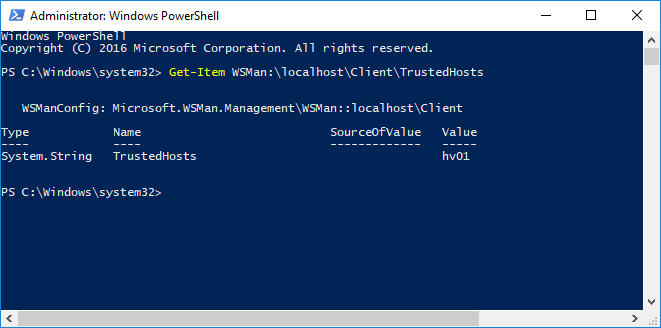
To view the list of TrustedHosts added to the machine, type the following command. By default, its value is blank.

Get-Item WSMan:\localhost\Client\TrustedHosts

Add all computers to the TrustedHosts list

Using the Set-Item cmdlet and the wildcard you can add all the computers to the TrustedHosts list with the following command.

Set-Item WSMan:\localhost\Client\TrustedHosts -Value *

Add all domain computers to the TrustedHosts list

In the following command, replace .yourdomain.com with your own domain name.

Set-Item WSMan:\localhost\Client\TrustedHosts *.yourdomain.com

Add specific computers to the TrustedHosts list

You can add specific computers you choose based on their hostname by separating them with a comma (,) using the following command.

Set-Item WSMan:\localhost\Client\TrustedHosts -Value <ComputerName>,[<ComputerName>]

Where ComputerName can be in the Server01 or Server01.yourdomain.com format

Add a computer to an existing list of TrustedHosts

If you have already added some computers to the TrustedHosts list and want to add an additional computer, without deleting the previous entries, you should use the following method. This is because the TrustedHosts list is updated based on the last Set-Item command you have run overwriting the previous entries.

Use the following command to save the current TrustedHosts computer list to a curList variable.

$curList = (Get-Item WSMan:\localhost\Client\TrustedHosts).value

To add a computer to the current list, type the following command by specifying both the variable you created and the computer name you are going to add.

Set-Item WSMan:\localhost\Client\TrustedHosts -Value "$curList, Server01"

Alternatively, to avoid using a variable, add the -Concatenate switch to the Set-Item command to add both new and previous entries. For example:

Set-Item WSMan:\localhost\Client\TrustedHosts -Concatenate -Value Server02

Add computers to the TrustedHosts list using the IP address

Similarly to the previous commands, you can use an IPv4 or IPv6 address. In the case of IPv6, you have to type the address between [].

Set-Item WSMan:\localhost\Client\TrustedHosts -Value 10.10.10.1,[0:0:0:0:0:0:0:0]

That’s it!

Source: Add computers to TrustedHosts list using PowerShell – Dimitris Tonias
PowerShell – Testing if a String is NULL or EMPTY

PowerShell – Testing if a String is NULL or EMPTY

Checking if a string is NULL or EMPTY is very common requirement in Powershell script. If we do not checked that we will get some unwanted results when we try to perform some operation on that string variable which is empty or null.

The following method is used to check if a string is NULL or empty.

$mystring ='hello'
if($mystring) {            
    Write-Host "Your string is not EMPTY"            
} else {            
    Write-Host "Your string is EMPTY or NULL"            
}

We can also use the .NET Class “System.String” to check null or empty string. It has a method IsNullOrEmpty() which returns true if the passed string is null or empty. Check the below example.

$mystring ='hello'
IF([string]::IsNullOrEmpty($mystring)) {            
    Write-Host "Your string is EMPTY or NULL"            
} else {            
    Write-Host "Your string is not EMPTY"            
}

We can also use the method IsNullOrWhiteSpace() from “System.String” class to detect a given string is NULL or EMPTY and whether it has WHITESPACE.

$mystring = " "            
IF([string]::IsNullOrWhiteSpace($mystring)) {            
    Write-Host "Your string is NULL or EMPTY or it has WHITESPACE"            
} else {            
    Write-Host "Your string is not EMPTY"            
}     

Note: The method IsNullOrWhiteSpace() is available only from .NET Frmaework 4.0, so, this method do not work in Powershell 2.0 and it will work only from Powershell 3.0.

You will get below error, when you run this method in Powershell 2.0.

IsNullOrWhitespace : Method invocation failed because [System.String] doesn’t contain a method named ‘IsNullOrWhiteSpace’

Source: PowerShell – Testing if a String is NULL or EMPTY

Task Scheduler Event IDs | mnaoumov.NET

Task Scheduler Event IDs

I discovered that some of my task scheduler tasks are failing on the server and wanted to configure email notifications if that happens

I found an article how to send task scheduler notifications

I wanted to configure a trigger for multiple Event IDs and found how to do this here

The only question left if the list of Event IDs and I could not find a list of all possible values so I extracted them from EventLog myself and putting them here

Event ID Task Category
100 Task Started
101 Task Start Failed
102 Task completed
103 Action start failed
106 Task registered
107 Task triggered on scheduler
108 Task triggered on event
110 Task triggered by user
111 Task terminated
118 Task triggered by computer startup
119 Task triggered on logon
129 Created Task Process
135 Launch condition not met, machine not idle
140 Task registration updated
141 Task registration deleted
142 Task disabled
200 Action started
201 Action completed
203 Action failed to start
301 Task engine properly shut down
310 Task Engine started
311 Task Engine failed to start
314 Task Engine idle
317 Task Engine started
318 Task engine properly shut down
319 Task Engine received message to start task
322 Launch request ignored, instance already running
329 Task stopping due to timeout reached
332 Launch condition not met, user not logged-on
400 Service started
411 Service signaled time change
700 Compatibility module started

Going to create an alert for ids 101,103,111,311,329

m from EventLog myself and putting them here Event

Source: Task Scheduler Event IDs | mnaoumov.NET

Some stuff about things