How to Edit Video, Apply Effects & Filters and Save Them Permanently in VLC
If you take a look at VLC Media Player’s video effects and filters, you will find a couple of basic ones that allows you to fine tune your media file. To access those features, you go to Tools > Effects and Filters or hit the hotkey CTRL + E. Under the Video Effects tab in the Adjustment and Effects window, you will get to access many options which are sorted and presented in tabs. The most basic or essential video editing settings is none other than changing the visuals like Brightness, Hue, Contract, Saturation etc. They come under the first tab and are grouped as Essential.
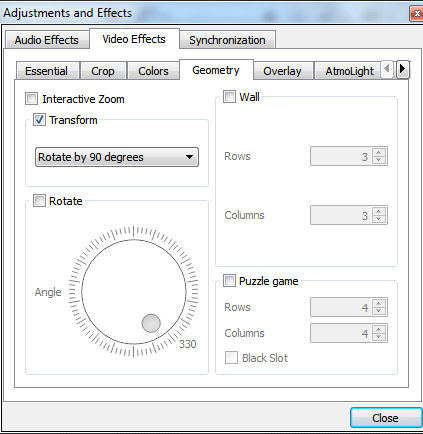
There are several more video filters and editing options that this player offers and they are put together in other tabs. You must have notice those in the Video Effects options. You will find the Crop setting, Colors adjustment tab, Geometry tab which is for rotating and transforming, Overlay tab to add and remove logos, texts and watermarks and others such as Atmolight and Advanced which are neat if you know how to use them.
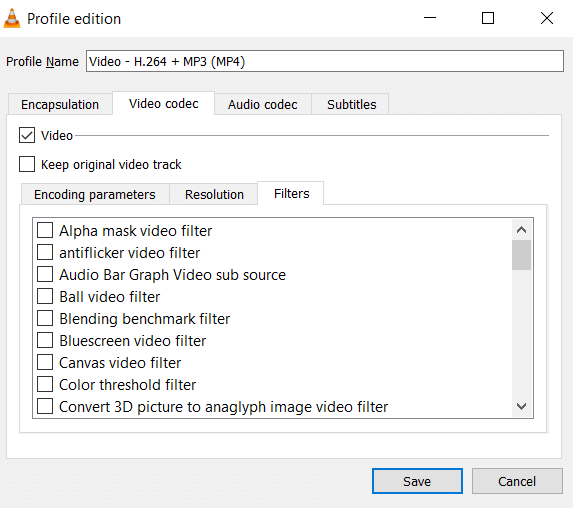
But the thing with these effects is that they are applied directly to the video that you are playing but once you close the player, you will find that the media file remains unchanged. Until some time back, I thought that these effects were for playing the videos in VLC only. But recently, I discovered that it is possible to keep these video effects, filters, and edits permanently. You just have to use the Convert / Save feature that also comes with the player and is accessible from Media > Convert / Save or using the shortcut key combination CTRL + R. Along with the conversion, you will also have to activate the corresponding filters. It is accessible from the settings of a profile under the Video Codec > Filters tab. When the player is done with the conversion, you can find the changes being permanently kept in the output file. So, VLC works great as a video editor if you are looking to do some basic edits.
It is agreeable that these video effects aren’t of topmost quality when compared to the video editing software out there but for the basic user like you and me, they are adequate. So, like all of the other posts, here are the detailed steps on how you can not only edit and apply video filters and effects but also you can make the changes permanent to your file:
First: Adding the Effects and Filters
- Open the video of your choice.
- Go to Tools > Effects and Filters. [CTRL + E]
- In the Adjustment and Effects pop up, switch to the Video Effects
- Apply one or more of the effects sorted under the sub-tabs.
- Click on Close and you will see your video with the filter applied.
Now: Making the Effects and Filters Permanent
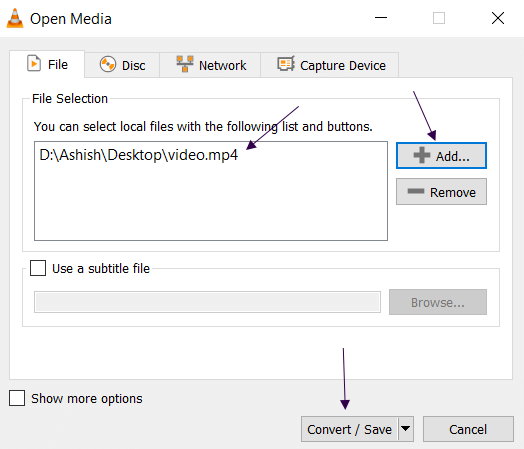
- Click on Media > Convert / Save. [CTRL + R]
- In the Open Media popup, click on Add.
- Browse and locate your file, select it and click Open.
- Click on Convert/Save.
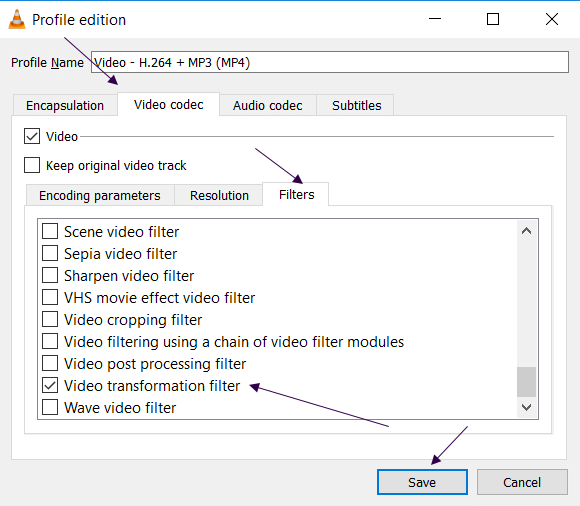
- Edit the conversion profile first.
- Navigate to Video codec > Filters tab and then, check an appropriate codec for the effect
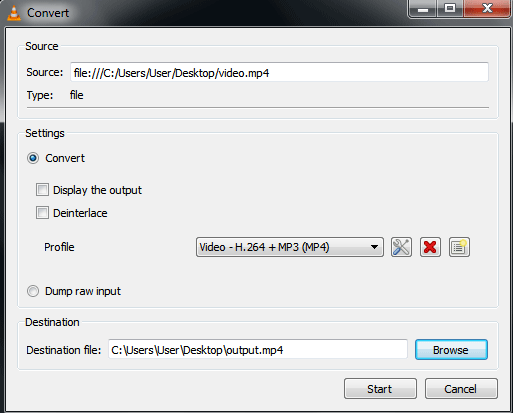
- Choose a destination file as you Browse, give a File name and hit Save.
- Press the Start button to begin the process.
- Click Play in the player controls to apply the effect.
Sometimes the player minimizes. You can bring it back up and you will see that the player’s media position indicator is moving. That means that the conversion process is going on. If it is not moving, press on play. You can pause by the same logic. Now, instead of the media file’s position, the timeline will display how much of your file is converted. If it is a lengthy video, it will take some time.
Once the conversion completes, locate your file. It’s the destination file that you named in the conversion steps above. Open it and you will see that the changes like cropping, color and brightness adjustments, aspect ratio settings, rotations etc are all kept permanently. It means that you can play the file using any other player or give it to anyone else and the new edits are always there. You can reverse some of the edits if you know what you are doing. But for now, enjoy a free video editor that has always been installed on your computer.
Choosing the Filter during Conversion
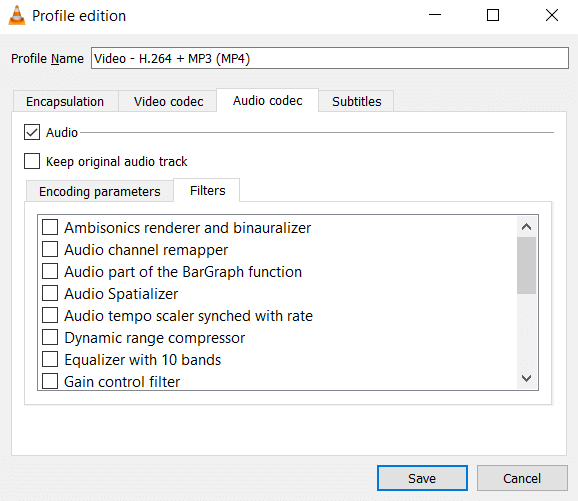
A crucial step to complete the conversion process with success is to choose the right filter in the Profile edition screen. There are a lot of filters available both for video and audio.
List of Video Filters
- Alpha mask video filter
- antiflicker video filter
- Audio Bar Graph Video sub source
- Ball video filter
- Blending benchmark filter
- Canvas video filter
- Color threshold filter
- Convert 3D picture to anaglyph image video filter
- Deinterlacing video filter
- Direct3D11 adjust filter
- Direct3D11 deinterlace filter
- Direct3D9 adjust filter
- Direct3D9 deinterlace filter
- Edge detection video filter
- Erase video filter
- Extract RGB component video filter
- FPS conversion video filter
- Freezing, interactive video filter
- Gaussian blue video filter
- Gradfun video filter
- Gradient video filter
- Grain video filter
- High Quality 3D Denoiser filter
- Image properties filter
- Invert video filter
- Logo video filter
- Magnify/Zoom interactive video filter
- Mirror video filter
- Motion blur filter
- Motion detect video filter
- Old movie effect video filter
- Posterize video filter
- Psychedelic video filter
- Puzzle interactive game video filter
- Ripple video filter
- Rotate video filter- For rotating videos at an angle like 57 degrees and not at even angles like 90, 180, 270 degrees. (Tools > Effects > Video Effects > Geometry >
Rotate)
- Scene video filter
- Sepia video filter
- Sharpen video filter
- VHC movie effect video filter
- Video cropping filter
- Video filtering using a chain of video filter modules
- Video post processing filter
- Video transformation filter- For transforming videos (Tools > Effects > Video Effects > Geometry >
- Wave video filter
List of Audio filters
- Ambisonics renderer and binauralizer
- Audio channel remapper
- Audio part of the BarGraph function
- Audio Spatializer
- Audio tempo scale synched with rate
- Dynamic range compressor
- Equalizer with 10 bands
- Gain control filter
- Headphone virtual spatialization effect
- Parametric Equalizer
- Pitch Shifter
- Simple Karaoke filter
- Simple stereo widening effect
- Sound Delay
- Stereo to mono downmixer
- Volume normalizer
The list is huge and they all have a specific function. It is not possible to know what they do by name only. But their name closely resembles the function that they have. If you hover your mouse over them, an explanation of the filter will be shown on the screen. However, all the filters don’t have an explanation.

Source: How to Edit Video, Apply Effects & Filters and Save Them Permanently in VLC