Change the way Windows 10 Updates Using Registry
Customize a Windows 10 update without receiving any forced updates on your computer. Here’s how to make the change in Registry:
1. Use the Windows key + R keyboard shortcut to open the Run command.
2. Type regedit, and click OK to open the Registry.
Browse the following path:
HKEY_LOCAL_MACHINE\SOFTWARE\Policies\Microsoft\Windows
3. Right-click the Windows (folder) key, select New, and then click Key.
4. Name the new key WindowsUpdate and press Enter.
5. Right-click the newly created key, select new, and click Key.
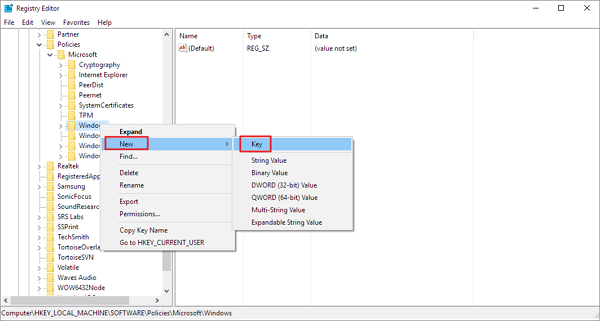
6. Name the new key AU and press Enter.
Inside the newly created key, right-click on the right side, select New, and click on DWORD (32-bit) Value.
7. Name the new key AUOptions and press Enter.
Double-click the newly created key and change its value to 2. It’s for “Notify for download and notify for install”. Click OK.
8. Close the Registry to complete the task.
Using this value prevents Windows 10 from downloading updates automatically, and you’ll get a notification when new updates are available. By this way, you can avoid any auto Windows 10 update effectively.
Source: How to Disable Windows 10 Update in Every Way – EaseUS