| Opens |
CLSID key (GUID) shortcut |
| 3D Objects (folder) |
{0DB7E03F-FC29-4DC6-9020-FF41B59E513A} |
| Add Network Location |
{D4480A50-BA28-11d1-8E75-00C04FA31A86} |
| Administrative Tools |
{D20EA4E1-3957-11d2-A40B-0C5020524153} |
| Applications |
{4234d49b-0245-4df3-b780-3893943456e1} |
| AutoPlay |
{9C60DE1E-E5FC-40f4-A487-460851A8D915} |
| Backup and Restore (Windows 7) |
{B98A2BEA-7D42-4558-8BD1-832F41BAC6FD} |
| BitLocker Drive Encryption |
{D9EF8727-CAC2-4e60-809E-86F80A666C91} |
| Bluetooth Devices |
{28803F59-3A75-4058-995F-4EE5503B023C} |
| Color Management |
{B2C761C6-29BC-4f19-9251-E6195265BAF1} |
| Command Folder |
{437ff9c0-a07f-4fa0-af80-84b6c6440a16} |
| Common Places FS Folder |
{d34a6ca6-62c2-4c34-8a7c-14709c1ad938} |
| Control Panel |
{5399E694-6CE5-4D6C-8FCE-1D8870FDCBA0} |
| Control Panel (All Tasks) |
{ED7BA470-8E54-465E-825C-99712043E01C} |
| Control Panel (always Category view) |
{26EE0668-A00A-44D7-9371-BEB064C98683} |
|
Appearance and Personalization
|
{26EE0668-A00A-44D7-9371-BEB064C98683}\1 |
|
Clock and Region
|
{26EE0668-A00A-44D7-9371-BEB064C98683}\6 |
|
Ease of Access
|
{26EE0668-A00A-44D7-9371-BEB064C98683}\7 |
|
Hardware and Sound
|
{26EE0668-A00A-44D7-9371-BEB064C98683}\2 |
|
Network and Internet
|
{26EE0668-A00A-44D7-9371-BEB064C98683}\3 |
|
Programs
|
{26EE0668-A00A-44D7-9371-BEB064C98683}\8 |
|
System and Security
|
{26EE0668-A00A-44D7-9371-BEB064C98683}\5
OR
{26EE0668-A00A-44D7-9371-BEB064C98683}\10 |
|
User Accounts
|
{26EE0668-A00A-44D7-9371-BEB064C98683}\9 |
| Control Panel (always Icons view) |
{21EC2020-3AEA-1069-A2DD-08002B30309D} |
| Credential Manager |
{1206F5F1-0569-412C-8FEC-3204630DFB70} |
| Date and Time |
{E2E7934B-DCE5-43C4-9576-7FE4F75E7480} |
| Default Programs |
{17cd9488-1228-4b2f-88ce-4298e93e0966} |
|
Default Apps page in Settings
|
{17cd9488-1228-4b2f-88ce-4298e93e0966}\pageDefaultProgram |
|
Default Apps page in Settings
|
{17cd9488-1228-4b2f-88ce-4298e93e0966}\pageFileAssoc |
| delegate folder that appears in Computer |
{b155bdf8-02f0-451e-9a26-ae317cfd7779} |
| Desktop (folder) |
{B4BFCC3A-DB2C-424C-B029-7FE99A87C641} |
| Device Manager |
{74246bfc-4c96-11d0-abef-0020af6b0b7a} |
| Devices and Printers |
{A8A91A66-3A7D-4424-8D24-04E180695C7A} |
| Documents (folder) |
{A8CDFF1C-4878-43be-B5FD-F8091C1C60D0}
OR
{d3162b92-9365-467a-956b-92703aca08af} |
| Downloads (folder) |
{088e3905-0323-4b02-9826-5d99428e115f}
OR
{374DE290-123F-4565-9164-39C4925E467B} |
| Ease of Access Center |
{D555645E-D4F8-4c29-A827-D93C859C4F2A} |
|
Use the computer without a display
|
{D555645E-D4F8-4c29-A827-D93C859C4F2A}\pageNoVisual |
|
Make the computer easier to see
|
{D555645E-D4F8-4c29-A827-D93C859C4F2A}\pageEasierToSee |
|
Use the computer without a mouse or keyboard
|
{D555645E-D4F8-4c29-A827-D93C859C4F2A}\pageNoMouseOrKeyboard |
|
Make the mouse easier to use
|
{D555645E-D4F8-4c29-A827-D93C859C4F2A}\pageEasierToClick |
|
Set up Mouse Keys
|
{D555645E-D4F8-4c29-A827-D93C859C4F2A}\pageMouseKeysSettings |
|
Make the keyboard easier to use
|
{D555645E-D4F8-4c29-A827-D93C859C4F2A}\pageKeyboardEasierToUse |
|
Use text or visual alternatives for sounds
|
{D555645E-D4F8-4c29-A827-D93C859C4F2A}\pageEasierWithSounds |
|
Make it easier to focus on tasks
|
{D555645E-D4F8-4c29-A827-D93C859C4F2A}\pageEasierToReadAndWrite |
|
Set up Filter Keys
|
{D555645E-D4F8-4c29-A827-D93C859C4F2A}\pageFilterKeysSettings |
|
Set up Sticky Keys
|
{D555645E-D4F8-4c29-A827-D93C859C4F2A}\pageStickyKeysSettings |
|
Get recommendations to make your computer easier to use (cognitive)
|
{D555645E-D4F8-4c29-A827-D93C859C4F2A}\pageQuestionsCognitive |
|
Get recommendations to make your computer easier to use (eyesight)
|
{D555645E-D4F8-4c29-A827-D93C859C4F2A}\pageQuestionsEyesight |
|
Set up Repeat and Slow Keys
|
{D555645E-D4F8-4c29-A827-D93C859C4F2A}\pageRepeatRateSlowKeysSettings |
| E-mail (default e-mail program) |
{2559a1f5-21d7-11d4-bdaf-00c04f60b9f0} |
| Favorites |
{323CA680-C24D-4099-B94D-446DD2D7249E} |
| File Explorer Options |
{6DFD7C5C-2451-11d3-A299-00C04F8EF6AF} |
| File History |
{F6B6E965-E9B2-444B-9286-10C9152EDBC5} |
| Folder Options |
{6DFD7C5C-2451-11d3-A299-00C04F8EF6AF} |
| Font Settings |
{93412589-74D4-4E4E-AD0E-E0CB621440FD} |
| Fonts (folder) |
{BD84B380-8CA2-1069-AB1D-08000948F534} |
| Frequent folders |
{3936E9E4-D92C-4EEE-A85A-BC16D5EA0819} |
| Games Explorer |
{ED228FDF-9EA8-4870-83b1-96b02CFE0D52} |
| Get Programs |
{15eae92e-f17a-4431-9f28-805e482dafd4} |
| Help and Support |
{2559a1f1-21d7-11d4-bdaf-00c04f60b9f0} |
| Hyper-V Remote File Browsing |
{0907616E-F5E6-48D8-9D61-A91C3D28106D} |
| Indexing Options |
{87D66A43-7B11-4A28-9811-C86EE395ACF7} |
| Infared (if installed) |
{A0275511-0E86-4ECA-97C2-ECD8F1221D08} |
| Installed Updates |
{d450a8a1-9568-45c7-9c0e-b4f9fb4537bd} |
| Intel Rapid Storage Technology (if installed) |
{E342F0FE-FF1C-4c41-BE37-A0271FC90396} |
| Internet Options (Internet Explorer) |
{A3DD4F92-658A-410F-84FD-6FBBBEF2FFFE} |
| Keyboard Properties |
{725BE8F7-668E-4C7B-8F90-46BDB0936430} |
| Libraries |
{031E4825-7B94-4dc3-B131-E946B44C8DD5} |
| Location Information (Phone and Modem Control Panel) |
{40419485-C444-4567-851A-2DD7BFA1684D} |
| Location Settings |
{E9950154-C418-419e-A90A-20C5287AE24B} |
| Media Servers |
{289AF617-1CC3-42A6-926C-E6A863F0E3BA} |
| Mouse Properties |
{6C8EEC18-8D75-41B2-A177-8831D59D2D50} |
| Music (folder) |
{1CF1260C-4DD0-4ebb-811F-33C572699FDE}
OR
{3dfdf296-dbec-4fb4-81d1-6a3438bcf4de} |
| My Documents |
{450D8FBA-AD25-11D0-98A8-0800361B1103} |
| netplwiz |
{7A9D77BD-5403-11d2-8785-2E0420524153} |
| Network |
{F02C1A0D-BE21-4350-88B0-7367FC96EF3C} |
| Network and Sharing Center |
{8E908FC9-BECC-40f6-915B-F4CA0E70D03D} |
|
Advanced sharing settings
|
{8E908FC9-BECC-40f6-915B-F4CA0E70D03D}\Advanced |
|
Media streaming options
|
{8E908FC9-BECC-40f6-915B-F4CA0E70D03D}\ShareMedia |
| Network Connections |
{7007ACC7-3202-11D1-AAD2-00805FC1270E}
OR
{992CFFA0-F557-101A-88EC-00DD010CCC48} |
| Network (WorkGroup) |
{208D2C60-3AEA-1069-A2D7-08002B30309D} |
| Notification Area Icons |
{05d7b0f4-2121-4eff-bf6b-ed3f69b894d9} |
| NVIDIA Control Panel (if installed) |
{0bbca823-e77d-419e-9a44-5adec2c8eeb0} |
| Offline Files Folder |
{AFDB1F70-2A4C-11d2-9039-00C04F8EEB3E} |
| OneDrive |
{018D5C66-4533-4307-9B53-224DE2ED1FE6} |
| Pen and Touch |
{F82DF8F7-8B9F-442E-A48C-818EA735FF9B} |
| Personalization |
{ED834ED6-4B5A-4bfe-8F11-A626DCB6A921} |
|
Color and Appearance
|
{ED834ED6-4B5A-4bfe-8F11-A626DCB6A921}\pageColorization |
|
Desktop Background
|
{ED834ED6-4B5A-4bfe-8F11-A626DCB6A921}\pageWallpaper |
| Pictures (folder) |
{24ad3ad4-a569-4530-98e1-ab02f9417aa8}
OR
{3ADD1653-EB32-4cb0-BBD7-DFA0ABB5ACCA} |
| Portable Devices |
{35786D3C-B075-49b9-88DD-029876E11C01} |
| Power Options |
{025A5937-A6BE-4686-A844-36FE4BEC8B6D} |
|
Create a power plan
|
{025A5937-A6BE-4686-A844-36FE4BEC8B6D}\pageCreateNewPlan |
|
Edit Plan Settings
|
{025A5937-A6BE-4686-A844-36FE4BEC8B6D}\pagePlanSettings |
|
System Settings
|
{025A5937-A6BE-4686-A844-36FE4BEC8B6D}\pageGlobalSettings |
| Previous Versions Results Folder |
{f8c2ab3b-17bc-41da-9758-339d7dbf2d88} |
| printhood delegate folder |
{ed50fc29-b964-48a9-afb3-15ebb9b97f36} |
| Printers |
{2227A280-3AEA-1069-A2DE-08002B30309D}
OR
{863aa9fd-42df-457b-8e4d-0de1b8015c60} |
| Problem Reporting Settings |
{BB64F8A7-BEE7-4E1A-AB8D-7D8273F7FDB6}\pageSettings |
| Programs and Features |
{7b81be6a-ce2b-4676-a29e-eb907a5126c5} |
| Public (folder) |
{4336a54d-038b-4685-ab02-99bb52d3fb8b} |
| Quick access |
{679f85cb-0220-4080-b29b-5540cc05aab6} |
| Recent folders |
{22877a6d-37a1-461a-91b0-dbda5aaebc99} |
| Recent Items Instance Folder |
{4564b25e-30cd-4787-82ba-39e73a750b14} |
| Recovery |
{9FE63AFD-59CF-4419-9775-ABCC3849F861} |
| Recycle Bin |
{645FF040-5081-101B-9F08-00AA002F954E} |
| Region |
{62D8ED13-C9D0-4CE8-A914-47DD628FB1B0} |
| Reliability Monitor |
{BB64F8A7-BEE7-4E1A-AB8D-7D8273F7FDB6}\pageReliabilityView |
| Remote Assistance |
{C58C4893-3BE0-4B45-ABB5-A63E4B8C8651}\raPage |
| RemoteApp and Desktop Connections |
{241D7C96-F8BF-4F85-B01F-E2B043341A4B} |
|
Connection Properties
|
{241D7C96-F8BF-4F85-B01F-E2B043341A4B}\PropertiesPage |
| Remote Printers |
{863aa9fd-42df-457b-8e4d-0de1b8015c60} |
| Removable Drives |
{F5FB2C77-0E2F-4A16-A381-3E560C68BC83} |
| Removable Storage Devices |
{a6482830-08eb-41e2-84c1-73920c2badb9} |
| Results Folder |
{2965e715-eb66-4719-b53f-1672673bbefa} |
| Run |
{2559a1f3-21d7-11d4-bdaf-00c04f60b9f0} |
| Search (File Explorer) |
{9343812e-1c37-4a49-a12e-4b2d810d956b} |
| Search (Windows) |
{2559a1f8-21d7-11d4-bdaf-00c04f60b9f0} |
| Security and Maintenance |
{BB64F8A7-BEE7-4E1A-AB8D-7D8273F7FDB6} |
|
Advanced Problem Reporting Settings
|
{BB64F8A7-BEE7-4E1A-AB8D-7D8273F7FDB6}\pageAdvSettings |
|
Change Security and Maintenance settings
|
{BB64F8A7-BEE7-4E1A-AB8D-7D8273F7FDB6}\Settings |
|
Problem Details
|
{BB64F8A7-BEE7-4E1A-AB8D-7D8273F7FDB6}\pageReportDetails |
|
Problem Reporting Settings
|
{BB64F8A7-BEE7-4E1A-AB8D-7D8273F7FDB6}\pageSettings |
|
Problem Reports
|
{BB64F8A7-BEE7-4E1A-AB8D-7D8273F7FDB6}\pageProblems |
|
Reliability Monitor
|
{BB64F8A7-BEE7-4E1A-AB8D-7D8273F7FDB6}\pageReliabilityView |
| Set Program Access and Computer Defaults |
{2559a1f7-21d7-11d4-bdaf-00c04f60b9f0} |
| Show Desktop |
{3080F90D-D7AD-11D9-BD98-0000947B0257} |
| Sound |
{F2DDFC82-8F12-4CDD-B7DC-D4FE1425AA4D} |
| Speech Recognition |
{58E3C745-D971-4081-9034-86E34B30836A} |
| Storage Spaces |
{F942C606-0914-47AB-BE56-1321B8035096} |
| Sync Center |
{9C73F5E5-7AE7-4E32-A8E8-8D23B85255BF} |
|
Sync Setup
|
{9C73F5E5-7AE7-4E32-A8E8-8D23B85255BF}\::{F1390A9A-A3F4-4E5D-9C5F-98F3BD8D935C} |
|
Sync Setup Folder
|
{2E9E59C0-B437-4981-A647-9C34B9B90891} |
| System |
{BB06C0E4-D293-4f75-8A90-CB05B6477EEE} |
| System Icons |
{05d7b0f4-2121-4eff-bf6b-ed3f69b894d9}\SystemIcons |
| System Restore |
{3f6bc534-dfa1-4ab4-ae54-ef25a74e0107} |
| Tablet PC Settings |
{80F3F1D5-FECA-45F3-BC32-752C152E456E} |
| Task View |
{3080F90E-D7AD-11D9-BD98-0000947B0257} |
| Taskbar and Navigation properties |
{0DF44EAA-FF21-4412-828E-260A8728E7F1} |
| Taskbar page in Settings |
{0DF44EAA-FF21-4412-828E-260A8728E7F1} |
| Text to Speech |
{D17D1D6D-CC3F-4815-8FE3-607E7D5D10B3} |
| This Device |
{5b934b42-522b-4c34-bbfe-37a3ef7b9c90} |
| This PC |
{20D04FE0-3AEA-1069-A2D8-08002B30309D} |
| Troubleshooting |
{C58C4893-3BE0-4B45-ABB5-A63E4B8C8651} |
|
Additional Information
|
{C58C4893-3BE0-4B45-ABB5-A63E4B8C8651}\resultPage |
|
All Categories
|
{C58C4893-3BE0-4B45-ABB5-A63E4B8C8651}\listAllPage |
|
Change Settings
|
{C58C4893-3BE0-4B45-ABB5-A63E4B8C8651}\settingPage |
|
History
|
{C58C4893-3BE0-4B45-ABB5-A63E4B8C8651}\historyPage |
|
Search Troubleshooting
|
{C58C4893-3BE0-4B45-ABB5-A63E4B8C8651}\searchPage |
|
Troubleshoot problems – Hardware and Sound
|
{C58C4893-3BE0-4B45-ABB5-A63E4B8C8651}\devices |
|
Troubleshoot problems – Network and Internet
|
{C58C4893-3BE0-4B45-ABB5-A63E4B8C8651}\network |
|
Troubleshoot problems – Programs
|
{C58C4893-3BE0-4B45-ABB5-A63E4B8C8651}\applications |
|
Troubleshoot problems – System and Security
|
{C58C4893-3BE0-4B45-ABB5-A63E4B8C8651}\system |
| User Accounts |
{60632754-c523-4b62-b45c-4172da012619} |
|
Change Your Name
|
{60632754-c523-4b62-b45c-4172da012619}\pageRenameMyAccount |
|
Manage Accounts
|
{60632754-c523-4b62-b45c-4172da012619}\pageAdminTasks |
| User Accounts (netplwiz) |
{7A9D77BD-5403-11d2-8785-2E0420524153} |
| User Pinned |
{1f3427c8-5c10-4210-aa03-2ee45287d668} |
| %UserProfile% |
{59031a47-3f72-44a7-89c5-5595fe6b30ee} |
| Videos (folder) |
{A0953C92-50DC-43bf-BE83-3742FED03C9C}
OR
{f86fa3ab-70d2-4fc7-9c99-fcbf05467f3a} |
| Web browser (default) |
{871C5380-42A0-1069-A2EA-08002B30309D} |
| Windows Defender Firewall |
{4026492F-2F69-46B8-B9BF-5654FC07E423} |
|
Allowed apps
|
{4026492F-2F69-46B8-B9BF-5654FC07E423}\pageConfigureApps |
|
Customize Settings
|
{4026492F-2F69-46B8-B9BF-5654FC07E423}\PageConfigureSettings |
|
Restore defaults
|
{4026492F-2F69-46B8-B9BF-5654FC07E423}\PageRestoreDefaults |
| Windows Mobility Center |
{5ea4f148-308c-46d7-98a9-49041b1dd468} |
| Windows Features |
{67718415-c450-4f3c-bf8a-b487642dc39b} |
| Windows To Go |
{8E0C279D-0BD1-43C3-9EBD-31C3DC5B8A77} |
| Work Folders |
{ECDB0924-4208-451E-8EE0-373C0956DE16} |
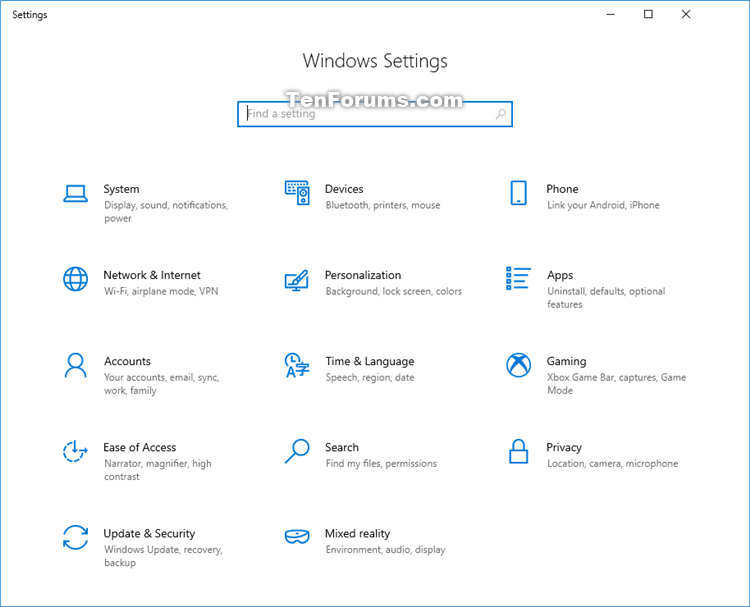
 You can find the shell command listed in the Name string value data for each CLSID (GUID) key number at the registry location below.
 You can create a shortcut with a shell command by adding explorer in front of the shell command.


