Scheduled tasks represent the central mechanism for executing programs at certain times or events. Since PowerShell 3.0 you can manage scheduled tasks with several cmdlets.
Wolfgang Sommergut has over 20 years of experience in IT journalism. He has also worked as a system administrator and as a tech consultant. Today he runs the German publication
WindowsPro.de.
A freshly installed Windows already comes with a variety of pre-defined tasks for system maintenance. Important services such as the virus scanner, the backup program, and Windows Update depend on them.

Active Directory Management, Automated Provisioning, Delegation, Self-Password Reset
Download Adaxes now!Ad
Analyzing existing tasks ^
Over the course of time, third-party applications add more and more tasks usually used for automatically downloading updates. However, it is not always optimal if every unimportant tool continuously runs its own update service.
PowerShell is often more efficient than GUI programs if you want to analyze and change the settings and data of system components. Even though the Windows Task Scheduler supports all available task features, navigating through the numerous tabs is sometimes time-consuming.
Displaying scheduled tasks with Get-ScheduledTask ^
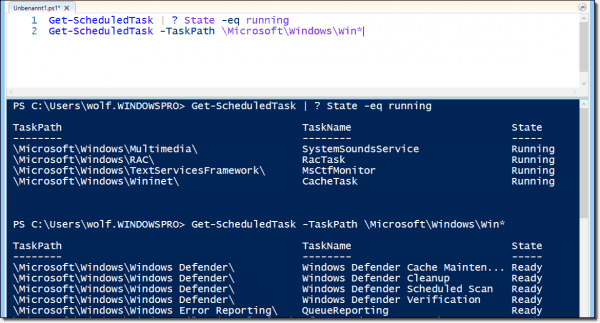
If you want to get an overview of the task states and authors, Get-ScheduledTask offers help. If you run the cmdlet without parameters, it displays all available tasks with their properties TaskPath, TaskName, and State.
TaskPath provides information about the tasks’ position in the Task Scheduler’s tree structure. You need the task location to access its details. Possible State values are Ready, Running, and Disabled.
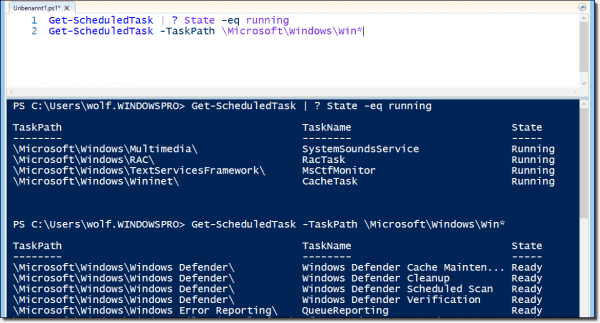
Displaying task location and status with Get ScheduledTask
For instance, to display all disabled Tasks, you have to execute this command:
|
|
Get–ScheduledTask | ? state –eq Disabled
|
Get-ScheduledTask allows you to restrict the query with the help of TaskName and TaskPath whereby both parameters support wildcards.
|
|
Get–ScheduledTask –TaskPath \Microsoft\Windows\Win*
|
Reading task details ^
If you need detailed information for a particular task, the Get-ScheduledTaskInfo cmdlet is useful. It will give you details such as the time since the last start, the number of missed runs, and the result of the last run.
Because Get-ScheduledTaskInfo requires you to specify TaskPath, it is easier if you call Get-ScheduledTask with the task’s name and then pass the result to Get-ScheduledTaskInfo:
|
|
Get–ScheduledTask StartComponentCleanup | Get–ScheduledTaskInfo
|
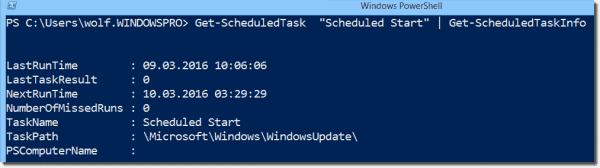
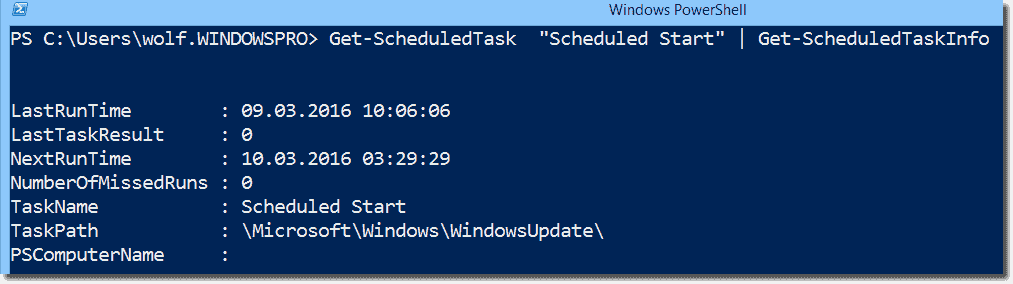
Get ScheduledTaskInfo provides details for scheduled tasks
You can also use the information that Get-ScheduledTaskInfo provides to filter certain tasks:
|
|
Get–ScheduledTask | Get–ScheduledTaskInfo | ? NumberOfMissedRuns –gt 0
|
This command displays all tasks with missed runs.
Disabling tasks ^
If you want to disable a particular task, for instance because it always fails, you can run theDisable-ScheduledTask cmdlet. Like Get-ScheduledTask, it accepts the parameters TaskPath and TaskName to restrict its application to certain tasks. But unlike Get-ScheduledTask, Disable-ScheduledTask doesn’t support wildcards.
|
|
Disable–ScheduledTask –TaskName StartComponentCleanup
|
However, in most cases you will want to filter the list with certain criteria and then pass it to Disable-ScheduledTask:
|
|
Get–ScheduledTask | Get–ScheduledTaskInfo | ? NumberOfMissedRuns –gt 10 | Disable–ScheduledTask
|
Activating, stopping, starting, and deleting tasks ^
Activating, stopping, and continuing scheduled tasks works along similar lines. PowerShell provides the cmdlets Enable-ScheduledTask, Stop-ScheduledTask, and Start-ScheduledTask for this purpose. For example, to stop all currently running tasks, you can run this command:
|
|
Get–ScheduledTask | ? State –eq running | Stop–ScheduledTask
|
If you don’t just want to stop or disable a task, but want to remove it completely, you can work with Unregister-ScheduledTask.