SOLVED: How To Disable SHARE Button in Office 2016 Using a GPO
Note: GPO templates download here.
admx admin templates need to be copied to C:\Windows\PolicyDefinitions
and the corresponding resource files (en-us) need to be copied to C:\Windows\PolicyDefinitions\en-USIf you have Office 2016 and you want to block your staff from easily saving content in the cloud, you can disable the SHARE button using the following Group Policy Object (GPO):
User Configuration -> Administrative Templates -> “Office Product Name” -> Disable Items in User Interface -> Custom -> Disable Commands > ENABLE and enter 26594
26594 does seem like a random number and it probably is, however, Microsoft has made it possible to disable nearly every feature by assigning nearly every button and short cut a number. You can get a list of those numbers from what Microsoft has cleverly named: “Office 2016 Help Files: Office Fluent User Interface Control Identifiers” which you can download directly from Microsoft HERE.
Note that you need to set each Office products rules separately; there is no global “turn off the SHARE button” GPO. That means you have to set:
User Configuration -> Administrative Templates -> Microsoft Word 2016 -> Disable Items in User Interface -> Custom -> Disable Commands > ENABLE and enter 26594
and
User Configuration -> Administrative Templates -> Microsoft Excel 2016 -> Disable Items in User Interface -> Custom -> Disable Commands > ENABLE and enter 26594
and
User Configuration -> Administrative Templates -> Microsoft PowerPoint 2016 -> Disable Items in User Interface -> Custom -> Disable Commands > ENABLE and enter 26594
and..
You can download the codes for Microsoft Office 2013 HERE and Office 2010 HERE to figure out what the codes are for Office 2010 and 2013 products. The codes are different. For example you use code 18147 to disable the SHARE button in Word 2013.
Category Archives: sysadmin
Download Office 2016 Help Files: Office Fluent User Interface Control Identifiers from Official Microsoft Download Center
Office 2016 Help Files: Office Fluent User Interface Control Identifiers
Important! Selecting a language below will dynamically change the complete page content to that language.
Download Administrative Template files (ADMX/ADML) and Office Customization Tool for Microsoft 365 Apps for enterprise, Office 2019, and Office 2016 from Official Microsoft Download Center
https://www.microsoft.com/en-us/download/confirmation.aspx?id=49030&6B49FDFB-8E5B-4B07-BC31-15695C5A2143=1
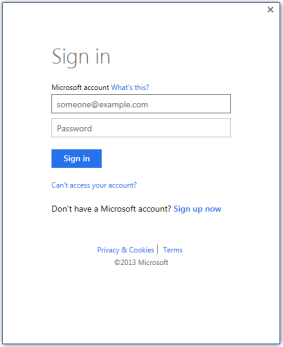
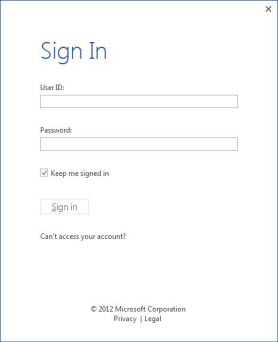
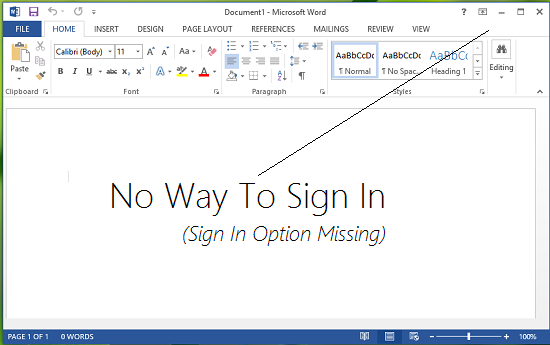
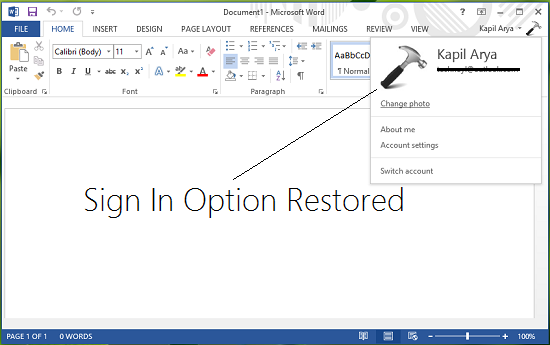
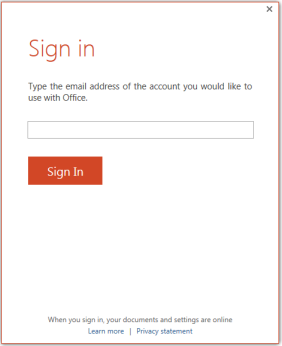
Remove Sign In box from Office apps
Method 1: You can use the Registry Editor to remove Office Sign In Option from Office 2016.
Here are the steps to follow:
1. On your computer, notebook or laptop go to your Start Screen.
2. From there press “Win + R” dedicated keyboard keys.
3. The Run box will be displayed.
4. There enter “regedit” in order to run Registry Editor.
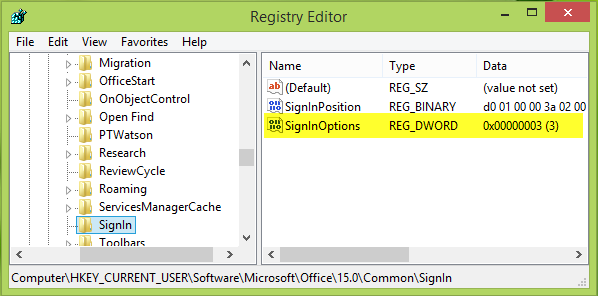
5. on Registry go to path “HKEY_CURRENT_USER\Software\Microsoft\Office\16.0\Common\SignIn”.
6. Then, go to the right panel of Registry and right click on a blank space.
7. Select “New” and pick “DWORD Value”.
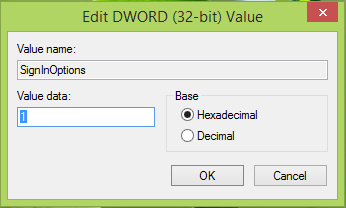
8. Name this new value “SignInOptions”.
9. Right click on the new key and set its value to 3.
10. Close Registry Editor and Reboot your Windows 7, open an Office App to check if it works.Method 2: You can use the Group Policy to remove Office Sign In Option from Office 2016.
Here are the steps to follow:
1. Download the Office 2016 Administrative Template files and install it.
After self-extracting, we can get a folder and open the admx folder inside, where you can see some language-specific folders and Office application specific admx files.
Copy the ADMX files to C:\Windows\PolicyDefinitions
Copy the adml file under the corresponding language file to the corresponding language folder in C:\Windows\PolicyDefinitions
2.Press Windows+R to open Run>type gpedit.msc > hit Enter to launch the Group Policy Editor
3.Go to this path: Local Computer Policy > User Configuration > Administrative Templates > Microsoft Office 2016 > Miscellaneous
4. You should now see the option ‘Block signing into Office‘ > double click on it
Select ‘None allowed’ to disable the sign-in option.
5. Reboot your Windows 7, open an Office App to check if it works.Note: Blocking signing in Office may affect the use of the Office cloud service.
Beyond basic modal editing. Using vim’s command-line mode.
Vim is famous for its fabulous modal editing. Its
normal,insert, andvisualmodes quickly become magic in the hands of an able user. But many are unaware or ignore the existence of vim’scommand-linemode with its Ex commands.Whereas vim’s
normalandinsertmode work in the locale of your cursor, vim’scommand-linemode can help you deal with things far from your cursor. Or as Drew Neil puts it in his Practical Vim book,Vim’s Ex commands strike far and wide.
Let’s look at a few of them.
Copy (copy, t), move (m), and delete (d)
We’ll start by copying, moving, and deleting lines. You access vim’s
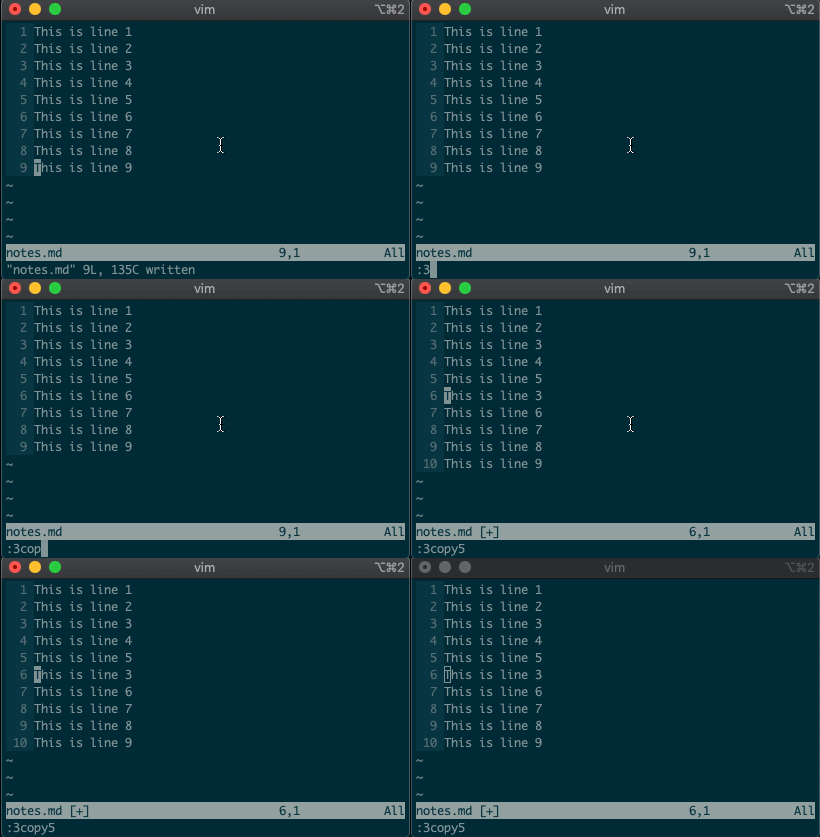
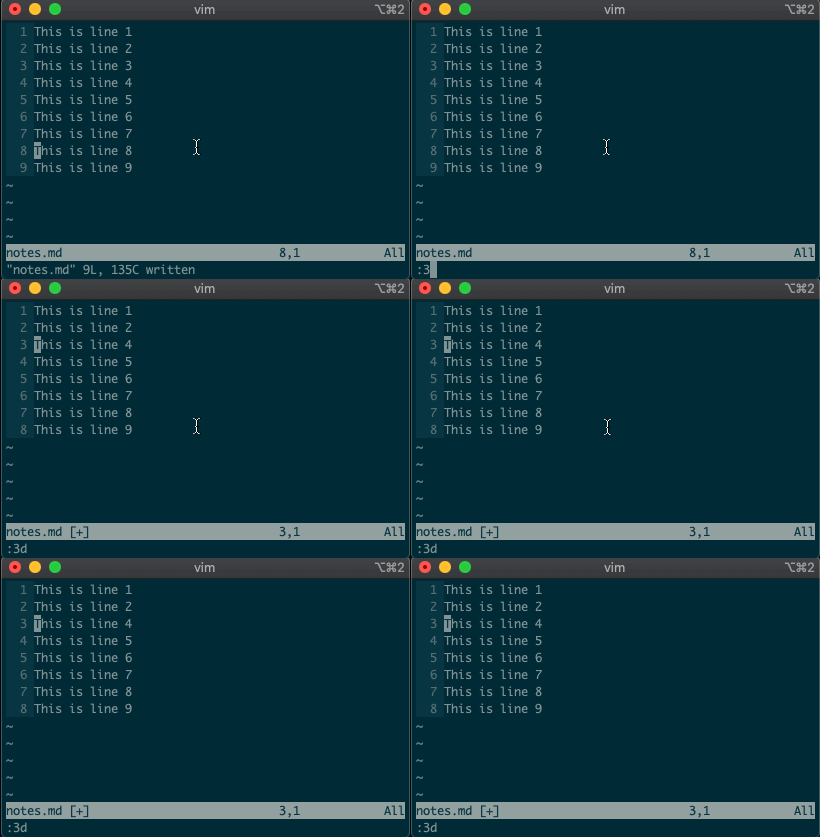
command-linemode with:. Copying, moving, and deleting can be intuitive. What would you say this command did?:3copy5If you guessed copy line three to line five, then you got it!
tis shorthand for copy (think copy to). So:3t5does the same thing as the command above.Do move and delete work the same way? You betcha.
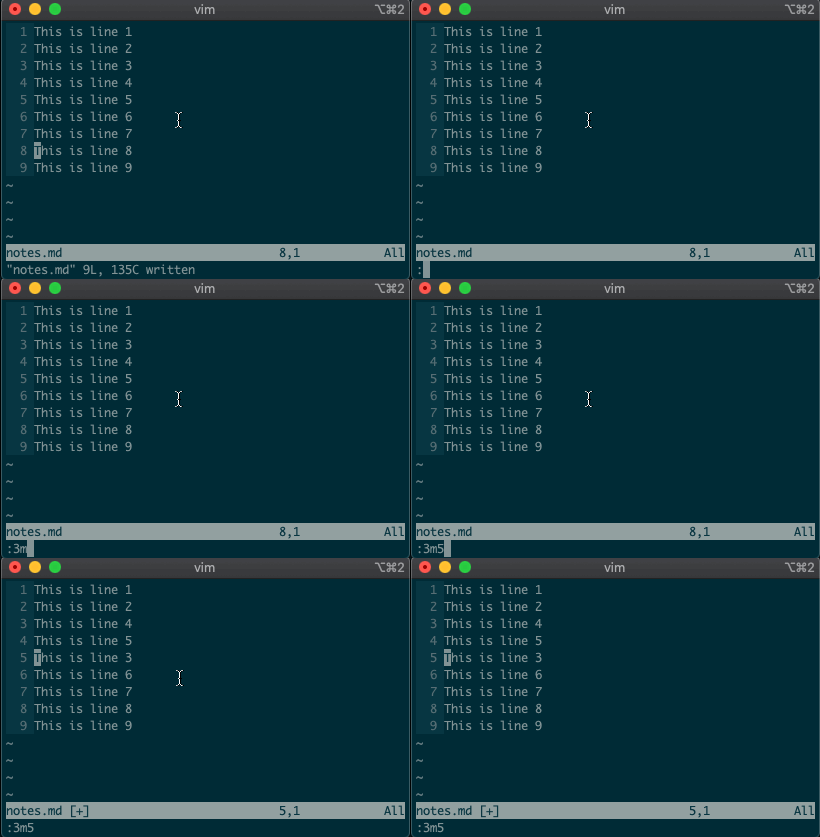
Try moving a line with
:3m5.
Now try deleting a line with
:3d.
Acting on ranges
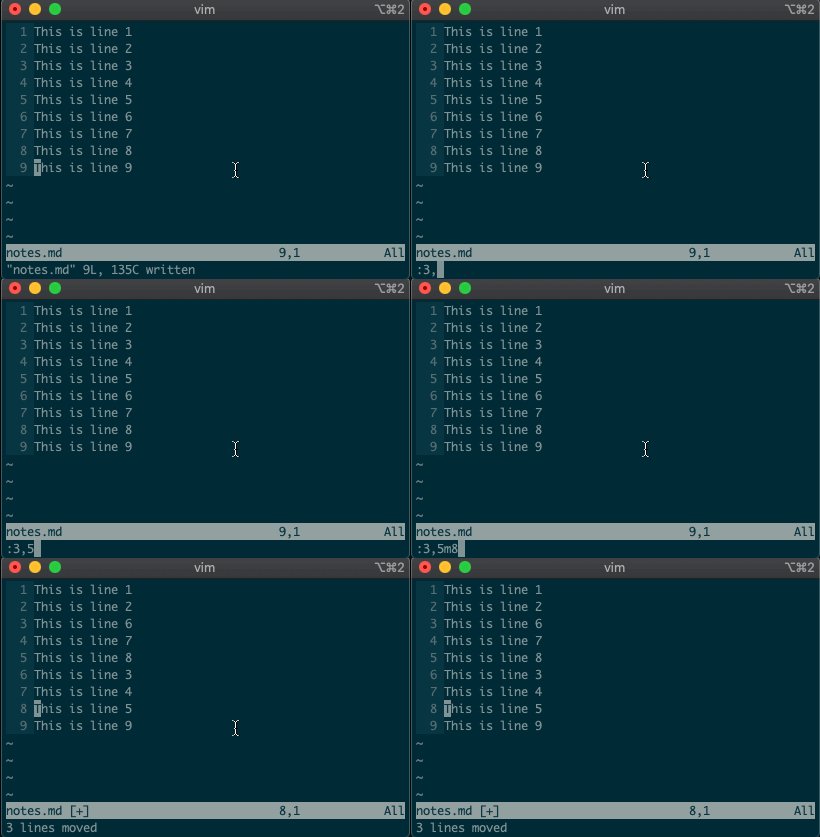
But that’s not all. Ex commands aren’t limited to single lines. They can act on ranges. Want to move lines 3-5 to line 8? You got it:
:3,5m8
Relative ranges
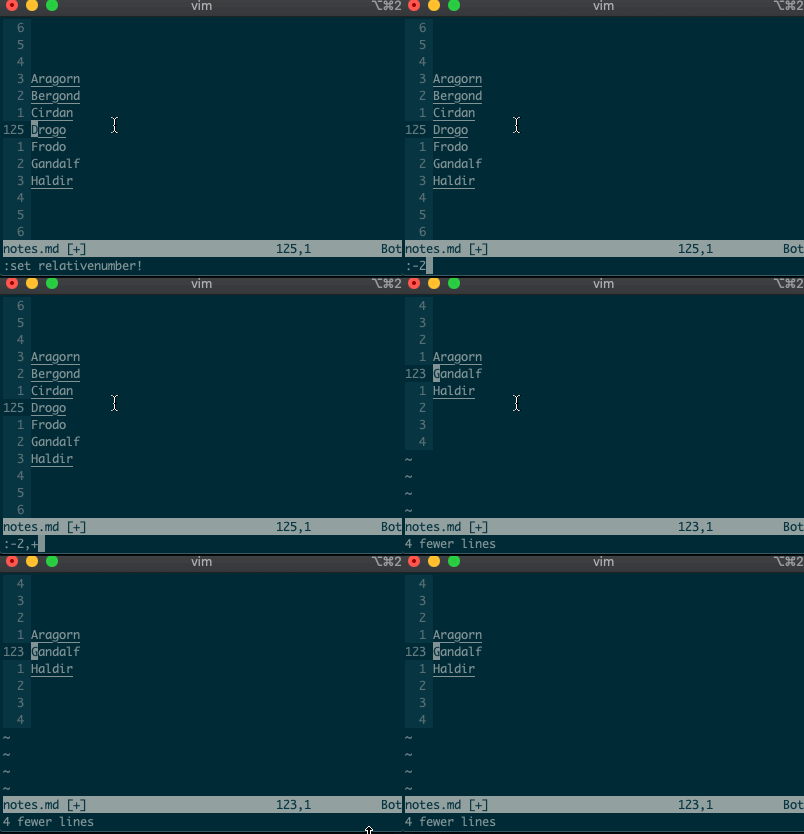
I know what you’re thinking, “But what if I’m on line 125, and I use relative numbers!” Not to worry. Vim has a range for you too:
:-2,+1d
The visual range
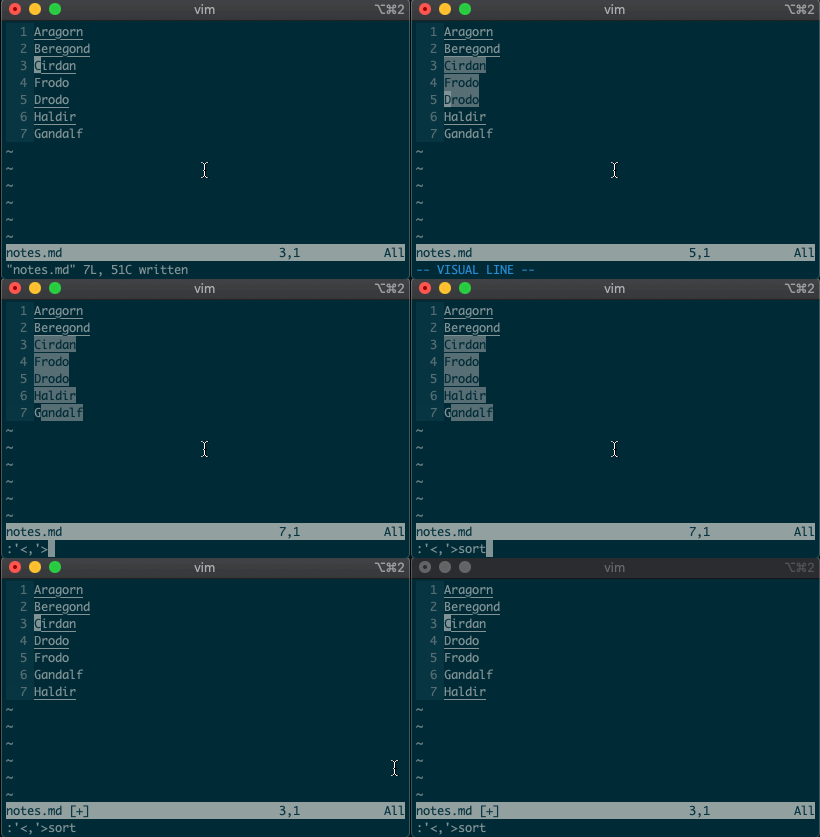
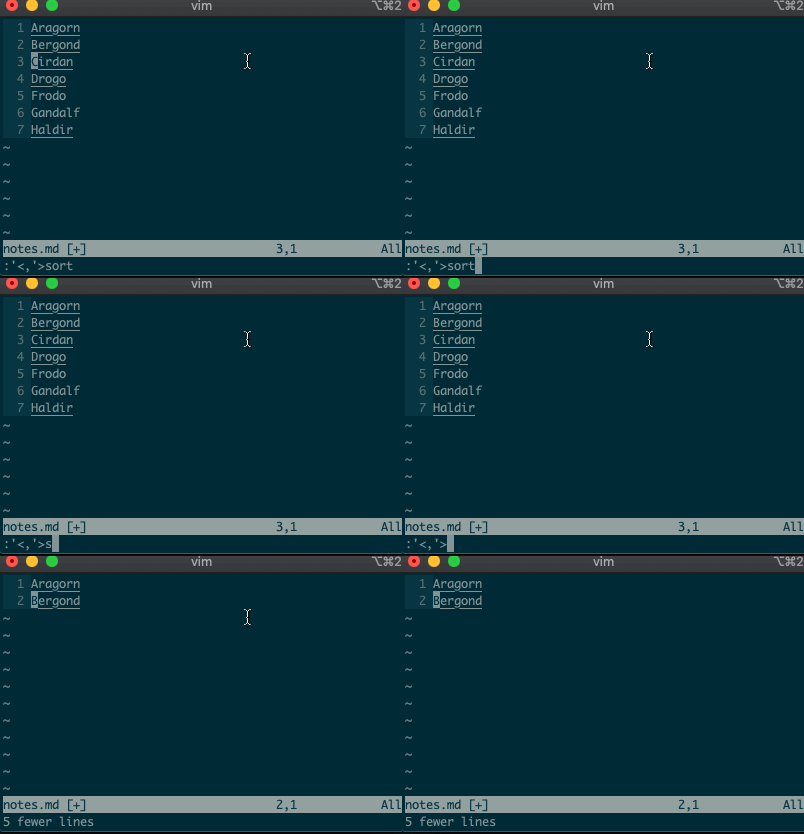
What about using a visual selection as a range? If you’re like me, you’ve probably used vim to help you sort lines by visually selecting them and typing
:sort. Did you ever notice the range vim inserts for us? It’s the special visual selector range::'<,'>sort
Want to perform other actions on that same visual block? The visual selector range (
'<,'>) continues to operate on the previous visual selection, even when that range is no longer selected! Let’s delete the lines we sorted last time::'<,'>d
Want to learn more about the visual selector range? As it turns out, ranges can be delimited by marks, and
'<and'>are just a couple of special marks. That opens ranges to a world of possibilities! Try'{,'}for paragraphs and'(,')for sentences.Search and replace
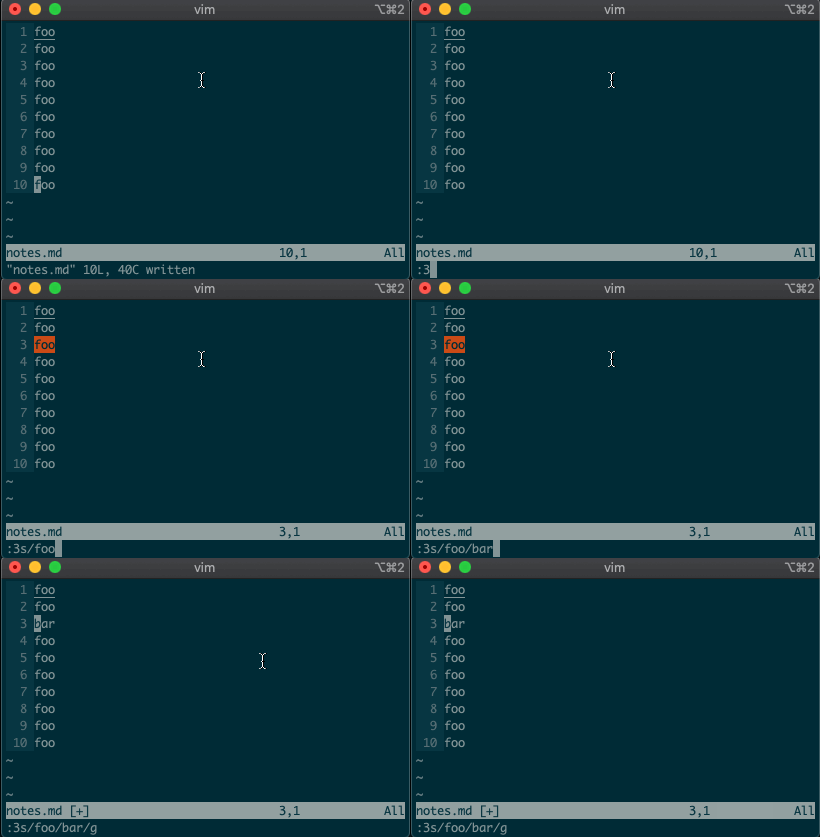
Perhaps you’ve never stopped to think about the magical incantation you use to search and replace words in a file. Well, we can finally uncover the mystery:
swill replace things (think substitute). Want to replacefoowithbaron line 3?:3s/foo/bar/g
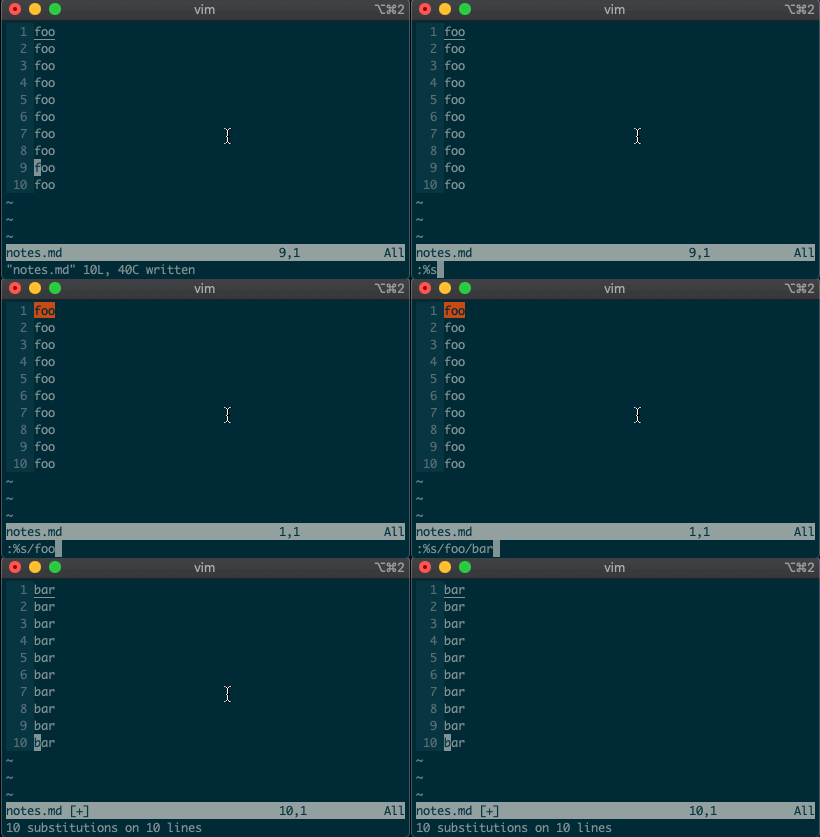
What if you want to search and replace in the entire file? We can use a range from the first line to the end of the file:
1,$, or even better, we can use vim’s shorthand for the whole file:%. Go ahead. Type it in, and see the magic work::%s/foo/bar/g
Repeat a normal command
In addition to modal editing, vim is known for its ability to repeat the last command with
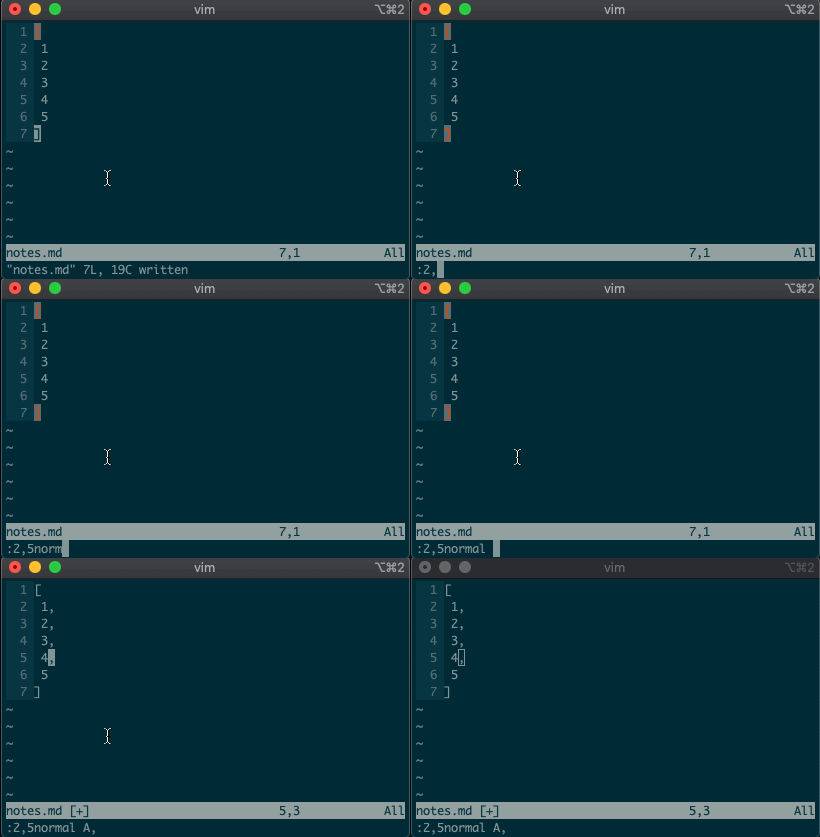
.. Maybe you delete a line withdd, then you realize you need to delete the next one. No need to pressddagain, just type.and you’re good to go.But what about repeating the same command across many lines? What would you do if you wanted to append a comma at the end of each line in a list? Ex commands are here to help you:
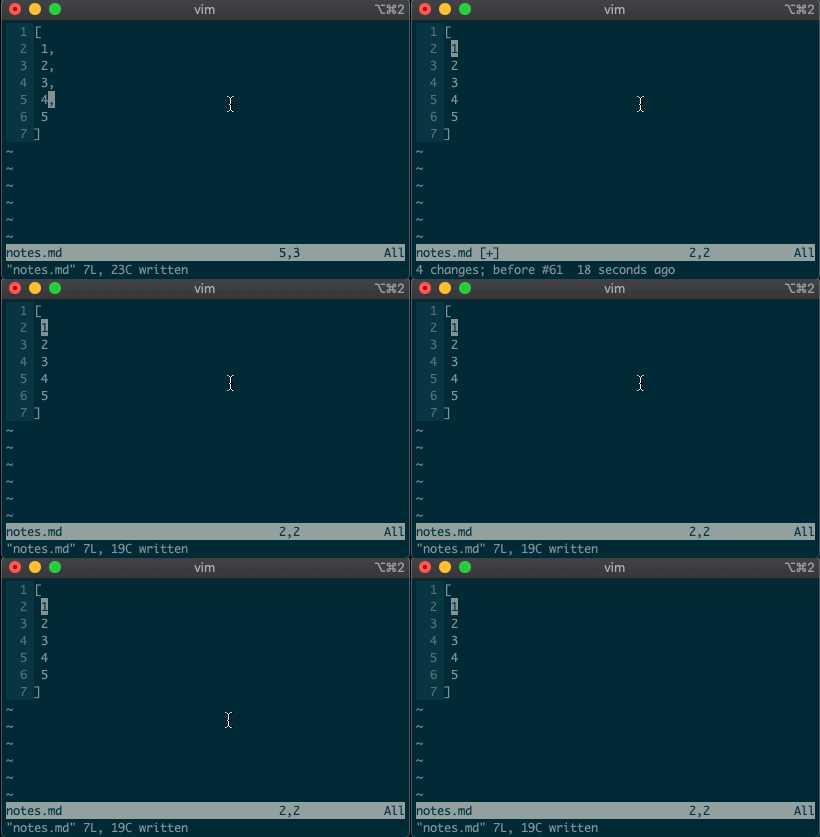
:2,5normal A,
Repeat the last Ex command
.repeats the last normal command. What if we want to repeat the last Ex command? We can do that too.@:
If you’ve ever used macros in vim, you might notice this looks like a macro for the
:register. Find that interesting? Take a look at your registers (:reg) and see what you find for:.What next?
I hope you see the power of Ex commands. Instead of typing
2Gddto go to the second line and delete it, you can delete it from afar with:2d. And instead of going to line 3, visually selecting lines 3-5, yanking them, going down to line 10, and pasting the lines with3GVjjjy10Gp, you can just do it from anywhere in the file with:3,5t10.If you want to learn more, I highly recommend Drew Neil’s Practical Vim book, or take a look at the excellent documentation for different vim modes and for the Ex commands copy, move, delete, substitute. And if you want to dig deeper, help is just a
:helpaway.Until next time!
Source: Beyond basic modal editing. Using vim’s command-line mode.
Solutions
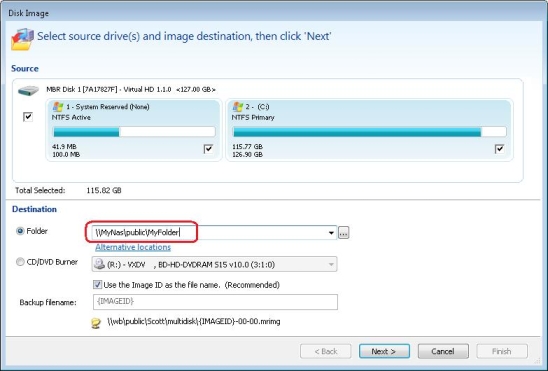
1. Use the UNC path to access the network folder
Rather than browsing for mapped drive letter you can locate the same folder by entering/browsing for the full Universal Naming Convention (UNC) path, i.e, \\server\share.
In the above example the Server name is ‘MyNas’ the Share name is ‘public’ and the folder is ‘MyFolder’. So the UNC path is \\MyNas\public\MyFolder’.
2. Alternatively, change Windows to make mapped shares visible
Note: This solution involves changing the Windows registry.
1. Press the Windows button, type ‘regedit.exe’ and press enter.
2. In the Windows that opens, navigate to:HKEY_LOCAL_MACHINE\SOFTWARE\Microsoft\Windows\CurrentVersion\Policies\System
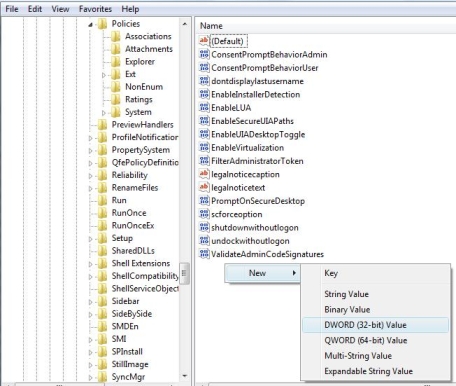
3. Point to New, and then click DWORD Value.
4. Type EnableLinkedConnections, and then press ENTER.
5. Right-click EnableLinkedConnections, and then click Modify.
6. In the Value data box, type 1, and then click OK.
7. Exit Registry Editor, and then restart the computer.After making this registry change network shares mapped to a drive letter will be visible to all programs, including those that require elevated privileges
Sysinternals Utilities – Windows Sysinternals | Microsoft Docs
Sysinternals Utilities Index
Sysinternals Suite
The entire set of Sysinternals Utilities rolled up into a single download.Sysinternals Suite for Nano Server
Sysinternals Utilities for Nano Server in a single download.Sysinternals Suite for ARM64
Sysinternals Utilities for ARM64 in a single download.AccessChk
v6.20 (November 19, 2017)
AccessChk is a command-line tool for viewing the effective permissions on files, registry keys, services, processes, kernel objects, and more.AccessEnum
v1.32 (November 1, 2006)
This simple yet powerful security tool shows you who has what access to directories, files and Registry keys on your systems. Use it to find holes in your permissions.AdExplorer
v1.44 (November 15, 2012)
Active Directory Explorer is an advanced Active Directory (AD) viewer and editor.AdInsight
v1.2 (October 26, 2015)
An LDAP (Light-weight Directory Access Protocol) real-time monitoring tool aimed at troubleshooting Active Directory client applications.AdRestore
v1.1 (November 1, 2006)
Undelete Server 2003 Active Directory objects.Autologon
v3.10 (August 29, 2016)
Bypass password screen during logon.Autoruns
v13.98 (June 24, 2020)
See what programs are configured to startup automatically when your system boots and you login. Autoruns also shows you the full list of Registry and file locations where applications can configure auto-start settings.BgInfo
v4.26 (October 19, 2018)
This fully-configurable program automatically generates desktop backgrounds that include important information about the system including IP addresses, computer name, network adapters, and more.BlueScreen
v3.2 (November 1, 2006)
This screen saver not only accurately simulates Blue Screens, but simulated reboots as well (complete with CHKDSK), and works on Windows NT 4, Windows 2000, Windows XP, Server 2003 and Windows 95 and 98.CacheSet
v1.0 (November 1, 2006)
CacheSet is a program that allows you to control the Cache Manager’s working set size using functions provided by NT. It’s compatible with all versions of NT.ClockRes
v2.1 (July 4, 2016)
View the resolution of the system clock, which is also the maximum timer resolution.Contig
v1.8 (July 4, 2016)
Wish you could quickly defragment your frequently used files? Use Contig to optimize individual files, or to create new files that are contiguous.Coreinfo
v3.31 (August 18, 2014)
Coreinfo is a new command-line utility that shows you the mapping between logical processors and the physical processor, NUMA node, and socket on which they reside, as well as the cache’s assigned to each logical processor.Ctrl2cap
v2.0 (November 1, 2006)
This is a kernel-mode driver that demonstrates keyboard input filtering just above the keyboard class driver in order to turn caps-locks into control keys. Filtering at this level allows conversion and hiding of keys before NT even “sees” them. Ctrl2cap also shows how to use NtDisplayString() to print messages to the initialization blue-screen.DebugView
v4.90 (April 23, 2019)
Another first from Sysinternals: This program intercepts calls made to DbgPrint by device drivers and OutputDebugString made by Win32 programs. It allows for viewing and recording of debug session output on your local machine or across the Internet without an active debugger.Desktops
v2.0 (October 17, 2012)
This new utility enables you to create up to four virtual desktops and to use a tray interface or hotkeys to preview what’s on each desktop and easily switch between them.Disk2vhd
v2.01 (January 21, 2014)
Disk2vhd simplifies the migration of physical systems into virtual machines (p2v.md).DiskExt
v1.2 (July 4, 2016)
Display volume disk-mappings.Diskmon
v2.01 (November 1, 2006)
This utility captures all hard disk activity or acts like a software disk activity light in your system tray.DiskView
v2.4 (March 25, 2010.md)
Graphical disk sector utility.Disk Usage (DU.md)
v1.61 (February 13, 2018)
View disk usage by directory.EFSDump
v1.02 (November 1, 2006)
View information for encrypted files.FindLinks
v1.1 (July 4, 2016)
FindLinks reports the file index and any hard links (alternate file paths on the same volume.md) that exist for the specified file. A file’s data remains allocated so long as at it has at least one file name referencing it.Handle
v4.22 (June 14, 2019)
This handy command-line utility will show you what files are open by which processes, and much more.Hex2dec
v1.1 (July 4, 2016)
Convert hex numbers to decimal and vice versa.Junction
v1.07 (July 4, 2016)
Create Win2K NTFS symbolic links.LDMDump
v1.02 (November 1, 2006)
Dump the contents of the Logical Disk Manager’s on-disk database, which describes the partitioning of Windows 2000 Dynamic disks.ListDLLs
v3.2 (July 4, 2016)
List all the DLLs that are currently loaded, including where they are loaded and their version numbers.LiveKd
v5.62 (May 16, 2017)
Use Microsoft kernel debuggers to examine a live system.LoadOrder
v1.01 (July 4, 2016)
See the order in which devices are loaded on your WinNT/2K system.LogonSessions
v1.4 (July 4, 2016)
List the active logon sessions on a system.MoveFile
v1.01 (January 24, 2013)
Allows you to schedule move and delete commands for the next reboot.NotMyFault
v4.01 (November 18, 2016)
Notmyfault is a tool that you can use to crash, hang, and cause kernel memory leaks on your Windows system.NTFSInfo
v1.2 (July 4, 2016)
Use NTFSInfo to see detailed information about NTFS volumes, including the size and location of the Master File Table (MFT) and MFT-zone, as well as the sizes of the NTFS meta-data files.PendMoves
v1.2 (February 5, 2013)
Enumerate the list of file rename and delete commands that will be executed the next boot.PipeList
v1.02 (July 4, 2016)
Displays the named pipes on your system, including the number of maximum instances and active instances for each pipe.PortMon
v3.03 (January 12, 2012)
Monitor serial and parallel port activity with this advanced monitoring tool. It knows about all standard serial and parallel IOCTLs and even shows you a portion of the data being sent and received. Version 3.x has powerful new UI enhancements and advanced filtering capabilities.ProcDump
v10.0 (September 17, 2020)
This command-line utility is aimed at capturing process dumps of otherwise difficult to isolate and reproduce CPU spikes. It also serves as a general process dump creation utility and can also monitor and generate process dumps when a process has a hung window or unhandled exception.Process Explorer
v16.32 (April 28, 2020)
Find out what files, registry keys and other objects processes have open, which DLLs they have loaded, and more. This uniquely powerful utility will even show you who owns each process.Process Monitor
v3.60 (September 17, 2020)
Monitor file system, Registry, process, thread and DLL activity in real-time.PsExec
v2.2 (June 29, 2016)
Execute processes on remote systems.PsFile
v1.03 (June 29, 2016)
See what files are opened remotely.PsGetSid
v1.45 (June 29, 2016)
Displays the SID of a computer or a user.PsInfo
v1.78 (June 29, 2016)
Obtain information about a system.PsKill
v1.16 (June 29, 2016)
Terminate local or remote processes.PsPing
v2.01 (January 29, 2014)
Measure network performance.PsList
v1.4 (June 29, 2016)
Show information about processes and threads.PsLoggedOn
v1.35 (June 29, 2016)
Show users logged on to a system.PsLogList
v2.8 (June 29, 2016)
Dump event log records.PsPasswd
v1.24 (June 29, 2016)
Changes account passwords.PsService
v2.25 (June 29, 2016)
View and control services.PsShutdown
v2.52 (December 4, 2006)
Shuts down and optionally reboots a computer.PsSuspend
v1.07 (June 29, 2016)
Suspend and resume processes.PsTools
v2.45 (July 4, 2016)
The PsTools suite includes command-line utilities for listing the processes running on local or remote computers, running processes remotely, rebooting computers, dumping event logs, and more.RAMMap
v1.51 (May 31, 2018)
An advanced physical memory usage analysis utility that presents usage information in different ways on its several different tabs.RegDelNull
v1.11 (July 4, 2016)
Scan for and delete Registry keys that contain embedded null-characters that are otherwise undeleteable by standard Registry-editing tools.Registry Usage (RU.md)
v1.2 (July 4, 2016)
View the registry space usage for the specified registry key.RegJump
v1.1 (April 20, 2015)
Jump to the registry path you specify in Regedit.SDelete
v2.01 (February 13, 2018)
Securely overwrite your sensitive files and cleanse your free space of previously deleted files using this DoD-compliant secure delete program.ShareEnum
v1.6 (November 1, 2006)
Scan file shares on your network and view their security settings to close security holes.ShellRunas
v1.01 (February 28, 2008)
Launch programs as a different user via a convenient shell context-menu entry.Sigcheck
v2.80 (June 24, 2020)
Dump file version information and verify that images on your system are digitally signed.Streams
v1.6 (July 4, 2016)
Reveal NTFS alternate streams.Strings
v2.53 (July 4, 2016)
Search for ANSI and UNICODE strings in binary images.Sync
v2.2 (July 4, 2016)
Flush cached data to disk.Sysmon
v12.0 (September 17, 2020)
Monitors and reports key system activity via the Windows event log.TCPView
v3.05 (July 25, 2011)
Active socket command-line viewer.VMMap
v3.26 (June 11, 2019)
VMMap is a process virtual and physical memory analysis utility.VolumeId
v2.1 (July 4, 2016)
Set Volume ID of FAT or NTFS drives.Whois
v1.20 (December 11, 2019)
See who owns an Internet address.WinObj
v2.22 (February 14, 2011)
The ultimate Object Manager namespace viewer is here.ZoomIt
v4.52 (December 11, 2019)
Presentation utility for zooming and drawing on the screen.
Source: Sysinternals Utilities – Windows Sysinternals | Microsoft Docs
The Ultimate Guide to Robocopy
Common Robocopy Syntax Reference
Why such a long blog post on a single utility? Just feast your eyes on the tables below. You have a lot of options to copy or move files with robocopy! You will more options in the individual sections.
These tables were built from the help syntax returned from
robocopy /?. They’ve been broken up into more meaningful sections, added to over time and cleaned up to provide more useful info.Source Options
Switch Explanation Default Behavior Equivalent Switch Notes /S Copy subfolders /E Copy subfolders including empty subfolders /COPY:[DATSOU] Copy options /COPY:DAT D=Data, A=Attributes, T=Timestamps S=Security=NTFS ACLs, O=Owner info, U=aUditing info. File Data (D) always includes file Timestamps (T) /SEC Copy files with SECurity /COPY:DATS /DCOPY:T Copy directory timestamps /COPYALL Copy ALL file info /COPY:DATSOU This will prevent dehydrating offline files and will instead copy the file’s tag (on emc VNX/Unity systems at least). This is not officially documented! If dehydration is what you need (reason i found this issue), you can’t copy the ACLs along your files. CREDIT: Monsieurx (Reddit) /NOCOPY Copy NO file info useful with /PURGE /A Copy only files with the Archive attribute set /M like /A, but remove Archive attribute from source files /LEV:n Only copy the top n LEVels of the source tree /MAXAGE:n MAXimum file AGE – exclude files older than n days/date /MINAGE:n MINimum file AGE – exclude files newer than n days/date If n < 1900 then n = no of days, else n = YYYYMMDD date /FFT Assume FAT File Times 2-second date/time granularity. This replaces NTFS timestamps. Seems to be more reliable when transferring over a network. /256 Turn off very long path (> 256 characters) support Destination Options
Switch Explanation Default Behavior Equivalent Switch Notes /A+:[RASHCNET] Set file attribute(s) on destination files + add /A-:[RASHCNET] Remove file attribute(s) on destination files /FAT Create destination files using 8.3 FAT file names only /CREATE Create directory tree structure + zero-length files only /DST Compensate for one-hour DST time differences Copy Options
Switch Explanation Default Behavior Equivalent Switch Notes /L List files only Don’t copy, timestamp or delete any files /MOV Move files Delete from source after copying /MOVE Move files and directories Delete from source after copying /sl Copy file symbolic links instead of the target /Z Copy files in restartable mode Survive a network glitch /B Copy files in backup mode /J Copy using unbuffered I/O Recommended for large files /NOOFFLOAD Copy files without using the Windows copy offload mechanism https://docs.microsoft.com/en-us/previous-versions/windows/it-pro/windows-server-2012-R2-and-2012/hh831628(v=ws.11) /EFSRAW Copy any encrypted files using EFS RAW mode /TIMFIX Fix file times on all files, even skipped files /XO Exclude older if destination file exists and is the same date or newer than the source – don’t bother to overwrite it. /XC Exclude changed files /XN Exclude newer files /XX Exclude files present in destination but not source /XX /XF file [file]… Exclude files matching given names/paths/wildcards /XD dirs [dirs]… Exclude directories matching given names/paths. /XF and /XD can be used in combination e.g. ROBOCOPY c:\source d:\dest /XF *.doc *.xls /XD c:\unwanted /S /IA:[RASHCNETO] Include files with any of the given attributes /XA:[RASHCNETO] Exclude files with any of the given attributes /IS Overwrite files even if they are already the same /IT Include tweaked files /XJ Exclude junction points from source /XJ /XJD Exclude junction points from source directories /XJF Exclude junction points from source files /MAX:n Exclude files bigger than n bytes /MIN:n Exclude files smaller than n bytes /MAXLAD:n Exclude files unused since n /MINLAD:n Exclude files used since n If n < 1900 then n = n days, else n = YYYYMMDD date /MIR Mirror a directory tree /PURGE /E /PURGE Delete dest files/folders that no longer exist in source /XL Exclude files present in source but not destination /SECFIX Robocopy /secfix fixes file security on all files, even skipped files. Specify the type of security information you want to copy by also using one of these options: /COPYALL /COPY:O /COPY:S /COPY:U /SEC /ZB Use restartable mode; if access denied use Backup mode Monitoring Options
Switch Explanation Default Behavior Equivalent Switch Notes /R:n Number of retries on failed copies /R:1000000 Always try to set this option. I recommend setting this to 10-20 to not waste time retrying. /W:n Wait time between retries /W:30 Always try to set this option to a lower number to retry more quickly. I suggest 5-10. /REG Save /R:n and /W:n in the Windows registry as default settings /RH:hhmm-hhmm times when new copies can be started /TBD Wait for sharenames to be defined retry error 67 /PF Check run hours on a per file (not per pass) basis /MON:n Run again when more than n changes seen /MOT:m Run again in m minutes, if changed
Source: The Ultimate Guide to Robocopy
Parse JSON data using jq and curl from command line | by Kaushal Shah | How To’s? for Coders | Medium
airodump-ng [Aircrack-ng]
Source: airodump-ng [Aircrack-ng]