Source: remotemanagement – sysadmin
Category Archives: sysadmin
Update PowerEdge Servers with Platform Specific Bootable ISO | Dell US
Set the iLO password from Linux using hponcfg
Set the iLO password from Linux using hponcfg
No matter if you are looking for a way to manage the iLO settings from the Linux command line or just have lost or forgotten the iLO password, as long as you have access to the Linux system running on the server, HP’s management utilities allows you to configure the iLO even without knowing the password for it.
To reset / set the password of the iLO from within the linux operating system on an HP server, the hponcfg utility needs to be installed. The hp utilities are not part of the standard distributions’ repositories. As such, an additional repository needs to be added.
Installing the Management Component Pack
Follow the instructions from this page about the Management Component Pack (mcp) to install the mcp repository (the page also lists which distributions and versions are supported). The steps below show the installation for Debian.
Adding the repository on Debian:
echo "# HPE Management Component Pack" >/etc/apt/sources.list.d/hp-nonfree.list
echo "deb http://downloads.linux.hpe.com/SDR/repo/mcp jessie/current non-free" >/etc/apt/sources.list.d/hp-nonfree.list
The repository contains signed packages. To verify the signature, the corresponding keys need to be installed too. It is suggested to install all the keys to be able to verify packages that have been signed before 2015. At the time of writing, in 2018, importing the old keys seems not to really be necessary to setup the repository on Debian.
curl http://downloads.linux.hpe.com/SDR/hpePublicKey2048_key1.pub | apt-key add -After setting up the repository, the hponcfg utility can be installed. The repository offers a number of packages with hponcfg being the one necesarry to set the password for the iLO.
$ sudo apt-get install hponcfgSetting the iLO password
The hponcfg utility is an online configuration tool used to set up and reconfigure the local iLO without requiring a reboot of the server operating system. It can be used to retrieve and change the iLO configuration of the local server from the linux command line.
In the following, the “Administrator” password is set. To set any setting on the iLO, an xml file (called iLO4_set_password.xml in this example) needs to be prepared. The XML starts with the “RIBCL” element followed by the “LOGIN” element which contains the a username and password property.
It’s interesting to notice at this point is that the “LOGIN” element must be present in the xml document but neither the username nor the password needs to be valid login credentials to the iLO. In fact, they can be anything but an empty string. To illustrate this, the following example xml shows an “x” as USER_LOGIN and PASSWORD.
The element after LOGIN contains the setting to be set in the iLO. In the below example, it contains the MOD_USER element together with its USER_LOGIN property to modify the “Administrator” user. The PASSWORD element inside the MOD_USER defines the new password (in clear text) to be set for the Administrator user.
<RIBCL VERSION="2.0">
  <LOGIN USER_LOGIN="x" PASSWORD="x">
  <USER_INFO MODE="write">
    <MOD_USER USER_LOGIN="Administrator">
      <PASSWORD value="pa$$word"/>
    </MOD_USER>
  </USER_INFO>
  </LOGIN>
</RIBCL>
Saved to a file, this xml can be loaded into the iLO. To load the xml file into the iLO, the hponcfg command with the “-f filename” option is used. The “-f” option instructs hponcfg to set Management Processor (iLO) configuration from “filename”.
$ sudo hponcfg -f iLO4_set_password.xml
HP Lights-Out Online Configuration utility
Version 4.6.0 Date 09/28/2015 (c) Hewlett-Packard Company, 2015
Firmware Revision = 2.54 Device type = iLO 4 Driver name = hpilo
Script succeeded
After the command has been executed successfully, the Administrator’s password is set to the new value.
To find out about other settings that can be set using the hponcfg utility, I suggest exporting all settings using the following command as well as checking the Scripting Toolkit for Linux – Using HPONCFG, which contains some examples but sadly not much explanation.
$ sudo hponcfg -a -w iLO4_export.xml
Source: Set the iLO password from Linux using hponcfg – Experiencing Technology
DHCP Options in Plain English
DHCP Options in Plain English
Published on 18 May 2013
The following tables list common, configurable DHCP options. Non-configurable options or TLVs have not been included, even though these may be present in a file or on the wire. The following tables also do not include options that are only necessary for the operation of the DHCP protocol. For example, DHCPv4 option 53 is the DHCP message type option that declares whether a particular message is a discovery, request, or other message type. However, the administrator can’t configure this option, so therefore it isn’t included in the lists below.
Of course, there will be some DHCPv4, DHCPv6, and internal DHCP options that are not listed at all. This is because this document aims to act as a guide for the most commonly-used options only. For further information on other DHCP options, refer to the IETF website.Table 1 – DHCPv4 Options
The table below describes DHCP options commonly used in IPv4 networks. Please note: Certain classes of devices will use particular subsets, as listed below:
- Cable Modems: 1, 2, 3, 4, 6, 7, 51, 66, 67, 122.1, 122.2
- MTAs: 1, 2, 3, 4, 6, 7, 51, 122.3, 122.6. If in BASIC mode, also 66, 67
- Generic devices: 1, 3, 6, 51
Option Number Option Name Source Description 1 Subnet Mask RFC 2132 The subnet mask to apply to the address that is assigned to the client. 2 Time Zone Offset RFC 2132 Informs the client about the time zone offset, in seconds. For example, Pacific Standard Time is GMT – 8 hours. This field would be filled with “- 28800”. (Eight hours * 60 minutes/hour * 60 seconds/minute) 3 Gateway RFC 2132 Tells the client which router is the default router. 4 Time Server RFC 2132 Tells the client the IP address of a time server that can determine the client’s current time. This is related to the Time Zone Offset option. 6 Domain Name Server RFC 2132 Carries the IP address(es) of the DNS servers that the client uses for name resolution. 7 Log Server RFC 2132 Carries the IP address of the syslog server that receives the client’s log messages. 12 Hostname RFC 2132 Carries the hostname portion of a client’s fully qualified domain name (FQDN). For example, the “www” part of “www.example.com”. 15 Domain Name RFC 2132 Carries the domain name portion of a client’s fully qualified domain name (FQDN). For example, the “example.com” portion of “www.example.com”. 43 Vendor Specific Information RFC 2132 Carries some configuration data that is not defined in the standard DHCP RFCs. Individual vendors can define different pieces of data that may be found in this option. CableLabs’ eDOCSIS specification, for example, defines certain sub-options that appear in this option. 51 Lease Time Option RFC 2132 This defines the maximum amount of time that the client may use the IP address. 60 Vendor Class Identifier RFC 2132 Carries some identifier from the client that may identify the client’s device class. The DHCP specification does not define what values go into this field, but other specifications do. For example, the DOCSIS specifications state that if the device is DOCSIS-compliant, option 60 must start with “docsis” (and also include other details). 66 TFTP Server Name RFC 2132 Carries the FQDN or IP address (or cluster identifier) that the device should use to download the file specified in option 67. Note that often the data put into option 66 does not actually appear in the DHCP packet as option 66, but may have been moved into the “sname” field of the DHCP packet. Additionally, the FQDN may have been resolved to an IP address and also placed in the “siaddr” field of the DHCP packet. 67 Filename RFC 2132 Carries the filename that is to be downloaded from the server specified in option 66. Note that often data put into option 67 does not actually appear in the DHCP packet as option 67, but may be moved into the “file” field of the DHCP packet. (Note: Address Commander can do some dynamic file name generation for this name.) 82 Relay Agent Information Option RFC 3046 This option carries many other sub-options that are added by relay agents and not the clients themselves. Some of the common options are listed below. 82.1 Circuit ID RFC 3046 This is an identifier added by the relay agent to indicate which interface the client is on. This is commonly used as a subscriber identifier in DSL-based networks. 82.2 Remote ID RFC 3046 This is an identifier added by the relay agent to identify the client. It is commonly used as a subscriber identifier in DOCSIS-based networks. DOCSIS mandates that this option is filled with the MAC address of the cable modem and applies to all traffic from the cable modem, or any device appearing from behind that cable modem. 122 CableLabs Client Configuration Option RFC 3495 This is an option defined by CableLabs to carry the information necessary to configure PacketCable devices. The sub-options are listed below. 122.1 TSP Primary DHCP Server RFC 3495 The multimedia telephony adapter (MTA) portion of the device listens to this IP address of the DHCP server. This has two special values, 0.0.0.0 (which will disable the MTA), and 255.255.255.255 (which will instruct the MTA to accept replies from any DHCP server). 122.2 TSP Secondary DHCP Server RFC 3495 A second DHCP server’s IP address. Otherwise the same as option 122.1 122.3 TSP Provisioning Server’s Address RFC 3495 The MTA contacts the server listed to complete its provisioning process. This is the FQDN of a multimedia provisioning service (MPS), whether a specific MPS, or a cluster identifier. 122.6 TSP Kerberos Realm Name RFC 3495 For PacketCable secure mode provisioning, the name of the Kerberos Realm. There are four more special values that may be in this field: BASIC.1, BASIC.2, HYBRID.1, and HYBRID.2. This indicates whether the device is in basic, hybrid, or secure mode provisioning. The “.1” and “.2” parts indicate whether the MTA notified the provisioning server upon completion of the provisioning process.
Table 2: DHCPv6 Options
The table below describes DHCP options commonly used in IPv6 networks.
Option Number Option Name Source Description 17 Vendor Specific Information Option RFC 3315 This option contains vendor-specific option data, much like DHCPv4 option 43. There is an extra difference in that in DHCPv6, this option carries a vendor ID as well, which allows for data from multiple vendors to be provided to the device. 17[4491] CableLabs Vendor-Specific Information Option CL-SP-CANN-DHCP-Reg-I08-111117 CableLabs has specified a set of sub-options for use with DOCSIS-compliant DHCPv6 devices. The vendor ID for CableLabs is 4491. 17[4491].32 TFTP Server Addresses option CL-SP-CANN-DHCP-Reg-I08-111117 This is a list of IPv6 addresses that the client will use to try to download its boot file (specified in 17[4491].33) using TFTP. 17[4491].33 Configuration File Name CL-SP-CANN-DHCP-Reg-I08-111117 The name of the file to download using the TFTP servers specified in 17[4491].32. 17[4491].34 Syslog Server Addresses CL-SP-CANN-DHCP-Reg-I08-111117 This is the DHCPv6 analogue to the DHCPv4 option 7. 17[4491].37 RFC868 Servers CL-SP-CANN-DHCP-Reg-I08-111117 This is the DHCPv6 analogue to the DHCPv4 option 4 17[4491].38 Time Offset CL-SP-CANN-DHCP-Reg-I08-111117 This is the DHCPv6 analogue to the DHCPv4 option 2. 23 DNS Recursive Name Server Option RFC 3646 This is the DHCPv6 analogue to the DHCPv4 option 6. 24 Domain Search List RFC 3646 This option specifies the list of domain names that the client should use when attempting to resolve basic host names. 39 DHCPv6 FQDN option RFC 4704 This option specifies the clients host and domain names. This is the analogue of both DHCPv4 option 12 and DHCPv4 option 15 combined. References
RFC 2132: http://datatracker.ietf.org/doc/rfc2132/
RFC 3046: http://datatracker.ietf.org/doc/rfc3046/
RFC 3495: http://datatracker.ietf.org/doc/rfc3495/
RFC 3646: http://datatracker.ietf.org/doc/rfc3646/
RFC 4704: http://datatracker.ietf.org/doc/rfc4704/
CL-SP-CANN-DHCP-Reg-I08-111117: http://www.cablelabs.com/specifications/CL-SP-CANN-DHCP-Reg-I08-111117.pdf
Windows Sandbox configuration – Windows security | Microsoft Docs
Windows Sandbox supports simple configuration files, which provide a minimal set of customization parameters for Sandbox. This feature can be used with Windows 10 build 18342 or later. Windows Sandbox configuration files are formatted as XML and are associated with Sandbox via the .wsb file extension.
A configuration file enables the user to control the following aspects of Windows Sandbox:
- vGPU (virtualized GPU): Enable or disable the virtualized GPU. If vGPU is disabled, the sandbox will use Windows Advanced Rasterization Platform (WARP).
- Networking: Enable or disable network access within the sandbox.
- Mapped folders: Share folders from the host with read or write permissions. Note that exposing host directories may allow malicious software to affect the system or steal data.
- Logon command: A command that’s executed when Windows Sandbox starts.
- Audio input: Shares the host’s microphone input into the sandbox.
- Video input: Shares the host’s webcam input into the sandbox.
- Protected client: Places increased security settings on the RDP session to the sandbox.
- Printer redirection: Shares printers from the host into the sandbox.
- Clipboard redirection: Shares the host clipboard with the sandbox so that text and files can be pasted back and forth.
- Memory in MB: The amount of memory, in megabytes, to assign to the sandbox.
Source: Windows Sandbox configuration – Windows security | Microsoft Docs
Raspberry Pi Performance: Add ZRAM and these Kernel Parameters
Settings Pages List of URI Shortcuts in Windows 10 | Tutorials
List of Shortcuts to Directly Open Pages in Settings in Windows 10
The Settings app is where you can change most settings at in Windows 10. Settings will eventually replace the Control Panel.
Almost every Settings page has its own URI (Uniform Resource Identifier) that allows you to open any Setting page directly from a command via the command prompt, Run (Win+R) dialog, address bar of File Explorer, address bar of web browser, and in scripts (ex: .bat). You can also use these commands to create shortcuts.
This tutorial will provide you with a list of ms-settings URI commands to directly open or create shortcuts for any Settings page in Windows 10.
To use the URI commands to open Settings pages from a command prompt or script (ex: .bat), you would need to add the Start command with a space after it in front of the URI command in the table below.
For example, command below to open the About Settings page (System category) in command prompt:
Start ms-settings:about
EXAMPLE: Settings home page
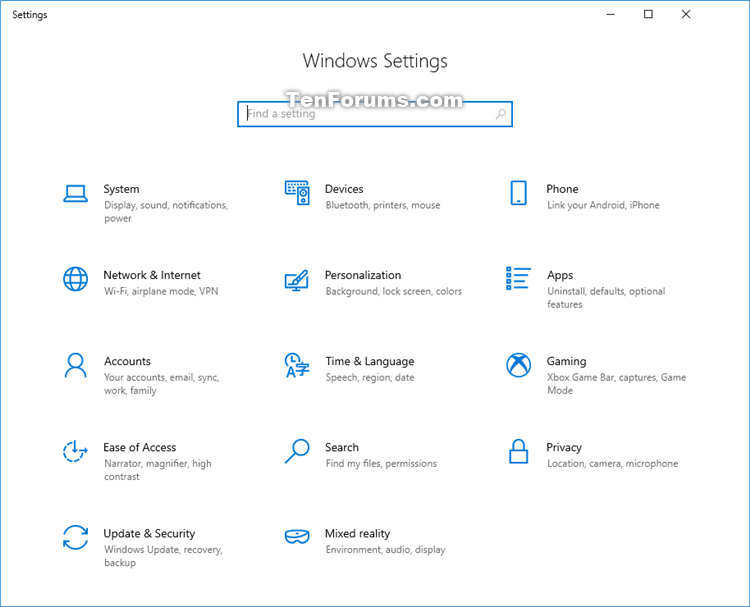
| Category | Settings page | URI Command (shortcut) |
| Settings home page | ms-settings: | |
| System | ||
| Display | ms-settings:display | |
|
Night light settings
|
ms-settings:nightlight | |
|
Advanced scaling settings
|
ms-settings:display-advanced | |
|
Connect to a wireless display
|
ms-settings-connectabledevices:devicediscovery | |
|
Graphics settings
|
ms-settings:display-advancedgraphics | |
| Sound (build 17063) | ms-settings:sound | |
|
Manage sound devices
|
ms-settings:sound-devices | |
|
App volume and device preferences
|
ms-settings:apps-volume | |
| Notifications & actions | ms-settings:notifications | |
| Focus assist (build 17074) | ms-settings:quiethours or ms-settings:quietmomentshome |
|
|
During these hours
|
ms-settings:quietmomentsscheduled | |
|
Duplicating my display (When I’m duplicating my display)
|
ms-settings:quietmomentspresentation | |
|
Playing a game full screen (When I’m playing a game)
|
ms-settings:quietmomentsgame | |
| Power & sleep | ms-settings:powersleep | |
| Battery | ms-settings:batterysaver | |
|
See which apps are affecting your battery life
|
ms-settings:batterysaver-usagedetails | |
|
Battery Saver settings
|
ms-settings:batterysaver-settings | |
| Storage | ms-settings:storagesense | |
|
Configure Storage Sense or run it now
|
ms-settings:storagepolicies | |
|
Change where new content is saved
|
ms-settings:savelocations | |
| Tablet | ms-settings:tabletmode | |
| Multitasking | ms-settings:multitasking | |
| Projecting to this PC | ms-settings:project | |
| Shared experiences | ms-settings:crossdevice | |
| Clipboard (build 17666) | ms-settings:clipboard | |
| Remote Desktop | ms-settings:remotedesktop | |
| Device Encryption (if available) | ms-settings:deviceencryption | |
| About | ms-settings:about | |
| Devices | ||
| Bluetooth & other devices | ms-settings:bluetooth or ms-settings:connecteddevices |
|
| Printers & scanners | ms-settings:printers | |
| Mouse | ms-settings:mousetouchpad | |
| Touchpad | ms-settings:devices-touchpad | |
| Typing | ms-settings:typing | |
|
Hardware keyboard – Text suggestions
|
ms-settings:devicestyping-hwkbtextsuggestions | |
| Wheel (Only available if Dial is paired) | ms-settings:wheel | |
| Pen & Windows Ink | ms-settings:pen | |
| AutoPlay | ms-settings:autoplay | |
| USB | ms-settings:usb | |
| Phone (build 16251) | ||
| Phone | ms-settings:mobile-devices | |
|
Add a phone
|
ms-settings:mobile-devices-addphone | |
|
Your Phone (opens app)
|
ms-settings:mobile-devices-addphone-direct | |
| Network & Internet | ms-settings:network | |
| Status | ms-settings:network-status | |
|
Data usage
|
ms-settings:datausage | |
|
Show available networks
|
ms-availablenetworks: | |
| Cellular & SIM | ms-settings:network-cellular | |
| Wi-Fi | ms-settings:network-wifi | |
|
Show available networks
|
ms-availablenetworks: | |
|
Manage known networks
|
ms-settings:network-wifisettings | |
| Wi-Fi Calling | ms-settings:network-wificalling | |
| Ethernet | ms-settings:network-ethernet | |
| Dial-up | ms-settings:network-dialup | |
| DirectAccess (Only available if DirectAccess is enabled) | ms-settings:network-directaccess | |
| VPN | ms-settings:network-vpn | |
| Airplane mode | ms-settings:network-airplanemode or ms-settings:proximity |
|
| Mobile hotspot | ms-settings:network-mobilehotspot | |
| NFC | ms-settings:nfctransactions | |
| Proxy | ms-settings:network-proxy | |
| Personalization | ms-settings:personalization | |
| Background | ms-settings:personalization-background | |
| Colors | ms-settings:personalization-colors or ms-settings:colors |
|
| Lock screen | ms-settings:lockscreen | |
| Themes | ms-settings:themes | |
| Fonts (build 17083) | ms-settings:fonts | |
| Start | ms-settings:personalization-start | |
|
Choose which folders appear on Start
|
ms-settings:personalization-start-places | |
| Taskbar | ms-settings:taskbar | |
| Apps | ||
| Apps & features | ms-settings:appsfeatures | |
|
Manage optional features
|
ms-settings:optionalfeatures | |
| Default apps | ms-settings:defaultapps | |
| Offline maps | ms-settings:maps | |
|
Download maps
|
ms-settings:maps-downloadmaps | |
| Apps for websites | ms-settings:appsforwebsites | |
| Video playback (build 16215) | ms-settings:videoplayback | |
| Startup (build 17017) | ms-settings:startupapps | |
| Accounts | ||
| Your info | ms-settings:yourinfo | |
| Email & accounts | ms-settings:emailandaccounts | |
| Sign-in options | ms-settings:signinoptions | |
|
Windows Hello face setup
|
ms-settings:signinoptions-launchfaceenrollment | |
|
Windows Hello fingerprint setup
|
ms-settings:signinoptions-launchfingerprintenrollment | |
|
Security Key setup
|
ms-settings:signinoptions-launchsecuritykeyenrollment | |
|
Dynamic Lock
|
ms-settings:signinoptions-dynamiclock | |
| Access work or school | ms-settings:workplace | |
| Family & other users | ms-settings:otherusers | |
|
Set up a kiosk
|
ms-settings:assignedaccess | |
| Sync your settings | ms-settings:sync | |
| Time & Language | ||
| Date & time | ms-settings:dateandtime | |
| Region | ||
| Japan IME settings (available if Microsoft Japan input method editor installed) | ms-settings:regionlanguage-jpnime | |
| Pinyin IME settings (available if Microsoft Pinyin input method editor installed) | ms-settings:regionlanguage-chsime-pinyin | |
| Wubi IME settings (available if Microsoft Wubi input method editor installed) | ms-settings:regionlanguage-chsime-wubi | |
| Language | ms-settings:regionlanguage | |
|
Windows display language
|
ms-settings:regionlanguage-setdisplaylanguage | |
|
Add Display language
|
ms-settings:regionlanguage-adddisplaylanguage | |
| Speech | ms-settings:speech | |
| Gaming | ||
| Xbox Game bar | ms-settings:gaming-gamebar | |
| Captures | ms-settings:gaming-gamedvr | |
| Game Mode | ms-settings:gaming-gamemode | |
| Xbox Networking (build 16226) | ms-settings:gaming-xboxnetworking | |
| Extras | (Only available if “settings apps” are installed (e.g. by 3rd party)) | |
| Extras | ms-settings:extras | |
| Ease of Access | ||
| Display (build 17025) | ms-settings:easeofaccess-display | |
| Mouse pointer (build 17040) | ms-settings:easeofaccess-cursorandpointersize OR ms-settings:easeofaccess-MousePointer |
|
| Text cursor | ms-settings:easeofaccess-cursor | |
| Magnifier | ms-settings:easeofaccess-magnifier | |
| Color Filters (build 17025) | ms-settings:easeofaccess-colorfilter | |
| High Contrast | ms-settings:easeofaccess-highcontrast | |
| Narrator | ms-settings:easeofaccess-narrator | |
|
Start Narrator after sign-in for me
|
ms-settings:easeofaccess-narrator-isautostartenabled | |
| Audio (build 17035) | ms-settings:easeofaccess-audio | |
| Closed captions | ms-settings:easeofaccess-closedcaptioning | |
| Speech (build 17035) | ms-settings:easeofaccess-speechrecognition | |
| Keyboard | ms-settings:easeofaccess-keyboard | |
| Mouse | ms-settings:easeofaccess-mouse | |
| Eye Control (build 17035) | ms-settings:easeofaccess-eyecontrol | |
| Search (version 1903) | ||
| Permissions & history | ms-settings:search-permissions | |
| Searching Windows | ms-settings:cortana-windowssearch | |
| Privacy | ms-settings:privacy | |
| General | ms-settings:privacy | |
| Speech | ms-settings:privacy-speech | |
| Inking & typing personalization | ms-settings:privacy-speechtyping | |
| Diagnostics & feedback | ms-settings:privacy-feedback | |
|
View diagnostic data
|
ms-settings:privacy-feedback-telemetryviewergroup | |
| Activity history (build 17040) | ms-settings:privacy-activityhistory | |
| Location | ms-settings:privacy-location | |
| Camera | ms-settings:privacy-webcam | |
| Microphone | ms-settings:privacy-microphone | |
| Voice activation | ms-settings:privacy-voiceactivation | |
| Notifications | ms-settings:privacy-notifications | |
| Account info | ms-settings:privacy-accountinfo | |
| Contacts | ms-settings:privacy-contacts | |
| Calendar | ms-settings:privacy-calendar | |
| Phone calls | ms-settings:privacy-phonecalls | |
| Call history | ms-settings:privacy-callhistory | |
| ms-settings:privacy-email | ||
| Eye tracker (requires eyetracker hardware) | ms-settings:privacy-eyetracker | |
| Tasks | ms-settings:privacy-tasks | |
| Messaging | ms-settings:privacy-messaging | |
| Radios | ms-settings:privacy-radios | |
| Other devices | ms-settings:privacy-customdevices | |
| Background apps | ms-settings:privacy-backgroundapps | |
| App diagnostics | ms-settings:privacy-appdiagnostics | |
| Automatic file downloads | ms-settings:privacy-automaticfiledownloads | |
| Documents | ms-settings:privacy-documents | |
| Downloads folder (build 19536) | ms-settings:privacy-downloadsfolder | |
| Pictures | ms-settings:privacy-pictures | |
| Videos | ms-settings:privacy-documents | |
| File system | ms-settings:privacy-broadfilesystemaccess | |
| Screen capture border (build 19536) | ||
| Programmatic screen capture (build 19536) | ||
| Update & Security | ms-settings:windowsupdate | |
| Windows Update | ms-settings:windowsupdate | |
|
Check for updates
|
ms-settings:windowsupdate-action | |
|
View optional updates
|
ms-settings:windowsupdate-optionalupdates | |
|
Change active hours
|
ms-settings:windowsupdate-activehours | |
|
View update history
|
ms-settings:windowsupdate-history | |
|
Restart options
|
ms-settings:windowsupdate-restartoptions | |
|
Advanced options
|
ms-settings:windowsupdate-options | |
| Delivery Optimization | ms-settings:delivery-optimization | |
| Windows Security | ms-settings:windowsdefender | |
|
Open Windows Security
|
windowsdefender: | |
| Backup | ms-settings:backup | |
| Troubleshoot | ms-settings:troubleshoot | |
| Recovery | ms-settings:recovery | |
| Activation | ms-settings:activation | |
| Find My Device | ms-settings:findmydevice | |
| For developers | ms-settings:developers | |
| Windows Insider Program | ms-settings:windowsinsider or ms-settings:windowsinsider-optin |
|
| Mixed reality | ms-settings:holographic | |
| Audio and speech | ms-settings:holographic-audio | |
| Environment | ms-settings:privacy-holographic-environment | |
| Headset display | ms-settings:holographic-headset | |
| Uninstall | ms-settings:holographic-management | |
| Surface Hub | ||
| Accounts | ms-settings:surfacehub-accounts | |
| Team Conferencing | ms-settings:surfacehub-calling | |
| Team device management | ms-settings:surfacehub-devicemanagenent | |
| Session cleanup | ms-settings:surfacehub-sessioncleanup | |
| Welcome screen | ms-settings:surfacehub-welcome |
Source: Settings Pages List of URI Shortcuts in Windows 10 | Tutorials
Rundll32 Commands List for Windows 10 | Tutorials
List of Rundll32 Commands in Windows 10
Windows Rundll32 commands loads and runs 32-bit dynamic-link libraries (DLLs) that can be used for directly invoking specified functions, or used to create shortcuts with.
This tutorial will provide you with a list of Rundll32 commands that can be used to quickly invoke functions in Windows 10.
| Function | Rundll32 command |
| About Windows | Rundll32.exe shell32.dll,ShellAbout |
| Add Network Location Wizard | Rundll32 %SystemRoot%\system32\shwebsvc.dll,AddNetPlaceRunDll |
| Add Printer Wizard | Rundll32.exe shell32.dll,SHHelpShortcuts_RunDLL AddPrinter |
| Add Standard TCP/IP Printer Port Wizard | Rundll32.exe tcpmonui.dll,LocalAddPortUI |
| Control Panel | Rundll32.exe shell32.dll,Control_RunDLL |
| Date and Time | Rundll32.exe shell32.dll,Control_RunDLL timedate.cpl |
| Date and Time – Additional Clocks tab | Rundll32.exe shell32.dll,Control_RunDLL timedate.cpl,,1 |
| Desktop Icon Settings | Rundll32.exe shell32.dll,Control_RunDLL desk.cpl,,0 |
| Device Installation Settings | Rundll32.exe %SystemRoot%\System32\newdev.dll,DeviceInternetSettingUi |
| Device Manager | Rundll32.exe devmgr.dll DeviceManager_Execute |
| Display Settings | Rundll32.exe shell32.dll,Control_RunDLL desk.cpl |
| Ease of Access Center | Rundll32.exe shell32.dll,Control_RunDLL access.cpl |
| Environment Variables | Rundll32.exe sysdm.cpl,EditEnvironmentVariables |
| File Explorer Options – General tab | Rundll32.exe shell32.dll,Options_RunDLL 0 |
| File Explorer Options – Search tab | Rundll32.exe shell32.dll,Options_RunDLL 2 |
| File Explorer Options – View tab | Rundll32.exe shell32.dll,Options_RunDLL 7 |
| Fonts folder | Rundll32.exe shell32.dll,SHHelpShortcuts_RunDLL FontsFolder |
| Forgotten Password Wizard | Rundll32.exe keymgr.dll,PRShowSaveWizardExW |
| Game Controllers | Rundll32.exe shell32.dll,Control_RunDLL joy.cpl |
| Hibernate or Sleep | Rundll32.exe powrprof.dll,SetSuspendState |
| Indexing Options | Rundll32.exe shell32.dll,Control_RunDLL srchadmin.dll |
| Infared | Rundll32.exe shell32.dll,Control_RunDLL irprops.cpl |
| Internet Explorer – delete all browsing history | Rundll32.exe InetCpl.cpl,ClearMyTracksByProcess 255 |
| Internet Explorer – delete all browsing history and add-ons history | Rundll32.exe InetCpl.cpl,ClearMyTracksByProcess 4351 |
| Internet Explorer – delete cookies and website data | Rundll32.exe InetCpl.cpl,ClearMyTracksByProcess 2 |
| Internet Explorer – delete download history | Rundll32.exe InetCpl.cpl,ClearMyTracksByProcess 16384 |
| Internet Explorer – delete form data | Rundll32.exe InetCpl.cpl,ClearMyTracksByProcess 16 |
| Internet Explorer – delete history | Rundll32.exe InetCpl.cpl,ClearMyTracksByProcess 1 |
| Internet Explorer – delete passwords | Rundll32.exe InetCpl.cpl,ClearMyTracksByProcess 32 |
| Internet Explorer – delete temporary Internet files and website files | Rundll32.exe InetCpl.cpl,ClearMyTracksByProcess 8 |
| Internet Explorer – Organize Favorites | Rundll32.exe shdocvw.dll,DoOrganizeFavDlg |
| Internet Properties – General tab | Rundll32.exe shell32.dll,Control_RunDLL inetcpl.cpl |
| Internet Properties – Security tab | Rundll32.exe shell32.dll,Control_RunDLL inetcpl.cpl,,1 |
| Internet Properties – Privacy tab | Rundll32.exe shell32.dll,Control_RunDLL inetcpl.cpl,,2 |
| Internet Properties – Content tab | Rundll32.exe shell32.dll,Control_RunDLL inetcpl.cpl,,3 |
| Internet Properties – Connections tab | Rundll32.exe shell32.dll,Control_RunDLL inetcpl.cpl,,4 |
| Internet Properties – Programs tab | Rundll32.exe shell32.dll,Control_RunDLL inetcpl.cpl,,5 |
| Internet Properties – Advanced tab | Rundll32.exe shell32.dll,Control_RunDLL inetcpl.cpl,,6 |
| Keyboard Properties | Rundll32.exe shell32.dll,Control_RunDLL main.cpl @1 |
| Lock PC | Rundll32.exe user32.dll,LockWorkStation |
| Map Network Drive wizard | Rundll32.exe shell32.dll,SHHelpShortcuts_RunDLL Connect |
| Mouse Button swap left and right button function | Rundll32.exe user32.dll,SwapMouseButton |
| Mouse Properties – Buttons tab | Rundll32.exe shell32.dll,Control_RunDLL main.cpl |
| Mouse Properties – Pointers tab | Rundll32.exe shell32.dll,Control_RunDLL main.cpl,,1 |
| Mouse Properties – Pointer Options tab | Rundll32.exe shell32.dll,Control_RunDLL main.cpl,,2 |
| Mouse Properties – Wheel tab | Rundll32.exe shell32.dll,Control_RunDLL main.cpl,,3 |
| Mouse Properties – Hardware tab | Rundll32.exe shell32.dll,Control_RunDLL main.cpl,,4 |
| Network Connections | Rundll32.exe shell32.dll,Control_RunDLL ncpa.cpl |
| ODBC Data Source Administrator | Rundll32.exe shell32.dll,Control_RunDLL odbccp32.cpl |
| Offline Files (General tab) | Rundll32.exe Shell32.dll,Control_RunDLL cscui.dll,,0 |
| Offline Files (Disk Usage tab) | Rundll32.exe Shell32.dll,Control_RunDLL cscui.dll,,1 |
| Offline Files (Encryption tab) | Rundll32.exe Shell32.dll,Control_RunDLL cscui.dll,,2 |
| Offline Files (Network tab) | Rundll32.exe Shell32.dll,Control_RunDLL cscui.dll,,3 |
| Pen and Touch | Rundll32.exe shell32.dll,Control_RunDLL tabletpc.cpl |
| Personalization – Background Settings | Rundll32.exe shell32.dll,Control_RunDLL desk.cpl,,2 |
| Power Options | Rundll32.exe shell32.dll,Control_RunDLL powercfg.cpl |
| Printer User Interface | Rundll32.exe Printui.dll,PrintUIEntry /? |
| Printers folder | Rundll32.exe shell32.dll,SHHelpShortcuts_RunDLL PrintersFolder |
| Process idle tasks | Rundll32.exe advapi32.dll,ProcessIdleTasks |
| Programs and Features | Rundll32.exe shell32.dll,Control_RunDLL appwiz.cpl,,0 |
| Region – Formats tab | Rundll32.exe shell32.dll,Control_RunDLL Intl.cpl,,0 |
| Region – Location tab | Rundll32.exe shell32.dll,Control_RunDLL Intl.cpl,,1 |
| Region – Administrative tab | Rundll32.exe shell32.dll,Control_RunDLL Intl.cpl,,2 |
| Safely Remove Hardware | Rundll32.exe shell32.dll,Control_RunDLL HotPlug.dll |
| Screen Saver Settings | Rundll32.exe shell32.dll,Control_RunDLL desk.cpl,,1 |
| Security and Maintenance | Rundll32.exe shell32.dll,Control_RunDLL wscui.cpl |
| Set Program Access and Computer Defaults | Rundll32.exe shell32.dll,Control_RunDLL appwiz.cpl,,3 |
| Set Up a Network wizard | Rundll32.exe shell32.dll,Control_RunDLL NetSetup.cpl |
| Sleep or Hibernate | Rundll32.exe powrprof.dll,SetSuspendState |
| Sound – Playback tab | Rundll32.exe shell32.dll,Control_RunDLL Mmsys.cpl,,0 |
| Sound – Recording tab | Rundll32.exe shell32.dll,Control_RunDLL Mmsys.cpl,,1 |
| Sound – Sounds tab | Rundll32.exe shell32.dll,Control_RunDLL Mmsys.cpl,,2 |
| Sound – Communications tab | Rundll32.exe shell32.dll,Control_RunDLL Mmsys.cpl,,3 |
| Speech Properties – Text to Speech tab | Rundll32.exe shell32.dll,Control_RunDLL %SystemRoot%\System32\Speech\SpeechUX\sapi.cpl,,1 |
| Start Settings | Rundll32.exe shell32.dll,Options_RunDLL 3 |
| Stored User Names and Passwords | Rundll32.exe keymgr.dll,KRShowKeyMgr |
| System Properties – Computer Name tab | Rundll32.exe shell32.dll,Control_RunDLL Sysdm.cpl,,1 |
| System Properties – Hardware tab | Rundll32.exe shell32.dll,Control_RunDLL Sysdm.cpl,,2 |
| System Properties – Advanced tab | Rundll32.exe shell32.dll,Control_RunDLL Sysdm.cpl,,3 |
| System Properties – System Protection tab | Rundll32.exe shell32.dll,Control_RunDLL Sysdm.cpl,,4 |
| System Properties – Remote tab | Rundll32.exe shell32.dll,Control_RunDLL Sysdm.cpl,,5 |
| Taskbar Settings | Rundll32.exe shell32.dll,Options_RunDLL 1 |
| Text Services and Input Languages | Rundll32.exe Shell32.dll,Control_RunDLL input.dll,,{C07337D3-DB2C-4D0B-9A93-B722A6C106E2} |
| User Accounts | Rundll32.exe shell32.dll,Control_RunDLL nusrmgr.cpl |
| Windows Features | Rundll32.exe shell32.dll,Control_RunDLL appwiz.cpl,,2 |
| Windows Firewall | Rundll32.exe shell32.dll,Control_RunDLL firewall.cpl |
| Windows To Go Startup Options | Rundll32.exe pwlauncher.dll,ShowPortableWorkspaceLauncherConfigurationUX |
Shell Commands List for Windows 10 | Tutorials
Complete List of Windows 10 Shell Commands
A shell command can be typed in the Run (Windows+R) dialog, search, File Explorer address bar, and Internet Explorer address bar to open a Windows shell folder.
This tutorial will show you a complete list of shell commands that can be used to easily open or create shortcuts of specific shell folders in Windows 10.
The red shell commands in the table below are new to Windows 10.
 You can find the shell command listed in the Name string value data for each CLSID (GUID) key number at the registry location below.
HKEY_LOCAL_MACHINE\SOFTWARE\Microsoft\Windows\CurrentVersion\Explorer\FolderDescriptions
 You can create a shortcut with a shell command by adding explorer in front of the shell command.
For example:
explorer shell:command
| Shell Command | Opens |
| shell:3D Objects | %UserProfile%\3D Objects |
| shell:AccountPictures | %AppData%\Microsoft\Windows\AccountPictures |
| shell:AddNewProgramsFolder | Control Panel\All Control Panel Items\Get Programs |
| shell:Administrative Tools | %AppData%\Microsoft\Windows\Start Menu\Programs\Administrative Tools |
| shell:AppData | %AppData% |
| shell:Application Shortcuts | %LocalAppData%\Microsoft\Windows\Application Shortcuts |
| shell:AppsFolder | Applications |
| shell:AppUpdatesFolder | Installed Updates |
| shell:Cache | %LocalAppData%\Microsoft\Windows\INetCache |
| shell:Camera Roll | %UserProfile%\Pictures\Camera Roll |
| shell:CD Burning | %LocalAppData%\Microsoft\Windows\Burn\Burn |
| shell:ChangeRemoveProgramsFolder | Control Panel\All Control Panel Items\Programs and Features |
| shell:Common Administrative Tools | %ProgramData%\Microsoft\Windows\Start Menu\Programs\Administrative Tools |
| shell:Common AppData | %ProgramData% |
| shell:Common Desktop | %Public%\Desktop |
| shell:Common Documents | %Public%\Documents |
| shell:CommonDownloads | %Public%\Downloads |
| shell:CommonMusic | %Public%\Music |
| shell:CommonPictures | %Public%\Pictures |
| shell:Common Programs | %ProgramData%\Microsoft\Windows\Start Menu\Programs |
| shell:CommonRingtones | %ProgramData%\Microsoft\Windows\Ringtones |
| shell:Common Start Menu | %ProgramData%\Microsoft\Windows\Start Menu |
| shell:Common Startup | %ProgramData%\Microsoft\Windows\Start Menu\Programs\Startup |
| shell:Common Templates | %ProgramData%\Microsoft\Windows\Templates |
| shell:CommonVideo | %Public%\Videos |
| shell:ConflictFolder | Control Panel\All Control Panel Items\Sync Center\Conflicts |
| shell:ConnectionsFolder | Control Panel\All Control Panel Items\Network Connections |
| shell:Contacts | %UserProfile%\Contacts |
| shell:ControlPanelFolder | Control Panel\All Control Panel Items |
| shell:Cookies | %LocalAppData%\Microsoft\Windows\INetCookies |
| shell:Cookies\Low | %LocalAppData%\Microsoft\Windows\INetCookies\Low |
| shell:CredentialManager | %AppData%\Microsoft\Credentials |
| shell:CryptoKeys | %AppData%\Microsoft\Crypto |
| shell:desktop | Desktop |
| shell:device Metadata Store | %ProgramData%\Microsoft\Windows\DeviceMetadataStore |
| shell:documentsLibrary | Libraries\Documents |
| shell:downloads | %UserProfile%\Downloads |
| shell:dpapiKeys | %AppData%\Microsoft\Protect |
| shell:Favorites | %UserProfile%\Favorites |
| shell:Fonts | %WinDir%\Fonts |
| shell:Games (removed in version 1803) | Games |
| shell:GameTasks | %LocalAppData%\Microsoft\Windows\GameExplorer |
| shell:History | %LocalAppData%\Microsoft\Windows\History |
| shell:HomeGroupCurrentUserFolder | Homegroup\(user-name) |
| shell:HomeGroupFolder | Homegroup |
| shell:ImplicitAppShortcuts | %AppData%\Microsoft\Internet Explorer\Quick Launch\User Pinned\ImplicitAppShortcuts |
| shell:InternetFolder | Internet Explorer |
| shell:Libraries | Libraries |
| shell:Links | %UserProfile%\Links |
| shell:Local AppData | %LocalAppData% |
| shell:LocalAppDataLow | %UserProfile%\AppData\LocalLow |
| shell:MusicLibrary | Libraries\Music |
| shell:MyComputerFolder | This PC |
| shell:My Music | %UserProfile%\Music |
| shell:My Pictures | %UserProfile%\Pictures |
| shell:My Video | %UserProfile%\Videos |
| shell:NetHood | %AppData%\Microsoft\Windows\Network Shortcuts |
| shell:NetworkPlacesFolder | Network |
| shell:OneDrive | OneDrive |
| shell:OneDriveCameraRoll | %UserProfile%\OneDrive\Pictures\Camera Roll |
| shell:OneDriveDocuments | %UserProfile%\OneDrive\Documents |
| shell:OneDriveMusic | %UserProfile%\OneDrive\Music |
| shell:OneDrivePictures | %UserProfile%\OneDrive\Pictures |
| shell:Personal | %UserProfile%\Documents |
| shell:PicturesLibrary | Libraries\Pictures |
| shell:PrintersFolder | All Control Panel Items\Printers |
| shell:PrintHood | %AppData%\Microsoft\Windows\Printer Shortcuts |
| shell:Profile | %UserProfile% |
| shell:ProgramFiles | %ProgramFiles% |
| shell:ProgramFilesCommon | %ProgramFiles%\Common Files |
| shell:ProgramFilesCommonX64 | %ProgramFiles%\Common Files (64-bit Windows only) |
| shell:ProgramFilesCommonX86 | %ProgramFiles(x86)%\Common Files (64-bit Windows only) |
| shell:ProgramFilesX64 | %ProgramFiles% (64-bit Windows only) |
| shell:ProgramFilesX86 | %ProgramFiles(x86)% (64-bit Windows only) |
| shell:Programs | %AppData%\Microsoft\Windows\Start Menu\Programs |
| shell:Public | %Public% |
| shell:PublicAccountPictures | %Public%\AccountPictures |
| shell:PublicGameTasks | %ProgramData%\Microsoft\Windows\GameExplorer |
| shell:PublicLibraries | %Public%\Libraries |
| shell:Quick Launch | %AppData%\Microsoft\Internet Explorer\Quick Launch |
| shell:Recent | %AppData%\Microsoft\Windows\Recent |
| shell:RecordedTVLibrary | Libraries\Recorded TV |
| shell:RecycleBinFolder | Recycle Bin |
| shell:ResourceDir | %WinDir%\Resources |
| shell:Ringtones | %ProgramData%\Microsoft\Windows\Ringtones |
| shell:Roamed Tile Images | %LocalAppData%\Microsoft\Windows\RoamedTileImages |
| shell:Roaming Tiles | %AppData%\Microsoft\Windows\RoamingTiles |
| shell:::{2559a1f3-21d7-11d4-bdaf-00c04f60b9f0} | Run dialog box |
| shell:SavedGames | %UserProfile%\Saved Games |
| shell:Screenshots | %UserProfile%\Pictures\Screenshots |
| shell:Searches | %UserProfile%\Searches |
| shell:SearchHistoryFolder | %LocalAppData%\Microsoft\Windows\ConnectedSearch\History |
| shell:SearchHomeFolder | search-ms: |
| shell:SearchTemplatesFolder | %LocalAppData%\Microsoft\Windows\ConnectedSearch\Templates |
| shell:SendTo | %AppData%\Microsoft\Windows\SendTo |
| shell:Start Menu | %AppData%\Microsoft\Windows\Start Menu |
| shell:StartMenuAllPrograms | StartMenuAllPrograms |
| shell:Startup | %AppData%\Microsoft\Windows\Start Menu\Programs\Startup |
| shell:SyncCenterFolder | Control Panel\All Control Panel Items\Sync Center |
| shell:SyncResultsFolder | Control Panel\All Control Panel Items\Sync Center\Sync Results |
| shell:SyncSetupFolder | Control Panel\All Control Panel Items\Sync Center\Sync Setup |
| shell:System | %WinDir%\System32 |
| shell:SystemCertificates | %AppData%\Microsoft\SystemCertificates |
| shell:SystemX86 | %WinDir%\SysWOW64 |
| shell:Templates | %AppData%\Microsoft\Windows\Templates |
| shell:ThisPCDesktopFolder | Desktop |
| shell:UsersFilesFolder | %UserProfile% |
| shell:User Pinned | %AppData%\Microsoft\Internet Explorer\Quick Launch\User Pinned |
| shell:UserProfiles | %HomeDrive%\Users |
| shell:UserProgramFiles | %LocalAppData%\Programs |
| shell:UserProgramFilesCommon | %LocalAppData%\Programs\Common |
| shell:UsersLibrariesFolder | Libraries |
| shell:VideosLibrary | Libraries\Videos |
| shell:Windows | %WinDir% |
CLSID Key (GUID) Shortcuts List for Windows 10 | Tutorials
Complete List of Windows 10 CLSID Key (GUID) Shortcuts
A CLSID is a globally unique identifier that identifies a COM class object. For more information about a CLSID key and the function of it’s subkeys in the registry, then see CLSID Key (COM).
This tutorial will show you a complete list of GUIDs from the CLSID key in the registry that can be used to create shortcuts to directly open items with in Windows 10.
The red CLSID keys (GUIDs) in the table below are new to Windows 10.
You can create a shortcut with a CLSID key (GUID) by adding either command below in front of the CLSID key (GUID).
Sometimes the shortcut will only work using one and not the other command below.
For example:
explorer shell:::{CLSID key}
OR
explorer /e,::{CLSID key}
| Opens | CLSID key (GUID) shortcut |
| 3D Objects (folder) | {0DB7E03F-FC29-4DC6-9020-FF41B59E513A} |
| Add Network Location | {D4480A50-BA28-11d1-8E75-00C04FA31A86} |
| Administrative Tools | {D20EA4E1-3957-11d2-A40B-0C5020524153} |
| Applications | {4234d49b-0245-4df3-b780-3893943456e1} |
| AutoPlay | {9C60DE1E-E5FC-40f4-A487-460851A8D915} |
| Backup and Restore (Windows 7) | {B98A2BEA-7D42-4558-8BD1-832F41BAC6FD} |
| BitLocker Drive Encryption | {D9EF8727-CAC2-4e60-809E-86F80A666C91} |
| Bluetooth Devices | {28803F59-3A75-4058-995F-4EE5503B023C} |
| Color Management | {B2C761C6-29BC-4f19-9251-E6195265BAF1} |
| Command Folder | {437ff9c0-a07f-4fa0-af80-84b6c6440a16} |
| Common Places FS Folder | {d34a6ca6-62c2-4c34-8a7c-14709c1ad938} |
| Control Panel | {5399E694-6CE5-4D6C-8FCE-1D8870FDCBA0} |
| Control Panel (All Tasks) | {ED7BA470-8E54-465E-825C-99712043E01C} |
| Control Panel (always Category view) | {26EE0668-A00A-44D7-9371-BEB064C98683} |
|
Appearance and Personalization
|
{26EE0668-A00A-44D7-9371-BEB064C98683}\1 |
|
Clock and Region
|
{26EE0668-A00A-44D7-9371-BEB064C98683}\6 |
|
Ease of Access
|
{26EE0668-A00A-44D7-9371-BEB064C98683}\7 |
|
Hardware and Sound
|
{26EE0668-A00A-44D7-9371-BEB064C98683}\2 |
|
Network and Internet
|
{26EE0668-A00A-44D7-9371-BEB064C98683}\3 |
|
Programs
|
{26EE0668-A00A-44D7-9371-BEB064C98683}\8 |
|
System and Security
|
{26EE0668-A00A-44D7-9371-BEB064C98683}\5 OR {26EE0668-A00A-44D7-9371-BEB064C98683}\10 |
|
User Accounts
|
{26EE0668-A00A-44D7-9371-BEB064C98683}\9 |
| Control Panel (always Icons view) | {21EC2020-3AEA-1069-A2DD-08002B30309D} |
| Credential Manager | {1206F5F1-0569-412C-8FEC-3204630DFB70} |
| Date and Time | {E2E7934B-DCE5-43C4-9576-7FE4F75E7480} |
| Default Programs | {17cd9488-1228-4b2f-88ce-4298e93e0966} |
|
Default Apps page in Settings
|
{17cd9488-1228-4b2f-88ce-4298e93e0966}\pageDefaultProgram |
|
Default Apps page in Settings
|
{17cd9488-1228-4b2f-88ce-4298e93e0966}\pageFileAssoc |
| delegate folder that appears in Computer | {b155bdf8-02f0-451e-9a26-ae317cfd7779} |
| Desktop (folder) | {B4BFCC3A-DB2C-424C-B029-7FE99A87C641} |
| Device Manager | {74246bfc-4c96-11d0-abef-0020af6b0b7a} |
| Devices and Printers | {A8A91A66-3A7D-4424-8D24-04E180695C7A} |
| Documents (folder) | {A8CDFF1C-4878-43be-B5FD-F8091C1C60D0} OR {d3162b92-9365-467a-956b-92703aca08af} |
| Downloads (folder) | {088e3905-0323-4b02-9826-5d99428e115f} OR {374DE290-123F-4565-9164-39C4925E467B} |
| Ease of Access Center | {D555645E-D4F8-4c29-A827-D93C859C4F2A} |
|
Use the computer without a display
|
{D555645E-D4F8-4c29-A827-D93C859C4F2A}\pageNoVisual |
|
Make the computer easier to see
|
{D555645E-D4F8-4c29-A827-D93C859C4F2A}\pageEasierToSee |
|
Use the computer without a mouse or keyboard
|
{D555645E-D4F8-4c29-A827-D93C859C4F2A}\pageNoMouseOrKeyboard |
|
Make the mouse easier to use
|
{D555645E-D4F8-4c29-A827-D93C859C4F2A}\pageEasierToClick |
|
Set up Mouse Keys
|
{D555645E-D4F8-4c29-A827-D93C859C4F2A}\pageMouseKeysSettings |
|
Make the keyboard easier to use
|
{D555645E-D4F8-4c29-A827-D93C859C4F2A}\pageKeyboardEasierToUse |
|
Use text or visual alternatives for sounds
|
{D555645E-D4F8-4c29-A827-D93C859C4F2A}\pageEasierWithSounds |
|
Make it easier to focus on tasks
|
{D555645E-D4F8-4c29-A827-D93C859C4F2A}\pageEasierToReadAndWrite |
|
Set up Filter Keys
|
{D555645E-D4F8-4c29-A827-D93C859C4F2A}\pageFilterKeysSettings |
|
Set up Sticky Keys
|
{D555645E-D4F8-4c29-A827-D93C859C4F2A}\pageStickyKeysSettings |
|
Get recommendations to make your computer easier to use (cognitive)
|
{D555645E-D4F8-4c29-A827-D93C859C4F2A}\pageQuestionsCognitive |
|
Get recommendations to make your computer easier to use (eyesight)
|
{D555645E-D4F8-4c29-A827-D93C859C4F2A}\pageQuestionsEyesight |
|
Set up Repeat and Slow Keys
|
{D555645E-D4F8-4c29-A827-D93C859C4F2A}\pageRepeatRateSlowKeysSettings |
| E-mail (default e-mail program) | {2559a1f5-21d7-11d4-bdaf-00c04f60b9f0} |
| Favorites | {323CA680-C24D-4099-B94D-446DD2D7249E} |
| File Explorer Options | {6DFD7C5C-2451-11d3-A299-00C04F8EF6AF} |
| File History | {F6B6E965-E9B2-444B-9286-10C9152EDBC5} |
| Folder Options | {6DFD7C5C-2451-11d3-A299-00C04F8EF6AF} |
| Font Settings | {93412589-74D4-4E4E-AD0E-E0CB621440FD} |
| Fonts (folder) | {BD84B380-8CA2-1069-AB1D-08000948F534} |
| Frequent folders | {3936E9E4-D92C-4EEE-A85A-BC16D5EA0819} |
| Games Explorer | {ED228FDF-9EA8-4870-83b1-96b02CFE0D52} |
| Get Programs | {15eae92e-f17a-4431-9f28-805e482dafd4} |
| Help and Support | {2559a1f1-21d7-11d4-bdaf-00c04f60b9f0} |
| Hyper-V Remote File Browsing | {0907616E-F5E6-48D8-9D61-A91C3D28106D} |
| Indexing Options | {87D66A43-7B11-4A28-9811-C86EE395ACF7} |
| Infared (if installed) | {A0275511-0E86-4ECA-97C2-ECD8F1221D08} |
| Installed Updates | {d450a8a1-9568-45c7-9c0e-b4f9fb4537bd} |
| Intel Rapid Storage Technology (if installed) | {E342F0FE-FF1C-4c41-BE37-A0271FC90396} |
| Internet Options (Internet Explorer) | {A3DD4F92-658A-410F-84FD-6FBBBEF2FFFE} |
| Keyboard Properties | {725BE8F7-668E-4C7B-8F90-46BDB0936430} |
| Libraries | {031E4825-7B94-4dc3-B131-E946B44C8DD5} |
| Location Information (Phone and Modem Control Panel) | {40419485-C444-4567-851A-2DD7BFA1684D} |
| Location Settings | {E9950154-C418-419e-A90A-20C5287AE24B} |
| Media Servers | {289AF617-1CC3-42A6-926C-E6A863F0E3BA} |
| Mouse Properties | {6C8EEC18-8D75-41B2-A177-8831D59D2D50} |
| Music (folder) | {1CF1260C-4DD0-4ebb-811F-33C572699FDE} OR {3dfdf296-dbec-4fb4-81d1-6a3438bcf4de} |
| My Documents | {450D8FBA-AD25-11D0-98A8-0800361B1103} |
| netplwiz | {7A9D77BD-5403-11d2-8785-2E0420524153} |
| Network | {F02C1A0D-BE21-4350-88B0-7367FC96EF3C} |
| Network and Sharing Center | {8E908FC9-BECC-40f6-915B-F4CA0E70D03D} |
|
Advanced sharing settings
|
{8E908FC9-BECC-40f6-915B-F4CA0E70D03D}\Advanced |
|
Media streaming options
|
{8E908FC9-BECC-40f6-915B-F4CA0E70D03D}\ShareMedia |
| Network Connections | {7007ACC7-3202-11D1-AAD2-00805FC1270E} OR {992CFFA0-F557-101A-88EC-00DD010CCC48} |
| Network (WorkGroup) | {208D2C60-3AEA-1069-A2D7-08002B30309D} |
| Notification Area Icons | {05d7b0f4-2121-4eff-bf6b-ed3f69b894d9} |
| NVIDIA Control Panel (if installed) | {0bbca823-e77d-419e-9a44-5adec2c8eeb0} |
| Offline Files Folder | {AFDB1F70-2A4C-11d2-9039-00C04F8EEB3E} |
| OneDrive | {018D5C66-4533-4307-9B53-224DE2ED1FE6} |
| Pen and Touch | {F82DF8F7-8B9F-442E-A48C-818EA735FF9B} |
| Personalization | {ED834ED6-4B5A-4bfe-8F11-A626DCB6A921} |
|
Color and Appearance
|
{ED834ED6-4B5A-4bfe-8F11-A626DCB6A921}\pageColorization |
|
Desktop Background
|
{ED834ED6-4B5A-4bfe-8F11-A626DCB6A921}\pageWallpaper |
| Pictures (folder) | {24ad3ad4-a569-4530-98e1-ab02f9417aa8} OR {3ADD1653-EB32-4cb0-BBD7-DFA0ABB5ACCA} |
| Portable Devices | {35786D3C-B075-49b9-88DD-029876E11C01} |
| Power Options | {025A5937-A6BE-4686-A844-36FE4BEC8B6D} |
|
Create a power plan
|
{025A5937-A6BE-4686-A844-36FE4BEC8B6D}\pageCreateNewPlan |
|
Edit Plan Settings
|
{025A5937-A6BE-4686-A844-36FE4BEC8B6D}\pagePlanSettings |
|
System Settings
|
{025A5937-A6BE-4686-A844-36FE4BEC8B6D}\pageGlobalSettings |
| Previous Versions Results Folder | {f8c2ab3b-17bc-41da-9758-339d7dbf2d88} |
| printhood delegate folder | {ed50fc29-b964-48a9-afb3-15ebb9b97f36} |
| Printers | {2227A280-3AEA-1069-A2DE-08002B30309D} OR {863aa9fd-42df-457b-8e4d-0de1b8015c60} |
| Problem Reporting Settings | {BB64F8A7-BEE7-4E1A-AB8D-7D8273F7FDB6}\pageSettings |
| Programs and Features | {7b81be6a-ce2b-4676-a29e-eb907a5126c5} |
| Public (folder) | {4336a54d-038b-4685-ab02-99bb52d3fb8b} |
| Quick access | {679f85cb-0220-4080-b29b-5540cc05aab6} |
| Recent folders | {22877a6d-37a1-461a-91b0-dbda5aaebc99} |
| Recent Items Instance Folder | {4564b25e-30cd-4787-82ba-39e73a750b14} |
| Recovery | {9FE63AFD-59CF-4419-9775-ABCC3849F861} |
| Recycle Bin | {645FF040-5081-101B-9F08-00AA002F954E} |
| Region | {62D8ED13-C9D0-4CE8-A914-47DD628FB1B0} |
| Reliability Monitor | {BB64F8A7-BEE7-4E1A-AB8D-7D8273F7FDB6}\pageReliabilityView |
| Remote Assistance | {C58C4893-3BE0-4B45-ABB5-A63E4B8C8651}\raPage |
| RemoteApp and Desktop Connections | {241D7C96-F8BF-4F85-B01F-E2B043341A4B} |
|
Connection Properties
|
{241D7C96-F8BF-4F85-B01F-E2B043341A4B}\PropertiesPage |
| Remote Printers | {863aa9fd-42df-457b-8e4d-0de1b8015c60} |
| Removable Drives | {F5FB2C77-0E2F-4A16-A381-3E560C68BC83} |
| Removable Storage Devices | {a6482830-08eb-41e2-84c1-73920c2badb9} |
| Results Folder | {2965e715-eb66-4719-b53f-1672673bbefa} |
| Run | {2559a1f3-21d7-11d4-bdaf-00c04f60b9f0} |
| Search (File Explorer) | {9343812e-1c37-4a49-a12e-4b2d810d956b} |
| Search (Windows) | {2559a1f8-21d7-11d4-bdaf-00c04f60b9f0} |
| Security and Maintenance | {BB64F8A7-BEE7-4E1A-AB8D-7D8273F7FDB6} |
|
Advanced Problem Reporting Settings
|
{BB64F8A7-BEE7-4E1A-AB8D-7D8273F7FDB6}\pageAdvSettings |
|
Change Security and Maintenance settings
|
{BB64F8A7-BEE7-4E1A-AB8D-7D8273F7FDB6}\Settings |
|
Problem Details
|
{BB64F8A7-BEE7-4E1A-AB8D-7D8273F7FDB6}\pageReportDetails |
|
Problem Reporting Settings
|
{BB64F8A7-BEE7-4E1A-AB8D-7D8273F7FDB6}\pageSettings |
|
Problem Reports
|
{BB64F8A7-BEE7-4E1A-AB8D-7D8273F7FDB6}\pageProblems |
|
Reliability Monitor
|
{BB64F8A7-BEE7-4E1A-AB8D-7D8273F7FDB6}\pageReliabilityView |
| Set Program Access and Computer Defaults | {2559a1f7-21d7-11d4-bdaf-00c04f60b9f0} |
| Show Desktop | {3080F90D-D7AD-11D9-BD98-0000947B0257} |
| Sound | {F2DDFC82-8F12-4CDD-B7DC-D4FE1425AA4D} |
| Speech Recognition | {58E3C745-D971-4081-9034-86E34B30836A} |
| Storage Spaces | {F942C606-0914-47AB-BE56-1321B8035096} |
| Sync Center | {9C73F5E5-7AE7-4E32-A8E8-8D23B85255BF} |
|
Sync Setup
|
{9C73F5E5-7AE7-4E32-A8E8-8D23B85255BF}\::{F1390A9A-A3F4-4E5D-9C5F-98F3BD8D935C} |
|
Sync Setup Folder
|
{2E9E59C0-B437-4981-A647-9C34B9B90891} |
| System | {BB06C0E4-D293-4f75-8A90-CB05B6477EEE} |
| System Icons | {05d7b0f4-2121-4eff-bf6b-ed3f69b894d9}\SystemIcons |
| System Restore | {3f6bc534-dfa1-4ab4-ae54-ef25a74e0107} |
| Tablet PC Settings | {80F3F1D5-FECA-45F3-BC32-752C152E456E} |
| Task View | {3080F90E-D7AD-11D9-BD98-0000947B0257} |
| Taskbar and Navigation properties | {0DF44EAA-FF21-4412-828E-260A8728E7F1} |
| Taskbar page in Settings | {0DF44EAA-FF21-4412-828E-260A8728E7F1} |
| Text to Speech | {D17D1D6D-CC3F-4815-8FE3-607E7D5D10B3} |
| This Device | {5b934b42-522b-4c34-bbfe-37a3ef7b9c90} |
| This PC | {20D04FE0-3AEA-1069-A2D8-08002B30309D} |
| Troubleshooting | {C58C4893-3BE0-4B45-ABB5-A63E4B8C8651} |
|
Additional Information
|
{C58C4893-3BE0-4B45-ABB5-A63E4B8C8651}\resultPage |
|
All Categories
|
{C58C4893-3BE0-4B45-ABB5-A63E4B8C8651}\listAllPage |
|
Change Settings
|
{C58C4893-3BE0-4B45-ABB5-A63E4B8C8651}\settingPage |
|
History
|
{C58C4893-3BE0-4B45-ABB5-A63E4B8C8651}\historyPage |
|
Search Troubleshooting
|
{C58C4893-3BE0-4B45-ABB5-A63E4B8C8651}\searchPage |
|
Troubleshoot problems – Hardware and Sound
|
{C58C4893-3BE0-4B45-ABB5-A63E4B8C8651}\devices |
|
Troubleshoot problems – Network and Internet
|
{C58C4893-3BE0-4B45-ABB5-A63E4B8C8651}\network |
|
Troubleshoot problems – Programs
|
{C58C4893-3BE0-4B45-ABB5-A63E4B8C8651}\applications |
|
Troubleshoot problems – System and Security
|
{C58C4893-3BE0-4B45-ABB5-A63E4B8C8651}\system |
| User Accounts | {60632754-c523-4b62-b45c-4172da012619} |
|
Change Your Name
|
{60632754-c523-4b62-b45c-4172da012619}\pageRenameMyAccount |
|
Manage Accounts
|
{60632754-c523-4b62-b45c-4172da012619}\pageAdminTasks |
| User Accounts (netplwiz) | {7A9D77BD-5403-11d2-8785-2E0420524153} |
| User Pinned | {1f3427c8-5c10-4210-aa03-2ee45287d668} |
| %UserProfile% | {59031a47-3f72-44a7-89c5-5595fe6b30ee} |
| Videos (folder) | {A0953C92-50DC-43bf-BE83-3742FED03C9C} OR {f86fa3ab-70d2-4fc7-9c99-fcbf05467f3a} |
| Web browser (default) | {871C5380-42A0-1069-A2EA-08002B30309D} |
| Windows Defender Firewall | {4026492F-2F69-46B8-B9BF-5654FC07E423} |
|
Allowed apps
|
{4026492F-2F69-46B8-B9BF-5654FC07E423}\pageConfigureApps |
|
Customize Settings
|
{4026492F-2F69-46B8-B9BF-5654FC07E423}\PageConfigureSettings |
|
Restore defaults
|
{4026492F-2F69-46B8-B9BF-5654FC07E423}\PageRestoreDefaults |
| Windows Mobility Center | {5ea4f148-308c-46d7-98a9-49041b1dd468} |
| Windows Features | {67718415-c450-4f3c-bf8a-b487642dc39b} |
| Windows To Go | {8E0C279D-0BD1-43C3-9EBD-31C3DC5B8A77} |
| Work Folders | {ECDB0924-4208-451E-8EE0-373C0956DE16} |
Source: CLSID Key (GUID) Shortcuts List for Windows 10 | Tutorials