Category Archives: sysadmin

How to Configure Network on Ubuntu 18.04 LTS with Netplan? – Linux Hint

How to Configure Network on Ubuntu 18.04 LTS with Netplan

Netplan is a utility for configuring network interfaces on Linux that uses YAML files. YAML configuration file format is really simple. It has clear and easy to understand syntax. Netplan works with traditional Linux networking systems, systemd-networkd and Network Manager. With Netplan, you can configure the network of your Ubuntu machines easier than ever before. 

Starting from Ubuntu 18.04 LTS, Ubuntu uses Netplan to configure network interfaces by default.

In this article, I will show you how to use Netplan on Ubuntu 18.04 LTS.

Let’s get started!

Netplan Configuration Files:

On Ubuntu 18.04 LTS, the Netplan YAML configuration files are placed in the /etc/netplan/ directory. To configure a network interface, you have to create or modify the required YAML files in this directory.

YAML configuration files has the .yaml extension. The default Netplan YAML configuration file /etc/netplan/50-cloud-init.yaml is used to configure network interfaces using Netplan.

Configuring Network Interface via DHCP with Netplan:

In this section, I will show you how to configure a network interface via DHCP on Ubuntu with Netplan.

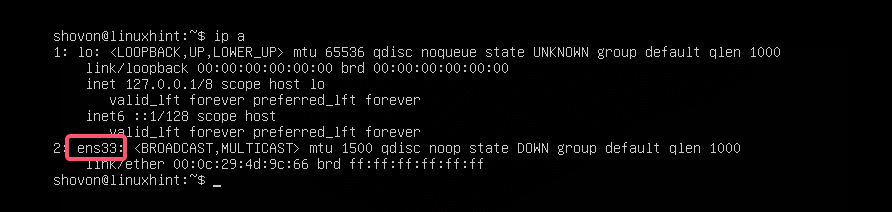
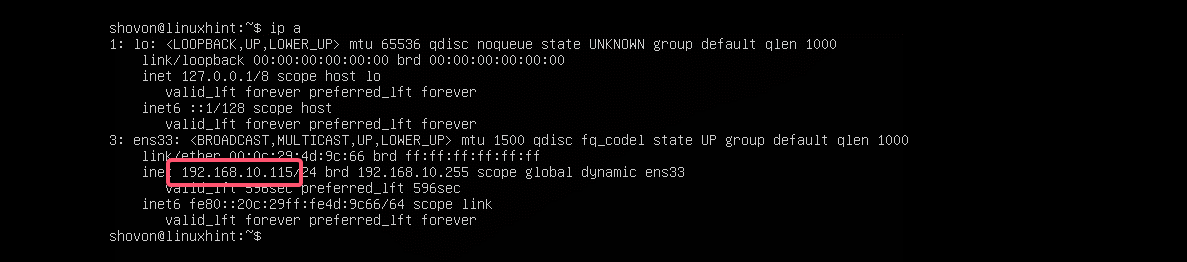
First, find the network interface name that you want to configure with the following command:

ip a

As you can see, I have one network interface card (NIC) installed on my Ubuntu 18.04 LTS machine named ens33. It does not have any IP address configured right now. So, let’s use Netplan to configure it via DHCP.

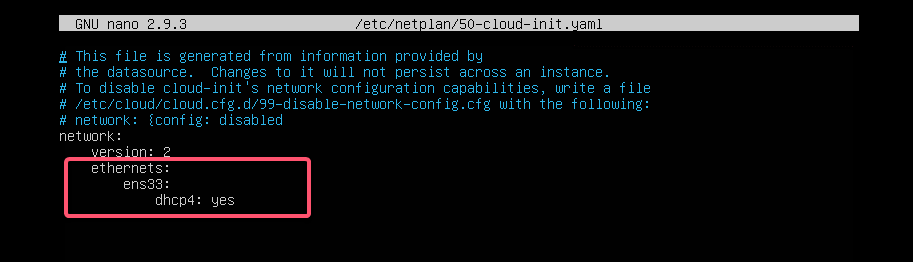
To configure the network interface ens33 via DHCP using Netplan, open the default Netplan configuration file on Ubuntu 18.04 LTS /etc/netplan/50-cloud-init.yaml with the following command:

sudo nano /etc/netplan/50-cloud-init.yaml

You should see the following window.

Now add the following lines in the network section.

ethernets:

ens33:

dhcp4: yes

Here, dhcp4: yes means, use DHCP for IPv4 protocol to configure the network interface ens33.

NOTE: The indentations are really useful. Make sure you indent each line correctly. It will make the syntax clearer and more comfortable to the eye.

Finally, the configuration file should look something like this.

Now, press <Ctrl> + x, then press y, and followed by <Enter> to save the file.

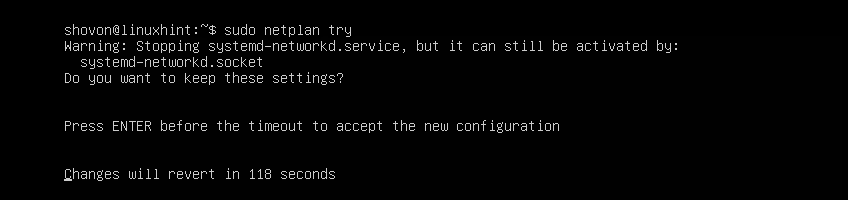
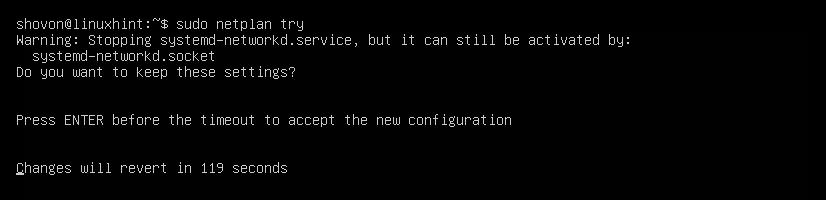
The good thing about Netplan is that before you apply the changes, you can make sure the configuration file has no typos or any other mistakes with the following command:

sudo netplan try

Now press <Enter>.

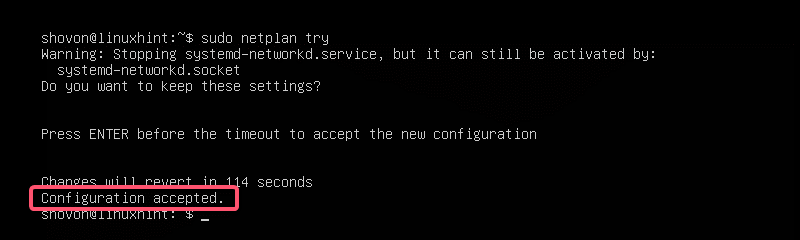
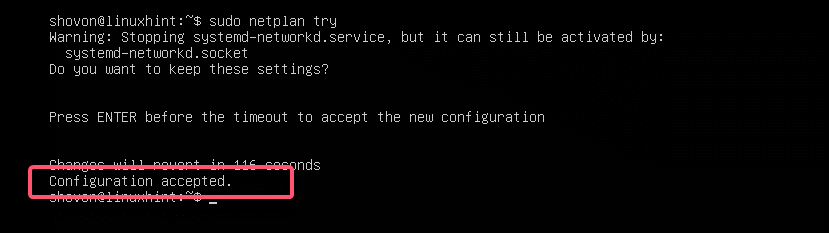
If everything is alright, you should see the Configuration accepted message as marked in the screenshot below.

If there’s any problem with the configuration file, you will see appropriate error messages here.

This feature will surely help you avoid complex hard to track future problems with Netplan configuration files.

Finally, apply the changes permanently using Netplan with the following command:

sudo netplan apply

As you can see, the network interface ens33 is configured via DHCP.

Setting Up Static IP Address with Netplan:

If you want to set up a static IP on your network interface using Netplan, then this section is for you.

You can manually set the IP address, name server, gateway, etc. of your network interface using Netplan.

Let’s say, you want to configure your network interface ens33 as follows:

Static IP address: 192.168.10.33
Subnet mask: 255.255.255.0
Gateway: 192.168.10.1
DNS server: 192.168.10.1

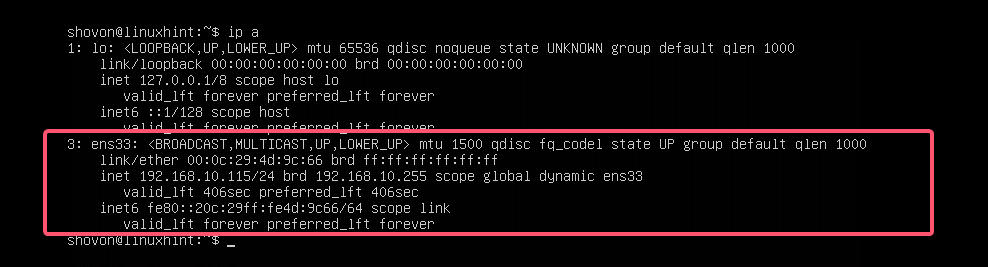
First, check the network configuration of the ens33 network interface with the following command:

ip a

This is to help you verify that the network interface settings really changed.

Now, edit the Netplan YAML configuration file, /etc/netplan/50-cloud-init.yaml, with the following command:

sudo nano /etc/netplan/50-cloud-init.yaml

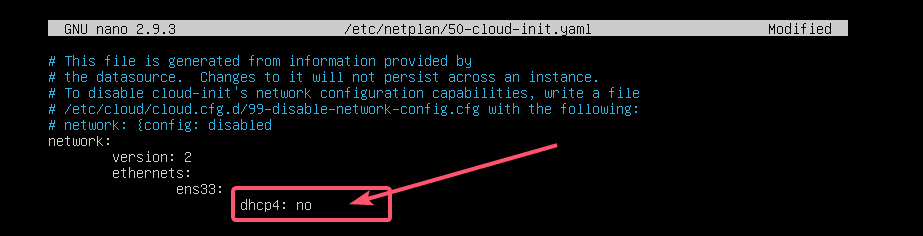
If you’ve followed me throughout the article, then the configuration file should be like this. Now, remove the line as marked in the screenshot below.

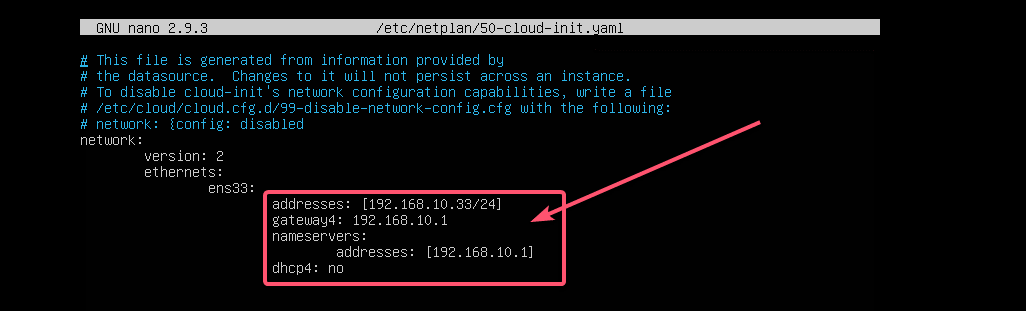
And type in the lines as marked in the screenshot below.

NOTE: Remember, indentation is essential for YAML files. If you forget to indent correctly, Netplan will not let you apply the configuration file. So, you must indent every step of the YAML configuration file, as shown in the screenshot below.

Now, press <Ctrl> + x, then press y, and followed by <Enter> to save the file.

Now, check whether there’s any error in the configuration file with the following command:

sudo netplan try

Then, press <Enter>.

As you can see, the configuration file is accepted.

Finally, apply the configuration file with the following command:

sudo netplan apply

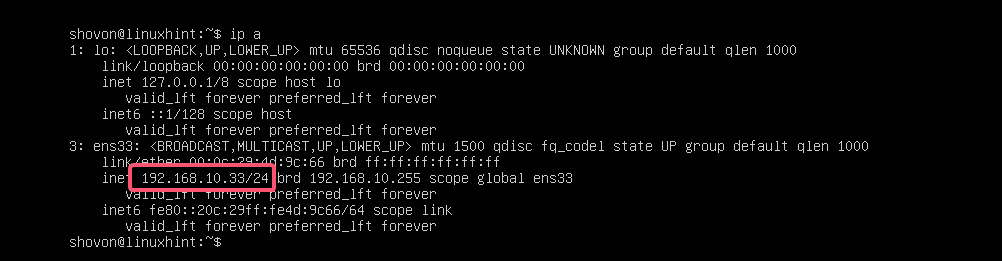
The IP address is changed as expected.

The gateway is also set correctly.

As well as the DNS server.

So, that’s how you install and use Netplan on Ubuntu to configure network interfaces using YAML files. If you want to learn more about Netplan, please visit the official website of Netplan at https://netplan.io.

Source: How to Configure Network on Ubuntu 18.04 LTS with Netplan? – Linux Hint

Configuring Firewall Rules using UFW

Configuring Firewall Rules using UFW

Configuring UFW

UFW stands for uncomplicated firewall and comes pre-installed with all of the latest releases of Ubuntu and Ubuntu Server.

It is one of the easiest ways to set up a firewall on your device or server quickly.

Firewalls are an integral part of maintaining strong network security and are crucial for servers.

In this guide, we will show you how you can use UFW to allow, deny, or rate-limit the ports on your device.

It should be noted that by default UFW will block all incoming connections. UFW will not block outgoing connections by default.

Table of Contents

 Using UFW to Allow Access Through a Port

One of the very first things you should learn to deal with is how to allow access through an individual port.

By allowing a port within UFW, connections will be able to be made through it. This allows other devices to connect to yours through your network.

Using UFW, allowing a port is a straightforward process that requires one command.

At its very basics, all you need to do is type in “ufw allow” followed by the port number you want to access your device through.

Optionally you can also specify the protocol that the port should be allowed on, whether that be TCP, UDP, or another protocol.

If you don’t specify a protocol, the port will be accessible through all available protocols.

Allowing Access Through a Port using UFW

At its most straightforward usage, all you need to do it specify the port number you want traffic to be allowed through.

sudo ufw allow PORT

As an example, let us allow access through the default OpenSSH port (Port 22).

sudo ufw allow 22

Specifying the Protocol for the Port to be Allowed On

Using this simplified syntax, you can specify the protocol that you want the port to access.

By specifying the protocol, you will not be able to access it using any other protocol.

sudo ufw allow PORT[/PROTOCOL]

For reference, two of the most used protocols on the internet are TCP and UDP.

For example, suppose we only wanted our SSH port to be accessible through the TCP protocol. In that case, we can use the following command.

sudo ufw allow 22/tcp

Allowing Access by Specifying a Service Name

Using UFW, it is also possible to specify a service to allow by making use of its service name.

sudo ufw allow SERVICENAME

Please note that this feature only works for services and ports that have been specified within the /etc/services file.

For example, if we wanted to allow access to SSH using UFW, we can run the following command.

sudo ufw allow ssh

 Allowing Access for a Specific IP Address

It is also possible to use UFW to allow access for a specific IP address to access your device.

You can either allow the IP address to have full access to your device or only to a specific IP address.

This method uses a different syntax to allowing global access through a port.

Allowing Complete Access for a Certain IP Address

The easiest way of specifying access for an IP address is to give it complete access to your device.

This isn’t the best practice for security, as they would have a way of completely bypassing your firewall.

The syntax for allowing access from an IP address is “sudo ufw allow from” followed by the IP address you want to whitelist.

sudo ufw allow from IPADDRESS

For example, if we wanted to whitelist the IP address 192.168.0.1, we would use the following command.

sudo ufw allow from 192.168.0.1

Allowing Access to a Port for a Certain IP Address

Using this more advanced syntax, you can still use it only to access a specific port.

You can also optionally use this to specifying the protocol you want it to have access to.

sudo ufw allow from TARGET to DESTINATION port PORTNUMBER [proto PROTOCOL]

With this syntax, TARGET is the IP address that you are expecting to access your device.

DESTINATION is the point you want this IP address to access. You can just use any if this doesn’t matter to you.

For example, if we wanted to access our devices SSH port (Port 22) from the IP address 192.168.0.1, we can use the following command.

sudo ufw allow from 192.168.0.1 to any port 22 proto tcp

 Denying Access Through Ports using UFW

In this section, we will show you how to block or deny access to a port on your device using UFW.

Denying connections through a port using UFW is a very straightforward process.

To block a port using UFW, you need to use “ufw deny” followed by the port number, then optionally the protocol.

Like allowing a port, you can block a port on from being accessible through a specific protocol. If no protocol is specified, UFW will automatically assume it should block all protocols.

Denying Access Through a Port

Denying access to a port is as simple as allowing access. The only real difference is that the word “deny” is used instead of “allow“.

sudo ufw deny PORT

As an example of how this works, we can use UFW to block outside access to our MySQL server operating on port 3306.

sudo ufw deny 3306

Denying Access Through a Port with a Specific Protocol

You can also optionally specify the specific protocol that you want to deny access through using UFW.

The protocol is specified directly after the port number and is separated by the forward-slash symbol (/)

sudo ufw deny PORT[/PROTOCOL]

For example, if we wanted to stop users from accessing our MySQL port when using the UDP protocol

sudo ufw deny 3306/udp

Denying Access by using a Service Name

You can also use UFW to deny access to a port or ports by making use of its service name.

These services and the ports they are associated with are referenced with the /etc/services file.

sudo ufw deny SERVICENAME

For example, if we wanted to block access to FTP on our device, we can use the following command.

sudo ufw deny ftp

 Deny Access to a Specific IP Address

If you want, you can use UFW to block a specific IP address from accessing your device.

UFW provides you with two separate methods to achieve this. The first allows you to block the IP address from accessing your device on any port. The other method will enable you to only block access on a specific port.

You will find that blocking an IP address requires a different syntax then blocking a port.

Deny Complete Access to a Specific IP Address

To block access from an IP address, you will need to use a slightly different syntax.

All you need to do is use “ufw deny from” followed by the IP address that you want to block.

sudo ufw deny from IPADDRESS

For example, we can block the IP address 192.168.0.2 by using the following command.

sudo ufw deny from 192.168.0.2

Deny Access through a Port to a Specific IP Address

Even with this method, it is still possible to block an IP address from accessing a specific port rather than the entire device.

The protocol for this is slightly more complicated as the way you need to specify the protocol and port numbers is different.

sudo ufw deny from IPADDRESS to PROTOCOL port PORTNUMBER

Replace IPADDRESS with the IP address that you want to be blocked on the specified port.

PROTOCOL is the protocol that you want to be blocked. If you want to block the IP address on all protocols use the “any” keyword.

Lastly, replace PORTNUMBER with the port that you want to block the IP address on.

For example, if we wanted to block the IP address 192.168.0.2 from our SSH port (Port 22) on any protocol, we can use the following command.

sudo ufw deny from 192.168.0.2 to any port 22

 Rate Limiting Connections on a Port

One of the most useful features of UFW is its ability to easily rate limit the connections being made to a specific port.

You can use this functionality to limit the number of connections that are made to critical ports.

For example, you can reduce the chance of users brute-forcing your SSH login by limiting connections made through your SSH connection

When you limit a connection, UFW will not allow any more than six connections within the last 30 seconds. The firewall will block any additional connections.

Limiting a port is a relatively simple process. Syntax wise it works like the allow command, but instead, you use the limit keyword.

All you need to do to limit a connection is to use “ufw limit” followed by the port number and then optionally the connection protocol.

sudo ufw limit PORT[/PROTOCOL]

For example, we can use the firewall to limit connections to our Raspberry Pi’s SSH port by running the following command.

sudo ufw limit 22

As SSH only works over TCP by default, you can limit connections using the TCP protocol.

sudo ufw limit 22/tcp

 Deleting Existing Firewall Rules

Deleting existing firewall rules using UFW is a reasonably straightforward process.

There are two different methods that you can use to delete existing firewall rules.

To delete a firewall rule, you will need to know either the rule itself or the number assigned to it.

Deleting Using a known Firewall Rule

For this first method, we are going to show you how to delete a firewall rule when you know the exact existing rule.

This method is useful for deleting a rule within UFW while it is not active.

To delete a rule using this method, you will need to use “sudo ufw delete” followed by the rule.

sudo ufw delete RULE

1. For example, let us say that we had the following rule applying a limit to our SSH port.

ufw limit 22/tcp

2. We can delete this rule by using the following command, referencing the rule we want to delete.

sudo ufw delete limit 22/tcp

Deleting Using the Rule Number

The alternative method is to delete the firewall rule by referencing its index number. This number is assigned to the rule by UFW.

Please note that this method will currently only work if you have UFW enabled.

To delete a rule using this way, you will need to use ufw delete followed by the rules number.

sudo ufw delete RULENUMBER

Below we have included an example on how to retrieve the number of a rule, and delete it.

1. First, retrieve the list of rules with their numbering by using the following command.

sudo ufw status numbered

2. That command will give you a list that should look something like we have below.

Status: active

     To                         Action      From
     --                         ------      ----
[ 1] 22                         LIMIT IN    Anywhere
[ 2] 80                         ALLOW IN    Anywhere
[ 3] 443                        ALLOW IN    Anywhere
[ 4] 22 (v6)                    LIMIT IN    Anywhere (v6)
[ 5] 80 (v6)                    ALLOW IN    Anywhere (v6)
[ 6] 443 (v6)                   ALLOW IN    Anywhere (v6)

The first column is the number that has been assigned to that rule.

3. For example, if we wanted to delete our rule allowing traffic in through the HTTP port (80), we can use the following command.

sudo ufw delete 2

 Getting the Status of UFW

Checking the status of your firewall is made relatively simple when using UFW.

All you need to do to check the status is to use the following command

sudo ufw status

From this command, you will get one of possibly two results.

If UFW has been disabled, you will see the following result notifying you that the firewall is currently inactive.

Status: inactive

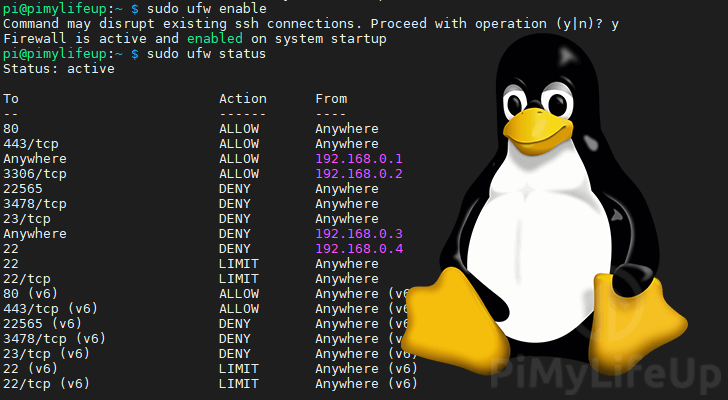
Alternatively, if you have UFW enabled, you will see something similar to what we have below. This command should list all your firewall rules while UFW is enabled.

Status: active

To                         Action      From
--                         ------      ----
22                         LIMIT       Anywhere
80                         ALLOW       Anywhere
443                        ALLOW       Anywhere
22 (v6)                    LIMIT       Anywhere (v6)
80 (v6)                    ALLOW       Anywhere (v6)
443 (v6)                   ALLOW       Anywhere (v6)

 Listing UFW Rules While Disabled

One issue you may run into when using UFW is that the “ufw status” command does not return your firewall rules while it is disabled.

To get around this, we can make use of the following command.

sudo ufw show added

This command will return all of the rules that have been added to UFW.

As UFW isn’t running, you won’t be able to get the numbers assigned to these rules.

Added user rules (see 'ufw status' for running firewall):
ufw limit 22
ufw allow 80
ufw allow 443

 How to Enable or Disable UFW

The last thing we will be touching on is how to disable or enable UFW on your device.

Before enabling your firewall, you should always make sure that you have all of your wanted rules added.

For example, if yourely on an SSH connection, you should ensure that the port has an active “allow” rule defined.

Failure to configure your rules correctly could potentially get you locked out from remotely accessing your device.

Enabling UFW

Enabling UFW is a straightforward process and can be completed by using a single command.

sudo ufw enable

By turning UFW on with this command, it will immediately be enabled. Additionally, it will now start at boot.

Disabling UFW

Disabling UFW is just as easy as enabling it.

To disable UFW, you can make use of the following command.

sudo ufw disable

When UFW is disabled, it automatically disables itself from starting at boot.

Source: Configuring Firewall Rules using UFW – Pi My Life Up

UFW Essentials: Common Firewall Rules and Commands

UFW Essentials: Common Firewall Rules and Commands

Introduction

UFW is a firewall configuration tool for iptables that is included with Ubuntu by default. This cheat sheet-style guide provides a quick reference to UFW commands that will create iptables firewall rules are useful in common, everyday scenarios. This includes UFW examples of allowing and blocking various services by port, network interface, and source IP address.

How To Use This Guide

  • If you are just getting started with using UFW to configure your firewall, check out our introduction to UFW
  • Most of the rules that are described here assume that you are using the default UFW ruleset. That is, it is set to allow outgoing and deny incoming traffic, through the default policies, so you have to selectively allow traffic in
  • Use whichever subsequent sections are applicable to what you are trying to achieve. Most sections are not predicated on any other, so you can use the examples below independently
  • Use the Contents menu on the right side of this page (at wide page widths) or your browser’s find function to locate the sections you need
  • Copy and paste the command-line examples given, substituting the values in red with your own values

Remember that you can check your current UFW ruleset with sudo ufw status or sudo ufw status verbose.

Block an IP Address

To block all network connections that originate from a specific IP address, 15.15.15.51 for example, run this command:

  • sudo ufw deny from 15.15.15.51

In this example, from 15.15.15.51 specifies a source IP address of “15.15.15.51”. If you wish, a subnet, such as 15.15.15.0/24, may be specified here instead. The source IP address can be specified in any firewall rule, including an allow rule.

Block Connections to a Network Interface

To block connections from a specific IP address, e.g. 15.15.15.51, to a specific network interface, e.g. eth0, use this command:

  • sudo ufw deny in on eth0 from 15.15.15.51

This is the same as the previous example, with the addition of in on eth0. The network interface can be specified in any firewall rule, and is a great way to limit the rule to a particular network.

Service: SSH

If you’re using a cloud server, you will probably want to allow incoming SSH connections (port 22) so you can connect to and manage your server. This section covers how to configure your firewall with various SSH-related rules.

Allow SSH

To allow all incoming SSH connections run this command:

  • sudo ufw allow ssh

An alternative syntax is to specify the port number of the SSH service:

  • sudo ufw allow 22

Allow Incoming SSH from Specific IP Address or Subnet

To allow incoming SSH connections from a specific IP address or subnet, specify the source. For example, if you want to allow the entire 15.15.15.0/24 subnet, run this command:

  • sudo ufw allow from 15.15.15.0/24 to any port 22

Allow Incoming Rsync from Specific IP Address or Subnet

Rsync, which runs on port 873, can be used to transfer files from one computer to another.

To allow incoming rsync connections from a specific IP address or subnet, specify the source IP address and the destination port. For example, if you want to allow the entire 15.15.15.0/24 subnet to be able to rsync to your server, run this command:

  • sudo ufw allow from 15.15.15.0/24 to any port 873

Service: Web Server

Web servers, such as Apache and Nginx, typically listen for requests on port 80 and 443 for HTTP and HTTPS connections, respectively. If your default policy for incoming traffic is set to drop or deny, you will want to create rules that will allow your server to respond to those requests.

Allow All Incoming HTTP

To allow all incoming HTTP (port 80) connections run this command:

  • sudo ufw allow http

An alternative syntax is to specify the port number of the HTTP service:

  • sudo ufw allow 80

Allow All Incoming HTTPS

To allow all incoming HTTPS (port 443) connections run this command:

  • sudo ufw allow https

An alternative syntax is to specify the port number of the HTTPS service:

  • sudo ufw allow 443

Allow All Incoming HTTP and HTTPS

If you want to allow both HTTP and HTTPS traffic, you can create a single rule that allows both ports. To allow all incoming HTTP and HTTPS (port 443) connections run this command:

  • sudo ufw allow proto tcp from any to any port 80,443

Note that you need to specify the protocol, with proto tcp, when specifying multiple ports.

Service: MySQL

MySQL listens for client connections on port 3306. If your MySQL database server is being used by a client on a remote server, you need to be sure to allow that traffic.

Allow MySQL from Specific IP Address or Subnet

To allow incoming MySQL connections from a specific IP address or subnet, specify the source. For example, if you want to allow the entire 15.15.15.0/24 subnet, run this command:

  • sudo ufw allow from 15.15.15.0/24 to any port 3306

Allow MySQL to Specific Network Interface

To allow MySQL connections to a specific network interface—say you have a private network interface eth1, for example—use this command:

  • sudo ufw allow in on eth1 to any port 3306

Service: PostgreSQL

PostgreSQL listens for client connections on port 5432. If your PostgreSQL database server is being used by a client on a remote server, you need to be sure to allow that traffic.

PostgreSQL from Specific IP Address or Subnet

To allow incoming PostgreSQL connections from a specific IP address or subnet, specify the source. For example, if you want to allow the entire 15.15.15.0/24 subnet, run this command:

  • sudo ufw allow from 15.15.15.0/24 to any port 5432

The second command, which allows the outgoing traffic of established PostgreSQL connections, is only necessary if the OUTPUT policy is not set to ACCEPT.

Allow PostgreSQL to Specific Network Interface

To allow PostgreSQL connections to a specific network interface—say you have a private network interface eth1, for example—use this command:

  • sudo ufw allow in on eth1 to any port 5432

The second command, which allows the outgoing traffic of established PostgreSQL connections, is only necessary if the OUTPUT policy is not set to ACCEPT.

Service: Mail

Mail servers, such as Sendmail and Postfix, listen on a variety of ports depending on the protocols being used for mail delivery. If you are running a mail server, determine which protocols you are using and allow the appropriate types of traffic. We will also show you how to create a rule to block outgoing SMTP mail.

Block Outgoing SMTP Mail

If your server shouldn’t be sending outgoing mail, you may want to block that kind of traffic. To block outgoing SMTP mail, which uses port 25, run this command:

  • sudo ufw deny out 25

This configures your firewall to drop all outgoing traffic on port 25. If you need to reject a different service by its port number, instead of port 25, simply replace it.

Allow All Incoming SMTP

To allow your server to respond to SMTP connections, port 25, run this command:

  • sudo ufw allow 25

Note: It is common for SMTP servers to use port 587 for outbound mail.

Allow All Incoming IMAP

To allow your server to respond to IMAP connections, port 143, run this command:

  • sudo ufw allow 143

Allow All Incoming IMAPS

To allow your server to respond to IMAPS connections, port 993, run this command:

  • sudo ufw allow 993

Allow All Incoming POP3

To allow your server to respond to POP3 connections, port 110, run this command:

  • sudo ufw allow 110

Allow All Incoming POP3S

To allow your server to respond to POP3S connections, port 995, run this command:

  • sudo ufw allow 995

Conclusion

That should cover many of the commands that are commonly used when using UFW to configure a firewall. Of course, UFW is a very flexible tool so feel free to mix and match the commands with different options to match your specific needs if they aren’t covered here.

Source: UFW Essentials: Common Firewall Rules and Commands | DigitalOcean

Mount an NFS Share on Windows

Requirements

  •  Windows computer running server or desktop OS that is in support.

Mounting the NFS Share

  •  Make sure that the NFS Client is installed.
    1. Open a Powershell command prompt.
    2. Run the appropriate command for your situation:
      • Server OS: Install-WindowsFeature NFS-Client
      • Desktop OS: Enable-WindowsOptionalFeature -FeatureName ServicesForNFS-ClientOnly, ClientForNFS-Infrastructure -Online -NoRestart
  • Mount the share using the following command, after making the required modifications (Note – mount cmd from CMD shell, not powershell):
    • mount -o anon nfs.share.server.name:/share-name X:
      1. Replace nfs.share.server.name with the name of the server the NFS share is on (eg. files.umn.edu)
      2. Replace share-name with the name of the NFS share (eg. OIT-Test)
      3. Replace X: with the desired drive letter.

Enable Write Permissions for the Anonymous User

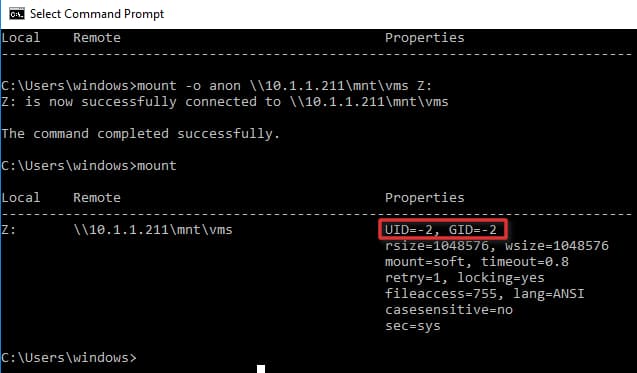
With the default options you will only have read permissions when mounting a UNIX share using the anonymous user. We can give the anonymous user write permissions by changing the UID and GID that it uses to mount the share.

The image below shows the a share mounted using the default settings.

Windows 10: NFS Mount Command

To change the UID and GID we need to make a simple change to the Windows registry by performing the following steps:

  1. Open regedit by typing it in the search box end pressing Enter.
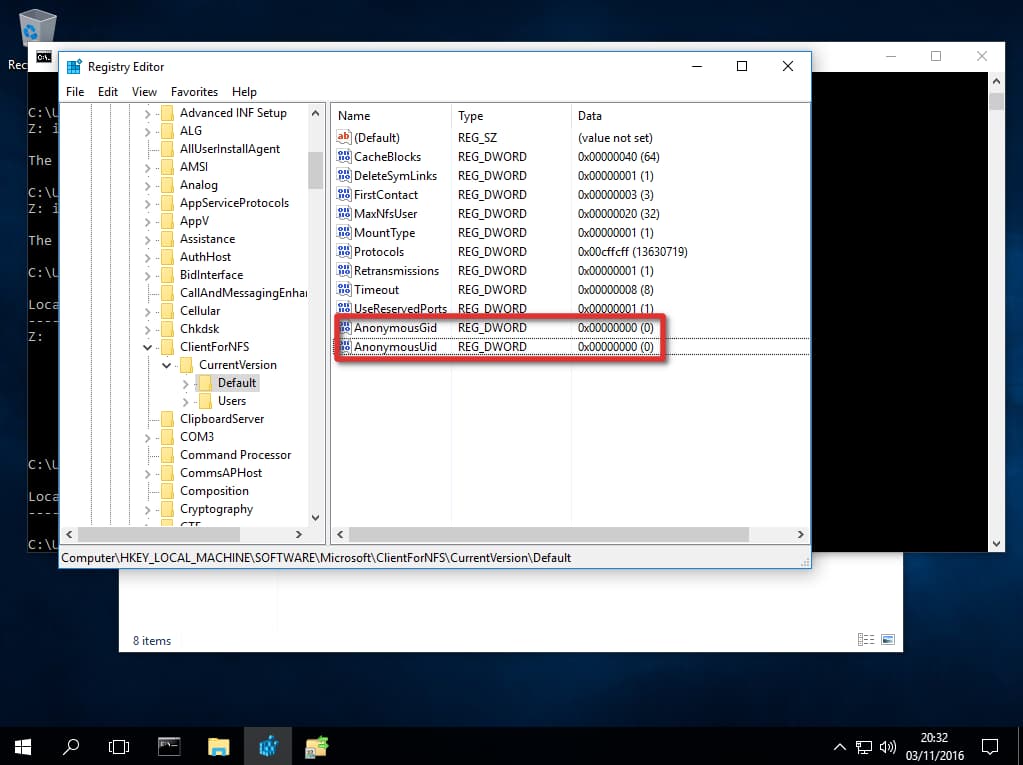
  2. Browse to HKEY_LOCAL_MACHINE\SOFTWARE\Microsoft\ClientForNFS\CurrentVersion\Default.
  3. Create a new New DWORD (32-bit) Value inside the Default folder named AnonymousUid and assign the UID found on the UNIX directory as shared by the NFS system. (Use Decimal values)
  4. Create a new New DWORD (32-bit”) Value inside the Default folder named AnonymousGid and assign the GID found on the UNIX directory as shared by the NFS system. (Use Decimal values).Windows 10: Regedit NFS AnonymousUid and AnonymousGid
  5. Restart the NFS client or reboot the machine to apply the changes.
  6. To Restart NFS client without having to restart Windows:
    1. net stop nfsclnt
      net stop nfsrdr
      net start nfsrdr
      net start nfsclnt


How to Mount an NFS Share

Assuming your NAS device is on the same network as your Windows machine and the IP address of the device is 10.1.1.211, the following command will mount a share on the NFS system at /mnt/vms.

C:\Users\windows> mount -o anon \\10.1.1.211\mnt\vms Z:
Z: is now successfully connected to \\10.1.1.211\mnt\vms

The command completed successfully.

The share is now mounted and we can access the data by navigating to the Z: drive.

Manage Stored Usernames and Passwords in Windows 10

The Stored User Names and Passwords Tool in Windows 10 lets you securely manage user names and passwords as a part of your profile. It lets you automatically enter saved user names and passwords for various network resources, servers, websites, and applications, to authenticate yourself. In this post we will see how to add, remove, edit, backup, restore Stored Usernames and Passwords & Credentials in Windows 10/8/7.

Find stored Usernames & Passwords in Windows 10

To directly access the Stored User Names and Passwords Control Panel applet, via WinX Menu, open Command Prompt (Admin), type the following rundll32 command, and hit Enter:

rundll32.exe keymgr.dll,KRShowKeyMgr

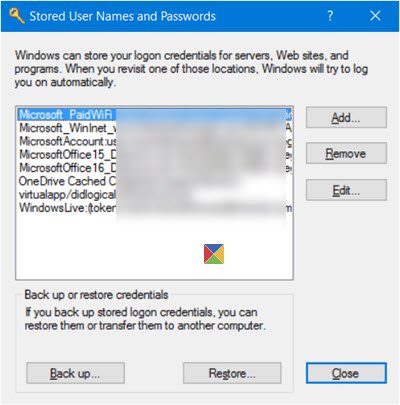
The Stored User Names and Passwords box will open.

Stored User Names and Passwords

Here you will be able to see the saved passwords and user names.

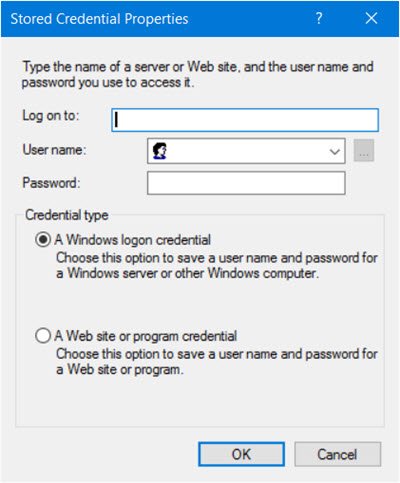
To add a new credential, press the Add button and fill in the required details as follows:

add Stored User Names and Passwords

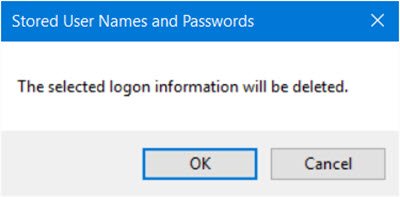
To delete a saved password, select the credential and click on the Remove button.

remove Stored User Names and Passwords

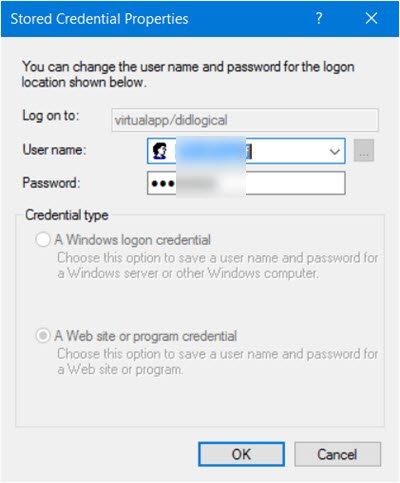
To edit a password, click the Edit button. Here you will be editing the details.

edit Stored User Names and Passwords

It could be a Windows logon credential or a Website or Program password.

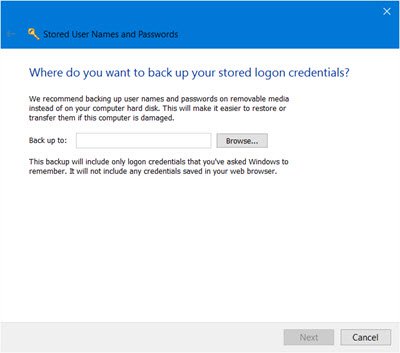
It is always a good idea to back up the stored user names and passwords. To do this, click on the Backup button to open the following wizard.

back up Stored User Names and Passwords

Select and browse to the backup location, click Next, and follow the wizard to its completion.

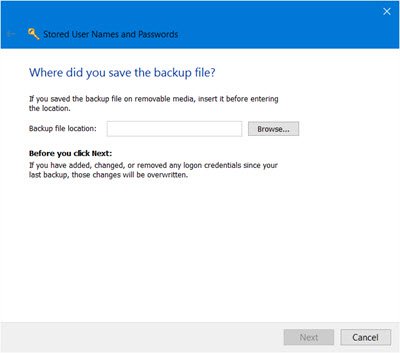
Should the need arise, you can always restore the backup, by clicking on the Restore button and browsing to the backup file location and selecting it.

restore Stored User Names and Passwords

That’s it!