Keys for obtaining US Driver’s license data
Standard for US Driver’s Licenses defines several different barcode standards with over 80 different fields encoded inside a barcode. Some fields exist on all barcode standards, other exist only on some. To standardize the API, we have structured the fields in the following sections:
- Determining Barcode version
- Personal data keys
- License data keys
Determining Barcode version
USDLScanResult.kDocumentType
Mandatory on all driver’s licenses.
- All barcodes which are using 3-track magnetic stripe encoding used in the interest of smoothing a transition from legacy documents shall be designated as
Magnetic.
- All barcodes which are using compact encoding compliant with ISO/IEC 18013-2 shall be designated as
Compact.
- All barcodes (majority) compliant with Mandatory PDF417 Bar Code of the American Association of Motor Vehicle Administrators (AAMVA) Card Design Standard from AAMVA DL/ID-2000 standard to DL/ID-2013 shall be designated as
AAMVA.
USDLScanResult.kStandardVersionNumber
Mandatory on all driver’s licenses.
AAMVA Version Number
This is a decimal value between 00 and 99 that specifies the version level of the PDF417 bar code format. Version “0” and “00” is reserved for bar codes printed to the specification of the American Association of Motor Vehicle Administrators (AAMVA) prior to the adoption of the AAMVA DL/ID-2000 standard.
- All bar codes compliant with the AAMVA DL/ID-2000 standard are designated Version
01.
- All barcodes compliant with AAMVA Card Design Specification version 1.0, dated 09-2003 shall be designated Version
02.
- All barcodes compliant with AAMVA Card Design Specification version 2.0, dated 03-2005 shall be designated Version
03
- All barcodes compliant with AAMVA Card Design Standard version 1.0, dated 07-2009 shall be designated Version
04
- All barcodes compliant with AAMVA Card Design Standard version 1.0, dated 07-2010 shall be designated Version
05
- All barcodes compliant with AAMVA Card Design Standard version 1.0, dated 07- 2011 shall be designated Version
06
- All barcodes compliant with AAMVA Card Design Standard version 1.0, dated 06-2012 shall be designated Version
07
- All barcodes compliant with AAMVA Card Design Standard version 1.0, dated 08-2013 shall be designated Version
08
Should a need arise requiring major revision to the format, this field provides the means to accommodate additional revision.
If document type is not “AAMVA”, this field defines version number of the given document type’s standard.
Personal data keys
USDLScanResult.kCustomerFamilyName
- Mandatory on all AAMVA, Magnetic and Compact barcodes.
Family name of the cardholder. (Family name is sometimes also called “last name” or “surname.”). Collect full name for record, print as many characters as possible on portrait side of DL/ID.
USDLScanResult.kCustomerFirstName
- Mandatory on all AAMVA, Magnetic and Compact barcodes
First name of the cardholder.
USDLScanResult.kCustomerFullName
- Mandatory on all AAMVA, Magnetic and Compact barcodes.
Full name of the individual holding the Driver License or ID. This field contains four portions, separated with the delimiter ,:
- Last Name (required)
- delimiter (required)
- First Name (required)
- delimiter (required if other name portions follow, otherwise optional)
- Middle Name(s) (optional)
- delimiter (required if other name portions follow, otherwise optional)
- Suffix Code (optional)
- delimiter (optional)
USDLScanResult.kDateOfBirth
- Mandatory on all AAMVA, Magnetic and Compact barcodes
Date on which the cardholder was born. (MMDDCCYY format)
USDLScanResult.kSex
- Mandatory on all AAMVA and Magnetic barcodes
- Optional on Compact encoding barcodes.
Gender of the cardholder.
- Possible values and interpretations:
USDLScanResult.kEyeColor
- Mandatory on AAMVA 02, 03, 04, 05, 06, 07, 08
- Optional on AAMVA 01, Magnetic and Compact barcodes
Color of cardholder’s eyes.
- Possible values and interpretations:
BLK = BlackBLU = BlueBRO = BrownGRY = GrayGRN = GreenHAZ = HazelMAR = MaroonPNK = PinkDIC = DichromaticUNK = Unknown
USDLScanResult.kAddressStreet
- Mandatory on all AAMVA and Magnetic barcodes
- Not defined on Compact encoding, where you must use
USDLScanResult.kFullAddress.
Street portion of the cardholder address. The place where the registered driver of a vehicle (individual or corporation) may be contacted such as a house number, street address etc.
USDLScanResult.kAddressCity
- Mandatory on all AAMVA and Magnetic barcodes
- Not defined on Compact encoding, where you must use
USDLScanResult.kFullAddress.
City portion of the cardholder address.
USDLScanResult.kAddressJurisdictionCode
- Mandatory on all AAMVA and Magnetic barcodes
- Not defined on Compact encoding, where you must use
USDLScanResult.kFullAddress.
State portion of the cardholder address.
USDLScanResult.kAddressPostalCode
- Mandatory on all AAMVA and Magnetic barcodes
- Not defined on Compact encoding, where you must use
USDLScanResult.kFullAddress.
Postal code portion of the cardholder address in the U.S. and Canada. If the trailing portion of the postal code in the U.S. is not known, zeros will be used to fill the trailing set of numbers up to nine (9) digits.
USDLScanResult.kFullAddress
- Mandatory on all AAMVA and Magnetic barcodes.
- Optional on Compact barcodes.
Full address of the individual holding the Driver License or ID. The full address field contains up to four portions, separated with the , delimiter:
- Street Address (required)
, (required if other address portions follow, otherwise optional)- City (optional)
, (required if other address portions follow, otherwise optional)- Jurisdiction Code (optional)
, (required if other address portions follow, otherwise optional)- ZIP – Postal Code (optional)
USDLScanResult.kHeight
- Mandatory on AAMVA version 02, 03, 04, 05, 06, 07, 08 and Compact barcodes.
- Optional on AAMVA version 01 and Magnetic barcodes.
Height of cardholder, either in Inches or in Centimeters.
- Inches (in):
- number of inches followed by
in. Example. 6'1'' = 73 in
- Centimeters (cm):
- number of centimeters followed by
cm. Example. 181 centimeters = 181 cm
USDLScanResult.kHeightIn
- Mandatory on AAMVA 02, 03, 04, 05, 06, 07, 08 and Compact barcodes.
- Optional on AAMVA 01 and Magnetic barcodes
Height of cardholder in Inches.
Example: 5'9'' = 69
USDLScanResult.kHeightCm
- Mandatory on AAMVA 02, 03, 04, 05, 06, 07, 08 Compact barcodes.
- Optional on AAMVA 01 and Magnetic barcodes.
Height of cardholder in centimeters.
Example 180 Centimeters = 180
USDLScanResult.kCustomerMiddleName
- Mandatory on AAMVA version 04, 05, 06, 07, 08
- Optional on AAMVA 01, 02, 03, Magnetic and Compcat barcodes.
Middle name(s) of the cardholder. In the case of multiple middle names they shall be separated by space.
USDLScanResult.kHairColor
- Optional on all AAMVA. Magnetic and Compact barcodes
Bald, black, blonde, brown, gray, red/auburn, sandy, white, unknown. If the issuing jurisdiction wishes to abbreviate colors, the three-character codes provided in ANSI D20 must be used.
- Possible values and interpretations:
BAL = BaldBLK = BlackBLN = BlondBRO = BrownGRY = GreyRED = Red/AuburnSDY = SandyWHI = WhiteUNK = Unknown
USDLScanResult.kNameSuffix
- Mandatory on AAMVA 02 barcodes.
- Optional on AAMVA 01, 03, 04, 05, 06, 07, 08, Magnetic and Compact barcodes.
Name Suffix (If jurisdiction participates in systems requiring name suffix (PDPS, CDLIS, etc.), the suffix must be collected and displayed on the DL/ID and in the MRT).
- Possible values and interpretations:
JR = JuniorSR = Senior1ST or I = First2ND or II = Second3RD or III = Third4TH or IV = Fourth5TH or V = Fifth6TH or VI = Sixth7TH or VII = Seventh8TH or VIII = Eighth9TH or IX = Ninth
USDLScanResult.kAKAFullName
- Optional on all AAMVA and Compact barcodes.
Other name by which cardholder is known. ALTERNATIVE NAME(S) of the individual holding the Driver License or ID. FORMAT same as defined in ANSI D20 Data Dictionary. (Lastname,Firstname,MI, suffix if any.)
This field contains four portions, separated with the delimiter ,:
- Last Name (required)
- delimiter
, (required)
- First Name (required)
- delimiter
, (required if other name portions follow, otherwise optional)
- Middle Name(s) (optional)
- delimiter
, (required if other name portions follow, otherwise optional)
- Suffix Code (optional)
- delimiter
, (optional)
USDLScanResult.kAKAFamilyName
- Optional on all AAMVA and Compact barcodes
- Not defined on Magnetic barcodes
Other family name by which cardholder is known.
USDLScanResult.kAKAGivenName
- Optional on all AAMVA and Compact barcodes.
- Not defined on Magnetic barcodes
Other given name by which cardholder is known
USDLScanResult.kAKASuffixName
- Optional on all AAMVA and Compact barcodes.
- Not defined on Magnetic barcodes
Other suffix by which cardholder is known. The Suffix Code Portion, if submitted, can contain only the Suffix Codes shown in below (e.g., Andrew Johnson, III = JOHNSON@ANDREW@@3RD).
Possible values and interpretations
JR = JuniorSR = Senior or Esquire1ST = First2ND = Second3RD = Third4TH = Fourth5TH = Fifth6TH = Sixth7TH = Seventh8TH = Eighth9TH = Ninth
USDLScanResult.kWeightRange
- Mandatory on AAMVA 02 barcodes.
- Optional on AAMVA 01, 03, 04, 05, 06, 07, 08, Magnetic and Compact barcodes.
Indicates the approximate weight range of the cardholder:
Possible values and interpretations:
0 = up to 31 kg (up to 70 lbs)1 = 32 – 45 kg (71 – 100 lbs)2 = 46 – 59 kg (101 – 130 lbs)3 = 60 – 70 kg (131 – 160 lbs)4 = 71 – 86 kg (161 – 190 lbs)5 = 87 – 100 kg (191 – 220 lbs)6 = 101 – 113 kg (221 – 250 lbs)7 = 114 – 127 kg (251 – 280 lbs)8 = 128 – 145 kg (281 – 320 lbs)9 = 146+ kg (321+ lbs)
USDLScanResult.kWeightPounds
- Mandatory on AAMVA 02 barcodes.
- Optional on AAMVA 01, 03, 04, 05, 06, 07, 08, Magnetic and Compact barcodes.
Cardholder weight in pounds Ex. 185 lb = 185
USDLScanResult.kWeightKilograms
- Mandatory on AAMVA 02 barcodes.
- Optional on AAMVA 01, 03, 04, 05, 06, 07, 08, Magnetic and Compact barcodes.
Cardholder weight in kilograms Ex. 84 kg = 084
USDLScanResult.kCustomerIdNumber
- Mandatory on all AAMVA and Compact barcodes
- Not defined on Magnetic barcodes
The number assigned or calculated by the issuing authority.
USDLScanResult.kFamilyNameTruncation
- Mandatory on AAMVA 04, 05, 06, 07, 08 barcodes.
- Optional on Compact barcodes.
A code that indicates whether a field has been truncated (T), has not been truncated (N), or unknown whether truncated (U).
USDLScanResult.kFirstNameTruncation
- Mandatory on AAMVA 04, 05, 06, 07, 08 barcodes.
- Optional on Compact barcodes.
A code that indicates whether a field has been truncated (T), has not been truncated (N), or unknown whether truncated (U).
USDLScanResult.kMiddleNameTruncation
- Mandatory on AAMVA 04, 05, 06, 07, 08
A code that indicates whether a field has been truncated (T), has not been truncated (N), or unknown whether truncated (U).
USDLScanResult.kPlaceOfBirth
- Optional on AAMVA 02, 03, 04, 05, 06, 07, 08 and Compact barcodes
- Not defined on Magnetic barcodes
Country and municipality and/or state/province
USDLScanResult.kAddressStreet2
- Optional on all AAMVA barcodes
- Not defined on Compact encoding, where you must use
USDLScanResult.kFullAddress.
Second line of street portion of the cardholder address.
USDLScanResult.kRaceEthnicity
- Optional on AAMVA 02, 03, 04, 05, 06, 07, 08 and Compact barcodes
Codes for race or ethnicity of the cardholder, as defined in ANSI D20.
Possible values and interpretations:
- Race
AI = Alaskan or American Indian (Having Origins in Any of The Original Peoples of North America, and Maintaining Cultural Identification Through Tribal Affiliation of Community Recognition)AP = Asian or Pacific Islander (Having Origins in Any of the Original Peoples of the Far East, Southeast Asia, or Pacific Islands. This Includes China, India, Japan, Korea, the Philippines Islands, and Samoa)BK = Black (Having Origins in Any of the Black Racial Groups of Africa)W = White (Having Origins in Any of The Original Peoples of Europe, North Africa, or the Middle East)
- Ethnicity
H = Hispanic Origin (A Person of Mexican, Puerto Rican, Cuban, Central or South American or Other Spanish Culture or Origin, Regardless of Race)O = Not of Hispanic Origin (Any Person Other Than Hispanic)U = Unknown
USDLScanResult.kNamePrefix
PREFIX to Driver Name. Freeform as defined by issuing jurisdiction.
USDLScanResult.kCountryIdentification
- Mandatory on AAMVA 02, 03, 04, 05, 06, 07, 08 and Compact barcodes
Country in which DL/ID is issued.
Possible values and interpretations:
USA = United StatesCAN = Canada
USDLScanResult.kResidenceStreetAddress
- Optional on AAMVA version 01.
Driver Residence Street Address 1.
USDLScanResult.kResidenceStreetAddress2
- Optional on AAMVA version 01.
Driver Residence Street Address 2.
USDLScanResult.kResidenceCity
- Optional on AAMVA version 01.
Driver Residence City
USDLScanResult.kResidenceJurisdictionCode
- Optional on AAMVA version 01.
Driver Residence Jurisdiction Code.
USDLScanResult.kResidencePostalCode
- Optional on AAMVA version 01.
Driver Residence Postal Code.
USDLScanResult.kResidenceFullAddress
- Optional on AAMVA 01 barcodes.
Full residence address of the individual holding the Driver License or ID. The full address field contains up to four portions, separated with the , delimiter:
- Residence Street Address (required)
, (required if other address portions follow, otherwise optional)- Residence City (optional)
, (required if other address portions follow, otherwise optional)- Residence Jurisdiction Code (optional)
, (required if other address portions follow, otherwise optional)- Residence ZIP – Residence Postal Code (optional)
USDLScanResult.kUnder18
- Optional on AAMVA 05, 06, 07, 08
Date on which the cardholder turns 18 years old. (MMDDCCYY format)
USDLScanResult.kUnder19
- Optional on AAMVA 05, 06, 07, 08
Date on which the cardholder turns 19 years old. (MMDDCCYY format)
USDLScanResult.kUnder21
- Optional on AAMVA 05, 06, 07, 08
Date on which the cardholder turns 21 years old. (MMDDCCYY format)
USDLScanResult.kSocialSecurityNumber
- Optional on AAMVA version 01.
The number assigned to an individual by the Social Security Administration.
USDLScanResult.kAKASocialSecurityNumber
- Optional on AAMVA version 01.
Driver “AKA” Social Security Number. Format same as driver social security number. Alternative numbers(s) used as SS NUM.
USDLScanResult.kAKAMiddleName
- Optional on AAMVA 01
- Not defined in other standards
ALTERNATIVE MIDDLE NAME(s) or INITIALS of the individual holding the Driver License or ID. Hyphenated names acceptable, spaces between names acceptable, but no other use of special symbols
USDLScanResult.kAKAPrefixName
- Optional on AAMVA 01
- Not defined in other standards
ALTERNATIVE PREFIX to Driver Name. Freeform as defined by issuing jurisdiction.
USDLScanResult.kOrganDonor
- Optional on AAMVA 01, 06, 07, 08
- Not defined in other standards
Field that indicates that the cardholder is an organ donor.
Possible values and interpretations:
1 – cardholder is an organ donor- anything else – cardholder is not an organ donor
USDLScanResult.kVeteran
Field that indicates that the cardholder is a veteran.
Possible values and interpretations:
1 – cardholder is a veteran- anything else – cardholder is not a veteran
USDLScanResult.kAKADateOfBirth
ALTERNATIVE DATES(S) given as date of birth. (MMDDCCYY format)
License data keys
USDLScanResult.kIssuerIdentificationNumber
- Mandatory on all AAMVA, Magnetic and Compact barcodes.
This number uniquely identifies the issuing jurisdiction and can be obtained by contacting the ISO Issuing Authority (AAMVA)
USDLScanResult.kDocumentExpirationDate
- Mandatory on all AAMVA, Magnetic and Compact barcodes.
If document is non expiring than Non expiring is written in this field.
Date on which the driving and identification privileges granted by the document are no longer valid. (MMDDCCYY format)
USDLScanResult.kJurisdictionVersionNumber
- Mandatory on all AAMVA and Compact barcodes
- Optional on Magnetic barcodes
Jurisdiction Version Number
This is a decimal value between 00 and 99 that specifies the jurisdiction version level of the PDF417 bar code format.
Notwithstanding iterations of this standard, jurisdictions implement incremental changes to their bar codes, including new jurisdiction-specific data, compression algorithms for digitized images, digital signatures, or new truncation conventions used for names and addresses. Each change to the bar code format within each AAMVA version (above) must be noted, beginning with Jurisdiction Version 00.
USDLScanResult.kJurisdictionVehicleClass
- Mandatory on all AAMVA and Magnetic barcodes.
- Not defined on Compact encoding, which has no compatible field.
Jurisdiction-specific vehicle class / group code, designating the type of vehicle the cardholder has privilege to drive.
USDLScanResult.kJurisdictionRestrictionCodes
- Mandatory on all AAMVA barcodes.
- Optional on Magnetic barcodes.
- Not defined on Compact encoding, which has no compatible field.
Jurisdiction-specific codes that represent restrictions to driving privileges (such as airbrakes, automatic transmission, daylight only, etc.).
USDLScanResult.kJurisdictionEndorsementCodes
- Mandatory on all AAMVA barcodes.
- Optional on Magnetic barcodes.
- Not defined on Compact encoding, which has no compatible field.
Jurisdiction-specific codes that represent additional privileges granted to the cardholder beyond the vehicle class (such as transportation of passengers, hazardous materials, operation of motorcycles, etc.).
USDLScanResult.kDocumentIssueDate
- Mandatory on all AAMVA and Compact barcodes.
Date on which the document was issued. (MMDDCCYY format).
USDLScanResult.kFederalCommercialVehicleCodes
- Mandatory on AAMVA versions 02 and 03.
Federally established codes for vehicle categories, endorsements, and restrictions that are generally applicable to commercial motor vehicles. If the vehicle is not a commercial vehicle, NONE is to be entered.
USDLScanResult.kIssuingJurisdiction
- Mandatory on Compact barcodes
- Optional on all AAMVA barcodes.
Jurisdictions may define a subfile to contain jurisdiction-specific information. These subfiles are designated with the first character of Z and the second character is the first letter of the jurisdiction’s name.
For example, ZC would be the designator for a California or Colorado jurisdiction-defined subfile; ZQ would be the designator for a Quebec jurisdiction-defined subfile. In the case of a jurisdiction-defined subfile that has a first letter that could be more than one jurisdiction (e.g. California, Colorado, Connecticut) then other data, like the USDLScanResult.kIssuerIdentificationNumber, USDLScanResult.kAddressJurisdictionCode or USDLScanResult.kFullAddress must be examined to determine the jurisdiction.
USDLScanResult.kStandardVehicleClassification
- Mandatory on Compact barcodes
- Optional on all AAMVA barcodes.
Standard vehicle classification code(s) for cardholder. This data element is a placeholder for future efforts to standardize vehicle classifications.
USDLScanResult.kIssuingJurisdictionName
- Optional on all AAMVA and Magnetic barcodes
Name of issuing jurisdiction. For example: Alabama, Alaska, …
USDLScanResult.kStandardEndorsementCode
- Optional on all AAMVA barcodes.
Standard endorsement code(s) for cardholder. See codes in D20. This data element is a placeholder for future efforts to standardize endorsement codes.
Possible values and interpretations:
H
- Hazardous Material
- This endorsement is required for the operation of any vehicle transporting hazardous materials requiring placarding, as defined by U.S. Department of Transportation regulations.
L
- Motorcycles
- Mopeds
- Motorized Bicycles.
N
- Tank
- This endorsement is required for the operation of any vehicle transporting, as its primary cargo, any liquid or gaseous material within a tank attached to the vehicle.
O
- Other Jurisdiction Specific Endorsement(s)
- This code indicates one or more additional jurisdiction assigned endorsements.
P
- Passenger
- This endorsement is required for the operation of any vehicle used for transportation of sixteen or more occupants, including the driver.
S
- School Bus
- This endorsement is required for the operation of a school bus. School bus means a CMV used to transport pre-primary, primary, or secondary school students from home to school, from school to home, or to and from school sponsored events. School bus does not include a bus used as common carrier (49 CRF 383.5).
T
- Doubles/Triples
- This endorsement is required for the operation of any vehicle that would be referred to as a double or triple.
X
- Combined Tank/HAZ-MAT
- This endorsement may be issued to any driver who qualifies for both the N and H endorsements.
USDLScanResult.kStandardRestrictionCode
- Optional on all AAMVA barcodes
- Not defined on Compact barcodes, which have no compatible field.
Standard restriction code(s) for cardholder. See codes in D20. This data element is a placeholder for future efforts to standardize restriction codes.
Possible values and interpretations:
B = Corrective LensesC = Mechanical Devices (Special Brakes, Hand Controls, or Other Adaptive Devices)D = Prosthetic AidE = Automatic TransmissionF = Outside MirrorG = Limit to Daylight OnlyH = Limit to EmploymentI = Limited OtherJ = OtherK = CDL Intrastate OnlyL = Vehicles without air brakesM = Except Class A busN = Except Class A and Class B busO = Except Tractor-TrailerV = Medical Variance Documentation RequiredW = Farm Waiver
USDLScanResult.kJurisdictionVehicleClassificationDescription
- Optional on AAMVA 02, 03, 04, 05, 06, 07, 08 and Compact barcodes
Text that explains the jurisdiction-specific code(s) for classifications of vehicles cardholder is authorized to drive.
USDLScanResult.kJurisdictionEndorsmentCodeDescription
- Optional on AAMVA 02, 03, 04, 05, 06, 07, 08 and Compact barcode
Text that explains the jurisdiction-specific code(s) that indicates additional driving privileges granted to the cardholder beyond the vehicle class.
USDLScanResult.kJurisdictionRestrictionCodeDescription
- Optional on AAMVA 02, 03, 04, 05, 06, 07, 08 and Compact barcodes
Text describing the jurisdiction-specific restriction code(s) that curtail driving privileges.
USDLScanResult.kInventoryControlNumber
- Optional on AAMVA 02, 03, 04, 05, 06, 07, 08 barcodes
A string of letters and/or numbers that is affixed to the raw materials (card stock, laminate, etc.) used in producing driver licenses and ID cards. (DHS recommended field)
USDLScanResult.kCardRevisionDate
- Optional on AAMVA 04, 05, 06, 07, 08 and Compact barcodes
DHS required field that indicates date of the most recent version change or modification to the visible format of the DL/ID (MMDDCCYY format)
USDLScanResult.kDocumentDiscriminator
- Mandatory on AAMVA 02, 03, 04, 05, 06, 07, 08 and Magnetic barcodes
- Optional and Compact barcodes
Number must uniquely identify a particular document issued to that customer from others that may have been issued in the past. This number may serve multiple purposes of document discrimination, audit information number, and/or inventory control.
USDLScanResult.kLimitedDurationDocument
- Optional on AAMVA 04, 05, 06, 07, 08 and Compact barcodes
DHS required field that indicates that the cardholder has temporary lawful status.
Possible values and interpretations:
1 – cardholder has temporary lawful status- anything else – cardholder does not have temporary lawful status
USDLScanResult.kAuditInformation
- Optional on AAMVA 02, 03, 04, 05, 06, 07, 08 and Compact barcodes
A string of letters and/or numbers that identifies when, where, and by whom a driver license/ID card was made. If audit information is not used on the card or the MRT, it must be included in the driver record.
USDLScanResult.kComplianceType
- Optional on AAMVA 04, 05, 06, 07, 08 and Compact barcodes
DHS required field that indicates compliance.
Possible values and interpretations:
M = materially compliantF = fully compliantN = non-compliant.
USDLScanResult.kIssueTimestamp
- Optional on AAMVA version 01.
Issue Timestamp. A string used by some jurisdictions to validate the document against their data base.
USDLScanResult.kPermitExpirationDate
- Optional on AAMVA version 01.
Driver Permit Expiration Date. MMDDCCYY format. Date permit expires.
USDLScanResult.kPermitIdentifier
- Optional on AAMVA version 01.
Type of permit.
USDLScanResult.kPermitIssueDate
- Optional on AAMVA version 01.
Driver Permit Issue Date. MMDDCCYY format. Date permit was issued.
USDLScanResult.kNumberOfDuplicates
- Optional on AAMVA version 01.
Number of duplicate cards issued for a license or ID if any.
USDLScanResult.kHAZMATExpirationDate
- Optional on AAMVA 04, 05, 06, 07, 08 and Compact Encoding
Date on which the hazardous material endorsement granted by the document is no longer valid. (MMDDCCYY format)
USDLScanResult.kMedicalIndicator
- Optional on AAMVA version 01.
Medical Indicator/Codes. STATE SPECIFIC. Freeform; Standard “TBD”
USDLScanResult.kNonResident
- Optional on AAMVA version 01.
Non-Resident Indicator. Y. Used by some jurisdictions to indicate holder of the document is a non-resident.
USDLScanResult.kUniqueCustomerId
- Optional on AAMVA version 01.
A number or alphanumeric string used by some jurisdictions to identify a “customer” across multiple data bases.
USDLScanResult.kDataDiscriminator
- Optional on compact encoding.
Document discriminator.
USDLScanResult.kDocumentExpirationMonth
- Optional on Magnetic barcodes
Date on which the driving and identification privileges granted by the document are no longer valid. (MMYY format)
USDLScanResult.kDocumentNonexpiring
- Optional on Magnetic barcodes
Field that indicates that the driving and identification privileges granted by the document are nonexpiring.
- Possible values and interpretations:
1 – document is nonexpiring- anything else – document expires at given date (see
USDLScanResult.kDocumentExpirationMonth and USDLScanResult.kDocumentExpirationDate)
USDLScanResult.kSecurityVersion
- Optional on Magnetic barcodes
Security version beeing used.
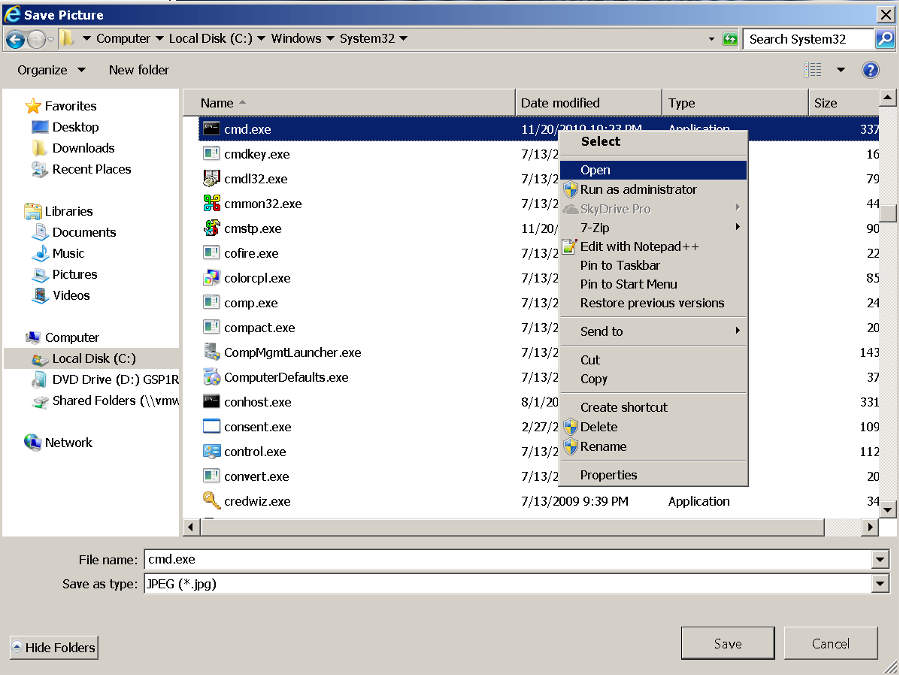 With no further ado, here is my list. If you know more, please contact me. Some of the title descriptions are copied from Microsoft’s knowledge base article
 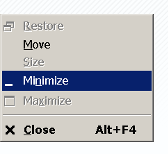 ALT+TAB: Switch between open programs The current window may not have a way to escape, but if other software is running in the background you may find an escape there. CTRL+ALT+DEL: Task Manager or Windows Security Screen Brings up a dialog on which one option is to start Task manager. From there use File ->New Task (Run…) (Method 1). CTRL+B: Open Book Marks Menu From here you may be able to right click, open, and get an explorer menu (Method 2). CTRL+ESC: Opens start menu From the start menu you may be able to get to someplace else, assuming Explorer is even running as the shell. CTRL+F4: Closes the current Multiple Document Interface (MDI) window This way, you may see what is behind the main window. CTRL+P: May bring up print dialog. From here, you can click the “Find Printer” button, go to help, and break out via file Menu or Right Click “View Source”. You could also right click on an installed printer and view its help (Method 3, and see F1 section below). CTRL+SHIFT+ESC: Opens Windows Task Manager Much like CTRL+ALT+DEL, but skips the step of clicking Task Manager on the security screen. See Method 1. CTRL+Tab: May close current windows or tab This way, you may see what is behind the main window. CTRL+Windows Key+F: Find computer Brings up an Explorer dialog you can break out of via Method 2. F1: Starts Windows Help “Microsoft Windows Help” Classic windows help has File Open menu. “Microsoft HTML Help” based windows might have the option to right click and view source on the selected help. Either way, use Method 3. F3: May bring up Windows search Another potential Explorer window to escape from. SHIFT five times: Toggles Sticky Keys on and off On newer versions of Windows, this brings you a few clicks away from a help dialog and escape (Method 3). Even if you can’t get to a Help dialog, this feature is still useful. If all you have is remote access, it can be hard to send the proper keystrokes without your host OS interpreting them first. This accessibility feature in Windows allows Sticky Keys (Ctrl, Alt, Shift, Windows Logo) to be pressed once, but have the OS considered the key to be held down. This makes it easier to make some of the other keystroke combinations listed in this article without your host system interpreting the keystrokes first. For example, if you want to try to type CTRL+SHIFT+ESC, your host OS will likely interpret it first, not sending it to your remote session. However, if you hit SHIFT 5 time real fast, the Sticky Keys popup should show up on both your host OS, and in your remote session. Enable Sticky Keys on the remote OS by hitting the OK/Yes button (wording depends on Windows version) on the remote OS but Cancel/No on the host OS. You can then type CTRL (release key), SHIFT (release key), and finally ESC (release key) to have the same effect as CTRL+SHIFT+ESC on the remote system without the host system interpreting the combination first. Another option for remote testers is On Screen Keyboard (osk.exe) but not all keyboard shortcuts work with it. SHIFT+RIGHT CLICK: Open Command Prompt Here Only for Vista and newer unless the registry has be modified. Let’s you right click in a folder, on the Desktop, or even a File Open/Save dialog and launch a command prompt using the “Open command window here” option in the drop down. Windows Logo+Break (AKA:Pause): System Properties dialog box From here use Method 2. Windows Logo+D: Minimizes all open windows and displays the desktop This way, you may see what is behind the main window. Windows Logo+E: Windows Explorer Method 2 in a nutshell. Windows Logo+F1: Windows OS Help This is the Windows help, not the applications. Use Method 3. Windows Logo+R: Run dialog box Run what you want. Windows Logo+T: Select active application on taskbar Sort of like ALT+TAB, you may see what is behind the main window this way. Windows Logo+U: Accessibility Utility Manager Let you fire up On Screen Keyboard (and other utilities like screen magnifier and narrator), from which you can bring up a help dialog, then break out via Right Click ->View Source then use Notepad to find and EXE, Right Click it and Open (Method 3). You can also use “About” links on each of the apps to fire up a web browser, then use it as an Explorer Window to find an EXE you want to run via Method 1 Windows Logo: Start menu From the Start menu, you can run what you want. If you have a Microsoft keyboard and the IntelliType Software Installed you may be able to break out using a help dialog or an Explorer window with these keys: Windows Logo+P: Starts Print Manager Windows Logo+C: Opens Control Panel Windows Logo+V: Starts Clipboard Windows Logo+K: Opens Keyboard Properties dialog box Windows Logo+I: Opens Mouse Properties dialog box Windows Logo+A: Starts Accessibility Options (if installed) Windows Logo+SPACEBAR: Displays the list of Microsoft IntelliType shortcut keys That’s it for now, If you know more shortcut/ways to escape kiosk and POS software, please contact me. In a future article I may give a list of recommendations for Windows settings to disable keys. For now, here are some Registry keys to be aware of when locking down a system, in the form of a REG file: Windows Registry Editor Version 5.00 ;Not for the keyboard, but keeps people from using Right Click->Open (does not stop drag and drop) [HKEY_LOCAL_MACHINE\Software\Microsoft\Windows\CurrentVersion\Policies\Explorer] “NoViewContextMenu”=dword:00000001 ;Disable Tasksk Manage via CTRL+SHIFT+ESC and CTRL+ALT+DEL [HKEY_CURRENT_USER\Software\Microsoft\Windows\CurrentVersion\Policies\System] “DisableTaskMgr”=dword:00000001 ;Disable most Windows Key functions [HKEY_LOCAL_MACHINE\SOFTWARE\Microsoft\Windows\CurrentVersion\Policies\Explorer] “NoWinKeys”=dword:00000001 ;Disable Windows key, as NoWinKeys gets some but not all [HKEY_LOCAL_MACHINE\SYSTEM\CurrentControlSet\Control\Keyboard Layout] “Scancode Map”=hex:00,00,00,00,00,00,00,00,03,00,00,00,00,00,5B,E0,00,00,5C,E0,00,00,00,00 The above is by no means a complete list, and many items may be dependent on the shell you use. Look into the “Scancode Map” one especially, as you can remap or disable any key you like. Keymapper (http://justkeepswimming.net/keymapper/) from Stuart Dunkeld is especially useful for figuring out the codes to use with “Scancode Map”. If you want to find out more about bypassing captive shells, POS systems or kiosks, here are some other good articles on the subject: If you have a captive web browser you want to escape out of and have access to type in a URL, check out iKat: