Technitium DNS Server is an open source authoritative as well as recursive DNS server that can be used for self hosting a DNS server for privacy & security.
This is a beginner-to-beginner post. I can’t emphasize that enough. What I mean is I’m no expert, I’ve just put together this based on my learnings so far.
After many years of bouncing around email clients, I found myself quite dissatisfied with the options. I actually kind of liked the Mail app in Windows, it was basic but worked pretty good. When MS switched over to New Outlook, I hated it due to built in advertising. I tried a ton of new email clients like eMclient, Bluemail etc. but they all had issues on things that I didn’t like. I settled on Thunderbird (TB) just before v.115 was launched (current version 128).
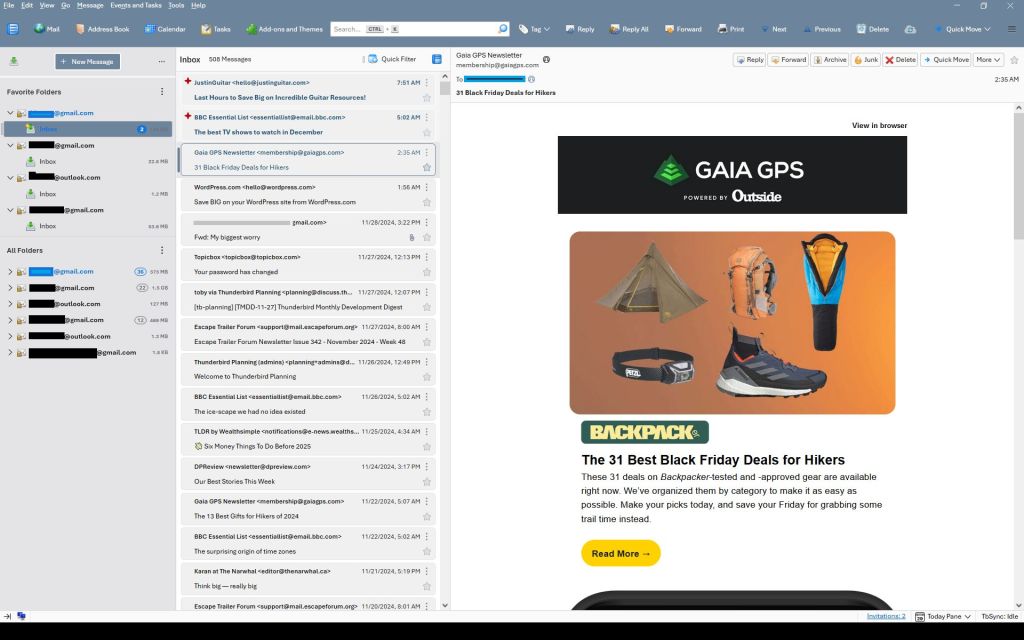
I used TB in the 2000s but forgot why I dropped it. But coming back to it was pretty good right out of the box using three gmail accounts and an outlook account. Mostly through Reddit I started compiling code to customize the UI and some behaviors. So little by little, I learned how to tweak TB to make it look better to me now:
Note just about every color you see can be changed easily if you prefer. This is just one example.
Key changes I made:
Rearranged menus, with drop down and window controls above the search bar
Filled the search bar (Unified bar) with shortcuts to make it more useful
Custom colored the menu, search bar, folder pane, message list etc.
Made sort order so new emails on top, not bottom.
Ditched threaded view
Ditched “hover” highlights when the cursor went over folders or emails
Added detailed message colors for Unread, Read and New emails
Fixed the New Message button and other buttons
Got rid of the many colored lines that occur when emails are forwarded or responded to.
Set up inboxes as favorites to avoid using unified folders
Used alternate TB buttons and icons
Changed the UI base font
Other small changes
This guide is intended to walk you through the basics of setting up TB from original state to something like above, where you can also change colors and other settings to suit your own needs. Some changes are through Settings, but some are through “CSS”. CSS (cascading style sheets) is a way of using text-based coding to make changes. It basically is a new file you add to your profile that overrides settings in the program. I’m no expert but I now know how to set it up, and it isn’t hard.
A few words of warning…this was how I did it on a Windows computer. I imagine it works the same on iOS or Linux, but I have no experience with either of those.
You’ll note I use Vertical View – Folder pane, then Message pane (in card view) then the email window. I don’t know if those are the right names are not. If you want table view of message list, or vertical view…go ahead, I don’t know how much of what follows works with that set up.
Before you start, if you follow some of these changes but don’t see the effect right away, make sure you close and restart TB as many only work after a restart.
Before starting on CSS changes, there are several settings you can make:
Where’s the drop down menu?
Right click in the empty space beside the long search bar and select Menu Bar. It’ll appear below the search bar – we’ll fix that later. Also, menu bar and search bar are the color of windows accent colors but that can be customized as well later.
Hide the Spaces toolbar:
Use View>Toolbars and choose Spaces to hide it. Or use the left pointing arrow at the bottom of it. Or keep it if you like it, but I chose to put similar buttons adjacent to the Search Bar so I don’t use the Spaces bar.
Sort Order:
Default is newest email on bottom of the list – I prefer newest on top.
Click on Tools> Settings. Settings tab opens up.
Scroll to bottom of General Settings section and click on Config Editor
type into the search box: mailnews.default_sort_type (or select it when you see it as you type)
make sure value is set to 18 by selecting the pencil icon, change value, click check mark to save it.
type into the search box: mailnews.default_sort_order (or select it when you see it as you type)
Value default is 1 (ascending), change to 2 (descending) by selecting the pencil icon, change value, click check mark to save it.
NOTE: with this change all messages will now be in descending order unless you previously clicked on the folders before making the change. If you clicked on them before changing the order, those folders will not be affected by the global change. You have to manually change them by selecting them, then View>Sort By> Descending.
Threaded/Unthreaded. Default is threaded – I prefer unthreaded. To change permanently:
View > Sort by > Unthreaded, then
Go to Config Editor (see above under Sort Order)
Type in mailnews.default_view_flags and change the value to 0. Click the check mark and restart TB.
You may need to go back to View>Sort by>Unthreaded but it should stick.
Group By. I like seeing the emails grouped by the date sorts: Today, Yesterday, Last 7 Days, Last 14 days, Older.:
View>Sort by>Group by Sort. But the problem is, it doesn’t stay that way so now you have to
View>Threads> Expand all Threads.
Add-ons Tools > AddOn and Themes > Extensions then use search bar for these – some worth exploring:
Old Icons (I like these the best and use them)
Phoenity Buttons
Phoenity Icons
Unified and or Favorite folders:
For multiple accounts and using unified folders:
Click the 3 dots to the right of the New Message box in the folder pane, then Folder Mode.
Choose both Unified Folders and Favorite Folders.
Right click on an Inbox and choose Favorite, then click on the 3 vertical dots by Favorite Folders and move up or down as you want.
Then down the list in the folders pane you should see a Unified folder structure that has a Unified Inbox. (I keep this off as I’m not a fan of unified inboxes – I have all account Inboxes set a favorites).
Unified Toolbar
I customized it with buttons. To do that, right click in a blank space on it and choose customize. You’ll see I used Mail, Address Book, Calendar, Tasks, Add Ons and Themes on the left side, and Tag, Reply, Reply All, Forward, Print, Next Previous, Delete on the right side. Do what works for you.
I also hid the side vertical Spaces menu. Now that the Unified toolbar has the items from the Spaces toolbar, you can hide it by unchecking View>Toolbars>Spaces
CSS Editing:
Customizing TB through css is quite fun and you can get quite creative. But first you have to enable it as its not ready by default (officially it’s not supported by TB and new program coding can break the following codes at any time):
Enabling css:
go to TB menu Tools > Settings > General
scroll all the way down and click the ‘Config editor’ button on the right
click the double arrow on the right to toggle the value to ‘true’
Next, locate and open your profile folder:
Menu: Help > Troubleshooting Information
Under Application Basics, click on the Open Folder button next to “Profile folder”. You should now see your profile folder being opened in your file manager.
Next, create the folder and its files:
Inside your profile folder, create a new folder named chrome (all lower case) – the chrome folder should end up in a folder that includes stuff like prefs.js and places.sqlite.
Inside the chrome folder, create two new text files (i.e. new Notepad text files) by right clicking and select “new text file”
Name one userChrome.css and userContent.css (case sensitive)
Note: In Windows, you might want to disable the “Hide extensions for known file types” setting in Explorer. Once that’s done, simply create a new text file (Right click ➝ New ➝ Text Document), then make sure to replace the .txt file-extension with .css.
You should now have two empty files called: userChrome.css; userContent.css
You are now ready to enter css code into the userChrome.css file and make changes:
Note: the code parts below are the parts written in Courier Font. Make sure you copy all the parts as there can be a “}” symbol on its own on the last line.
Working with Colors
You’ll see a lot of code includes hex color codes (e.g. #174a70 or just words like white, black, gainsboro). If you are not familiar with codes, see this page: https://htmlcolorcodes.com Note that as you select colors, it gives you the # and then a six number/letter code that comes after the # symbol (e.g. #174a70 is a shade of blue used in Windows).
Its minimal, but the eyedropper lets you select specific colors you might already be using that you want to make the same.
So if you want to change color, just replace the six character code but make sure you keep the # symbol. You can also replace the numbers in front of the “px” code to change sizing.
CSS Codes:
The first section takes the unified tool bar which has menu items etc. and puts it above the search bar. You can change the color code and replace “white” with a color code or name. Changing px values changes heights etc. The maximize, minimize and close controls are moved to the top right corner. You can also change the height and color of the unified search/tool bar:
/*******Move tool bar above unified bar*******/
toolbar#toolbar-menubar {
  Order:            -1 !important;
  background-color: #6D859C !important;  /* Color of menu bar */
  color:            white   !important;  /* Color of the text - if needed */
  padding-top:      0px     !important;
  padding-bottom:   0px     !important;
  margin:           0px     !important;
}

/***** Move window controls up to the menu bar ******/
.titlebar-buttonbox-container { position: fixed;
  top: 0px;
  right: 0px;
  height: 19px !important;
  color:            white   !important;
/******** adjust if necessary **********/ }

/******Adjust and color unified toolbar******/
#unifiedToolbar {
  height:  60px  !important;
  padding-block:   1px  !important;
  margin-block:    0px  !important;
  background:  #6D859C  !important;
  color: white  !important;
}
I’m not a fan of changing colors when you mouse over a folder. This codes makes the hover transparent. You can replace “transparent” with a hex color code if you want a hover color:
This next part changes background color on the left side folder list, changes New Message button color and border, and changes the font family used for the UI:
/*******Background color on folder list******/
#folderPane,
#folderPaneHeaderBar { background-color: #E4E4E6 !important; }

/******Fix the new message button*******/
#folderPaneWriteMessage { background-color: #6D859C !important; border: 2px solid white !important; color: white !important; }

/*******Change universal fonts *******/
*{ font-family: Arial}
This sets background and font color for selected folder:
This next group of three items changes card view from three lines to two lines. You won’t need this if you prefer 3 line card view or use table view, but I think two-line card view is a nice blend of the two standard views:
Note: as of Thunderbird V.139 2 line view option is included in the programs Tools>Settings>Appearance. This code section is no longer needed if using V.139 or newer.
This section allows you to set your message background or message text in the message list to match the color of any tags you are using. Use one or the other if you want but not both as your text and background would be the same.
This next section is what I call the “Detailed Colors” section is super detailed. It gives you total control on colors of emails depending if they are New, Unread or Read. You can change colors of text, the button if it has one, backgrounds, borders etc. The way it works is it first gives a long list of parameters you can change based on email status. E.g. – for Unread messages you can change colors and fonts for when they are default, hover over them, select them, select it and others etc. Same for Read messages, same for New messages – tons of control but a lot to go through. Following setting the conditions, they cade near the bottom applies those conditions so only make changes up to the point where it says “/*table*/”:
For new event and task buttons, this changes the button colors:
/******Fix New Event and New Task buttons***********/
#sidePanelNewEvent { background-color: #E4E4E6 !important; border: 1px solid white !important; color: white !important; }

#sidePanelNewTask { background-color: #E4E4E6 !important; border: 1px solid white !important; color: white !important; }
Hint: You can keep a copy of the userChrome.css file in the same folder and call it userChrome.old or .bak or something – in case you screw up your .css file, you can go back to the last version that worked.
Fixing the multiple lines in forwarded/replied emails:
When emails go back and forth through reply/reply/all/forward, TB adds colored vertical lines to the previous parts. After a few back and forth’s and the email chain can have a lot of these. I like them gone.
This fix is done using the userContent.css file that was created when you enabled css. This file should be alongside you userChrome.css file.
Configuring Linux Workstations for a Microsoft Windows Environment and Network
This tutorial is aimed at those who wish to migrate fully from a Microsoft Windows desktop to a Linux desktop system but still integrate with the Microsoft Windows servers and infrastructure like that found in a typical corporate environment. Integration with Microsoft print services, file sharing (mounting cifs,smbfs), Exchange server, other MS/Windows PC’s, dual boot NTFS drives, Citrix, remote X-Windows logins, telnet and ftp access are all covered in this tutorial.
This tutorial assumes the base system with a full X-Windows and Gnome desktop installation. See Linux Red Hat Installation Tutorial for more information.
Microsoft Office Compatibility: Open Office (bundled with Red Hat Linux 8.0+/Fedora Core) can read/write Word, Excel and Powerpoint files. It also has a vastly superior (compared to MS/Office) HTML web output conversion capability. It is currently (in my opinion) the best office software suite for Linux today. See: YoLinux Linux Office Suites
Microsoft Network Compatibility: This tutorial relies heavily on the SAMBA suite of tools to integrate with the Microsoft Network services.
Supports mime type: application/x-java-vm
(Required for Microsoft Exchange OWA webmail support.)
Note: The installation of the plugin “plugger” will generate the directory /usr/lib/mozilla/plugins/. Typically the Mozilla browser installation will create a directory but with the browser version as part of the name. (i.e. mozilla-1.2.1/) This will typically change with each upgrade and I avoid using it for plugins.
Browser Proxy configuration: Many corporate networks rely on SOCKS proxy servers for access to the internet. Typically a Proxy Auto Configuration (PAC) script is issued to be registered with the browser. These scripts are usually targeted to Microsoft Explorer or Firefox specifically. Try the proxy script: “Edit” + “Preferences” and select “Advanced (+)” and “Proxies” + “Automatic proxy configuration URL”, enter the script location and select the “Reload” button. If it works, great your ready to surf. If your corporation uses a proxy directly, enter it under “Manual proxy configuration”. If using a script and it does not work, use the command “wget http://proxy-url.domain.com/proxy-script.pac” to download the proxy script. Examine the file proxy-script.pac. Buried in the logic of the script is usually the explicit listing of a proxy server which can be entered under the Mozilla manual configuration. If you are at a corporation using a firewall and have direct access, I’m jealous and you have no need for proxy configuration.
Helper Application configuration for various file types:
Mounting/Integrating with the Microsoft File Servers:
Accessing MS/Windows file servers:
MS/Windows file shares are accessed using a MS/Windows login and password thus I mount the file systems in user directories as they are user resources. Check to see if the proper SAMBA packages are installed: rpm -qa | grep samba. The packages samba-common, samba-client and samba should be installed.
Mount points: The local Linux system mount point choice and method of access is actually important. If it is a multiuser system and the file server is using user privileges to mount and access the file then it might be prudent to use a mount point local to the user. If the system is owned and used solely by the user then I recommend creating a directory in /mnt and using it as a mount point. In either case a soft link (ln -s) to the $HOME/.gnome-desktop/ (RH 7-9) directory will create a nice user interface icon for access purposes. (Fedora Core 3: Use the directory $HOME/Desktop/)
[Potential Pitfall]: The mount point to the user’s home directory MUST be recognized by the admin as a potential pitfall. When removing a user from the system, the command “userdel -r” will recursively delete files and directories found below the home directory. The command “rm -R” will NOT follow sym links thus sym links to $HOME/.gnome-desktop/ are safe. The directories mounted to directories below the $HOME/ path may not be safe from mass deletion.
Create the desktop mount point which will provide a desktop icon and app link to the Nautilus file manager to view files on the server:
Mount: [root]# mount /mnt/MS-SERVER-NAME/MS-Windows-Share
Unmount: [root]# umount /mnt/MS-SERVER-NAME/MS-Windows-Share Note:
“cifs” is a newer virtual file system supporting locking, Unicode, hardlinks, etc while “smbfs” (Server Message Block) is an older less advanced protocol.
CIFS man pages:
If the uid and gid are omitted you may only have read access to the MS/Windows server. The uid/gid may be the alphanumeric name or the system user/group numbers.
Directly mount MS/Windows file server: (as root) (one line – may be shown wordwrapped)
Use Samba shell: (non-root user) smbclient //MS-SERVER-NAME/MS-Windows-Share -U MS-WINDOWS-DOMAIN/ms-windows-login-name Password:
This places you in a shell mounted to the MS/Windows server. You can enter commands such as ls, put and get like in an ftp client. Type ? for a full list of commands.
Note: If the share is a hidden share append a “$” to the name of the share. i.e.: //MS-SERVER-NAME/MS-Windows-Share$
[Potential Pitfall]: If the Microsoft login password is changed, unmount the drive, change the $HOME/.smbpasswd password entry and remount the drive.
[Potential Pitfall]: Spaces in share names are often problematic. Escape with “\040”.
Example: //HOSTNAME/share\040name
[Potential Pitfall]: Using OpenOffice to edit an MS/Word document on a cifs mounted file system. OpenOffice Writer may freeze when editing the document when performing a “saving as” on the file as it does not use cisf byte range locks. Fix using the cisf mount option nobrl.
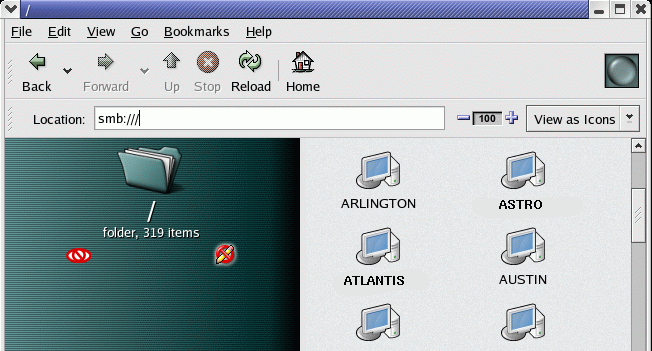
File browser access: The system browsers Gnome/Nautilus and newer versions of KDE/Konqueror can also browse the Microsoft file servers using the URL “smb://“
[Potential Pitfall]: The version of Nautius which ships with Red Hat 8.0 is limited to 12 character (8.3 legacy) problems.Start Nautilus (“Start Here” icon on desktop) and use URL “smb://”
Choose Domain folders then “Shares” folders. Login as MS-WINDOWS-DOMAIN\ms-windows-user-id and password.
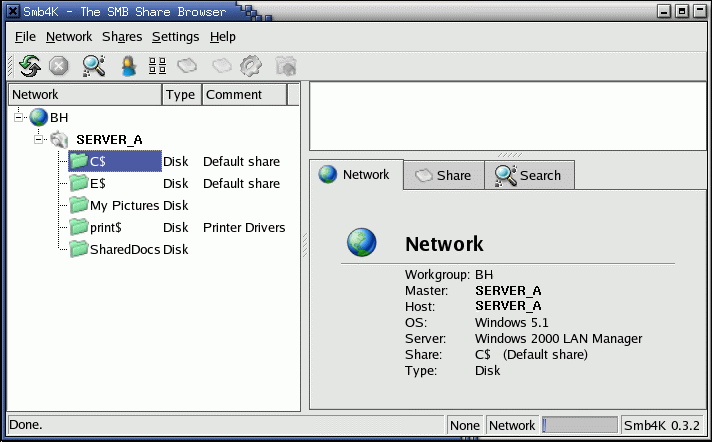
SMB4k:Sourceforge: SMB4K
Scan for active workgroups, hosts and shares, mount/unmount, access files (using Konqueror), printer shares, …
Requires QT libraries 3.1+. (RH 9.0 uses QT3.1 thus OK) Binaries for Fedora, SUSE and Debian.
Note: Requires root access to dynamically mount MS/Windows shares. To give users this privilege, apply the “sticky bit” to smbmnt: chmod a+t /usr/bin/smbmnt
Also see:
Davenport – JAVA applet for CIFS/SMB file server access.
This procedure is common for dual boot systems and for those who wish to access legacy data. The NTFS file system is used with MS/Windows NT, 2000 and XP. Read only access is available with the NTFS kernel module. The default Red Hat compiled kernels support these NTFS modules. If compiling from source be sure to set the following in kernel-XXXXX.config: CONFIG_NTFS_FS=m (read-only NTFS support. Write support is at your own risk: CONFIG_NTFS_RW=y)
Download the appropriate NTFS driver source: Tuxera.com NTFS-3G community download
The find the version of the kernel you are running, use the command: uname -r -p or cat /proc/version.
Determine the target processor with the command uname -p
Install rpm as root: rpm -ivh kernel-ntfs-2.4.XXX.iX86.rpm
Load module: /sbin/modprobe ntfs
Check for errors: dmesg | grep NTFS
Verify: cat /proc/filesystems
or modprobe -l | grep ntfs
Uid is the Linux user login id which is allowed exclusive access to MS/Windows drive. Remove this to allow all system users access to the drive.
Device reflects that of the MS/Windows hard drive. First SCSI drive would be /dev/sda1. See YoLinux SCSI tutorial for more info.
mount /mnt/windows
or mount -t ntfs -o nls=utf8 /dev/hdXX /mnt/windows
Note: DOS and MS/Windows 3.1, 95, 98 or 2000ME can be mounted for read/write using file system types, msdos, umsdos, vfat with no additional kernel module installation required. (NTFS requires extra module) Example for MS/Windows 95:
[Potential Pitfall]: Without the proper driver you will get the following error:
Unable to mount Drive
Error mounting: mount: unknown filesystem type 'ntfs'
Interfacing with the Microsoft Exchange Mail Servers:
Email, Calendar, Outlook and Microsoft Exchange: Use (1) MS/Outlook on Linux, (2) MS/OWA webmail or (3) Linux Outlook clone, Ximian
Run MS/Outlook on Linux:
Run the Codeweavers Crossover commercial version of Wine and run Microsoft Outlook on Linux. See the YoLinux Tutorial on Installing Crossover and Outlook.
MS/Exchange OWA webmail:
Use your browser: http://webmail.megacorp.com (Company specific)
Note: Java JVM must be installed and browser JVM support must be configured as described above to enable full appointment calendar functionality.
Microsoft Exchange Access with Ximian Evolution email client and Ximian Connector: – Novell CONNECTOR REQUIRES EXCHANGE SERVER 2000! It does not work with MS/Exchange 5.5.
Install Instructions: http://www.novell.com/products/connector/
Red Hat Linux 8.0 comes with the Novell/Ximian/Evolution version 1.0 email client. The Novel MS/Exchange connector requires Evolution version 1.2.
Download Novell Red-Carpet, Novell/Ximian Evolution 1.2 and Novell/Ximian Connector:
The current and latest Linux printing system is the Common UNIX Printing System which supports the Internet Printing Protocol (IPP), MS/Windows printing via SAMBA (SMB), networked UNIX (lpd), networked Novell (NCP), HP JetDirect (App Socket), etc. This allows Linux to print directly to network or attached printers, independant of a Microsoft print server environment. the printer configuration GUI tools are sufficient and simple to use. Using CUPS is the preferred printer configuration but it should be known that Linux can be configured to work with Microsoft Windows print servers. CUPS has been available since RH 9.
Accessing The Local Microsoft Printer Network:
Configuring the printer and lpr command: (lprNG)
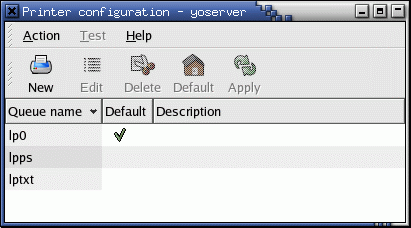
As root run the CUPS GUI configuration tool command: /usr/bin/system-config-printer (RHEL 5/6 and Ubuntu 14.04) (older Red Hat systems: /usr/bin/redhat-config-printer)
Select the “New” icon + “Next”.
Give it a Queue name. (Make up your own name.)
Select “Windows Printer”.
Select “Forward”.
Enter Ms/Windows info:
(This example is for a Windows network printer.)
Share: \\MS-SERVER-NAME\MS-Windows-Print-Share
Host IP: XXX.XXX.XXX.XXX
Workgroup: WORKGROUP-NAME
User: Your MS/Windows login name
Password: Your MS/Windows password
Select a driver: If it is not listed, pick the closest you can find. Typically there will be an emulation mode for ljet4 or some other popular mode.
Select “Apply”
Select “File” + “Save Changes”.
Select “File” + “Quit”.
Find the “Host IP” address with the command:
host MS-SERVER-NAME
or
smbclient:
[prompt]$ smbclient //MS-SERVER-NAME/
added interface ip=your-ip-address bcast=XXX.XXX.XXX.255 nmask=255.255.255.0
Got a positive name query response from ip-address-of-MS-SERVER ( ip-address-of-MS-SERVER )
Password:
When multiple printers have been defined, use this gui to select the default. the command “lpr file-name” will use the default printer. Use the “-P queue-name” flag to specify a non-default printer.
When sending print jobs directly to an HP network printer (instead of through a MS/Windows print server), configure the queue to use TCP/IP port 9100.
The default Mozilla printer device specification: lpr ${MOZ_PRINTER_NAME:+'-P'}${MOZ_PRINTER_NAME} will print to the default unless modified.
Printing uses the following configuration files:
/etc/printcap – lpr config file (Generated by GUI. You don’t need to understand it.)
or $HOME/.printcap
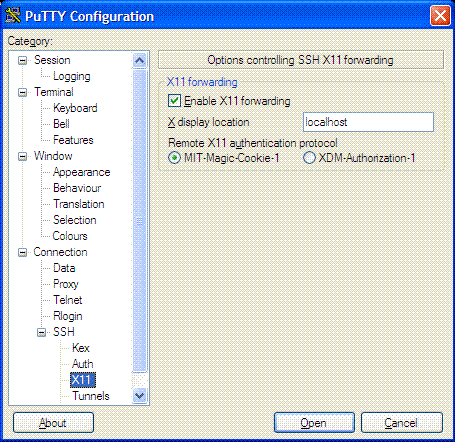
[Potential Pitfall]: When trying to connect to the Linux system using Putty we got the following error with Red Hat Enterprise 6.1:
Could not chdir to home directory /home/user1: Permission denied
/usr/bin/xauth:  timeout in locking authority file /home/user1/.Xauthority
also check the Linux log file /var/log/secure error
Oct  3 15:57:44 sil-lab sshd[25965]: Accepted password for user1 from 192.168.1.64 port 53950 ssh2
Oct  3 15:57:44 sil-lab sshd[25965]: pam_unix(sshd:session): session opened for user user1 by (uid=0)
Oct  3 15:58:04 sil-lab login: pam_securetty(login:auth): Error opening /etc/securetty: Permission denied
The temporary fix was to turn off SELinux: setenforce 0
2) Launch individual X-Window applications from text terminal:
Steps:
Launch X-Windows server: (Cygwin or XMing)Cygwin:
Start X server on MS/Win32: C:\cygwin\lib\Singular\startxserver.bat
X-Windows applications will be launched individually from the text terminal console.
or
Start X-server from a Cygwin shell: xwin -multiwindow -unixkill -multimonitors
where:
-multiwindow: specifies the use of the MS/Windows window manager
-multimonitors: implied use of both monitors on dual headed displays
-unixkill: Ctrl+Alt+Backspace exits the server
If your application requires the Motif Window Manager (mwm): xwin -rootless -unixkill -multimonitors
Then start the Cygwin Motif Window Manager: /usr/bin/mwm &
Then start your application.
Note that the default Cygwin terminal window is not very X aware. The Cygwin rxvt terminal is superior and will set your X DISPLAY environment variables.
# Test for servers with hostname prefix server and gateway address
4
if[[ ! ($clientip =~ "^server|^192.168.0.1") ]]; then
5
exportDISPLAY=$clientip:0.0
6
echoDISPLAY setto SSH Client $DISPLAY
7
else
8
echoServer to Server SSH Detected. Keeping DISPLAY setto $DISPLAY
9
fi
Note:
Do NOT add this to your ~/.bashrc as it will prevent XDMCP access as well as Linux console access.
Before switching to a root account (“sudo su -” or “su -“) allow the existing display to accept X protocol: xhost +
A regular ssh connected user will often use display :10.0 while root will use :0.0
3) Full Linux desktop access using XDMCP:
Granting X-Window access to your PC using Xming (or Cygwin, ReflectionX, HummingBird Exceed):
To allow a full Linux login screen (GDM or XDM) and Linux desktop access to another Linux system or to a MS/Windows system requires allowing remote GDM (or XDM) and XDMCP X-Windows access. First configure the Linux system to allow remote access, then use X-Windows software to remotely access the system from MS/Windows (or another Linux system).
Step 1:
Allow remote XDMCP access
See the YoLinux GDM and XDMCP tutorial on configuring Linux to allow remote access.
or
You can use the config tool /usr/sbin/gdmsetup to configure GDM (Gnome login screen) and XDMCP (X-Windows remote full screen access).
You can test the GDM login screen locally: X -query localhost :1
Step 2:
Use X-Window software which runs on MS/Windows
Using XMing on your PC to connect to full Linux GUI desktop with XDMCP:
Note that Xming-mesa has Open-GL 3D support while basic Xming has 2D X-windows support only. You don’t need both.
Configure Xming: Programs + Xming + XLaunch
Select “Full screen” + next
Select “Open session via XDMCP” + Next
Select “Connect to host” and enter IP address (or node name) of Linux system + next
next
Finish
Use MS/Windows alt-tab to leave the X-windows session.
Click (left mouse button) on the toolbar “X” icon to restore the session.
Click (right mouse button) on the toolbar “X” icon to terminate the session.
Using Cygwin on your PC to connect to full Linux GUI desktop with XDMCP:
Download XFree86 for MS/Windows and install. Be sure to select the “loop” graphic to change from “Default” to “Install” to install all packages. The default is to exclude the X-window server. Packages to install may be selected individually.
Start MS/Windows X-Server for XDMCP connection: (/usr/X11R6/bin/xwin)
xwin -query Ip-address-of-Unix-computer
Used to display Linux desktop on MS/Windows PC.
xwin -multiplemonitors -scrollbars -indirect Ip-address-of-Unix-computer
Used to display Linux desktop on MS/Windows with multiple monitors.
xwin -ac -multiwindow Ip-address-of-Unix-computer
Starts X server but does not generate a desktop window. Each Linux application will create its’ own window. In a shell set your display environment to the IP address of your PC and individual applications will be displayed to your MS/Windows desktop.
In cygwin remote ssh or telnet shell: export DISPLAY=ip-of-local-pc:0.0
The local IP address can be obtained on MS/Windows through the DOS command: IPCONFIG
[Potential Pitfall]: If your Cygwin bash shell command line prompt is “i have no name” then it is because your uid in the file /etc/passwd is too large. It must be less than the 16 bit limit of 65536. The uid is the third field demarked by the colon (“:”). Change the uid to an integer value less than 65536. This will also fix X/Server problems which arise when trying to connect to other computers using X.
Connecting to a Microsoft Windows Terminal Server (NT, 2000 or XP) using RDP:
One may graphically connect to a Microsoft Windows Terminal NT Server, server 2000 or a Microsoft Windows XP system (Professional and Home edition) with a Microsoft Windows Terminal RDP (Remote Desktop Protocol) client for Linux known as “rdesktop”. Use version 1.2 or later (which comes with Red Hat 9.0 or later). Version 1.1 which ships with Red Hat Linux 8.0 is buggy.
Note that Microsoft Windows XP uses RDP 5.2 (an extension to the ITU-T T.128 application sharing protocol) using 24 bit color and supports sound. The older RDP 4.0 only supported 8 bit color and did not support sound.
If there is an active rdesktop session, MS/Windows XP will not allow one to login at the console. You will get an error message which states that the system is locked. Only one active MS/Windows desktop is allowed. MS/Windows terminal server is required for more than one simultaneous user login.
Configure MS/Windows to allow a remote RDP connection:
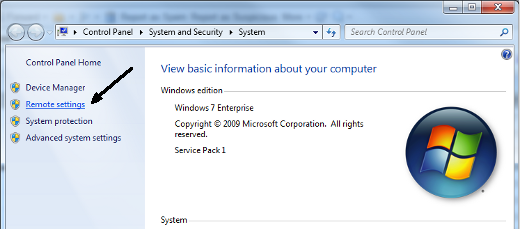
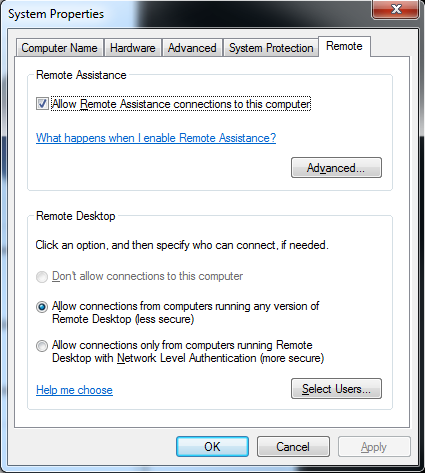
MS/Windows 7 configuration to allow remote RDP connections:
Click Windows start icon and select “Computer”:
Select the “Remote settings” option:
Select the “Remote” tab
In the “Remote Desktop” section, check “Allow conections …”
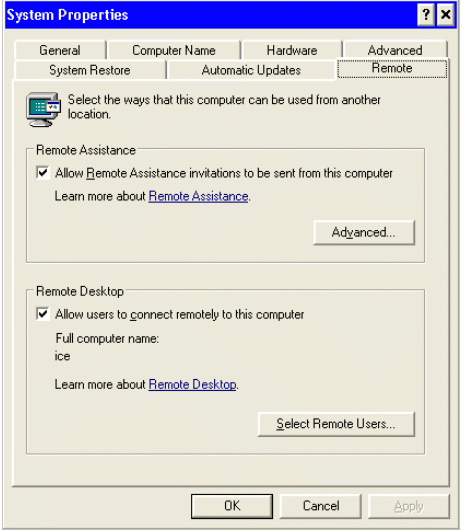
MS/Windows XP configuration to allow remote RDP connections:
Right click “My Computer” desktop icon.
Select “Properties”.
Select “Remote” tab
Check “Remote Desktop”: “Allow users to connect remotely to this computer”.
OK
Using the Linux RDP rdesktop client:
Red Hat/CentOS/Fedora: Install RPM: rpm -ivh rdesktop-X.X.X-X.i386.rpm
Note: Red Hat 8.0 (old) or other distributions of Linux which do not offer a binary package: Download source, untar, configure, make, make install.
Device redirection. i.e. Redirect sound on remote machine to local device.
i.e. -0 -r sound (MS/Windows 2003)
-g
Geometry: widthxheight or 70% screen percentage.
-p
Use -p - to receive password prompt.
-d
Use -d - to specify a domain. No space is allowed between the “-d” and the domain name (V1.3.1).
Note:
I can also connect to my dual monitor MS/Windows system from my dual monitor Linux system and display the full two monitors. I use the following geometry directive: -g 2540x992
To toggle rdesktop between full screen and the displayed window size, use the following keystroke: ctrl-alt-enter
Select “RPM Packages”, “Debian Packages” or “Tarball Packages”
Select: “Download File”
As root Install: [root]# rpm -ivh ICAClient-8.0-1.i386.rpm
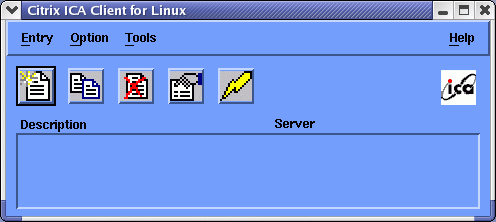
Run/Configure (as user) ICA Client Manager: /usr/lib/ICAClient/wfcmgr
Note: This tool allows full capabilities to configure and run the ICA Citrix winframe client.
Select (default option showing: Network) radio button “Published Application”
Select button to the right “…“.
Select “Citrix-App“
Test Application:
Select the “Lightning Bolt” icon to connect.
This will bring up the Microsoft NT server login dialog box.
User name: NT-Login-Name
Password: NT-Password
Domain: MS-WINDOWS-DOMAIN
As a Linux user, run Citrix ICA Client only: First Citrix Application
This will bring up the specified ICA application where the “description” is defined in $HOME/.ICAClient/appsrv.ini section heading. i.e. “Citrix-App”
You can also create a desktop launcher icon: right click on a free area of the desktop and select “New Launcher”. Use icon /usr/lib/ICAClient/icons/citrix48.xpm
Application Command: /usr/lib/ICAClient/wfica -desc "Citrix-App" -username NT-Login-Name -password NT-Password -domain MS-WINDOWS-DOMAIN
Option “-clearpassword” may need to be used instead.
The password may also be held in the Citrix configuration. Set the configuration with /usr/lib/ICAClient/wfcmgr and select “Connection” + “Properties” + “login” to store the password.
Use icon /usr/lib/ICAClient/icons/citrix48.xpm
FYI:
Help: wfica -h
If running programs where you have to share files with the Citrix Metaframe server, use SAMBA to export a MS/Windows NT share.
ICA client product number for Linux client: 81/7
Config files:
$HOME/.ICAClient/*.ini
/usr/lib/ICAClient/config/*.ini (not used)
/usr/lib/ICAClient/.config/*.ini (not used)
Launching from a browser: (Using ICA Citrix plug-in)
Mime type: application/x-ica
Application: /usr/lib/ICAClient/wfica -file %s
Where “%s” refers to the “.ica” file being passed.
Graphics capture utility: /usr/lib/ICAClient/util/xcapture
Select window (middle mouse button), select region (corner to corner drag with left mouse button) or cancel (right mouse button).
MS/Windows can send a message to another MS/Windows PC which will pop-up (using “WinPopup” protocol) and appear in a dialog box. This is used by admins for notification purposes. The DOS command is:
NET SEND NetBIOS-computer-name "Message to send to user"
Linux can send the same message to a MS/Windows PC using the command:
[prompt]$ smbclient -M NetBIOS-computer-nameMessage to send to userctrl-d
Authenticating Linux with Microsoft Active Directory:
The following approaches are available:
Use a software package such as Likewise Open which allows the Linux system to connect to the MS/Active Directory in Microsoft native protocols.
Use “Microsoft’s Unix services for Windows” to enhance AD to include Linux and Unix support. This will support NIS or LDAP protocols. LDAP can be used with or without Kerberos. Thus we have the following three options:
Standard NIS authentication
Standard LDAP authentication (with or without SSL)
Kerberos authentication with LDAP
The following shows a basic LDAP only configuration.
This requires that the Microsoft Active Directory server have its schema enhanced to support Unix/Linux systems, specifically the uid and gid which are numerical representations of the user and group id.
This requires installing Microsoft’s Unix services for Windows server 2003 (and earlier) or for server 2008, Microsoft’s “Cross platform authentication utilites”: Unix services for Windows Info and download
On the Linux system it requires adding the following /etc/ldap.conf file which defines the translation between native Linux LDAP attribute names and those used by Microsoft Active Directory:
host XXX.XXX.XXX.XXXXXX.XXX.XXX.XXX
base dc=megacorp,dc=com
binddn cn=SysAdmin,dc=megacorp,dc=com
bindpw bindPassword
scope sub
ssl no
nss_base_passwd ou=accounts,dc=megacorp,dc=com
nss_base_shadow ou=accounts,dc=megacorp,dc=com
nss_base_group ou=accounts,dc=megacorp,dc=com
nss_map_objectclass posixAccount user
nss_map_objectclass shadowAccount user
nss_map_objectclass posixGroup Group
nss_map_attribute uid sAMAccountName
nss_map_attribute uidNumber msSFU30UidNumber
nss_map_attribute gidNumber msSFU30GidNumber
nss_map_attribute loginShell msSFU30LoginShell
nss_map_attribute gecos name
nss_map_attribute userPassword msSFU30Password
nss_map_attribute homeDirectory msSFU30HomeDirectory
nss_map_attribute uniqueMember msSFU30PosixMember
nss_map_attribute cn cn
nss_login_attribute sAMAccountName
pam_member_attribute msSFU30PosixMember
Note:
The “host” statement lists the primary and failover AD servers.
The file /etc/pam.d/system_auth can be configured with the console tool /usr/bin/authconfig or the GUI configuration tool /usr/bin/system-config-authentication.
See the YoLinux LDAP authentication tutorialEdit /etc/nsswitch.conf so that Linux will authenticate to the Active Directory server using LDAP.
This is the simplest authentication configuration. The prefered configuration will include Kerberos and SSL. (not covered here – yet) Microsoft’s Unix services for Windows also supports the use of Active directory as an NIS server although the LDAP configuration is more current and when used with SSL and Kerberos, it is also more secure.
Note that the default setting blocks remote access to your local X-server.