Category Archives: MicrosoftSucksAss

“Your administrator has blocked this application because it potentially poses a security risk to your computer” 

“Your administrator has blocked this application because it potentially poses a security risk to your computer”

Issue:

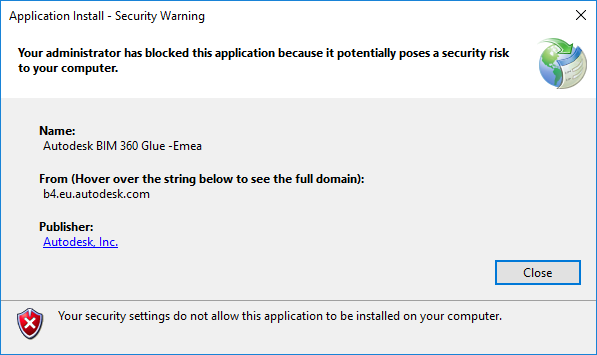
During the installation of BIM 360 Glue Desktop, you see this error message:

Application Install – Security Warning
Your administrator has blocked this application because it potentially poses a security risk to your computer.

Security Warning when installing BIM 360 Glue desktop app

Causes:

The Windows ClickOnce trust prompt is disabled. ClickOnce, a component of the .NET Framework, must be enabled to run BIM 360 Glue.

Solution:

To resolve the issue, enable this registry key:

  • HKLM\SOFTWARE\MICROSOFT\.NETFramework\Security\TrustManager‌​\PromptingLevel\Inte‌​rnet

Note: This operation should be performed by an administrator with a technical understanding of the Windows Registry.

To enable the registry key:

  1. Open the registry editor:
  2. Find the following registry key:

    \HKEY_LOCAL_MACHINE\SOFTWARE\MICROSOFT\.NETFramework\Security\TrustManager\PromptingLevel\Internet

    If the key does not exist, create it.

  3. Set the value to Enabled.

Warning!
Problems caused by improperly editing the Windows registry could render your computer operating system unusable. Microsoft provides a wealth of critical information that you need to know about the registry in the Microsoft Knowledgebase. Use the Microsoft Registry Editor only at your own risk and only after backing up the registry as outlined for your operating system in the Microsoft article How to back up and restore the registry in Windows and in the related solution How to back up the system registry. Additional information about the registry is also contained in the Help topics in the Microsoft Registry Editor.

Source: “Your administrator has blocked this application because it potentially poses a security risk to your computer” when installing BIM 360 Glue | BIM 360 | Autodesk Knowledge Network

How To Install Windows Apps Without a Microsoft Account – CCM

How To Install Windows Apps Without a Local Account

  • Right-click on the Start menu to display your Power User options. Select the Run command. Next, type in
    regedit

    followed by Enter to open the Registry Editor:

  • Navigate to HKEY_LOCAL_MACHINE\SOFTWARE\Microsoft\Windows\CurrentVersion\Policies\System.
  • Click on the Edit menu, followed by New > DWORD (32-bit) Value. Rename the new key as MSAOptional:

  • Set the value of MSAOptional to 1. This will make your Microsoft accounts optional:

  • Close the Registry Editor and restart your computer. Once your computer loads, open the Windows Store and search for your desired app. Skip the sign-up procedure and proceed directly to your download.

Source: How To Install Windows Apps Without a Microsoft Account – CCM

What is Meet Now in Windows 10 and how to remove it – gHacks Tech News

Removing Meet Now via the Group Policy

System administrators may disable (or enable) the Meet Now icon on the Windows 10 taskbar using the Group Policy. The Group Policy is only available in professional editions of Windows 10, and not in Windows 10 Home.

Here is how that is done:

  1. You need elevated rights to use the Group Policy.
  2. Use Windows-R to open the runbox.
  3. Type gpedit.msc and select OK.
  4. Go to User Configuration > Administrative Templates > Start Menu and Taskbar
  5. Double-click on “Remove the Meet Now icon”.
  6. Set the feature to “Enabled” to hide the icon on the taskbar of the Windows 10 operating system.
  7. Restart the PC.

Removing Meet Now using the Registry

You may also remove Meet Now on Windows 10 using the Registry.

  1. Use Windows-R to open the runbox.
  2. Type regedit.exe and select OK.
  3. For individual users, go to HKEY_CURRENT_USER\Software\Microsoft\Windows\CurrentVersion\Policies\Explorer
    1. Right-click on Explorer and select New > Dword (32-bit) Value.
    2. Name it HideSCAMeetNow.
    3. Set its value to 1.
  4. For all users, go to HKEY_LOCAL_MACHINE\SOFTWARE\Microsoft\Windows\CurrentVersion\Policies\Explorer
    1. Right-click on Explorer and select New > Dword (32-bit) Value.
    2. Name it HideSCAMeetNow.
    3. Set its value to 1.
  5. Restart the PC.

Source: What is Meet Now in Windows 10 and how to remove it – gHacks Tech News

Configure user sign-in for Office 2013 | Microsoft Docs

Configure user sign-in for Office 2013


Applies to: Office 2013, Office 365 ProPlus

Summary: Describes how users sign in to Office 2013 and how they can set sign-in IDs.

Audience: IT Professionals

Office 2013 users can sign in by using either of two types of credentials: Microsoft account, or Organization or School. The second type of credential is the user ID that is assigned by the organization or school for the purpose of accessing Office 365. The user supplies these credentials within the user interface (UI) or, in certain cases, the credentials can be picked up from the operating system.

In this article:

  • The sign-in UI
  • Sign-in settings
  • Single sign-on, Active Directory, and federated sign-in

The sign-in UI

Sign-in is a two-step process that involves discovery and authentication. In the discovery step, the user enters the email address that is associated with his or her account. The Sign in user interface is shown in the following screen shot.

Figure: User interface for signing into Office

A screenshot of a sign-in window that lets you decide whether to use a Microsoft account or Organization ID to sign-in.

The next step is authentication.

  • When users enter an email address that is associated with a Microsoft account, they are taken to a Microsoft account version of the sign-in UI. The Can’t access your account? link goes to a page that contains password reset instructions.

    Figure: User interface for signing into Office with a Microsoft account ID

    A screenshot of a sign-in window that lets you sign in to Office 2013 with a Microsoft account ID.

  • When users enter an email account that is associated with their organization or school, they are taken to the organization version of the sign-in UI.

    Figure: User interface for signing into Office with an Organization ID

    A screenshot of the Office sign-in page that lets user sign in with Personal ID.

Sign-in settings

You can enable one of four sign-in states by using the Block sign-in to Office Registry setting. This setting controls whether users can provide credentials to Office 2013, and whether they can use their Microsoft account or the user ID that is assigned by your organizations, or both.

The Registry key for this setting is: HKEY_CURRENT_USER\Software\Microsoft\Office\15.0\Common\SignIn\SignInOptions

To enable a sign-in option, set SignInOptions to a particular numeric value as shown in the following table. The type for the SignInOptions setting is DWORD. The table also describes how each selection affects users.

SignInOptions settings

SIGNINOPTIONS SETTINGS
If you set SignInOptions to this… This is what it means This is the effect on users
0 Microsoft account or organization ID Users can sign in and access Office content by using their Microsoft account or one that is assigned by your organization.
1 Microsoft account only Users can sign in only by using their Microsoft account.
2 Organization only Users can sign in only by using the user ID that is assigned by your organization. This can be either a user ID in Azure Active Directory or a user ID in Active Directory Domain Services (AD DS) on Windows Server.
3 AD DS only Users can sign in only by using a user ID in Active Directory Domain Services (AD DS) on Windows Server.
4 None allowed Users can’t sign in with any ID.

If you disable, or do not configure, the Block sign-in to Office setting, the default setting is 0, which means that users can sign in by using their Microsoft account or one that is assigned by your organization.

Single sign-on, Active Directory, and federated sign-in

When a user signs in to Office 2013, Office automatically tries to use the Active Directory Domain Services (AD DS) account with which the user logged into the operating system. If that Active Directory account is federated with Office 365, the customer automatically receives all the benefits of signing into Office 365 without having to perform any additional steps. For more information about federating your domain with Office 365, see Prepare for single sign-on.

Source: Configure user sign-in for Office 2013 | Microsoft Docs

Fix: Sign in feature disabled in Office 2016/2013

There is no doubt Office 2016/2013 is very well integrated with web. You can install new templates for its components, download clip art and various kind of resources needful for your documents easily in this productivity suite. You can also save your documents to cloud storage service such as OneDrive. So there are many features in Office 2016/2013, which require that you should be signed in. But what if you don’t find the sign in option or even if you find it, you receive the following message when you try to sign in:

This feature has been disabled by your administrator

Fix-Sign-In-Feature-Disabled-In-Office-2013

Recently, we found that on one of the Office 2013 copy we have, sign-in option at the right top of the screen is missing. In such a condition, there exists no path which could allow us to get logged in, so that we can personalize our experience with Office. In this article, we’re going to share you the fix for such an issue:

Sign in feature disabled in Office 2013/2016

1. Press Windows Key + R combination, type put Regedt32.exe in Run dialog box and hit Enter to open the Registry Editor.

REGEDIT Windows 8 does not allow you to print more than 15 files

2. In the left pane, navigate to following location:

HKEY_CURRENT_USER\Software\Microsoft\Office\15.0\Common\SignIn

Fix-Sign-In-Feature-Disabled-In-Office-2013-1

3. Since you’re facing the issue, in the right pane of above mentioned key, you’ll see the SignInOptions named registry DWORD (REG_DWORD). It must be showing the Value data equals to 3, double click on this DWORD to modify:

Fix-Sign-In-Feature-Disabled-In-Office-2013-2

4. In the above shown box, change the Value data to 1 from 3. Click OK. If you like you can delete the same DWORD as well. Now close the Registry Editor and reboot the machine to get results. After reboot, you’ll be able to sign in to Office 2013. (See https://www.marcsiegel.us/configure-user-sign-in-for-office-2013-microsoft-docs/ )

Fix-Sign-In-Feature-Disabled-In-Office-2013-3

Source: Fix: Sign in feature disabled in Office 2016/2013

SOLVED: How To Disable SHARE Button in Office 2016 Using a GPO – Up & Running Technologies, Tech How To’s

SOLVED: How To Disable SHARE Button in Office 2016 Using a GPO

Note: GPO templates download here.

admx admin templates need to be copied to C:\Windows\PolicyDefinitions
and the corresponding resource files (en-us) need to be copied to C:\Windows\PolicyDefinitions\en-US

If you have Office 2016 and you want to block your staff from easily saving content in the cloud, you can disable the SHARE button using the following Group Policy Object (GPO):grey-out-share-button-word-excel-2016

User Configuration -> Administrative Templates -> “Office Product Name” -> Disable Items in User Interface -> Custom -> Disable Commands > ENABLE and enter 26594

26594 does seem like a random number and it probably is, however, Microsoft has made it possible to disable nearly every feature by assigning nearly every button and short cut a number.  You can get a list of those numbers from what Microsoft has cleverly named: “Office 2016 Help Files: Office Fluent User Interface Control Identifiers” which you can download directly from Microsoft HERE.

Note that you need to set each Office products rules separately; there is no global “turn off the SHARE button” GPO.  That means you have to set:

gpo-disable-share-button-office-2016User Configuration -> Administrative Templates -> Microsoft Word 2016 -> Disable Items in User Interface -> Custom -> Disable Commands > ENABLE and enter 26594

and

User Configuration -> Administrative Templates -> Microsoft Excel 2016 -> Disable Items in User Interface -> Custom -> Disable Commands > ENABLE and enter 26594

and

User Configuration -> Administrative Templates -> Microsoft PowerPoint 2016 -> Disable Items in User Interface -> Custom -> Disable Commands > ENABLE and enter 26594

and..

You can download the codes for Microsoft Office 2013 HERE and Office 2010 HERE to figure out what the codes are for Office 2010 and 2013 products.  The codes are different.  For example you use code 18147 to disable the SHARE button in Word 2013.

Source: SOLVED: How To Disable SHARE Button in Office 2016 Using a GPO – Up & Running Technologies, Tech How To’s

Remove Sign In box from Office apps

Method 1: You can use the Registry Editor to remove Office Sign In Option from Office 2016.
Here are the steps to follow:
1. On your computer, notebook or laptop go to your Start Screen.
2. From there press “Win + R” dedicated keyboard keys.
3. The Run box will be displayed.
4. There enter “regedit” in order to run Registry Editor.

5. on Registry go to path “HKEY_CURRENT_USER\Software\Microsoft\Office\16.0\Common\SignIn”.
6. Then, go to the right panel of Registry and right click on a blank space.
7. Select “New” and pick “DWORD Value”.
8. Name this new value “SignInOptions”.
9. Right click on the new key and set its value to 3.

10. Close Registry Editor and Reboot your Windows 7, open an Office App to check if it works.

Method 2: You can use the Group Policy to remove Office Sign In Option from Office 2016.

Here are the steps to follow:
1. Download the Office 2016 Administrative Template files and install it.
After self-extracting, we can get a folder and open the admx folder inside, where you can see some language-specific folders and Office application specific admx files.

Copy the ADMX files to C:\Windows\PolicyDefinitions
Copy the adml file under the corresponding language file to the corresponding language folder in C:\Windows\PolicyDefinitions

2.Press Windows+R to open Run>type gpedit.msc > hit Enter to launch the Group Policy Editor

3.Go to this path: Local Computer Policy > User Configuration > Administrative Templates > Microsoft Office 2016 > Miscellaneous

4. You should now see the option ‘Block signing into Office‘ > double click on it
Select ‘None allowed’ to disable the sign-in option.


5. Reboot your Windows 7, open an Office App to check if it works.

Note: Blocking signing in Office may affect the use of the Office cloud service.

Source: Remove Sign In box from Office apps

How to Uninstall Edge Chromium When Windows 10 Won’t Let You

Edge Chromium is a decent web browser. I’d even go as far as to say it’s worth swapping over to from Google Chrome, given its improvements with memory usage. However, Microsoft has been incredibly annoying about stuffing Edge Chromium down everyone’s throats, and a recent Windows update locks this browser into your OS even more.

Sure, you could just set another app like Firefox or Opera as your default web browser and ignore Edge’s presence (and Windows 10’s incessant notifications to “try the new Edge”), but it’s better to remove Edge Chromium entirely if you never plan to use it.

The thing is, if you try to uninstall the browser from the Apps & Features menu in system settings, the “Uninstall” button next to Edge is now grayed out. If you’re like me, you probably hopped over to the Control Panel to uninstall it via the “Programs and Features” tab…except the update also removed Edge from the list of installed programs, so it can’t be uninstalled that way, either.

There’s a reason for this: some Microsoft apps require Edge to run properly, so Microsoft made it harder to uninstall Edge to avoid unnecessary issues that could be caused by its absence (and it just really wants you to use Edge).

This doesn’t mean Edge Chromium has to take up permanent residence on your computer—you’ll just have to get a little more creative to delete it. And no, you won’t break Windows by uninstalling Edge, though if all you intend to do is disable it and set a different browser as your default app, we’ll show you how to do that, too.

How to disable Edge and set a different default browser

Illustration for article titled How to Uninstall Edge Chromium When Windows 10 Wont Let You
Screenshot: Brendan Hesse

Given Windows 10’s bug-ridden history and the OS’s reliance on Edge, it may be safer to just switch to a new browser instead of uninstalling it completely.

  1. Open the Start Menu
  2. Click Settings and go to Apps > Default apps.
  3. Scroll down and click “Web browser.”
  4. Select the browser you want to use, which you’ll obviously need to have first installed in order to make the switch. Check our lists for the best browsers for ad-blocking and the best browsers for privacy if you need recommendations.
  5. You can also unpin Edge from your taskbar by right-clicking the taskbar icon and selecting “Unpin from taskbar.”

This will hide Edge most of the time, but Windows will still occasionally suggest using the browser, and some apps will open links in Edge even after changing the default program—but you can delete it from your PC if those behaviors bug you.

How to uninstall Edge Chromium

Despite Microsoft’s efforts to prevent users from delete Edge, you can uninstall it from Windows 10 with some simple PowerShell wizardry. We’ll cover two possible options just in case one doesn’t work for you.

Method one:

Illustration for article titled How to Uninstall Edge Chromium When Windows 10 Wont Let You
Screenshot: Brendan Hesse
  1. Open Windows File Explorer
  2. Type “C:\Program Files (x86)\Microsoft\Edge\Application” into the address bar and hit Enter. This should open the Edge installation folder—if not, try navigating to the folder manually, or search for “Edge” in File Explorer.
  3. There should be a folder with a numerical name. The name is the same as the current version of Edge installed on your PC. For example, at the time of writing, the folder on my machine is “83.0.478.58.” Open that folder.
  4. Find and open the “Installer” folder.
  5. In this folder, click the “File” tab in the upper-left of the File Explorer window, then go to File > Open Windows PowerShell > Open Windows PowerShell as administrator.
  6. Click “Yes” when prompted to allow the program to make changes to your system.
  7. Type.\setup.exe -uninstall -system-level -verbose-logging -force-uninstall into PowerShell and press Enter to run the command and let it run.

Assuming everything went according to plan, Edge should now be uninstalled. However, if this method doesn’t work for you, there’s another option you can try.

Method 2:

Illustration for article titled How to Uninstall Edge Chromium When Windows 10 Wont Let You
Screenshot: Brendan Hesse
  1. Search for “PowerShell” from the taskbar or Windows Start menu.
  2. Right-click “Windows PowerShell” from the search results and select “Run as an administrator.”
  3. Select “Yes” when asked if the program is allowed to make changes to your system.
  4. In the PowerShell window, type get-appxpackage *edge* and press Enter.
  5. Several lines of information will show up. Look for “PackageFullName” and copy the text in the column.
  6. Type remove-appxpackage into PowerShell and paste the text you copied from the PackafeFullName column.
  7. Press Enter to run the command. Edge should now be removed from your system.

This story was updated to add more information on why Microsoft is preventing the browser from being removed, plus two additional methods for removing/disabling the browser.

Source: How to Uninstall Edge Chromium When Windows 10 Won’t Let You