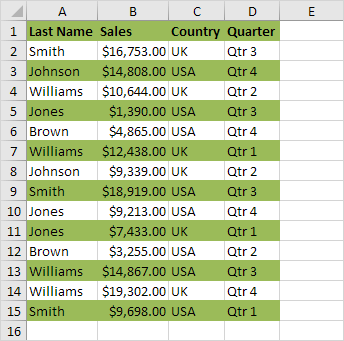
Shade Alternate Rows
This example shows you how to use conditional formatting to shade alternate rows. Shading every other row in a range makes it easier to read your data.
1. Select a range.
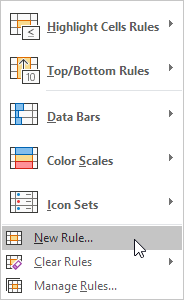
2. On the Home tab, in the Styles group, click Conditional Formatting.
3. Click New Rule.
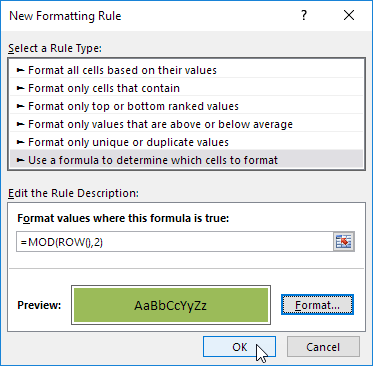
4. Select ‘Use a formula to determine which cells to format’.
5. Enter the formula =MOD(ROW(),2)
6. Select a formatting style and click OK.
Result.
Explanation: the MOD function gives the remainder of a division. The ROW() function returns the row number. For example, for the seventh row, MOD(7,2) = 1 because 7 divided by 2 equals 3 with a remainder of 1. For the eight row, MOD(8,2) = 0 because 8 divided by 2 equals 4 with a remainder of 0. As a result, all odd rows return 1 (TRUE) and will be shaded.
Category Archives: microsoft
Manage Stored Usernames and Passwords in Windows 10
The Stored User Names and Passwords Tool in Windows 10 lets you securely manage user names and passwords as a part of your profile. It lets you automatically enter saved user names and passwords for various network resources, servers, websites, and applications, to authenticate yourself. In this post we will see how to add, remove, edit, backup, restore Stored Usernames and Passwords & Credentials in Windows 10/8/7.
Find stored Usernames & Passwords in Windows 10
To directly access the Stored User Names and Passwords Control Panel applet, via WinX Menu, open Command Prompt (Admin), type the following rundll32 command, and hit Enter:
rundll32.exe keymgr.dll,KRShowKeyMgrThe Stored User Names and Passwords box will open.
Here you will be able to see the saved passwords and user names.
To add a new credential, press the Add button and fill in the required details as follows:
To delete a saved password, select the credential and click on the Remove button.
To edit a password, click the Edit button. Here you will be editing the details.
It could be a Windows logon credential or a Website or Program password.
It is always a good idea to back up the stored user names and passwords. To do this, click on the Backup button to open the following wizard.
Select and browse to the backup location, click Next, and follow the wizard to its completion.
Should the need arise, you can always restore the backup, by clicking on the Restore button and browsing to the backup file location and selecting it.
That’s it!
Settings Pages List of URI Shortcuts in Windows 10 | Tutorials
List of Shortcuts to Directly Open Pages in Settings in Windows 10
The Settings app is where you can change most settings at in Windows 10. Settings will eventually replace the Control Panel.
Almost every Settings page has its own URI (Uniform Resource Identifier) that allows you to open any Setting page directly from a command via the command prompt, Run (Win+R) dialog, address bar of File Explorer, address bar of web browser, and in scripts (ex: .bat). You can also use these commands to create shortcuts.
This tutorial will provide you with a list of ms-settings URI commands to directly open or create shortcuts for any Settings page in Windows 10.
To use the URI commands to open Settings pages from a command prompt or script (ex: .bat), you would need to add the Start command with a space after it in front of the URI command in the table below.
For example, command below to open the About Settings page (System category) in command prompt:
Start ms-settings:about
EXAMPLE: Settings home page

| Category | Settings page | URI Command (shortcut) |
| Settings home page | ms-settings: | |
| System | ||
| Display | ms-settings:display | |
|
Night light settings
|
ms-settings:nightlight | |
|
Advanced scaling settings
|
ms-settings:display-advanced | |
|
Connect to a wireless display
|
ms-settings-connectabledevices:devicediscovery | |
|
Graphics settings
|
ms-settings:display-advancedgraphics | |
| Sound (build 17063) | ms-settings:sound | |
|
Manage sound devices
|
ms-settings:sound-devices | |
|
App volume and device preferences
|
ms-settings:apps-volume | |
| Notifications & actions | ms-settings:notifications | |
| Focus assist (build 17074) | ms-settings:quiethours or ms-settings:quietmomentshome |
|
|
During these hours
|
ms-settings:quietmomentsscheduled | |
|
Duplicating my display (When I’m duplicating my display)
|
ms-settings:quietmomentspresentation | |
|
Playing a game full screen (When I’m playing a game)
|
ms-settings:quietmomentsgame | |
| Power & sleep | ms-settings:powersleep | |
| Battery | ms-settings:batterysaver | |
|
See which apps are affecting your battery life
|
ms-settings:batterysaver-usagedetails | |
|
Battery Saver settings
|
ms-settings:batterysaver-settings | |
| Storage | ms-settings:storagesense | |
|
Configure Storage Sense or run it now
|
ms-settings:storagepolicies | |
|
Change where new content is saved
|
ms-settings:savelocations | |
| Tablet | ms-settings:tabletmode | |
| Multitasking | ms-settings:multitasking | |
| Projecting to this PC | ms-settings:project | |
| Shared experiences | ms-settings:crossdevice | |
| Clipboard (build 17666) | ms-settings:clipboard | |
| Remote Desktop | ms-settings:remotedesktop | |
| Device Encryption (if available) | ms-settings:deviceencryption | |
| About | ms-settings:about | |
| Devices | ||
| Bluetooth & other devices | ms-settings:bluetooth or ms-settings:connecteddevices |
|
| Printers & scanners | ms-settings:printers | |
| Mouse | ms-settings:mousetouchpad | |
| Touchpad | ms-settings:devices-touchpad | |
| Typing | ms-settings:typing | |
|
Hardware keyboard – Text suggestions
|
ms-settings:devicestyping-hwkbtextsuggestions | |
| Wheel (Only available if Dial is paired) | ms-settings:wheel | |
| Pen & Windows Ink | ms-settings:pen | |
| AutoPlay | ms-settings:autoplay | |
| USB | ms-settings:usb | |
| Phone (build 16251) | ||
| Phone | ms-settings:mobile-devices | |
|
Add a phone
|
ms-settings:mobile-devices-addphone | |
|
Your Phone (opens app)
|
ms-settings:mobile-devices-addphone-direct | |
| Network & Internet | ms-settings:network | |
| Status | ms-settings:network-status | |
|
Data usage
|
ms-settings:datausage | |
|
Show available networks
|
ms-availablenetworks: | |
| Cellular & SIM | ms-settings:network-cellular | |
| Wi-Fi | ms-settings:network-wifi | |
|
Show available networks
|
ms-availablenetworks: | |
|
Manage known networks
|
ms-settings:network-wifisettings | |
| Wi-Fi Calling | ms-settings:network-wificalling | |
| Ethernet | ms-settings:network-ethernet | |
| Dial-up | ms-settings:network-dialup | |
| DirectAccess (Only available if DirectAccess is enabled) | ms-settings:network-directaccess | |
| VPN | ms-settings:network-vpn | |
| Airplane mode | ms-settings:network-airplanemode or ms-settings:proximity |
|
| Mobile hotspot | ms-settings:network-mobilehotspot | |
| NFC | ms-settings:nfctransactions | |
| Proxy | ms-settings:network-proxy | |
| Personalization | ms-settings:personalization | |
| Background | ms-settings:personalization-background | |
| Colors | ms-settings:personalization-colors or ms-settings:colors |
|
| Lock screen | ms-settings:lockscreen | |
| Themes | ms-settings:themes | |
| Fonts (build 17083) | ms-settings:fonts | |
| Start | ms-settings:personalization-start | |
|
Choose which folders appear on Start
|
ms-settings:personalization-start-places | |
| Taskbar | ms-settings:taskbar | |
| Apps | ||
| Apps & features | ms-settings:appsfeatures | |
|
Manage optional features
|
ms-settings:optionalfeatures | |
| Default apps | ms-settings:defaultapps | |
| Offline maps | ms-settings:maps | |
|
Download maps
|
ms-settings:maps-downloadmaps | |
| Apps for websites | ms-settings:appsforwebsites | |
| Video playback (build 16215) | ms-settings:videoplayback | |
| Startup (build 17017) | ms-settings:startupapps | |
| Accounts | ||
| Your info | ms-settings:yourinfo | |
| Email & accounts | ms-settings:emailandaccounts | |
| Sign-in options | ms-settings:signinoptions | |
|
Windows Hello face setup
|
ms-settings:signinoptions-launchfaceenrollment | |
|
Windows Hello fingerprint setup
|
ms-settings:signinoptions-launchfingerprintenrollment | |
|
Security Key setup
|
ms-settings:signinoptions-launchsecuritykeyenrollment | |
|
Dynamic Lock
|
ms-settings:signinoptions-dynamiclock | |
| Access work or school | ms-settings:workplace | |
| Family & other users | ms-settings:otherusers | |
|
Set up a kiosk
|
ms-settings:assignedaccess | |
| Sync your settings | ms-settings:sync | |
| Time & Language | ||
| Date & time | ms-settings:dateandtime | |
| Region | ||
| Japan IME settings (available if Microsoft Japan input method editor installed) | ms-settings:regionlanguage-jpnime | |
| Pinyin IME settings (available if Microsoft Pinyin input method editor installed) | ms-settings:regionlanguage-chsime-pinyin | |
| Wubi IME settings (available if Microsoft Wubi input method editor installed) | ms-settings:regionlanguage-chsime-wubi | |
| Language | ms-settings:regionlanguage | |
|
Windows display language
|
ms-settings:regionlanguage-setdisplaylanguage | |
|
Add Display language
|
ms-settings:regionlanguage-adddisplaylanguage | |
| Speech | ms-settings:speech | |
| Gaming | ||
| Xbox Game bar | ms-settings:gaming-gamebar | |
| Captures | ms-settings:gaming-gamedvr | |
| Game Mode | ms-settings:gaming-gamemode | |
| Xbox Networking (build 16226) | ms-settings:gaming-xboxnetworking | |
| Extras | (Only available if “settings apps” are installed (e.g. by 3rd party)) | |
| Extras | ms-settings:extras | |
| Ease of Access | ||
| Display (build 17025) | ms-settings:easeofaccess-display | |
| Mouse pointer (build 17040) | ms-settings:easeofaccess-cursorandpointersize OR ms-settings:easeofaccess-MousePointer |
|
| Text cursor | ms-settings:easeofaccess-cursor | |
| Magnifier | ms-settings:easeofaccess-magnifier | |
| Color Filters (build 17025) | ms-settings:easeofaccess-colorfilter | |
| High Contrast | ms-settings:easeofaccess-highcontrast | |
| Narrator | ms-settings:easeofaccess-narrator | |
|
Start Narrator after sign-in for me
|
ms-settings:easeofaccess-narrator-isautostartenabled | |
| Audio (build 17035) | ms-settings:easeofaccess-audio | |
| Closed captions | ms-settings:easeofaccess-closedcaptioning | |
| Speech (build 17035) | ms-settings:easeofaccess-speechrecognition | |
| Keyboard | ms-settings:easeofaccess-keyboard | |
| Mouse | ms-settings:easeofaccess-mouse | |
| Eye Control (build 17035) | ms-settings:easeofaccess-eyecontrol | |
| Search (version 1903) | ||
| Permissions & history | ms-settings:search-permissions | |
| Searching Windows | ms-settings:cortana-windowssearch | |
| Privacy | ms-settings:privacy | |
| General | ms-settings:privacy | |
| Speech | ms-settings:privacy-speech | |
| Inking & typing personalization | ms-settings:privacy-speechtyping | |
| Diagnostics & feedback | ms-settings:privacy-feedback | |
|
View diagnostic data
|
ms-settings:privacy-feedback-telemetryviewergroup | |
| Activity history (build 17040) | ms-settings:privacy-activityhistory | |
| Location | ms-settings:privacy-location | |
| Camera | ms-settings:privacy-webcam | |
| Microphone | ms-settings:privacy-microphone | |
| Voice activation | ms-settings:privacy-voiceactivation | |
| Notifications | ms-settings:privacy-notifications | |
| Account info | ms-settings:privacy-accountinfo | |
| Contacts | ms-settings:privacy-contacts | |
| Calendar | ms-settings:privacy-calendar | |
| Phone calls | ms-settings:privacy-phonecalls | |
| Call history | ms-settings:privacy-callhistory | |
| ms-settings:privacy-email | ||
| Eye tracker (requires eyetracker hardware) | ms-settings:privacy-eyetracker | |
| Tasks | ms-settings:privacy-tasks | |
| Messaging | ms-settings:privacy-messaging | |
| Radios | ms-settings:privacy-radios | |
| Other devices | ms-settings:privacy-customdevices | |
| Background apps | ms-settings:privacy-backgroundapps | |
| App diagnostics | ms-settings:privacy-appdiagnostics | |
| Automatic file downloads | ms-settings:privacy-automaticfiledownloads | |
| Documents | ms-settings:privacy-documents | |
| Downloads folder (build 19536) | ms-settings:privacy-downloadsfolder | |
| Pictures | ms-settings:privacy-pictures | |
| Videos | ms-settings:privacy-documents | |
| File system | ms-settings:privacy-broadfilesystemaccess | |
| Screen capture border (build 19536) | ||
| Programmatic screen capture (build 19536) | ||
| Update & Security | ms-settings:windowsupdate | |
| Windows Update | ms-settings:windowsupdate | |
|
Check for updates
|
ms-settings:windowsupdate-action | |
|
View optional updates
|
ms-settings:windowsupdate-optionalupdates | |
|
Change active hours
|
ms-settings:windowsupdate-activehours | |
|
View update history
|
ms-settings:windowsupdate-history | |
|
Restart options
|
ms-settings:windowsupdate-restartoptions | |
|
Advanced options
|
ms-settings:windowsupdate-options | |
| Delivery Optimization | ms-settings:delivery-optimization | |
| Windows Security | ms-settings:windowsdefender | |
|
Open Windows Security
|
windowsdefender: | |
| Backup | ms-settings:backup | |
| Troubleshoot | ms-settings:troubleshoot | |
| Recovery | ms-settings:recovery | |
| Activation | ms-settings:activation | |
| Find My Device | ms-settings:findmydevice | |
| For developers | ms-settings:developers | |
| Windows Insider Program | ms-settings:windowsinsider or ms-settings:windowsinsider-optin |
|
| Mixed reality | ms-settings:holographic | |
| Audio and speech | ms-settings:holographic-audio | |
| Environment | ms-settings:privacy-holographic-environment | |
| Headset display | ms-settings:holographic-headset | |
| Uninstall | ms-settings:holographic-management | |
| Surface Hub | ||
| Accounts | ms-settings:surfacehub-accounts | |
| Team Conferencing | ms-settings:surfacehub-calling | |
| Team device management | ms-settings:surfacehub-devicemanagenent | |
| Session cleanup | ms-settings:surfacehub-sessioncleanup | |
| Welcome screen | ms-settings:surfacehub-welcome |
Source: Settings Pages List of URI Shortcuts in Windows 10 | Tutorials
Rundll32 Commands List for Windows 10 | Tutorials
List of Rundll32 Commands in Windows 10
Windows Rundll32 commands loads and runs 32-bit dynamic-link libraries (DLLs) that can be used for directly invoking specified functions, or used to create shortcuts with.
This tutorial will provide you with a list of Rundll32 commands that can be used to quickly invoke functions in Windows 10.
| Function | Rundll32 command |
| About Windows | Rundll32.exe shell32.dll,ShellAbout |
| Add Network Location Wizard | Rundll32 %SystemRoot%\system32\shwebsvc.dll,AddNetPlaceRunDll |
| Add Printer Wizard | Rundll32.exe shell32.dll,SHHelpShortcuts_RunDLL AddPrinter |
| Add Standard TCP/IP Printer Port Wizard | Rundll32.exe tcpmonui.dll,LocalAddPortUI |
| Control Panel | Rundll32.exe shell32.dll,Control_RunDLL |
| Date and Time | Rundll32.exe shell32.dll,Control_RunDLL timedate.cpl |
| Date and Time – Additional Clocks tab | Rundll32.exe shell32.dll,Control_RunDLL timedate.cpl,,1 |
| Desktop Icon Settings | Rundll32.exe shell32.dll,Control_RunDLL desk.cpl,,0 |
| Device Installation Settings | Rundll32.exe %SystemRoot%\System32\newdev.dll,DeviceInternetSettingUi |
| Device Manager | Rundll32.exe devmgr.dll DeviceManager_Execute |
| Display Settings | Rundll32.exe shell32.dll,Control_RunDLL desk.cpl |
| Ease of Access Center | Rundll32.exe shell32.dll,Control_RunDLL access.cpl |
| Environment Variables | Rundll32.exe sysdm.cpl,EditEnvironmentVariables |
| File Explorer Options – General tab | Rundll32.exe shell32.dll,Options_RunDLL 0 |
| File Explorer Options – Search tab | Rundll32.exe shell32.dll,Options_RunDLL 2 |
| File Explorer Options – View tab | Rundll32.exe shell32.dll,Options_RunDLL 7 |
| Fonts folder | Rundll32.exe shell32.dll,SHHelpShortcuts_RunDLL FontsFolder |
| Forgotten Password Wizard | Rundll32.exe keymgr.dll,PRShowSaveWizardExW |
| Game Controllers | Rundll32.exe shell32.dll,Control_RunDLL joy.cpl |
| Hibernate or Sleep | Rundll32.exe powrprof.dll,SetSuspendState |
| Indexing Options | Rundll32.exe shell32.dll,Control_RunDLL srchadmin.dll |
| Infared | Rundll32.exe shell32.dll,Control_RunDLL irprops.cpl |
| Internet Explorer – delete all browsing history | Rundll32.exe InetCpl.cpl,ClearMyTracksByProcess 255 |
| Internet Explorer – delete all browsing history and add-ons history | Rundll32.exe InetCpl.cpl,ClearMyTracksByProcess 4351 |
| Internet Explorer – delete cookies and website data | Rundll32.exe InetCpl.cpl,ClearMyTracksByProcess 2 |
| Internet Explorer – delete download history | Rundll32.exe InetCpl.cpl,ClearMyTracksByProcess 16384 |
| Internet Explorer – delete form data | Rundll32.exe InetCpl.cpl,ClearMyTracksByProcess 16 |
| Internet Explorer – delete history | Rundll32.exe InetCpl.cpl,ClearMyTracksByProcess 1 |
| Internet Explorer – delete passwords | Rundll32.exe InetCpl.cpl,ClearMyTracksByProcess 32 |
| Internet Explorer – delete temporary Internet files and website files | Rundll32.exe InetCpl.cpl,ClearMyTracksByProcess 8 |
| Internet Explorer – Organize Favorites | Rundll32.exe shdocvw.dll,DoOrganizeFavDlg |
| Internet Properties – General tab | Rundll32.exe shell32.dll,Control_RunDLL inetcpl.cpl |
| Internet Properties – Security tab | Rundll32.exe shell32.dll,Control_RunDLL inetcpl.cpl,,1 |
| Internet Properties – Privacy tab | Rundll32.exe shell32.dll,Control_RunDLL inetcpl.cpl,,2 |
| Internet Properties – Content tab | Rundll32.exe shell32.dll,Control_RunDLL inetcpl.cpl,,3 |
| Internet Properties – Connections tab | Rundll32.exe shell32.dll,Control_RunDLL inetcpl.cpl,,4 |
| Internet Properties – Programs tab | Rundll32.exe shell32.dll,Control_RunDLL inetcpl.cpl,,5 |
| Internet Properties – Advanced tab | Rundll32.exe shell32.dll,Control_RunDLL inetcpl.cpl,,6 |
| Keyboard Properties | Rundll32.exe shell32.dll,Control_RunDLL main.cpl @1 |
| Lock PC | Rundll32.exe user32.dll,LockWorkStation |
| Map Network Drive wizard | Rundll32.exe shell32.dll,SHHelpShortcuts_RunDLL Connect |
| Mouse Button swap left and right button function | Rundll32.exe user32.dll,SwapMouseButton |
| Mouse Properties – Buttons tab | Rundll32.exe shell32.dll,Control_RunDLL main.cpl |
| Mouse Properties – Pointers tab | Rundll32.exe shell32.dll,Control_RunDLL main.cpl,,1 |
| Mouse Properties – Pointer Options tab | Rundll32.exe shell32.dll,Control_RunDLL main.cpl,,2 |
| Mouse Properties – Wheel tab | Rundll32.exe shell32.dll,Control_RunDLL main.cpl,,3 |
| Mouse Properties – Hardware tab | Rundll32.exe shell32.dll,Control_RunDLL main.cpl,,4 |
| Network Connections | Rundll32.exe shell32.dll,Control_RunDLL ncpa.cpl |
| ODBC Data Source Administrator | Rundll32.exe shell32.dll,Control_RunDLL odbccp32.cpl |
| Offline Files (General tab) | Rundll32.exe Shell32.dll,Control_RunDLL cscui.dll,,0 |
| Offline Files (Disk Usage tab) | Rundll32.exe Shell32.dll,Control_RunDLL cscui.dll,,1 |
| Offline Files (Encryption tab) | Rundll32.exe Shell32.dll,Control_RunDLL cscui.dll,,2 |
| Offline Files (Network tab) | Rundll32.exe Shell32.dll,Control_RunDLL cscui.dll,,3 |
| Pen and Touch | Rundll32.exe shell32.dll,Control_RunDLL tabletpc.cpl |
| Personalization – Background Settings | Rundll32.exe shell32.dll,Control_RunDLL desk.cpl,,2 |
| Power Options | Rundll32.exe shell32.dll,Control_RunDLL powercfg.cpl |
| Printer User Interface | Rundll32.exe Printui.dll,PrintUIEntry /? |
| Printers folder | Rundll32.exe shell32.dll,SHHelpShortcuts_RunDLL PrintersFolder |
| Process idle tasks | Rundll32.exe advapi32.dll,ProcessIdleTasks |
| Programs and Features | Rundll32.exe shell32.dll,Control_RunDLL appwiz.cpl,,0 |
| Region – Formats tab | Rundll32.exe shell32.dll,Control_RunDLL Intl.cpl,,0 |
| Region – Location tab | Rundll32.exe shell32.dll,Control_RunDLL Intl.cpl,,1 |
| Region – Administrative tab | Rundll32.exe shell32.dll,Control_RunDLL Intl.cpl,,2 |
| Safely Remove Hardware | Rundll32.exe shell32.dll,Control_RunDLL HotPlug.dll |
| Screen Saver Settings | Rundll32.exe shell32.dll,Control_RunDLL desk.cpl,,1 |
| Security and Maintenance | Rundll32.exe shell32.dll,Control_RunDLL wscui.cpl |
| Set Program Access and Computer Defaults | Rundll32.exe shell32.dll,Control_RunDLL appwiz.cpl,,3 |
| Set Up a Network wizard | Rundll32.exe shell32.dll,Control_RunDLL NetSetup.cpl |
| Sleep or Hibernate | Rundll32.exe powrprof.dll,SetSuspendState |
| Sound – Playback tab | Rundll32.exe shell32.dll,Control_RunDLL Mmsys.cpl,,0 |
| Sound – Recording tab | Rundll32.exe shell32.dll,Control_RunDLL Mmsys.cpl,,1 |
| Sound – Sounds tab | Rundll32.exe shell32.dll,Control_RunDLL Mmsys.cpl,,2 |
| Sound – Communications tab | Rundll32.exe shell32.dll,Control_RunDLL Mmsys.cpl,,3 |
| Speech Properties – Text to Speech tab | Rundll32.exe shell32.dll,Control_RunDLL %SystemRoot%\System32\Speech\SpeechUX\sapi.cpl,,1 |
| Start Settings | Rundll32.exe shell32.dll,Options_RunDLL 3 |
| Stored User Names and Passwords | Rundll32.exe keymgr.dll,KRShowKeyMgr |
| System Properties – Computer Name tab | Rundll32.exe shell32.dll,Control_RunDLL Sysdm.cpl,,1 |
| System Properties – Hardware tab | Rundll32.exe shell32.dll,Control_RunDLL Sysdm.cpl,,2 |
| System Properties – Advanced tab | Rundll32.exe shell32.dll,Control_RunDLL Sysdm.cpl,,3 |
| System Properties – System Protection tab | Rundll32.exe shell32.dll,Control_RunDLL Sysdm.cpl,,4 |
| System Properties – Remote tab | Rundll32.exe shell32.dll,Control_RunDLL Sysdm.cpl,,5 |
| Taskbar Settings | Rundll32.exe shell32.dll,Options_RunDLL 1 |
| Text Services and Input Languages | Rundll32.exe Shell32.dll,Control_RunDLL input.dll,,{C07337D3-DB2C-4D0B-9A93-B722A6C106E2} |
| User Accounts | Rundll32.exe shell32.dll,Control_RunDLL nusrmgr.cpl |
| Windows Features | Rundll32.exe shell32.dll,Control_RunDLL appwiz.cpl,,2 |
| Windows Firewall | Rundll32.exe shell32.dll,Control_RunDLL firewall.cpl |
| Windows To Go Startup Options | Rundll32.exe pwlauncher.dll,ShowPortableWorkspaceLauncherConfigurationUX |
Shell Commands List for Windows 10 | Tutorials
Complete List of Windows 10 Shell Commands
A shell command can be typed in the Run (Windows+R) dialog, search, File Explorer address bar, and Internet Explorer address bar to open a Windows shell folder.
This tutorial will show you a complete list of shell commands that can be used to easily open or create shortcuts of specific shell folders in Windows 10.
The red shell commands in the table below are new to Windows 10.
You can find the shell command listed in the Name string value data for each CLSID (GUID) key number at the registry location below.
HKEY_LOCAL_MACHINE\SOFTWARE\Microsoft\Windows\CurrentVersion\Explorer\FolderDescriptions
You can create a shortcut with a shell command by adding explorer in front of the shell command.
For example:
explorer shell:command
| Shell Command | Opens |
| shell:3D Objects | %UserProfile%\3D Objects |
| shell:AccountPictures | %AppData%\Microsoft\Windows\AccountPictures |
| shell:AddNewProgramsFolder | Control Panel\All Control Panel Items\Get Programs |
| shell:Administrative Tools | %AppData%\Microsoft\Windows\Start Menu\Programs\Administrative Tools |
| shell:AppData | %AppData% |
| shell:Application Shortcuts | %LocalAppData%\Microsoft\Windows\Application Shortcuts |
| shell:AppsFolder | Applications |
| shell:AppUpdatesFolder | Installed Updates |
| shell:Cache | %LocalAppData%\Microsoft\Windows\INetCache |
| shell:Camera Roll | %UserProfile%\Pictures\Camera Roll |
| shell:CD Burning | %LocalAppData%\Microsoft\Windows\Burn\Burn |
| shell:ChangeRemoveProgramsFolder | Control Panel\All Control Panel Items\Programs and Features |
| shell:Common Administrative Tools | %ProgramData%\Microsoft\Windows\Start Menu\Programs\Administrative Tools |
| shell:Common AppData | %ProgramData% |
| shell:Common Desktop | %Public%\Desktop |
| shell:Common Documents | %Public%\Documents |
| shell:CommonDownloads | %Public%\Downloads |
| shell:CommonMusic | %Public%\Music |
| shell:CommonPictures | %Public%\Pictures |
| shell:Common Programs | %ProgramData%\Microsoft\Windows\Start Menu\Programs |
| shell:CommonRingtones | %ProgramData%\Microsoft\Windows\Ringtones |
| shell:Common Start Menu | %ProgramData%\Microsoft\Windows\Start Menu |
| shell:Common Startup | %ProgramData%\Microsoft\Windows\Start Menu\Programs\Startup |
| shell:Common Templates | %ProgramData%\Microsoft\Windows\Templates |
| shell:CommonVideo | %Public%\Videos |
| shell:ConflictFolder | Control Panel\All Control Panel Items\Sync Center\Conflicts |
| shell:ConnectionsFolder | Control Panel\All Control Panel Items\Network Connections |
| shell:Contacts | %UserProfile%\Contacts |
| shell:ControlPanelFolder | Control Panel\All Control Panel Items |
| shell:Cookies | %LocalAppData%\Microsoft\Windows\INetCookies |
| shell:Cookies\Low | %LocalAppData%\Microsoft\Windows\INetCookies\Low |
| shell:CredentialManager | %AppData%\Microsoft\Credentials |
| shell:CryptoKeys | %AppData%\Microsoft\Crypto |
| shell:desktop | Desktop |
| shell:device Metadata Store | %ProgramData%\Microsoft\Windows\DeviceMetadataStore |
| shell:documentsLibrary | Libraries\Documents |
| shell:downloads | %UserProfile%\Downloads |
| shell:dpapiKeys | %AppData%\Microsoft\Protect |
| shell:Favorites | %UserProfile%\Favorites |
| shell:Fonts | %WinDir%\Fonts |
| shell:Games (removed in version 1803) | Games |
| shell:GameTasks | %LocalAppData%\Microsoft\Windows\GameExplorer |
| shell:History | %LocalAppData%\Microsoft\Windows\History |
| shell:HomeGroupCurrentUserFolder | Homegroup\(user-name) |
| shell:HomeGroupFolder | Homegroup |
| shell:ImplicitAppShortcuts | %AppData%\Microsoft\Internet Explorer\Quick Launch\User Pinned\ImplicitAppShortcuts |
| shell:InternetFolder | Internet Explorer |
| shell:Libraries | Libraries |
| shell:Links | %UserProfile%\Links |
| shell:Local AppData | %LocalAppData% |
| shell:LocalAppDataLow | %UserProfile%\AppData\LocalLow |
| shell:MusicLibrary | Libraries\Music |
| shell:MyComputerFolder | This PC |
| shell:My Music | %UserProfile%\Music |
| shell:My Pictures | %UserProfile%\Pictures |
| shell:My Video | %UserProfile%\Videos |
| shell:NetHood | %AppData%\Microsoft\Windows\Network Shortcuts |
| shell:NetworkPlacesFolder | Network |
| shell:OneDrive | OneDrive |
| shell:OneDriveCameraRoll | %UserProfile%\OneDrive\Pictures\Camera Roll |
| shell:OneDriveDocuments | %UserProfile%\OneDrive\Documents |
| shell:OneDriveMusic | %UserProfile%\OneDrive\Music |
| shell:OneDrivePictures | %UserProfile%\OneDrive\Pictures |
| shell:Personal | %UserProfile%\Documents |
| shell:PicturesLibrary | Libraries\Pictures |
| shell:PrintersFolder | All Control Panel Items\Printers |
| shell:PrintHood | %AppData%\Microsoft\Windows\Printer Shortcuts |
| shell:Profile | %UserProfile% |
| shell:ProgramFiles | %ProgramFiles% |
| shell:ProgramFilesCommon | %ProgramFiles%\Common Files |
| shell:ProgramFilesCommonX64 | %ProgramFiles%\Common Files (64-bit Windows only) |
| shell:ProgramFilesCommonX86 | %ProgramFiles(x86)%\Common Files (64-bit Windows only) |
| shell:ProgramFilesX64 | %ProgramFiles% (64-bit Windows only) |
| shell:ProgramFilesX86 | %ProgramFiles(x86)% (64-bit Windows only) |
| shell:Programs | %AppData%\Microsoft\Windows\Start Menu\Programs |
| shell:Public | %Public% |
| shell:PublicAccountPictures | %Public%\AccountPictures |
| shell:PublicGameTasks | %ProgramData%\Microsoft\Windows\GameExplorer |
| shell:PublicLibraries | %Public%\Libraries |
| shell:Quick Launch | %AppData%\Microsoft\Internet Explorer\Quick Launch |
| shell:Recent | %AppData%\Microsoft\Windows\Recent |
| shell:RecordedTVLibrary | Libraries\Recorded TV |
| shell:RecycleBinFolder | Recycle Bin |
| shell:ResourceDir | %WinDir%\Resources |
| shell:Ringtones | %ProgramData%\Microsoft\Windows\Ringtones |
| shell:Roamed Tile Images | %LocalAppData%\Microsoft\Windows\RoamedTileImages |
| shell:Roaming Tiles | %AppData%\Microsoft\Windows\RoamingTiles |
| shell:::{2559a1f3-21d7-11d4-bdaf-00c04f60b9f0} | Run dialog box |
| shell:SavedGames | %UserProfile%\Saved Games |
| shell:Screenshots | %UserProfile%\Pictures\Screenshots |
| shell:Searches | %UserProfile%\Searches |
| shell:SearchHistoryFolder | %LocalAppData%\Microsoft\Windows\ConnectedSearch\History |
| shell:SearchHomeFolder | search-ms: |
| shell:SearchTemplatesFolder | %LocalAppData%\Microsoft\Windows\ConnectedSearch\Templates |
| shell:SendTo | %AppData%\Microsoft\Windows\SendTo |
| shell:Start Menu | %AppData%\Microsoft\Windows\Start Menu |
| shell:StartMenuAllPrograms | StartMenuAllPrograms |
| shell:Startup | %AppData%\Microsoft\Windows\Start Menu\Programs\Startup |
| shell:SyncCenterFolder | Control Panel\All Control Panel Items\Sync Center |
| shell:SyncResultsFolder | Control Panel\All Control Panel Items\Sync Center\Sync Results |
| shell:SyncSetupFolder | Control Panel\All Control Panel Items\Sync Center\Sync Setup |
| shell:System | %WinDir%\System32 |
| shell:SystemCertificates | %AppData%\Microsoft\SystemCertificates |
| shell:SystemX86 | %WinDir%\SysWOW64 |
| shell:Templates | %AppData%\Microsoft\Windows\Templates |
| shell:ThisPCDesktopFolder | Desktop |
| shell:UsersFilesFolder | %UserProfile% |
| shell:User Pinned | %AppData%\Microsoft\Internet Explorer\Quick Launch\User Pinned |
| shell:UserProfiles | %HomeDrive%\Users |
| shell:UserProgramFiles | %LocalAppData%\Programs |
| shell:UserProgramFilesCommon | %LocalAppData%\Programs\Common |
| shell:UsersLibrariesFolder | Libraries |
| shell:VideosLibrary | Libraries\Videos |
| shell:Windows | %WinDir% |
CLSID Key (GUID) Shortcuts List for Windows 10 | Tutorials
Complete List of Windows 10 CLSID Key (GUID) Shortcuts
A CLSID is a globally unique identifier that identifies a COM class object. For more information about a CLSID key and the function of it’s subkeys in the registry, then see CLSID Key (COM).
This tutorial will show you a complete list of GUIDs from the CLSID key in the registry that can be used to create shortcuts to directly open items with in Windows 10.
The red CLSID keys (GUIDs) in the table below are new to Windows 10.
You can create a shortcut with a CLSID key (GUID) by adding either command below in front of the CLSID key (GUID).
Sometimes the shortcut will only work using one and not the other command below.
For example:
explorer shell:::{CLSID key}
OR
explorer /e,::{CLSID key}
| Opens | CLSID key (GUID) shortcut |
| 3D Objects (folder) | {0DB7E03F-FC29-4DC6-9020-FF41B59E513A} |
| Add Network Location | {D4480A50-BA28-11d1-8E75-00C04FA31A86} |
| Administrative Tools | {D20EA4E1-3957-11d2-A40B-0C5020524153} |
| Applications | {4234d49b-0245-4df3-b780-3893943456e1} |
| AutoPlay | {9C60DE1E-E5FC-40f4-A487-460851A8D915} |
| Backup and Restore (Windows 7) | {B98A2BEA-7D42-4558-8BD1-832F41BAC6FD} |
| BitLocker Drive Encryption | {D9EF8727-CAC2-4e60-809E-86F80A666C91} |
| Bluetooth Devices | {28803F59-3A75-4058-995F-4EE5503B023C} |
| Color Management | {B2C761C6-29BC-4f19-9251-E6195265BAF1} |
| Command Folder | {437ff9c0-a07f-4fa0-af80-84b6c6440a16} |
| Common Places FS Folder | {d34a6ca6-62c2-4c34-8a7c-14709c1ad938} |
| Control Panel | {5399E694-6CE5-4D6C-8FCE-1D8870FDCBA0} |
| Control Panel (All Tasks) | {ED7BA470-8E54-465E-825C-99712043E01C} |
| Control Panel (always Category view) | {26EE0668-A00A-44D7-9371-BEB064C98683} |
|
Appearance and Personalization
|
{26EE0668-A00A-44D7-9371-BEB064C98683}\1 |
|
Clock and Region
|
{26EE0668-A00A-44D7-9371-BEB064C98683}\6 |
|
Ease of Access
|
{26EE0668-A00A-44D7-9371-BEB064C98683}\7 |
|
Hardware and Sound
|
{26EE0668-A00A-44D7-9371-BEB064C98683}\2 |
|
Network and Internet
|
{26EE0668-A00A-44D7-9371-BEB064C98683}\3 |
|
Programs
|
{26EE0668-A00A-44D7-9371-BEB064C98683}\8 |
|
System and Security
|
{26EE0668-A00A-44D7-9371-BEB064C98683}\5 OR {26EE0668-A00A-44D7-9371-BEB064C98683}\10 |
|
User Accounts
|
{26EE0668-A00A-44D7-9371-BEB064C98683}\9 |
| Control Panel (always Icons view) | {21EC2020-3AEA-1069-A2DD-08002B30309D} |
| Credential Manager | {1206F5F1-0569-412C-8FEC-3204630DFB70} |
| Date and Time | {E2E7934B-DCE5-43C4-9576-7FE4F75E7480} |
| Default Programs | {17cd9488-1228-4b2f-88ce-4298e93e0966} |
|
Default Apps page in Settings
|
{17cd9488-1228-4b2f-88ce-4298e93e0966}\pageDefaultProgram |
|
Default Apps page in Settings
|
{17cd9488-1228-4b2f-88ce-4298e93e0966}\pageFileAssoc |
| delegate folder that appears in Computer | {b155bdf8-02f0-451e-9a26-ae317cfd7779} |
| Desktop (folder) | {B4BFCC3A-DB2C-424C-B029-7FE99A87C641} |
| Device Manager | {74246bfc-4c96-11d0-abef-0020af6b0b7a} |
| Devices and Printers | {A8A91A66-3A7D-4424-8D24-04E180695C7A} |
| Documents (folder) | {A8CDFF1C-4878-43be-B5FD-F8091C1C60D0} OR {d3162b92-9365-467a-956b-92703aca08af} |
| Downloads (folder) | {088e3905-0323-4b02-9826-5d99428e115f} OR {374DE290-123F-4565-9164-39C4925E467B} |
| Ease of Access Center | {D555645E-D4F8-4c29-A827-D93C859C4F2A} |
|
Use the computer without a display
|
{D555645E-D4F8-4c29-A827-D93C859C4F2A}\pageNoVisual |
|
Make the computer easier to see
|
{D555645E-D4F8-4c29-A827-D93C859C4F2A}\pageEasierToSee |
|
Use the computer without a mouse or keyboard
|
{D555645E-D4F8-4c29-A827-D93C859C4F2A}\pageNoMouseOrKeyboard |
|
Make the mouse easier to use
|
{D555645E-D4F8-4c29-A827-D93C859C4F2A}\pageEasierToClick |
|
Set up Mouse Keys
|
{D555645E-D4F8-4c29-A827-D93C859C4F2A}\pageMouseKeysSettings |
|
Make the keyboard easier to use
|
{D555645E-D4F8-4c29-A827-D93C859C4F2A}\pageKeyboardEasierToUse |
|
Use text or visual alternatives for sounds
|
{D555645E-D4F8-4c29-A827-D93C859C4F2A}\pageEasierWithSounds |
|
Make it easier to focus on tasks
|
{D555645E-D4F8-4c29-A827-D93C859C4F2A}\pageEasierToReadAndWrite |
|
Set up Filter Keys
|
{D555645E-D4F8-4c29-A827-D93C859C4F2A}\pageFilterKeysSettings |
|
Set up Sticky Keys
|
{D555645E-D4F8-4c29-A827-D93C859C4F2A}\pageStickyKeysSettings |
|
Get recommendations to make your computer easier to use (cognitive)
|
{D555645E-D4F8-4c29-A827-D93C859C4F2A}\pageQuestionsCognitive |
|
Get recommendations to make your computer easier to use (eyesight)
|
{D555645E-D4F8-4c29-A827-D93C859C4F2A}\pageQuestionsEyesight |
|
Set up Repeat and Slow Keys
|
{D555645E-D4F8-4c29-A827-D93C859C4F2A}\pageRepeatRateSlowKeysSettings |
| E-mail (default e-mail program) | {2559a1f5-21d7-11d4-bdaf-00c04f60b9f0} |
| Favorites | {323CA680-C24D-4099-B94D-446DD2D7249E} |
| File Explorer Options | {6DFD7C5C-2451-11d3-A299-00C04F8EF6AF} |
| File History | {F6B6E965-E9B2-444B-9286-10C9152EDBC5} |
| Folder Options | {6DFD7C5C-2451-11d3-A299-00C04F8EF6AF} |
| Font Settings | {93412589-74D4-4E4E-AD0E-E0CB621440FD} |
| Fonts (folder) | {BD84B380-8CA2-1069-AB1D-08000948F534} |
| Frequent folders | {3936E9E4-D92C-4EEE-A85A-BC16D5EA0819} |
| Games Explorer | {ED228FDF-9EA8-4870-83b1-96b02CFE0D52} |
| Get Programs | {15eae92e-f17a-4431-9f28-805e482dafd4} |
| Help and Support | {2559a1f1-21d7-11d4-bdaf-00c04f60b9f0} |
| Hyper-V Remote File Browsing | {0907616E-F5E6-48D8-9D61-A91C3D28106D} |
| Indexing Options | {87D66A43-7B11-4A28-9811-C86EE395ACF7} |
| Infared (if installed) | {A0275511-0E86-4ECA-97C2-ECD8F1221D08} |
| Installed Updates | {d450a8a1-9568-45c7-9c0e-b4f9fb4537bd} |
| Intel Rapid Storage Technology (if installed) | {E342F0FE-FF1C-4c41-BE37-A0271FC90396} |
| Internet Options (Internet Explorer) | {A3DD4F92-658A-410F-84FD-6FBBBEF2FFFE} |
| Keyboard Properties | {725BE8F7-668E-4C7B-8F90-46BDB0936430} |
| Libraries | {031E4825-7B94-4dc3-B131-E946B44C8DD5} |
| Location Information (Phone and Modem Control Panel) | {40419485-C444-4567-851A-2DD7BFA1684D} |
| Location Settings | {E9950154-C418-419e-A90A-20C5287AE24B} |
| Media Servers | {289AF617-1CC3-42A6-926C-E6A863F0E3BA} |
| Mouse Properties | {6C8EEC18-8D75-41B2-A177-8831D59D2D50} |
| Music (folder) | {1CF1260C-4DD0-4ebb-811F-33C572699FDE} OR {3dfdf296-dbec-4fb4-81d1-6a3438bcf4de} |
| My Documents | {450D8FBA-AD25-11D0-98A8-0800361B1103} |
| netplwiz | {7A9D77BD-5403-11d2-8785-2E0420524153} |
| Network | {F02C1A0D-BE21-4350-88B0-7367FC96EF3C} |
| Network and Sharing Center | {8E908FC9-BECC-40f6-915B-F4CA0E70D03D} |
|
Advanced sharing settings
|
{8E908FC9-BECC-40f6-915B-F4CA0E70D03D}\Advanced |
|
Media streaming options
|
{8E908FC9-BECC-40f6-915B-F4CA0E70D03D}\ShareMedia |
| Network Connections | {7007ACC7-3202-11D1-AAD2-00805FC1270E} OR {992CFFA0-F557-101A-88EC-00DD010CCC48} |
| Network (WorkGroup) | {208D2C60-3AEA-1069-A2D7-08002B30309D} |
| Notification Area Icons | {05d7b0f4-2121-4eff-bf6b-ed3f69b894d9} |
| NVIDIA Control Panel (if installed) | {0bbca823-e77d-419e-9a44-5adec2c8eeb0} |
| Offline Files Folder | {AFDB1F70-2A4C-11d2-9039-00C04F8EEB3E} |
| OneDrive | {018D5C66-4533-4307-9B53-224DE2ED1FE6} |
| Pen and Touch | {F82DF8F7-8B9F-442E-A48C-818EA735FF9B} |
| Personalization | {ED834ED6-4B5A-4bfe-8F11-A626DCB6A921} |
|
Color and Appearance
|
{ED834ED6-4B5A-4bfe-8F11-A626DCB6A921}\pageColorization |
|
Desktop Background
|
{ED834ED6-4B5A-4bfe-8F11-A626DCB6A921}\pageWallpaper |
| Pictures (folder) | {24ad3ad4-a569-4530-98e1-ab02f9417aa8} OR {3ADD1653-EB32-4cb0-BBD7-DFA0ABB5ACCA} |
| Portable Devices | {35786D3C-B075-49b9-88DD-029876E11C01} |
| Power Options | {025A5937-A6BE-4686-A844-36FE4BEC8B6D} |
|
Create a power plan
|
{025A5937-A6BE-4686-A844-36FE4BEC8B6D}\pageCreateNewPlan |
|
Edit Plan Settings
|
{025A5937-A6BE-4686-A844-36FE4BEC8B6D}\pagePlanSettings |
|
System Settings
|
{025A5937-A6BE-4686-A844-36FE4BEC8B6D}\pageGlobalSettings |
| Previous Versions Results Folder | {f8c2ab3b-17bc-41da-9758-339d7dbf2d88} |
| printhood delegate folder | {ed50fc29-b964-48a9-afb3-15ebb9b97f36} |
| Printers | {2227A280-3AEA-1069-A2DE-08002B30309D} OR {863aa9fd-42df-457b-8e4d-0de1b8015c60} |
| Problem Reporting Settings | {BB64F8A7-BEE7-4E1A-AB8D-7D8273F7FDB6}\pageSettings |
| Programs and Features | {7b81be6a-ce2b-4676-a29e-eb907a5126c5} |
| Public (folder) | {4336a54d-038b-4685-ab02-99bb52d3fb8b} |
| Quick access | {679f85cb-0220-4080-b29b-5540cc05aab6} |
| Recent folders | {22877a6d-37a1-461a-91b0-dbda5aaebc99} |
| Recent Items Instance Folder | {4564b25e-30cd-4787-82ba-39e73a750b14} |
| Recovery | {9FE63AFD-59CF-4419-9775-ABCC3849F861} |
| Recycle Bin | {645FF040-5081-101B-9F08-00AA002F954E} |
| Region | {62D8ED13-C9D0-4CE8-A914-47DD628FB1B0} |
| Reliability Monitor | {BB64F8A7-BEE7-4E1A-AB8D-7D8273F7FDB6}\pageReliabilityView |
| Remote Assistance | {C58C4893-3BE0-4B45-ABB5-A63E4B8C8651}\raPage |
| RemoteApp and Desktop Connections | {241D7C96-F8BF-4F85-B01F-E2B043341A4B} |
|
Connection Properties
|
{241D7C96-F8BF-4F85-B01F-E2B043341A4B}\PropertiesPage |
| Remote Printers | {863aa9fd-42df-457b-8e4d-0de1b8015c60} |
| Removable Drives | {F5FB2C77-0E2F-4A16-A381-3E560C68BC83} |
| Removable Storage Devices | {a6482830-08eb-41e2-84c1-73920c2badb9} |
| Results Folder | {2965e715-eb66-4719-b53f-1672673bbefa} |
| Run | {2559a1f3-21d7-11d4-bdaf-00c04f60b9f0} |
| Search (File Explorer) | {9343812e-1c37-4a49-a12e-4b2d810d956b} |
| Search (Windows) | {2559a1f8-21d7-11d4-bdaf-00c04f60b9f0} |
| Security and Maintenance | {BB64F8A7-BEE7-4E1A-AB8D-7D8273F7FDB6} |
|
Advanced Problem Reporting Settings
|
{BB64F8A7-BEE7-4E1A-AB8D-7D8273F7FDB6}\pageAdvSettings |
|
Change Security and Maintenance settings
|
{BB64F8A7-BEE7-4E1A-AB8D-7D8273F7FDB6}\Settings |
|
Problem Details
|
{BB64F8A7-BEE7-4E1A-AB8D-7D8273F7FDB6}\pageReportDetails |
|
Problem Reporting Settings
|
{BB64F8A7-BEE7-4E1A-AB8D-7D8273F7FDB6}\pageSettings |
|
Problem Reports
|
{BB64F8A7-BEE7-4E1A-AB8D-7D8273F7FDB6}\pageProblems |
|
Reliability Monitor
|
{BB64F8A7-BEE7-4E1A-AB8D-7D8273F7FDB6}\pageReliabilityView |
| Set Program Access and Computer Defaults | {2559a1f7-21d7-11d4-bdaf-00c04f60b9f0} |
| Show Desktop | {3080F90D-D7AD-11D9-BD98-0000947B0257} |
| Sound | {F2DDFC82-8F12-4CDD-B7DC-D4FE1425AA4D} |
| Speech Recognition | {58E3C745-D971-4081-9034-86E34B30836A} |
| Storage Spaces | {F942C606-0914-47AB-BE56-1321B8035096} |
| Sync Center | {9C73F5E5-7AE7-4E32-A8E8-8D23B85255BF} |
|
Sync Setup
|
{9C73F5E5-7AE7-4E32-A8E8-8D23B85255BF}\::{F1390A9A-A3F4-4E5D-9C5F-98F3BD8D935C} |
|
Sync Setup Folder
|
{2E9E59C0-B437-4981-A647-9C34B9B90891} |
| System | {BB06C0E4-D293-4f75-8A90-CB05B6477EEE} |
| System Icons | {05d7b0f4-2121-4eff-bf6b-ed3f69b894d9}\SystemIcons |
| System Restore | {3f6bc534-dfa1-4ab4-ae54-ef25a74e0107} |
| Tablet PC Settings | {80F3F1D5-FECA-45F3-BC32-752C152E456E} |
| Task View | {3080F90E-D7AD-11D9-BD98-0000947B0257} |
| Taskbar and Navigation properties | {0DF44EAA-FF21-4412-828E-260A8728E7F1} |
| Taskbar page in Settings | {0DF44EAA-FF21-4412-828E-260A8728E7F1} |
| Text to Speech | {D17D1D6D-CC3F-4815-8FE3-607E7D5D10B3} |
| This Device | {5b934b42-522b-4c34-bbfe-37a3ef7b9c90} |
| This PC | {20D04FE0-3AEA-1069-A2D8-08002B30309D} |
| Troubleshooting | {C58C4893-3BE0-4B45-ABB5-A63E4B8C8651} |
|
Additional Information
|
{C58C4893-3BE0-4B45-ABB5-A63E4B8C8651}\resultPage |
|
All Categories
|
{C58C4893-3BE0-4B45-ABB5-A63E4B8C8651}\listAllPage |
|
Change Settings
|
{C58C4893-3BE0-4B45-ABB5-A63E4B8C8651}\settingPage |
|
History
|
{C58C4893-3BE0-4B45-ABB5-A63E4B8C8651}\historyPage |
|
Search Troubleshooting
|
{C58C4893-3BE0-4B45-ABB5-A63E4B8C8651}\searchPage |
|
Troubleshoot problems – Hardware and Sound
|
{C58C4893-3BE0-4B45-ABB5-A63E4B8C8651}\devices |
|
Troubleshoot problems – Network and Internet
|
{C58C4893-3BE0-4B45-ABB5-A63E4B8C8651}\network |
|
Troubleshoot problems – Programs
|
{C58C4893-3BE0-4B45-ABB5-A63E4B8C8651}\applications |
|
Troubleshoot problems – System and Security
|
{C58C4893-3BE0-4B45-ABB5-A63E4B8C8651}\system |
| User Accounts | {60632754-c523-4b62-b45c-4172da012619} |
|
Change Your Name
|
{60632754-c523-4b62-b45c-4172da012619}\pageRenameMyAccount |
|
Manage Accounts
|
{60632754-c523-4b62-b45c-4172da012619}\pageAdminTasks |
| User Accounts (netplwiz) | {7A9D77BD-5403-11d2-8785-2E0420524153} |
| User Pinned | {1f3427c8-5c10-4210-aa03-2ee45287d668} |
| %UserProfile% | {59031a47-3f72-44a7-89c5-5595fe6b30ee} |
| Videos (folder) | {A0953C92-50DC-43bf-BE83-3742FED03C9C} OR {f86fa3ab-70d2-4fc7-9c99-fcbf05467f3a} |
| Web browser (default) | {871C5380-42A0-1069-A2EA-08002B30309D} |
| Windows Defender Firewall | {4026492F-2F69-46B8-B9BF-5654FC07E423} |
|
Allowed apps
|
{4026492F-2F69-46B8-B9BF-5654FC07E423}\pageConfigureApps |
|
Customize Settings
|
{4026492F-2F69-46B8-B9BF-5654FC07E423}\PageConfigureSettings |
|
Restore defaults
|
{4026492F-2F69-46B8-B9BF-5654FC07E423}\PageRestoreDefaults |
| Windows Mobility Center | {5ea4f148-308c-46d7-98a9-49041b1dd468} |
| Windows Features | {67718415-c450-4f3c-bf8a-b487642dc39b} |
| Windows To Go | {8E0C279D-0BD1-43C3-9EBD-31C3DC5B8A77} |
| Work Folders | {ECDB0924-4208-451E-8EE0-373C0956DE16} |
Source: CLSID Key (GUID) Shortcuts List for Windows 10 | Tutorials
How to link a CLSID and APPID to a program – Microsoft Community
Generally, Windows manages quite well and this error is nothing too much to concern oneself with, however, for those running a Server or Network Service (for example a printer) this error if left unresolved can become troublesome and disruptive to day to day operations.
Within the error message Microsoft informs the user they can manually adjust some settings to resolve issue and this would be fine but for a few issues that your average punter would not know how to get around.
Thus I thought I’d take the opportunity to explore a method that generally resolves the error once and for all and has some very simple steps anyone can follow if they feel they need to repair the issue manually.
Step 1 — Locate the log and view the error message
- The Windows Event Viewer is a GUI that allows us to view all events recorded by the Windows operating system. This GUI can be accessed by:
- Right-clicking on Start
- Left-clicking on Event Viewer
- As you can see the Event Viewer window is separated into three panes. To access the System logs which record the event we are addressing here do the following:
- In the left pane click on Windows Logs to expand view then select System
- This will open the System logs inside the middle pane. If you’ve not done this before, or in a while, it will take a moment for the logs to populate the middle pane – this is normal.
- Once the middle pane is populated you will see a list of events starting with the most recent ones at the top.
You can scroll through this to locate Event ID 10016, or to speed things up you can specifically filter what is displayed in middle pane by doing the following:
In the right pane click on Filter Current Log
A window pops up with the center field filled in with <All Event IDs>. Simply click inside this field then type 10016 then click OK
The result: Your middle pane now only displays a list of Event ID 10016 DistributedCOM errors with the most recent at the top of list.
Sample Image of views just discussed
- Judging by my long list my computer is near death. You’re all invited to the Service – please bring donations not flowers
All right enough with the jokes – this long list really is nothing to panic about at all – its pretty normal in reality and most events are the same just at different times and dates. As I said earlier Windows generally sorts these out itself too, so the log itself is simply a time stamp of an event that took place that may now be stable. However, we can get to the root of the cause and help prevent it repeating by reading the actual log.
- To read a log you simply double-left-click on the event who’s log you wish to view, in the middle pane. This opens a new window like so:
This window by default opens displaying the General tab
As you can see there is a lot of information some of which you’d need to scroll to read, however if you click the Copy button then open a text editor like Notepad you can paste all the details there for an easier read.
The information above high lighted in the red box is what we want. The things to note here are the following:
1. Source: The source of error was Microsoft Windows DistributedCOM
2. User: The System was attempting to use the DistributedCOM when error occurred.
3. Description: This tells you about the error and gives you some clues.
The application-specific permission settings do not grant Local Activation permission for the COM Server application with
CLSID {8D8F4F83-3594-4F07-8369-FC3C3CAE4919}
and APPID {F72671A9-012C-4725-9D2F-2A4D32D65169}
to the user NT AUTHORITY\SYSTEM SID (S-1-5-18) from address LocalHost (Using LRPC) running in the application container Unavailable SID (Unavailable). This security permission can be modified using the Component Services administrative tool.
- From the above information we’ve establish the Windows System attempted to perform an action involving the Microsoft Windows DistributedCOM server, however permission settings were not granted from Local Activation. We are told the Security Identified (SID) is the user NT Authority\System SID (S-1-5-18) which essentially has the highest privileges allowed for your computer.
We are given a Class ID (CLSID) and also an Application ID (APPID) with the alphanumeric key name which is recorded in your Windows Registry. With those two keys we can work out which application the System was making use of when the error occurred.
Finally, Microsoft informs us we are able to modify the settings which ought to prevent this issue taking place again. More on that later as you’ll soon discover its not quite as simple as the statement makes out.
Step 2 — Working out what Microsoft DistributedCOM file we need to modify
- As we have discovered the CLSID and APPID, and we know their information is stored in the Windows Registry we can very easily get the information we need from the Default value for each of these keys.
Something many may not know though is where precisely in the Registry to look for these keys, and given how important it is not to mess with things you don’t know in case you create a bigger problem, I’ll explain where the keys will be and then how to view the information we need without the need to open the Registry Editor (regedit.exe).
- The CLSID {8D8F4F83-3594-4F07-8369-FC3C3CAE4919} key will be located here:
HKEY_CLASSES_ROOT\CLSID\{8D8F4F83-3594-4F07-8369-FC3C3CAE4919}
- The APPID {F72671A9-012C-4725-9D2F-2A4D32D65169} we are interested in will be located here:
HKEY_LOCAL_MACHINE\SOFTWARE\Classes\AppID\{F72671A9-012C-4725-9D2F-2A4D32D65169}
Both of these keys are located elsewhere in the Windows Registry, however these two locations can provide sufficient information for us to work out which Microsoft DistributedCOM file we need to modify.
The information we need is contained in both of these keys Default value although occasionally one of the keys may not contain this information as we are about to discover in this example. That is not unusual, however it would be very peculiar to discover each key Defaulted to a completely different DistributedCOM file.
To get the information we want without opening the Registry Editor, we will make use of an elevated command prompt console.
- Right-click on Start
- Left-click on Command Prompt (Admin)
- When the User Account Control pops up click Yes
- You will now see the Administrator: Command Prompt console.
In this console type or copy & paste the following command:
Code:reg query "HKEY_CLASSES_ROOT\CLSID\{8D8F4F83-3594-4F07-8369-FC3C3CAE4919}" /vePress Enter key to execute
Next type or copy & paste the following command:
Code:reg query "HKEY_LOCAL_MACHINE\SOFTWARE\Classes\AppID\{F72671A9-012C-4725-9D2F-2A4D32D65169}" /vePress Enter key to execute
Sample Image of what you’ll see
You can see the CLSID key’s Default value contains a Data value of CDP Activity Store
The APPID key’s Default value has no Data value set
We now know that the Microsoft DistributedCOM we need to modify is the CDP Activity Store component, and that according to Microsoft’s error message we are able to modify.
I’ll explain shortly how to get to this, but to illustrate the suggestion from Microsoft is not quite as simple as that, let’s take a look at the location I’ll be needing to modify.
Sample Image
The area inside the red frame is what we need to modify and according to Microsoft we can. Do you notice the problem?
The fields are grayed out meaning you cannot modify this at all.
The reason for this is because this is a component owned by the System.
The NT AUTHORITY\SYSTEM has the highest privileges on the Local Service Account and normally us mere Administrators, or Local Account users have limited permissions to access things and make changes.
Yet Microsoft told us we can modify, and they were not kidding. To do this we first need to take ownership of both the CLSID and APPID keys in the Windows Registry that we just checked their Default Value Data value.
Step 3 — Taking ownership of the CLSID and APPID keys
- Taking ownership of these registry keys can be done several ways. For those comfortable working with the Registry Editor application, this perhaps is a relatively simple way to achieve the goal.
For those less familiar with the Registry Editor, a safer way to do this is to make use of a Microsoft Tool especially developed for situations like this called SetACL.exe
Now it’s important to realize this tool does not come with your Windows installation per se, but it can be freely downloaded from the following location: https://helgeklein.com/downloads/SetACL/current/SetACL (executable version).zip
As you can see by the URL the download comes as a compressed ZIP folder. Once downloaded, extract the folder by right-clicking and selecting Extract All. This will pop a window up as in sample image below.
Sample Image
This will create a non-compressed folder of the same name. When you open this folder, you’ll see another folder of the same name.
Open that folder and you will see two folders, 32 bit and 64 bit
Simply open the folder that matches your System Type (i.e. whether you have a 64 bit OS or a 32 bit OS, then copy the SetACL file inside the folder and paste it into your C:\Windows\System32 folder.
By doing this you can then use this tool anywhere within an elevated Command Prompt or with an elevated PowerShell console.
The tool itself comes with many useful commands, but for the purposes of this article we’ll be using just two commands on each of the Registry keys identified in our Event ID 10016 Error Description.
So, returning to the Administrator: Command Prompt window type or copy & paste the following:
Code:SetACL.exe -on "HKEY_CLASSES_ROOT\CLSID\{8D8F4F83-3594-4F07-8369-FC3C3CAE4919}" -ot reg -actn setowner -ownr "n:Administrators"Press Enter key to Execute
Code:SetACL.exe -on "HKEY_CLASSES_ROOT\CLSID\{8D8F4F83-3594-4F07-8369-FC3C3CAE4919}" -ot reg -actn ace -ace "n:Administrators;p:full"Press Enter key to execute
Code:SetACL.exe -on "HKEY_LOCAL_MACHINE\SOFTWARE\Classes\AppID\{F72671A9-012C-4725-9D2F-2A4D32D65169}" -ot reg -actn setowner -ownr "n:Administrators"Press Enter key to execute
Code:SetACL.exe -on "HKEY_LOCAL_MACHINE\SOFTWARE\Classes\AppID\{F72671A9-012C-4725-9D2F-2A4D32D65169}" -ot reg -actn ace -ace "n:Administrators;p:full"Press Enter key to execute
Note: The Registry key and its path,
for example: “HKEY_LOCAL_MACHINE\SOFTWARE\Classes\AppID\{F72671A9-012C-4725-9D2F-2A4D32D65169}”
in the above commands should be replaced with the Registry key and path relevant to your error which you are wanting to take ownership of.Don’t forget to leave the speech marks in too!
Sample Image
You can see in above image all commands completed successfully
Note: If you’d prefer to manually take ownership via the Registry Editor, but are not sure how, just ask in the Discussion section of this article and I’ll post instructions on how to do this.
Step 4 — Go modify the DistributedCOM component
- If you recall earlier, the Description in our Event ID 10016 log told us we can modify the Security Permissions using the Component Services Administrative Tool.
I posted an image of that tool opened earlier with the section we needed to use to modify things all grayed out; hence the need to take ownership of those two registry keys first.
Now we can open this tool and make the necessary modifications.
- To open the Component Services Administrative Tool by:
- Right-clicking on Start
- Left-clicking on Control Panel
- Selecting to View by Large icons
- Left-clicking on Administrative Tools
- Left-clicking on Component Services
This opens the following window
- As you can see this is divided into three panes. Now remember we are trying to make a modification to a DistributedCOM or DCOM for short, so this is what we need to open. To do that:
- In left pane you want to expand the Component Services until you see a list of subfolders, once of which is named DCOM Config
- In the left pane simply left-click on DCOM Config folder
- The middle pane will now populate with a long set of Component Services. To make it a little easier to view in the top toolbar click on View > Detail
TIP: Now I don’t know about you but that was a lot of clicking to get to here. Here’s a tip for the future to speed things up a little:
1. Right-click on Start and select Run
2. In the run dialog type dcomcnfg then click OK
3. Now just expand and click DCOM Config as before then View > DetailWhich ever way you choose to open this the end result is:
- By selecting View > Detail we can now see a list of components and their Application ID (AppID). This is useful as if you recall our Event log gave is the AppID {F72671A9-012C-4725-9D2F-2A4D32D65169} so we know this is what we want to find here.
We also discovered via the Class ID that the CDP Activity Store was something to look out for.
One of the common ones seen in errors like this is the Immersive Shell and if you scrolled down the list you’d soon see it there along with its AppID. However, as you’ll discover if we scroll this list looking for CDP Activity Store it is not present at all, although there is a CDP Reference Host listed.
Could that be what we need? No, take a look at its AppID. It does not match the one we are seeking. So now what?
Microsoft for some bizarre reason chose not to include the basic function Find with this tool so we cannot go Ctrl F and hope to search for our AppID, however, if you look at that list carefully you will see it is listed in Alphanumeric order which thank goodness will save a lot of time.
As the component CDP ACtivity Store was not present we must now scroll to bottom of components and instead seek the AppID Registry key instead.
And look there it is!
- To modify the Security Permissions simply right-click and choose Properties
This will open the Properties window for our AppID Registry key.
In this window select the Security tab
Sample Image
As you can see its no longer grayed out. Thus we can now make the necessary modifications.
- In the top panel ‘Launch and Activation Permissions’ simply:
- Check the radio button next to Customize, then
- Click this panels Edit button
This will open the following:
If you take a look in the Group or user names field you will either see the member your error message mentioned or not.
If you could see the member then left-click it and in the lower field you would check the Allow box next to Local Activation as that is what our error mentioned :
The application-specific permission settings do not grant Local Activation permission …This same error message though also mentioned something else important:
… to the user NT AUTHORITY\SYSTEM SID (S-1-5-18) …In my example this user is not listed at all and that is why the error is being triggered. So we need to add this user and grant it permissions.
- To add the user click the Add button you can see in image above. This will open a new window like so:
We need to type in the empty field our missing User which in this example is the user SYSTEM. After entering the user name we then click the Check Names button. This will underscore the user name. Now click OK
Sample Image
- Having done the above we are back to the previous window. In the top pane click on SYSTEM which you just added.
- Now in the bottom pane place a check in the Allow box next to Local Activation
Sample Image
When you’ve checked the box click OK which will close this window and return you to the Properties window.
In the Properties window also click OK
Now close the Component Services tool
Step 5 — Final Tidy Up
At this point if you wish you could restore permissions for the two registry keys back to their original status. In my case the CLASS ID was owned by the SYSTEM, and the AppID was owned by TrustedInstaller, so to change it back I’d enter the following commands in an elevated command prompt:
SetACL.exe -on "HKEY_CLASSES_ROOT\CLSID\{8D8F4F83-3594-4F07-8369-FC3C3CAE4919}" -ot reg -actn setowner -ownr "n:SYSTEM"
SetACL.exe -on "HKEY_LOCAL_MACHINE\SOFTWARE\Classes\AppID\{F72671A9-012C-4725-9D2F-2A4D32D65169}" -ot reg -actn setowner -ownr "n:NT SERVICE\TrustedInstaller"
After each command you press Enter key to execute
Sample Image
Note: At this point if you are not intending on restarting computer, then you will need to restart the Service for these changes to take effect.
Simply press Windows key and S then type Services and press Enter key.
Scroll down and right-click the Service and select Restart
That’s it – all done!
Source: How to link a CLSID and APPID to a program – Microsoft Community
What is Meet Now in Windows 10 and how to remove it – gHacks Tech News
Removing Meet Now via the Group Policy
System administrators may disable (or enable) the Meet Now icon on the Windows 10 taskbar using the Group Policy. The Group Policy is only available in professional editions of Windows 10, and not in Windows 10 Home.
Here is how that is done:
- You need elevated rights to use the Group Policy.
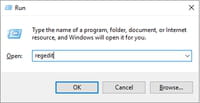
- Use Windows-R to open the runbox.
- Type gpedit.msc and select OK.
- Go to User Configuration > Administrative Templates > Start Menu and Taskbar
- Double-click on “Remove the Meet Now icon”.
- Set the feature to “Enabled” to hide the icon on the taskbar of the Windows 10 operating system.
- Restart the PC.
Removing Meet Now using the Registry
You may also remove Meet Now on Windows 10 using the Registry.
- Use Windows-R to open the runbox.
- Type regedit.exe and select OK.
- For individual users, go to HKEY_CURRENT_USER\Software\Microsoft\Windows\CurrentVersion\Policies\Explorer
- Right-click on Explorer and select New > Dword (32-bit) Value.
- Name it HideSCAMeetNow.
- Set its value to 1.
- For all users, go to HKEY_LOCAL_MACHINE\SOFTWARE\Microsoft\Windows\CurrentVersion\Policies\Explorer
- Right-click on Explorer and select New > Dword (32-bit) Value.
- Name it HideSCAMeetNow.
- Set its value to 1.
- Restart the PC.
Source: What is Meet Now in Windows 10 and how to remove it – gHacks Tech News
Excel – How to make recorded macro work on any sheet?
Excel recorded macro will have references to worksheet like this:
ActiveWorkbook.Worksheets("MystupidSpreadSheet(1)").ListObjects("Table_owssvr__2").Sort. _
SortFields.Clear
You'll need to change the macro to reference the worksheet name by index number
ActiveWorkbook.Worksheets(1)
openvpn – How to force all traffic through VPN?
How to force all traffic through OpenVPN
Add the following directive to the server configuration file:
push “redirect-gateway def1”
If your VPN setup is over a wireless network, where all clients and the server are on the same wireless subnet, add the local flag:
push “redirect-gateway local def1”
Pushing the redirect-gateway option to clients will cause all IP network traffic originating on client machines to pass through the OpenVPN server. The server will need to be configured to deal with this traffic somehow, such as by NATing it to the internet, or routing it through the server site’s HTTP proxy.
If you want to configure this on the client side, put
redirect-gateway def1in your client.ovpn file.