- Open a blank spreadsheet
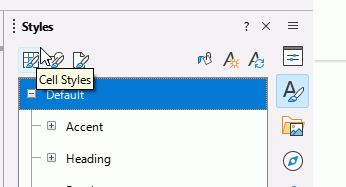
- In the Sidebar, click on the Styles icon to open the Styles pane.
- The pane initially shows Cell Styles (first icon on left at the top).
- Right click Default, select Edit style
- In the dialogue that opens, select the Fonts tab. Select your desired font and font size, change nothing else. OK
- Click File > Templates > Save as template
- In the dialogue, type a suitable name, select an appropriate location such as My Templates, tick the box Set as default template. Save
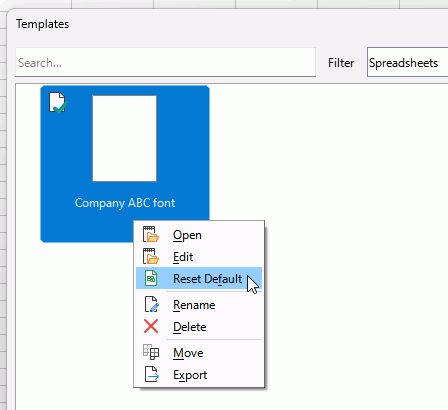
To remove the default template status if no longer needed, click File > Templates > Manage templates. FInd the template with a green tick, right click it and select *Reset default. Or right click another template and select Set as Default to make that default template.
Category Archives: libreoffice
VLOOKUP with Examples in LibreOffice Calc
A novice user guide on VLOOKUP function in LibreOffice Calc spreadsheet program with examples and things you need to know.
Source: VLOOKUP with Examples in LibreOffice Calc – libreofficehelp.com