Vim is famous for its fabulous modal editing. Its
normal,insert, andvisualmodes quickly become magic in the hands of an able user. But many are unaware or ignore the existence of vim’scommand-linemode with its Ex commands.Whereas vim’s
normalandinsertmode work in the locale of your cursor, vim’scommand-linemode can help you deal with things far from your cursor. Or as Drew Neil puts it in his Practical Vim book,Vim’s Ex commands strike far and wide.
Let’s look at a few of them.
Copy (copy, t), move (m), and delete (d)
We’ll start by copying, moving, and deleting lines. You access vim’s
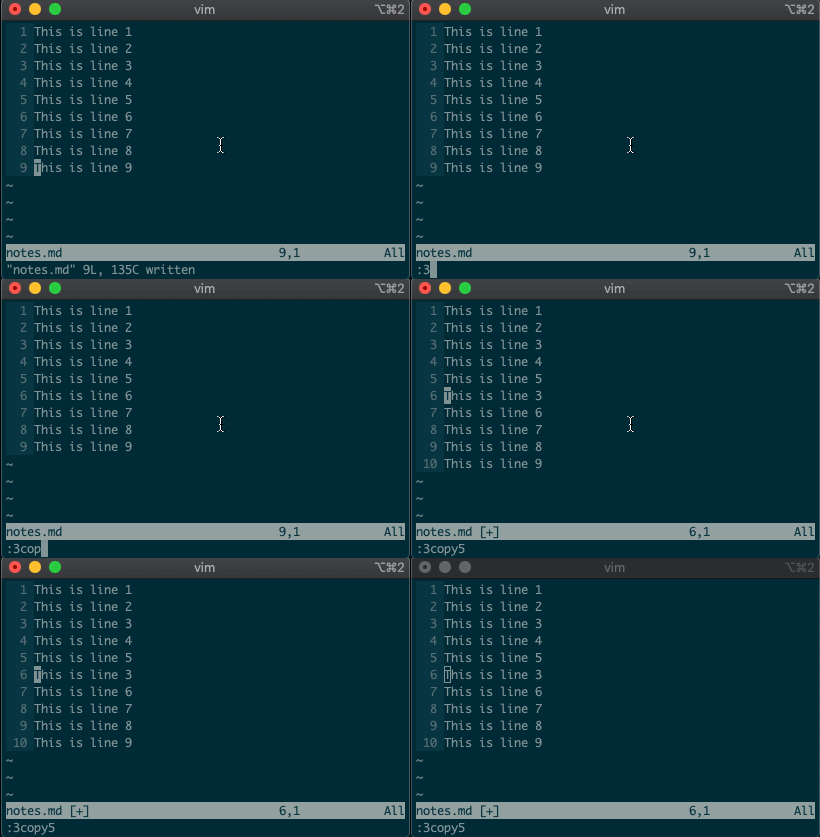
command-linemode with:. Copying, moving, and deleting can be intuitive. What would you say this command did?:3copy5If you guessed copy line three to line five, then you got it!
tis shorthand for copy (think copy to). So:3t5does the same thing as the command above.Do move and delete work the same way? You betcha.
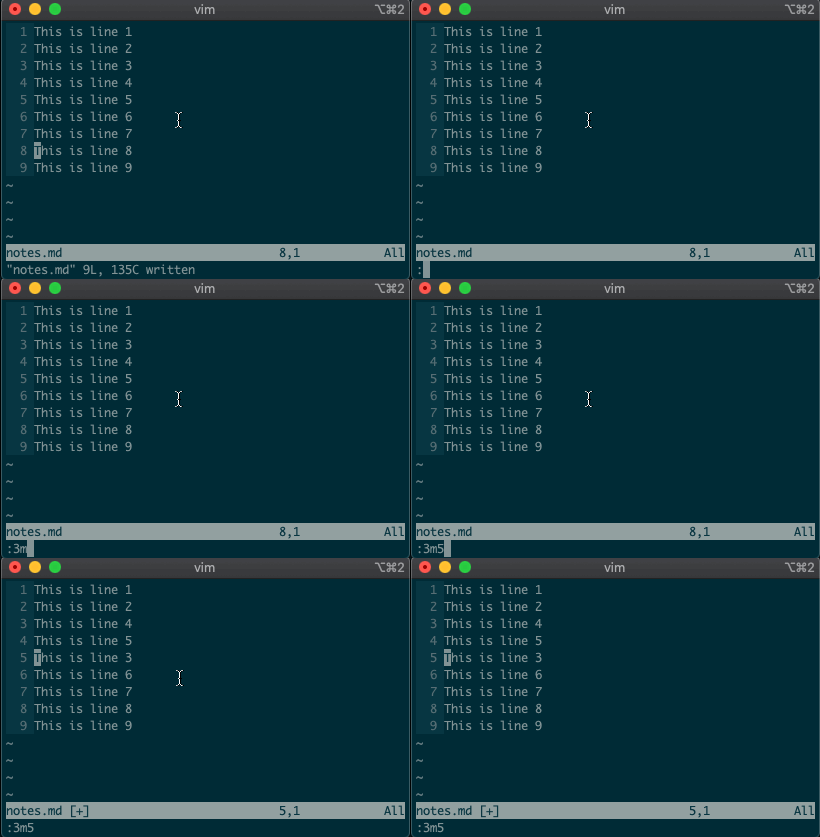
Try moving a line with
:3m5.
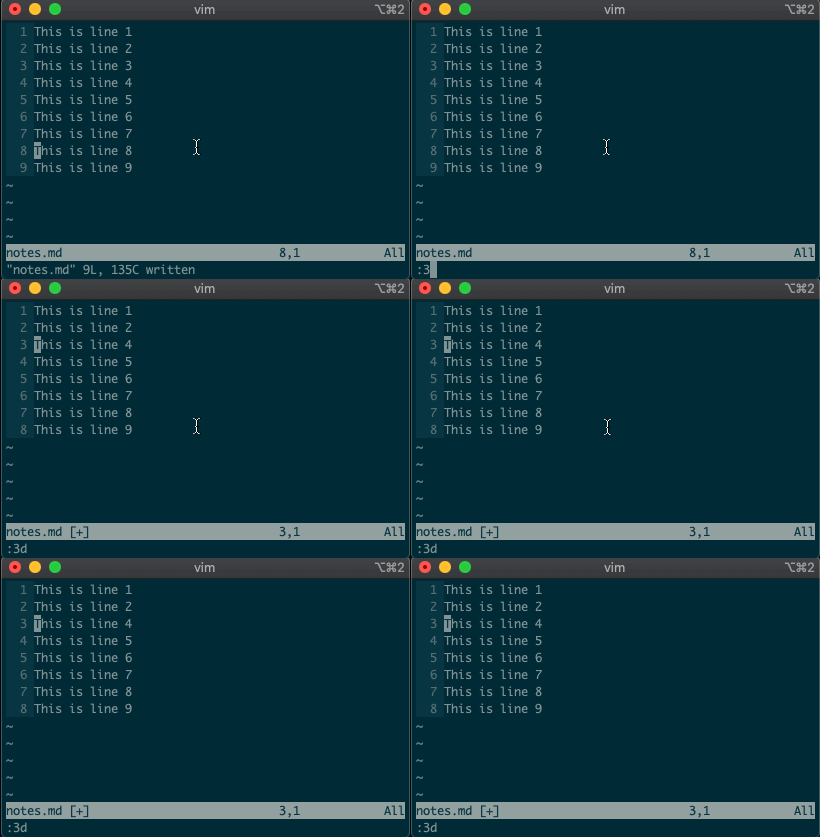
Now try deleting a line with
:3d.
Acting on ranges
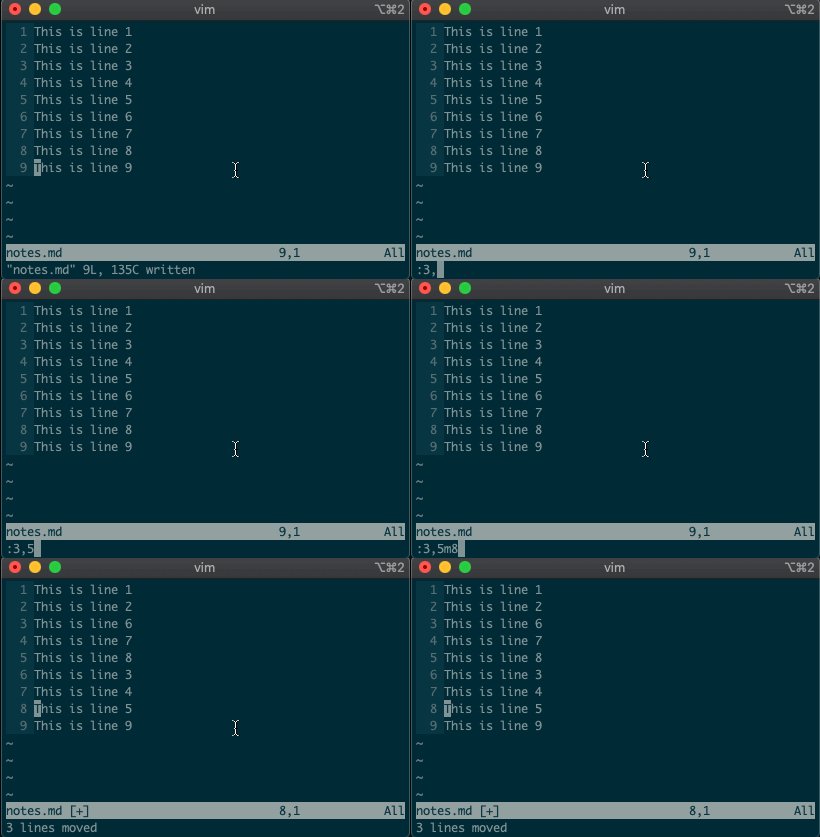
But that’s not all. Ex commands aren’t limited to single lines. They can act on ranges. Want to move lines 3-5 to line 8? You got it:
:3,5m8
Relative ranges
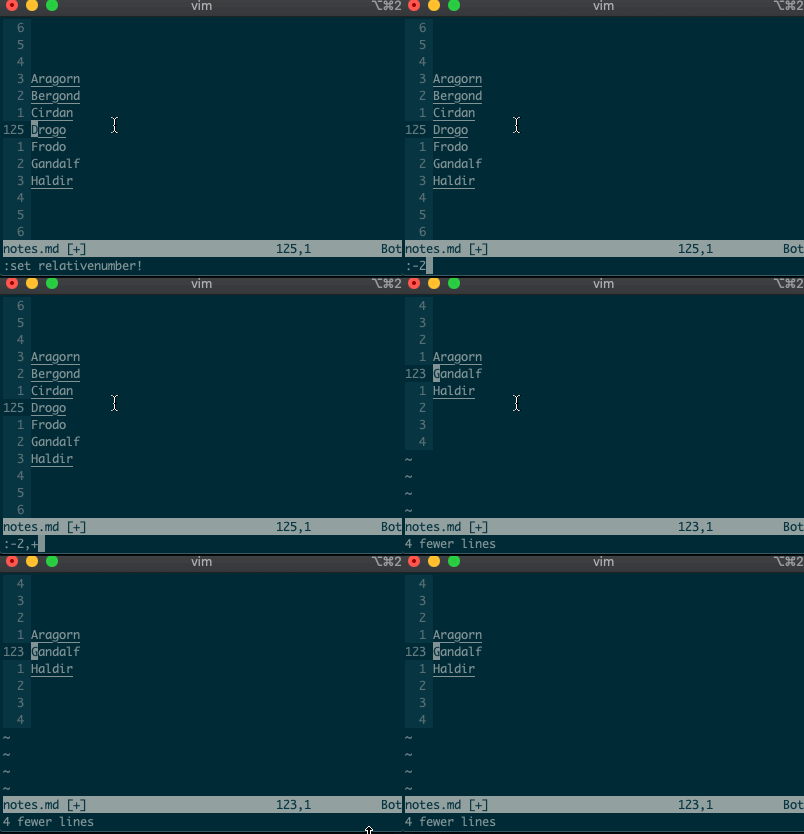
I know what you’re thinking, “But what if I’m on line 125, and I use relative numbers!” Not to worry. Vim has a range for you too:
:-2,+1d
The visual range
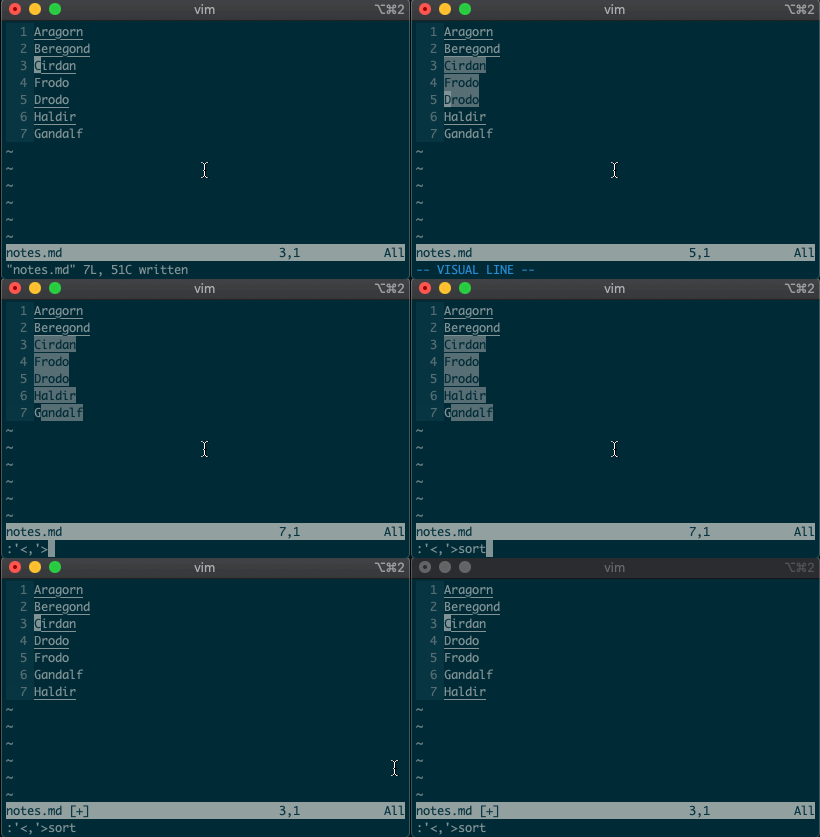
What about using a visual selection as a range? If you’re like me, you’ve probably used vim to help you sort lines by visually selecting them and typing
:sort. Did you ever notice the range vim inserts for us? It’s the special visual selector range::'<,'>sort
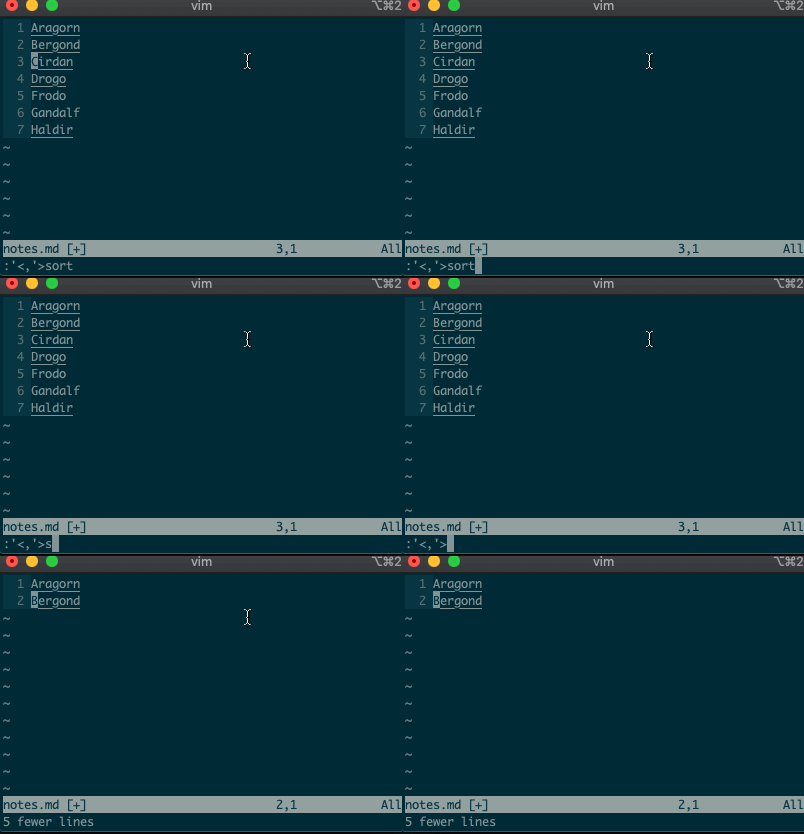
Want to perform other actions on that same visual block? The visual selector range (
'<,'>) continues to operate on the previous visual selection, even when that range is no longer selected! Let’s delete the lines we sorted last time::'<,'>d
Want to learn more about the visual selector range? As it turns out, ranges can be delimited by marks, and
'<and'>are just a couple of special marks. That opens ranges to a world of possibilities! Try'{,'}for paragraphs and'(,')for sentences.Search and replace
Perhaps you’ve never stopped to think about the magical incantation you use to search and replace words in a file. Well, we can finally uncover the mystery:
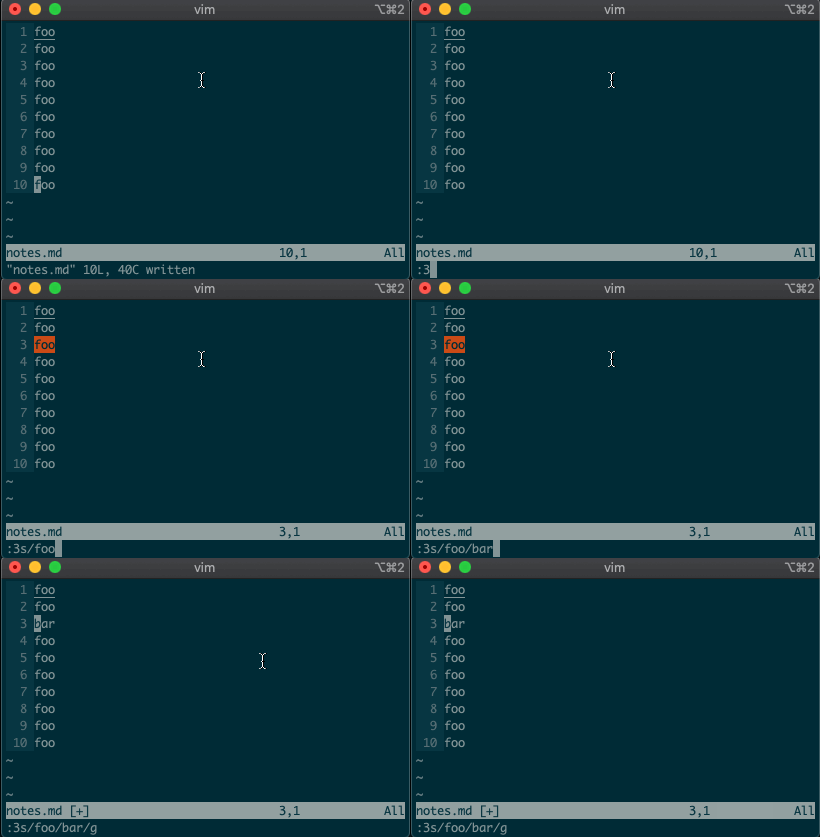
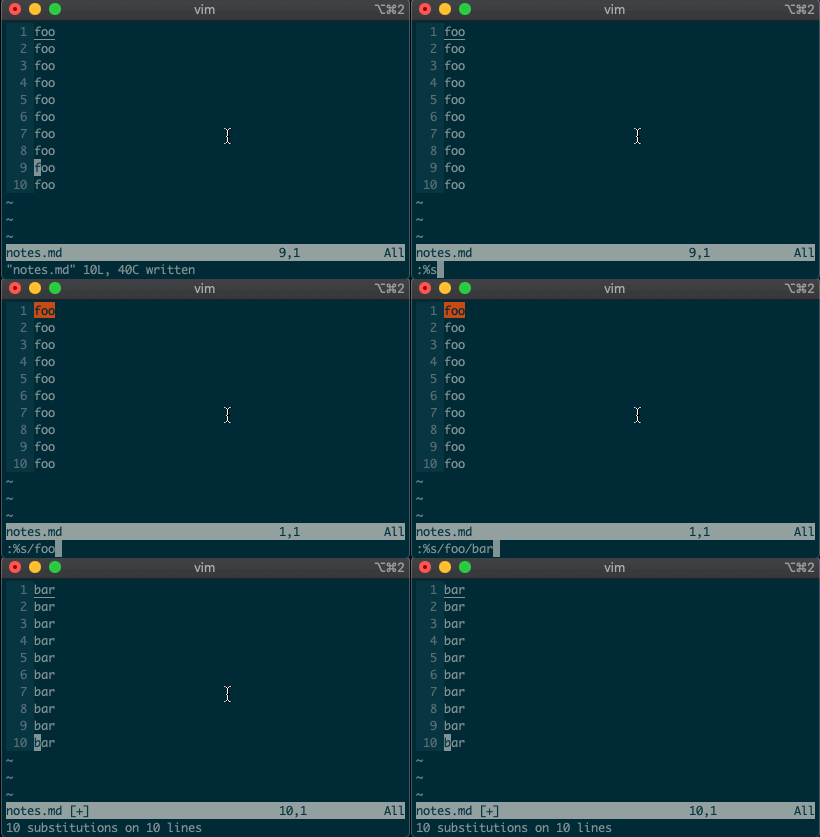
swill replace things (think substitute). Want to replacefoowithbaron line 3?:3s/foo/bar/g
What if you want to search and replace in the entire file? We can use a range from the first line to the end of the file:
1,$, or even better, we can use vim’s shorthand for the whole file:%. Go ahead. Type it in, and see the magic work::%s/foo/bar/g
Repeat a normal command
In addition to modal editing, vim is known for its ability to repeat the last command with
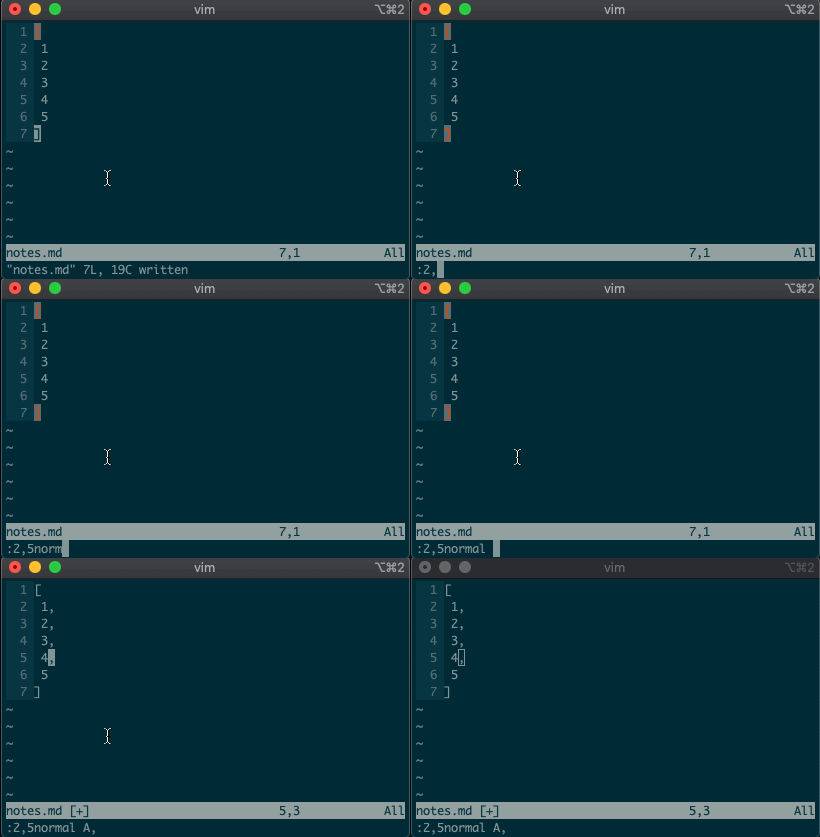
.. Maybe you delete a line withdd, then you realize you need to delete the next one. No need to pressddagain, just type.and you’re good to go.But what about repeating the same command across many lines? What would you do if you wanted to append a comma at the end of each line in a list? Ex commands are here to help you:
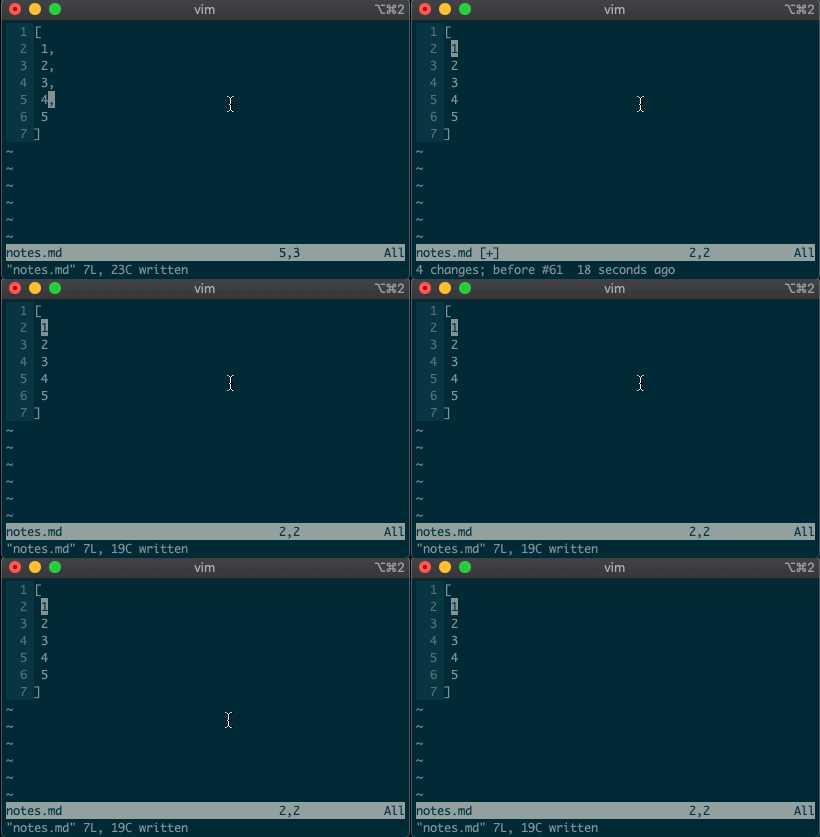
:2,5normal A,
Repeat the last Ex command
.repeats the last normal command. What if we want to repeat the last Ex command? We can do that too.@:
If you’ve ever used macros in vim, you might notice this looks like a macro for the
:register. Find that interesting? Take a look at your registers (:reg) and see what you find for:.What next?
I hope you see the power of Ex commands. Instead of typing
2Gddto go to the second line and delete it, you can delete it from afar with:2d. And instead of going to line 3, visually selecting lines 3-5, yanking them, going down to line 10, and pasting the lines with3GVjjjy10Gp, you can just do it from anywhere in the file with:3,5t10.If you want to learn more, I highly recommend Drew Neil’s Practical Vim book, or take a look at the excellent documentation for different vim modes and for the Ex commands copy, move, delete, substitute. And if you want to dig deeper, help is just a
:helpaway.Until next time!
Source: Beyond basic modal editing. Using vim’s command-line mode.