WoeUSB is an application for GNU/Linux that enables you to create bootable USB media for Windows from Windows ISO images or DVDs.
Source: Easily make a Windows bootable USB from within Linux Mint with WoeUSB – gHacks Tech News
Source: Easily make a Windows bootable USB from within Linux Mint with WoeUSB – gHacks Tech News
Enterprise Policy Generator is a new add-on for the Firefox web browser by Sören Hentzschel to create cross-platform policy files for Firefox.
Source: Enterprise Policy Generator add-on for Firefox – gHacks Tech News
By Mark Russinovich
Updated: February 18, 2019
Download Sysinternals Suite (23.2 MB)
Download Sysinternals Suite for Nano Server (4.6 MB)
The Sysinternals Troubleshooting Utilities have been rolled up into a single Suite of tools. This file contains the individual troubleshooting tools and help files. It does not contain non-troubleshooting tools like the BSOD Screen Saver.
The Suite is a bundling of the following selected Sysinternals Utilities: AccessChk, AccessEnum, AdExplorer, AdInsight, AdRestore, Autologon, Autoruns, BgInfo, BlueScreen, CacheSet, ClockRes, Contig, Coreinfo, Ctrl2Cap, DebugView, Desktops, Disk2vhd, DiskExt, DiskMon, DiskView, Disk Usage (DU), EFSDump, FindLinks, Handle, Hex2dec, Junction, LDMDump, ListDLLs, LiveKd, LoadOrder, LogonSessions, MoveFile, NotMyFault, NTFSInfo, PageDefrag, PendMoves, PipeList, PortMon, ProcDump, Process Explorer, Process Monitor, PsExec, PsFile, PsGetSid, PsInfo, PsKill, PsList, PsLoggedOn, PsLogList, PsPasswd, PsPing, PsService, PsShutdown, PsSuspend, PsTools, RAMMap, RegDelNull, RegHide, RegJump, Registry Usage (RU), SDelete, ShareEnum, ShellRunas, Sigcheck, Streams, Strings, Sync, Sysmon, TCPView, VMMap, VolumeID, WhoIs, WinObj, ZoomIt
Download Sysinternals Suite (22.6 MB)
Download Sysinternals Suite for Nano Server (4.7 MB)
Source: Sysinternals Suite – Windows Sysinternals | Microsoft Docs
psexec executable is located..\psexec -s -i cmd.exe to open a new cmd window.taskschd.msc (or %windir%\system32\taskschd.msc).Source: windows 10 – Can’t modify task “Reboot” in win10 home – Super User
Customize a Windows 10 update without receiving any forced updates on your computer. Here’s how to make the change in Registry:
1. Use the Windows key + R keyboard shortcut to open the Run command.
2. Type regedit, and click OK to open the Registry.
Browse the following path:
HKEY_LOCAL_MACHINE\SOFTWARE\Policies\Microsoft\Windows
3. Right-click the Windows (folder) key, select New, and then click Key.
4. Name the new key WindowsUpdate and press Enter.
5. Right-click the newly created key, select new, and click Key.
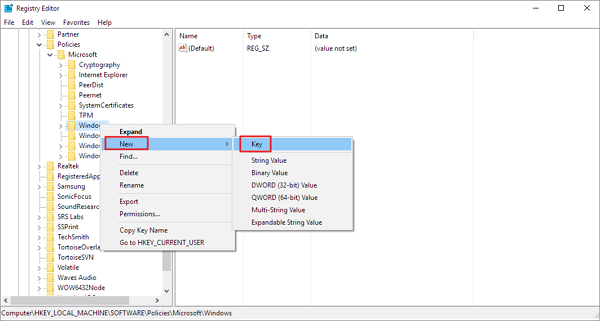
6. Name the new key AU and press Enter.
Inside the newly created key, right-click on the right side, select New, and click on DWORD (32-bit) Value.
7. Name the new key AUOptions and press Enter.
Double-click the newly created key and change its value to 2. It’s for “Notify for download and notify for install”. Click OK.
8. Close the Registry to complete the task.
Using this value prevents Windows 10 from downloading updates automatically, and you’ll get a notification when new updates are available. By this way, you can avoid any auto Windows 10 update effectively.
Source: How to Disable Windows 10 Update in Every Way – EaseUS
How to Start, Stop, Restart, Enable, and Disable Services in Windows 10
Source: Start, Stop, and Disable Services in Windows 10 – Windows 10 Help Forums
Set WshShell = CreateObject(“WScript.Shell”) MsgBox ConvertToKey(WshShell.RegRead(“HKLM\SOFTWARE\Microsoft\Windows NT\CurrentVersion\DigitalProductId”)) Function ConvertToKey(Key) Const KeyOffset = 52 i = 28 Chars = “BCDFGHJKMPQRTVWXY2346789” Do Cur = 0 x = 14 Do Cur = Cur * 256 Cur = Key(x + KeyOffset) + Cur Key(x + KeyOffset) = (Cur \ 24) And 255 Cur = Cur Mod 24 x = x -1 Loop While x >= 0 i = i -1 KeyOutput = Mid(Chars, Cur + 1, 1) & KeyOutput If (((29 – i) Mod 6) = 0) And (i -1) Then i = i -1 KeyOutp
Source: How to Find Your Lost Windows or Office Product Keys
If you’ve purchased a new PC with Windows pre-installed in the past few years, chances are it has a product key embedded in its BIOS. With a little PowerShell wizardry, you can find that well-hidden key and learn more about your current licensing status.
Source: Windows 10 tip: Find your PC’s original product key | ZDNet
Renew the SSL certificate Not required if SSL stuff was not installed, Ex.: 4 MiB installation. Same old key used for brevity, some RTFM required for completeness. cd /tmp scp root@routerlogin.net:/etc/prosody/certs/localhost.[ck]e* . openssl req -new -x509 -days 365 -nodes -out “localhost.cert” -key “localhost.key” scp localhost.[ck]e* root@routerlogin.net:/etc/prosody/certs/
Source: OpenWrt Project: Prosody XMPP Server (open messaging protocol)
The answer is much simpler. Just put this in your ~/.tmux.conf file: # if run as “tmux attach”, create a session if one does not already exist new-session -n $HOST If you run tmux attach and there is a session, then it will attach to that session (whether it’s already attached or not). If there is not a session already then it will create one for you.
Source: How to start tmux with attach if a session exists – Unix & Linux Stack Exchange