re-adopt/reprovision UniFi device to a new UniFi controller?
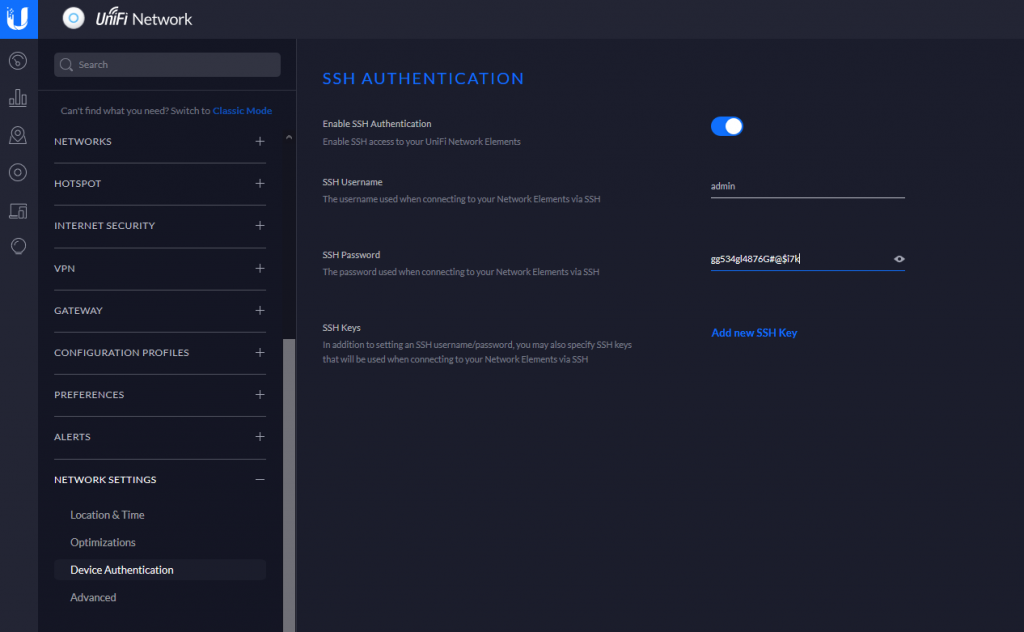
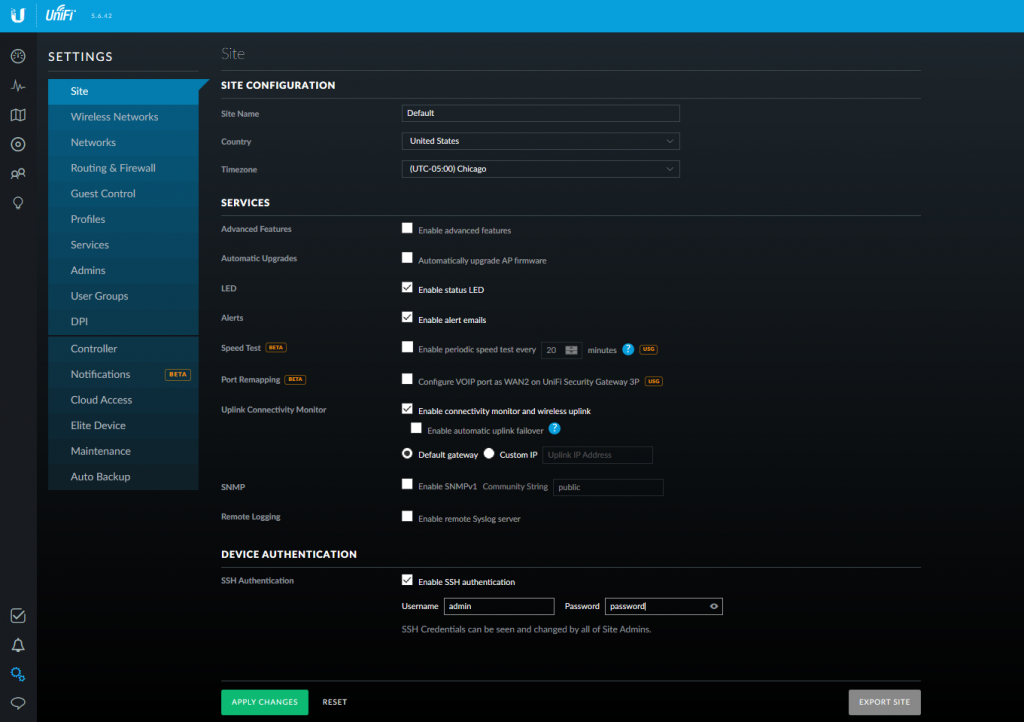
Once you’ve adopted and provisioned a UniFi access point to a controller, you won’t be able to SSH into it. The controller assigns a random SSH password to make it impossible for anybody to login.
You will need to factory reset your UniFi access point. Typically located right next to the ethernet port is a hole that you can press and hold with a thin needle or paperclip to reset the device.
If your access point is using DHCP, you will need to find the new IP address assigned to the UniFi device, unless it is the same or assigned through DHCP reservation. Make note of your device’s MAC address and locate it in your router’s DHCP host list.
From here, you can use an SSH client such as Putty or if on Linux the ssh user@IPADDR command to access your UniFi access point. In most cases the default user/pass combination is either ubnt/ubnt or root/ubnt.
Once you’re in there, you are going to type in the following command into the shell:
set-inform http://yournewcontrollerip:8080/inform
This will tell your access point to provision with the new UniFi controller. Login to your controller and you should see your new UniFi device being adopted and provisioned.
Note: You will need to allow both TCP port 8080 and UDP port 3478 on your network/server firewall in order for it to provision properly.
How to Control (start/stop/mask/unmask) Services Using Systemd
Starting and Stopping Services
Services need to be stopped or started manually for a number of reasons: perhaps the service needs to be updated; the configuration file may need to be changed; or a service may need to be uninstalled, or an administrator may manually start an infrequently used service.
To start a service, first verify that it is not running with systemctl status. Then, use the systemctl start command as the root user (using sudo if necessary). The example below shows how to start the sshd.service service:
[root@host ~]# systemctl start sshd.service
The systemd service looks for .service files for service management in commands in the absence of the service type with the service name. Thus the above command can be executed as:
[root@host ~]# systemctl start sshd
To stop a currently running service, use the stop argument with the systemctl command. The example below shows how to stop the sshd.service service:
[root@host ~]# systemctl stop sshd.service
Restarting and Reloading Services
During a restart of a running service, the service is stopped and then started. On the restart of service, the process ID changes and a new process ID gets associated during the startup. To restart a running service, use the restart argument with the systemctl command. The example below shows how to restart the sshd.service service:
[root@host ~]# systemctl restart sshd.service
Some services have the ability to reload their configuration files without requiring a restart. This process is called a service reload. Reloading a service does not change the process ID associated with various service processes. To reload a running service, use the reload argument with the systemctl command. The example below shows how to reload the sshd.service service after configuration changes:
[root@host ~]# systemctl reload sshd.service
In case you are not sure whether the service has the functionality to reload the configuration file changes, use the reload-or-restart argument with the systemctl command. The command reloads the configuration changes if the reloading functionality is available. Otherwise the command restarts the service to implements the new configuration changes:
Some services require that other services be running first, creating dependencies on the other services. Other services are not started at boot time but rather only on demand. In both cases, systemd and systemctl start services as needed whether to resolve the dependency or to start an infrequently used service. For example, if the CUPS print service is not running and a file is placed into the print spool directory, then the system will start CUPS-related daemons or commands to satisfy the print request.
[root@host ~]# systemctl stop cups.service
Warning: Stopping cups, but it can still be activated by:
   cups.path
   cups.socket
To completely stop printing services on a system, stop all three units. Disabling the service disables the dependencies. The ‘systemctl list-dependencies UNIT’ command displays a hierarchy mapping of dependencies to start the service unit. To list reverse dependencies (units that depend on the specified unit), use the –reverse option with the command.
At times, a system may have different services installed that are conflicting with each other. For example, there are multiple methods to manage mail servers (postfix and sendmail, for example). Masking a service prevents an administrator from accidentally starting a service that conflicts with others. Masking creates a link in the configuration directories to the /dev/null file which prevents the service from starting.
[root@host ~]# systemctl mask sendmail.service
Created symlink /etc/systemd/system/sendmail.service → /dev/null.
[root@host ~]# systemctl list-unit-files --type=service
UNIT FILE                                   STATE
sendmail.service                            masked
...output omitted...
Attempting to start a masked service unit fails with the following output:
[root@host ~]# systemctl start sendmail.service
Failed to start sendmail.service: Unit sendmail.service is masked
Use the systemctl unmask command to unmask the service unit.
Note: A disabled service can be started manually or by other unit files but it does not start automatically at boot. A masked service does not start manually or automatically.
Enabling Services to Start or Stop at Boot
Starting a service on a running system does not guarantee that the service automatically starts when the system reboots. Similarly, stopping a service on a running system does not keep it from starting again when the system reboots. Creating links in the systemd configuration directories enables the service to start at boot. The systemctl commands create and remove these links.
To start a service at boot, use the systemctl enable command.
The above command creates a symbolic link from the service unit file, usually in the /usr/lib/systemd/system directory, to the location on disk where systemd looks for files, which is in the /etc/systemd/system/TARGETNAME.target.wants directory. Enabling a service does not start the service in the current session. To start the service and enable it to start automatically during boot, execute both the systemctl start and systemctl enable commands.
To disable the service from starting automatically, use the following command, which removes the symbolic link created while enabling a service. Note that disabling a service does not stop the service.
This answer is for the latest stable version of Firefox. You can use the Firefox PPA maintained by Mozilla team.
sudo add-apt-repository ppa:mozillateam/ppa
Then, copy and paste the following code in a terminal in one go (don’t copy-paste line by line) to prioritize the apt version of firefox over the snap version.
To ensure that unattended upgrades do not reinstall the snap version of Firefox, enter the following command. Alternatively, you can turn off unattended upgrades.
echo 'Unattended-Upgrade::Allowed-Origins:: "LP-PPA-mozillateam:${distro_codename}";' | sudo tee /etc/apt/apt.conf.d/51unattended-upgrades-firefox
How to open folders (e.g. by click from desktop) in a new window instead of a new tab?
You can go under File Associations and set your favorite application for folder, when choosing Dolphin, you can go in Application properties and add the command line parameter --new-window before the %u
On Kubuntu 22, Open start menu, find Dolphin, right click and choose “Edit Application”. Then on the Application tab