How to Bulk Unblock multiple files downloaded from the Internet
How to find if the file is blocked?
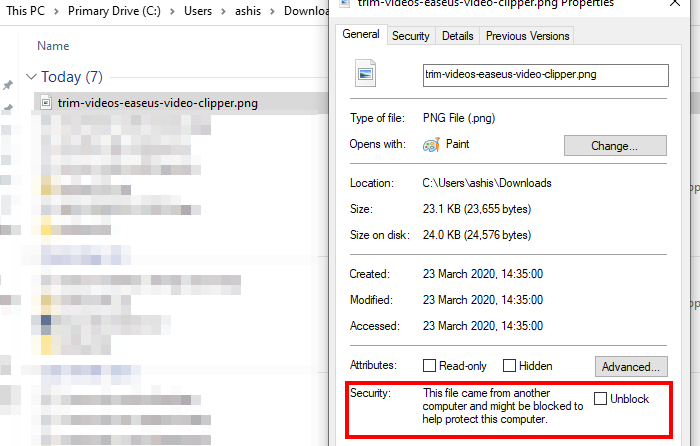
Right-click any file and select Properties from the context menu. If the file is blocked, you will see a security warning under the General tab. It should say
The file came from another computer and might be blocked to help protect this computer and might be blocked to help protect this computer.
Check the Unblock box, then save the changes to unblock the file. This option is unavailable when you select multiple files and open Properties.
How does the Unblock-File command work?
PowerShell offers a built-in command — Unblock-File — to change the unblock status of PowerShell script files that were downloaded from the Internet, but it works on all kinds of files. Internally, the Unblock-File cmdlet removes the “Zone.Identifier alternate data stream“. It has a value of “3” to indicate that it was downloaded from the Internet.
If you apply this to PowerShell scripts, it can unblock PowerShell script files that were downloaded from the Internet so you can run them, even when the PowerShell execution policy is RemoteSigned. The syntax for the command is as follows:
Unblock-File
[-Path]/-LiteralPath <String[]>
[-WhatIf]
[-Confirm]
[<CommonParameters>]
Bulk Unblock multiple files downloaded from the Internet on a Windows computer
The command requires either a single file or multiple files. Any output that can accept a list of files will work. Here is an example:
- Copy the path where the blocked files are available. To do so, go to the directory where the blocked files are located, then click on the address bar of the File Explorer and press the Ctrl + C keys.
- Open PowerShell with admin privileges.
- Type the following and execute
dir <path> | Unblock-File
- The command above uses the DIR command to generate a list of files, which is then sent to the
Unblock-Filecommand.- You will not receive any confirmation, but all the files will be unblocked.
Enter the entire path under quotations; otherwise, you will get an error. For example, if you have placed all the blocked files in the “D:\The Windows Club\Images\Blocked Files” path, the command will be:
dir "D:\The Windows Club\Images\Blocked Files" | Unblock-FileIf you want only to unblock files whose names include, e.g., TWC, then the command will be like this:
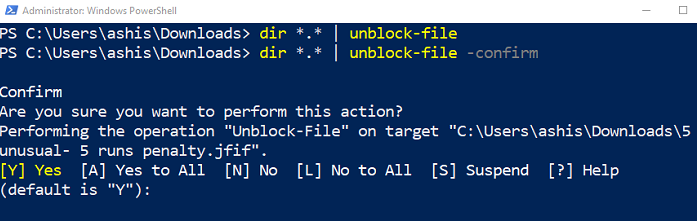
dir <path>\*TWC* | Unblock-FileThose who need to confirm unblocking files one by one can add
-Confirmoption along with the command. It will then prompt you for each file. If you choose yes, then it will unblock the file, else it will move to the next.It comes in very handy when you download a file from the Internet and then share it with somebody else. The data remains locked, and they can only rename the file if it is unlocked. You can use this command to unlock all the files and then send them.
Source: How to bulk Unblock multiple files downloaded from the Internet