How To Install Windows Apps Without a Local Account
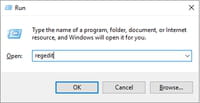
- Right-click on the Start menu to display your Power User options. Select the Run command. Next, type in
regeditfollowed by Enter to open the Registry Editor:
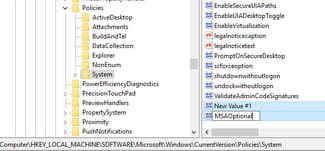
- Navigate to HKEY_LOCAL_MACHINE\SOFTWARE\Microsoft\Windows\CurrentVersion\Policies\System.
- Click on the Edit menu, followed by New > DWORD (32-bit) Value. Rename the new key as MSAOptional:
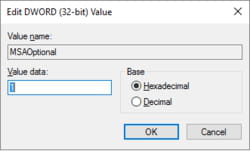
- Set the value of MSAOptional to 1. This will make your Microsoft accounts optional:
- Close the Registry Editor and restart your computer. Once your computer loads, open the Windows Store and search for your desired app. Skip the sign-up procedure and proceed directly to your download.
Source: How To Install Windows Apps Without a Microsoft Account – CCM