The Stored User Names and Passwords Tool in Windows 10 lets you securely manage user names and passwords as a part of your profile. It lets you automatically enter saved user names and passwords for various network resources, servers, websites, and applications, to authenticate yourself. In this post we will see how to add, remove, edit, backup, restore Stored Usernames and Passwords & Credentials in Windows 10/8/7.
Find stored Usernames & Passwords in Windows 10
To directly access the Stored User Names and Passwords Control Panel applet, via WinX Menu, open Command Prompt (Admin), type the following rundll32 command, and hit Enter:
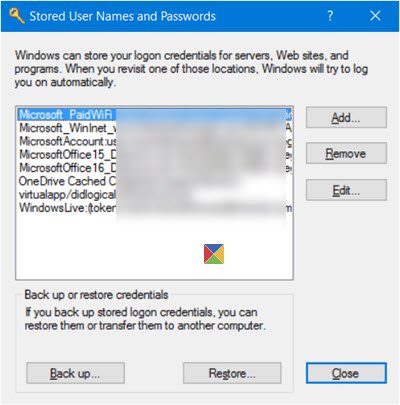
rundll32.exe keymgr.dll,KRShowKeyMgrThe Stored User Names and Passwords box will open.
Here you will be able to see the saved passwords and user names.
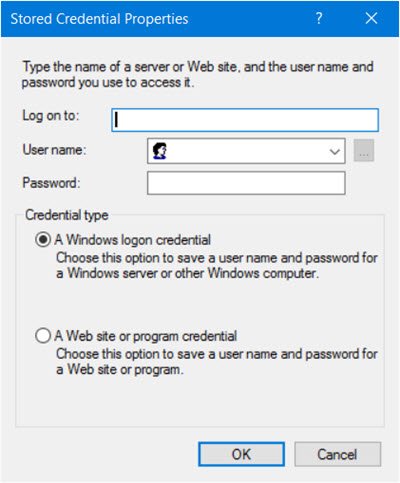
To add a new credential, press the Add button and fill in the required details as follows:
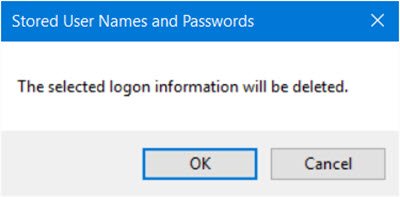
To delete a saved password, select the credential and click on the Remove button.
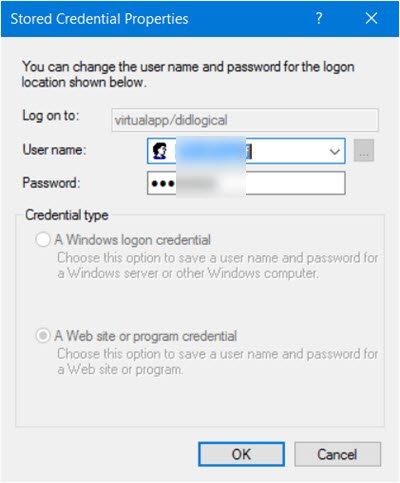
To edit a password, click the Edit button. Here you will be editing the details.
It could be a Windows logon credential or a Website or Program password.
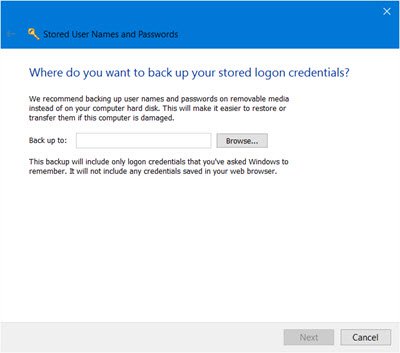
It is always a good idea to back up the stored user names and passwords. To do this, click on the Backup button to open the following wizard.
Select and browse to the backup location, click Next, and follow the wizard to its completion.
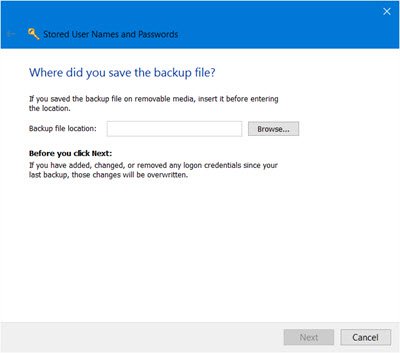
Should the need arise, you can always restore the backup, by clicking on the Restore button and browsing to the backup file location and selecting it.
That’s it!