Laser Engraver Mirror Alignment: How to Align a CO2 Laser – OMTech

Laser Engraver Mirror Alignment: How to Align a CO2 Laser Beam

OMTech LaserUpdated on Oct. 28, 2025

The most intimidating task for many new CO2 laser engraver owners is laser beam mirror alignment. Learning how to align the laser mirrors that direct the laser beam from the laser tube to the laser focusing lens and the workpiece is not always easy. However, you don’t need to fear the task, as this guide will walk you through how to align a CO₂ laser beam step by step while also pointing out some potential issues you might run into.

After you review the OMTech manualprepare your workspace, and set up your laser machine, you will need to check your laser beam path alignment. Laser engraver mirror alignment is not as hard as you might think. Plus, once you get your CO₂ laser beam alignment correct, your laser machine will be engraving and cutting at peak performance, and you should rarely have to align your laser mirrors in the future.

The Basics: Laser Mirrors and the Laser Beam Path

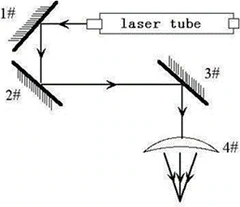
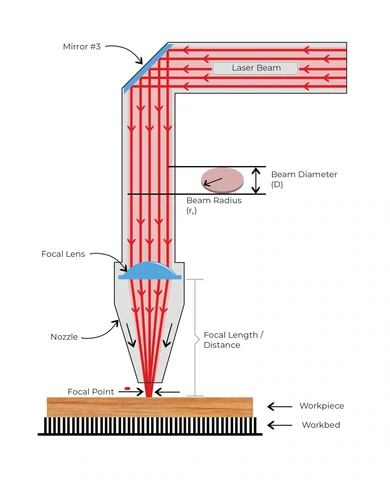
Before we get into laser mirror alignment, we need to understand how a laser engraving machine works. While the picture below does not show your exact laser machine, it illustrates how the laser beam bounces off the laser mirrors.

co2 laser engraver laser mirrors laser beam path

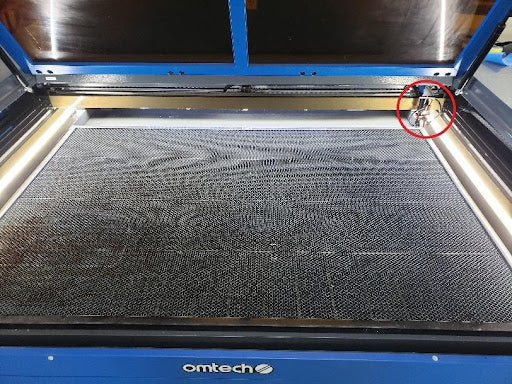
The laser machine works by generating a laser beam from a CO2 laser tube located at the rear of the machine. This laser beam exits the tube and hits mirror 1 (located near the output of the laser tube in the rear of the laser machine). Mirror 1 bounces the beam at roughly 90 degrees toward the front of the machine.

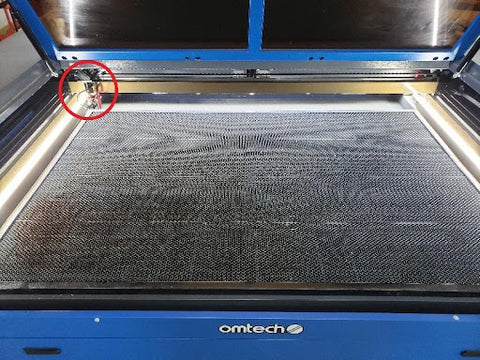
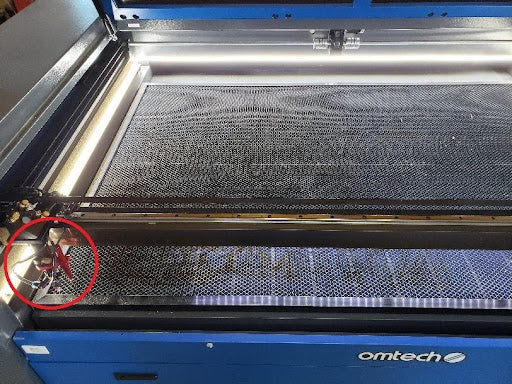
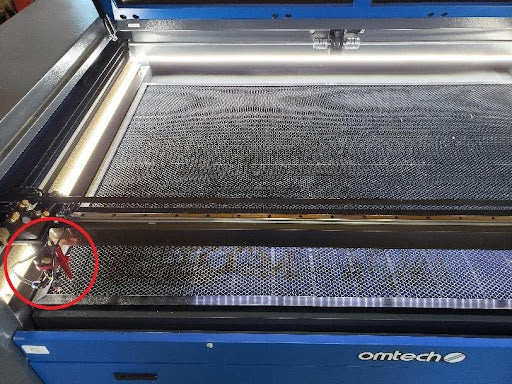
Here, the laser beam hits mirror 2. Note that mirror two is mounted to a gantry and therefore can move forwards and backward in the machine but cannot move left or right. Mirror 2 also bounces the beam at roughly 90 degrees but bounces it toward the right side of the machine.

laser focusing lens laser engraver focus lens laser focal lens

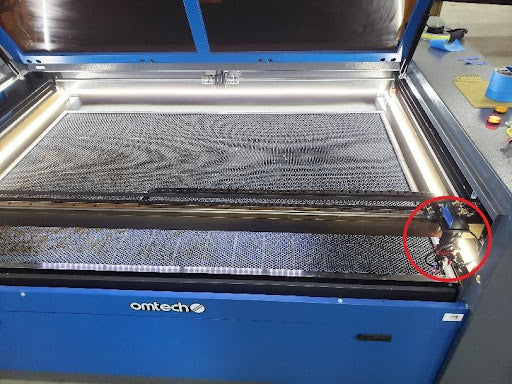
At this point, the laser beam hits mirror 3. Note that mirror three is mounted to the laser head assembly, which is also on a gantry. That means this mirror can move left, right, forward, and backward. Mirror 3 bounces the laser beam at roughly 90 degrees down into the laser head, where it passes through a laser focusing lens (or focal lens), exits the laser head nozzle, and hits the workpiece.

All of these moving parts create the need for periodic adjustment. As your CO₂ laser engraves various projects, the laser mirrors can shift and move slightly over time. Each OMTech laser is aligned at the factory according to strict Quality Assurance practices, but the machine is typically jostled and shifted in its crate throughout the shipping process, which sometimes affects the laser beam alignment. Before you begin using your new OMTech for laser cutting and engraving, you’ll want to check to ensure your CO₂ laser mirror alignment is acceptable, and adjust the laser mirrors if necessary.

Accuracy vs. Precision

Next, before we go through how to align laser engraver mirrors, we need to understand the difference between accuracy and precision. Here are simple definitions of the two terms:

  1. accuracy: the quality or state of being correct; hitting the intended target
  2. precision: the quality, condition, or fact of being exact; the ability to repeatedly produce the same result

A somewhat famous way to visualize accuracy and precision is in a bullseye target:

accuracy vs precision

To summarize the difference:

  1. Accuracy is hitting the intended target (think bullseye). For the case of laser engraver mirror alignment, accuracy means hitting the dead center of the mirror.
  2. Precision is repeating the same thing multiple times (the dot is in the same spot over and over again). For the case of laser engraver mirror alignment, precision means hitting the same spot on the mirror regardless of where the gantry or laser head is located within the laser machine.

For mirrors 1 and 2, precision (the dot hitting the same place on the mirror every time) is much more important than accuracy (the dot hitting the center of the mirror).  This is true because the dot hitting the same place shows that the laser beam is parallel to the axis in the direction it is traveling. However, for mirror three, we need both precision and accuracy, as the laser beam must travel through the focusing lens and laser head nozzle.

How to Align CO2 Laser Mirrors

This CO₂ Laser Engraver Mirror Alignment Guide is intended to complement the instructions in section 5 of the OMTech Manual. See ‘Laser Path Alignment.’

How to Align CO₂ Laser Beam

Now that we have a basic understanding of what we are trying to align and what purpose it serves, we can move on to the actual instructions: how to align a CO₂ laser beam. Most laser engravers use the pulse-tape method to align laser mirrors (OMTech recommends using blue painter’s tape). By this method of laser beam alignment, you will place tape over the mirror guide holes and pulse the laser beam to determine where it hits each mirror (by observing burn marks on the tape). When necessary, you can make minor adjustments to the laser beam mirror alignment by turning the set screws that control the laser mirrors’ position.

The laser beam from the laser tube to mirror one rarely requires adjustment.  Because the laser tube itself and the mirror one mount are stationary, there is no movement between them when the machine is operating. In a future step (aligning the laser beam from mirror 2 to mirror 3), you may have to adjust the laser tube up or down, but for now, we start by verifying that the laser tube is pulsing to mirror 1.

NOTE:  If your laser machine came with the laser tube installed, there is a good chance that your laser mirrors are already aligned and may not require any adjustment. Before loosening any nuts or adjusting any mirrors, first do the pulse test outlined below to see if an adjustment is necessary.

Warning: Be sure to wear proper eye protection when aligning the laser mirrors.  Never bypass the machine’s safety features or operate the laser with the lid or access panels open.

Step 1: Optimize Your Pulse Setting

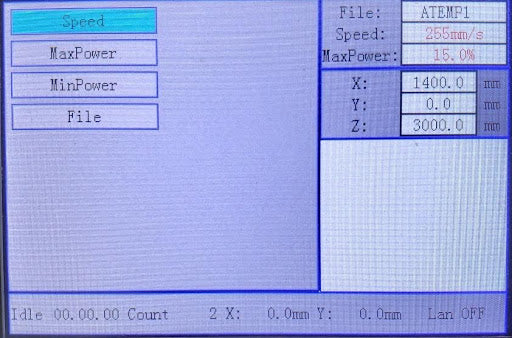
Pulse Settings: In your controller, you want to change the pulse setting to a power level that provides a good consistent pulse but without using too much power that could catch the tape on fire. To do this, follow these steps:

1. On your controller, open the menu by pressing the “menu” button.

change maxpower minpower setting ruida controller

2. Move the highlighted area to the “MaxPower” setting and press “Enter”. Change the MaxPower to the appropriate power level. I suggest starting around 5% and then increasing 1% at a time until the pulse produces a mark on the tape.

3. Press “Enter” to save the changes.

4. Move the highlighted area to the “MinPower” setting and change it to match the MaxPower setting.

5. Ensure your water cooling system is on and running before performing any pulses.

6. It is helpful to have a friend push the pulse button while you monitor where the pulse hits the tape each time.

LASER FIRE HAZARD: Before pulsing, ensure you have the proper fire protection in place. If you pulse with too much power, the tape can catch fire.

Step 2: CO₂ Laser Tube Alignment: How to Align the Laser Tube

Laser Tube to Mirror 1 Pulse Test: Laser tube alignment is necessary to ensure that the laser tube is pulsing correctly and hitting mirror 1.

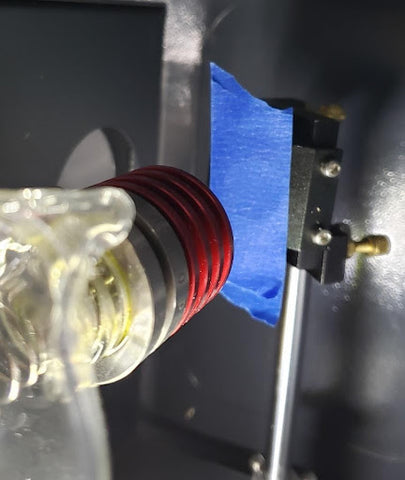
1. Place a small piece of tape over the guide hole on mirror 1.

how to align the laser tube

2. Press the pulse button on the controller. NOTE: The longer you hold the pulse button, the longer the laser tube beam will stay on. You want to push the pulse button just long enough to produce a pulse but should not hold the button down. The controller should beep each time the pulse button is pushed.

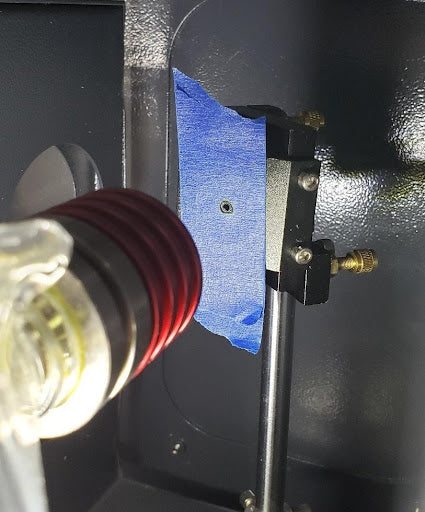
3. Inspect the tape to ensure a mark was made when the pulse happened and that the mark is within the circle of the guide hole. The tape’s pulse mark indicates where the laser beam would hit mirror 1. It should look something like this:

co2 laser pulse tape laser beam mirror alignment

If there is no mark on the tape, it is most likely due to the pulse power being too low or pushing the pulse button too quickly.  

  • Try adjusting the min and max power by increasing 1% and then pulsing again. NOTE: Each laser tube has a minimum power at which it will fire. Our 60W tube won’t fire below around 8% power while our 130W tube won’t fire below around 12% power.
  • Repeat as necessary until the tape shows a laser beam mark.

If the burn mark on the tape is too large or the tape burned:

  • Double up or triple up the tape (put one piece of tape on top of another piece of tape) to keep it from burning through.
  • Try a different type of tape. If your laser came with the white roll of tape, this is a good alternative.
  • Try adjusting the min and max power, decreasing by 1%, and then pulsing again.

If the pulse dot was not within the guide hole, or it is near the edge of the guide hole circle, you will need to adjust the laser tube mounts to move the pulse dot within the guide hole and repeat the process.

4. Loosen the laser tube mounting brackets. Then, reposition the tube and pulse until it points to the center of laser mirror 1

REMEMBER: The dot does NOT need to be perfectly centered on the guide hole (accuracy); it just needs to be near the center of the guide hole, and each pulse should hit the same spot (precision).

Step 3: Align the First Laser Mirror

Mirror 1 to Mirror 2 Alignment: Remember that our goal is to get the laser beam parallel to our y-axis (the axis that runs from front to back of the machine).

1. Place a small piece of tape over the guide hole on mirror 2.

co2 laser pulse tape beam alignment laser mirror 1

2. From the controller home screen, press the up arrow to jog the gantry all the way to the back of the machine. This will move mirror 2 closest to mirror 1:

laser beam mirror alignment

3. Press the pulse button on the controller.

4. Inspect the tape for a pulse mark. If there is no mark on the tape, it is most likely that mirror 1 is bouncing the laser beyond the tape area. To check for this, use a larger piece of tape in front of mirror two’s guide hole and pulse the laser to see where it hits. If the tape still doesn’t mark, you can attach a larger cardboard or cardstock paper to the mirror’s guide hole. Then move on to adjusting the mirrors below.

large tape for laser pulse laser beam alignment

5. Once you have a pulse mark on the tape, note its location and then move the gantry to the front by jogging it (using the down arrow key on your controller).

how to align co2 laser engraver mirror alignment

6. Have a friend person push the pulse button while you watch where the laser beam pulse hits the tape.

Near Alignment VS. Far Alignment: If you are lucky and the 2nd pulse hits the same spot as the first pulse, you can move on to “Mirror 2 to Mirror 3 Alignment” below.

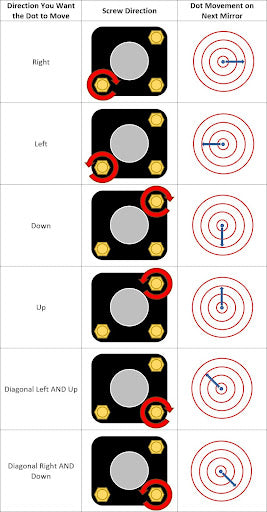
If the 2nd pulse did not hit the same spot as the 1st pulse, do not fret. You will need to loosen the nut(s) on the appropriate screws on mirror 1 and adjust the screws in order to move mirror 1 until the laser beam hits the same spot on the tape. See the following image for which screw to turn and which direction to turn it.

REMEMBER: We are not worried about the dots hitting dead-center on the mirror (accuracy); instead, we want the two dots to hit the exact same spot when the gantry is moved (precision).

How to Adjust a Laser Mirror

Do not use the diagonal mirror screw adjustment unless the left/right or up/down screw can no longer adjust the dot in the correct direction.If you do end up using the diagonal screw adjustment, you can use it in combination with another screw to move the dot in a straight direction line up/down or left/right.

1. You should make small adjustments to the screw before pulsing again and reviewing where the new pulse hits the tape. A good rule-of-thumb is no more than 1/8th turn before pulsing again to check. This is particularly true with laser machines that have a large engraving area as small-angle adjustments of the mirror cause the laser beam adjustment to become dramatic over longer distances.

how to adjust a laser mirror laser engraver mirror alignment

2. Once you have the 2nd location laser beam pulse on the same dot as the 1st laser beam pulse, you should now replace the tape with a new piece of tape and REPEAT the procedure.

IMPORTANT NOTE: You MUST repeat the procedure because adjusting the screws changes the 1st pulse location as well as the 2nd pulse location. Note that this may take many repeated cycles to get the alignment to the point where the 2nd pulse location matches the 1st pulse location without adjustment. This is normal, and while it may seem time consuming, it is worth getting this right to ensure your laser is operating at peak performance across the entire workbed.

3. Once the 2nd pulse hits the same location as the 1st pulse WITHOUT adjusting any screws, you can now carefully tighten the retaining nuts and move on to “Mirror 2 to Mirror 3 Alignment”.

IMPORTANT NOTE:  It is critical that the screws do NOT turn when tightening the retaining nuts. Hold the alignment screws in place while tightening the nuts to ensure they do not move.

4. Remove the tape from mirror two’s guide hole and dispose.

Step 4: Align the Second Laser Mirror

Mirror 2 to Mirror 3 Alignment: Our goal in this part is to get the laser beam from mirror 2 to mirror 3 to be parallel to the x-axis of the laser machine (the axis that is left and right in the machine).

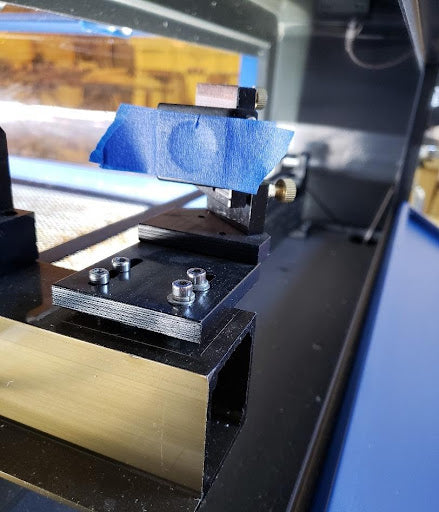
1. Place a small piece of tape over the guide hole on mirror three on the laser head.

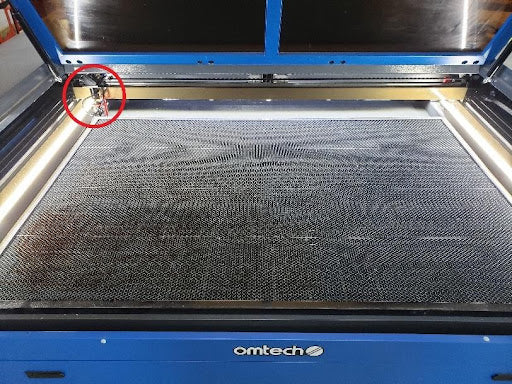
2. Move mirror 3 (the laser head) to the back left of the machine by jogging the gantry to the back left of the machine (press the up arrow and left arrow on the controller when on the home screen).

how to align laser mirror 2

3. Press the pulse button on the controller.

4. Inspect the tape to ensure a mark was made when the pulse happened.

If there is no mark on the tape, it is most likely that mirror 2 is bouncing the laser beyond the tape area.

To check for this, use a large piece of tape or cardboard in front of the mirror 3 guide hole and pulse the laser to see where it hits.  Then move on to adjusting the mirrors below.

Ensure you removed the tape from the mirror two guide hole.

5. Once you have a good mark on the tape, note its location and then move the gantry to the back right by jogging it (using the right arrow key on your controller).

aligning mirror 2 laser mirror alignment

6. Have a friend push the pulse button while watching where the laser beam pulse hits the tape.

If you are lucky and the 2nd pulse hits the same spot as the first pulse, you can move to step 7.

If the 2nd pulse did not hit the same spot as the 1st pulse, you will need to loosen the nut(s) on the appropriate screws of mirror 2 and adjust the screws to adjust mirror two until the laser beam hits the same spot on mirror 3. See the following image for which screw to turn and which direction to turn it. Remember to avoid using the diagonal screw unless absolutely necessary.

7. Once you have the 2nd location laser beam pulse on the same dot as the 1st laser beam pulse, you should now replace the tape with new tape and REPEAT the procedure.

IMPORTANT NOTE:  You MUST repeat the procedure because adjusting the screws changes the 1st pulse location and the 2nd pulse location.

8. Once the 2nd pulse hits the exact location as the 1st pulse WITHOUT adjusting any screws, you should replace the tape on the laser head with new tape and continue to the next step.

9. Move mirror 3 (the laser head) to the front left of the machine by jogging the gantry to the front left of the machine (press the down arrow and left arrow on the controller when on the home screen).

move laser head laser mirror for beam alignment

10. Press the pulse button on the controller.

11. Inspect the tape to ensure a mark was made when the pulse happened.

If there is no mark on the tape, it is most likely that mirror two is bouncing the laser beyond the tape area.

To check for this, use a large piece of tape or cardboard in front of the mirror three guide hole and pulse the laser to see where it hits.  Then move on to adjusting the mirrors below.

Ensure you removed the tape from the mirror 2 guide hole.

12. Once you have a good mark on the tape, note its location and then move the gantry to the front right by jogging it (using the right arrow key on your controller).

laser beam alignment tape on laser mirror guide hole

13. Have a friend push the pulse button while you watch where the laser beam pulse hits the tape.

Because we made the laser beam parallel to the y-axis in a previous step, the dot at the front right should hit the same spot as the dot from the front left.

If the 2nd pulse did not hit the same spot as the 1st pulse, there is a good chance your mirror alignment from mirror 1 to mirror 2 is not correct. Go back to that step and repeat it.

Another potential issue would be one of the gantries being out of square. While this is possible, it is not common. In these cases, it is best to contact OMTech for assistance.

14. For mirror 3, we need the dots to be both accurate (centered on the mirror) and precise (hitting the same spot on the mirror each time). To center the dots, follow this procedure:

a. Review your pulses and take the following actions if they are not centered on mirror 3.

  • To move the dot up or down, the entire laser tube should be raised or lowered. This is accomplished by loosening the cap screws in each mount and turning the thumbscrew. NOTE: Ensure that both mounts are raised or lowered by the same amount.
  • Tighten the cap screws in each mount and then perform the pulse and ensure the dot is centered vertically in the mirror 3 guide hole.
  • Repeat this process by moving the laser tube up or down until the dot is centered in the mirror 3 guide hole.

b. To move the dot left or right, the mirror 2 assembly mount must be moved forward or backward within the machine.

  • Loosen the 2 screws underneath the mirror 2 assembly just loose enough to where the mirror 2 assembly can be moved forward or backward. IMPORTANT NOTE: You need to try to keep the mirror 2 assembly square when moving it.
  • To move the dot to the right, the mirror two assembly must move forward (toward the front of the machine). To move the dot to the left, the mirror two assembly must move backward (toward the rear of the machine).
  • Tighten the screws and perform a pulse test to ensure the beam is now centered horizontally on the mirror three guide hole.

15. Once this process is completed, you need to repeat the process for “Mirror 2 to Mirror 3 Alignment” detailed above.

Step 5: Laser Alignment: The Third Laser Mirror

Mirror 3 to Bed Alignment: In this step, we ensure that mirror 3 is bouncing the laser beam through the center of the focusing lens and nozzle.

1. Start by ensuring the tape has been removed from all laser mirror guide holes.

2. Place a scrap piece of material (wood works best) under the laser head nozzle.

3. Adjust the bed height such that the laser head nozzle is nearly touching the scrap piece of material.

4. Perform a pulse by pressing the pulse button on the controller.

5. Ensure the pulse marked the material.

a. If a double pulse or crescent shaped mark appears, that means the laser beam is hitting the inside of the laser head nozzle before exiting.

In this case, adjust the screws on mirror three and pulse until a singular small dot is visible on the material.

b. If no mark is present, it’s possible that mirror 3 is very misaligned. Take the nozzle off and check the alignment — without the nozzle you have a larger area for the beam to reveal itself. Once you see the beam path without the nozzle you can center it as best you can before screwing the nozzle back on. After it’s centered without the nozzle, screw it back on, recheck your alignment, and fine tune it from there.

c. As a last resort, I suggest unscrewing all 3 screws until they no longer affect mirror three alignment and then repeating the pulse.

6. Move the bed at least 1 inch further away from the laser head nozzle.

7. Perform a pulse by pressing the pulse button on the controller.

If the 2nd pulse did not hit the same spot as the 1st pulse, you will need to loosen the nut(s) on the appropriate screws of mirror three and adjust the screws in order to adjust mirror three until the laser beam hits the same spot on the material. See the following image for which screw to turn and which direction to turn it.

REMEMBER: Avoid using the diagonal screw unless absolutely necessary.

8. Move the bed at least 1 inch further away from the laser head nozzle and repeat the pulse test and mirror three alignment.

9. If you adjusted any mirrors, you need to repeat this process until all three dots hit the same spot without adjusting any mirrors.
Source: Laser Engraver Mirror Alignment: How to Align a CO2 Laser – OMTech
How to block EXE files from running using Group Policy in Windows 11/10

How to block EXE files from running using Group Policy in Windows 11/10

Source: How to block EXE files from running using Group Policy in Windows 11/10

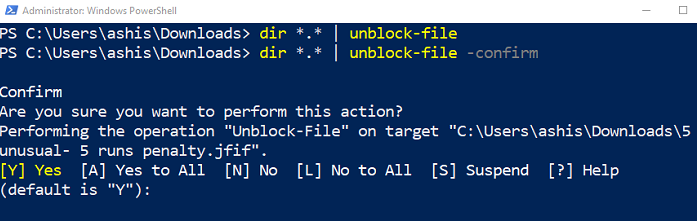
How to bulk Unblock multiple files downloaded from the Internet

How to Bulk Unblock multiple files downloaded from the Internet

Source: How to bulk Unblock multiple files downloaded from the Internet

Configuring Linux Workstations for a Microsoft Windows Environment and Network

Configuring Linux Workstations for a Microsoft Windows Environment and Network


This tutorial is aimed at those who wish to migrate fully from a Microsoft Windows desktop to a Linux desktop system but still integrate with the Microsoft Windows servers and infrastructure like that found in a typical corporate environment. Integration with Microsoft print services, file sharing (mounting cifs,smbfs), Exchange server, other MS/Windows PC’s, dual boot NTFS drives, Citrix, remote X-Windows logins, telnet and ftp access are all covered in this tutorial.

This tutorial assumes the base system with a full X-Windows and Gnome desktop installation. See Linux Red Hat Installation Tutorial for more information.

Microsoft Office Compatibility: Open Office (bundled with Red Hat Linux 8.0+/Fedora Core) can read/write Word, Excel and Powerpoint files. It also has a vastly superior (compared to MS/Office) HTML web output conversion capability. It is currently (in my opinion) the best office software suite for Linux today. See: YoLinux Linux Office Suites

Microsoft Network Compatibility: This tutorial relies heavily on the SAMBA suite of tools to integrate with the Microsoft Network services.


Tutorial Contents:

Prerequisite and Basic Configuration:

Install Java SDK: See Java SDK download and Linux install

Web Browser Configuration: Mozilla Firefox/SeaMonkey

  • Browser Java VM support:
    • x86_64: ln -s /usr/java/latest/jre/lib/amd64/libnpjp2.so /usr/lib64/mozilla/plugins/
    • i386: ln -s /usr/java/latest/jre/plugin/i386/ns7/libjavaplugin_oji.so /usr/lib/mozilla/plugins/

    Supports mime type: application/x-java-vm
    (Required for Microsoft Exchange OWA webmail support.)
    Note: The installation of the plugin “plugger” will generate the directory /usr/lib/mozilla/plugins/. Typically the Mozilla browser installation will create a directory but with the browser version as part of the name. (i.e. mozilla-1.2.1/) This will typically change with each upgrade and I avoid using it for plugins.

  • Browser Proxy configuration: Many corporate networks rely on SOCKS proxy servers for access to the internet. Typically a Proxy Auto Configuration (PAC) script is issued to be registered with the browser. These scripts are usually targeted to Microsoft Explorer or Firefox specifically. Try the proxy script: “Edit” + “Preferences” and select “Advanced (+)” and “Proxies” + “Automatic proxy configuration URL”, enter the script location and select the “Reload” button. If it works, great your ready to surf. If your corporation uses a proxy directly, enter it under “Manual proxy configuration”. If using a script and it does not work, use the command “wget http://proxy-url.domain.com/proxy-script.pac” to download the proxy script. Examine the file proxy-script.pac. Buried in the logic of the script is usually the explicit listing of a proxy server which can be entered under the Mozilla manual configuration. If you are at a corporation using a firewall and have direct access, I’m jealous and you have no need for proxy configuration.
  • Helper Application configuration for various file types:

GNOME Desktop Proxy configuration: (required by Ximian Evolution below)

See YoLinux GNOME Desktop tutorial: Proxy configuration

Mounting/Integrating with the Microsoft File Servers:

Accessing MS/Windows file servers:
MS/Windows file shares are accessed using a MS/Windows login and password thus I mount the file systems in user directories as they are user resources. Check to see if the proper SAMBA packages are installed: rpm -qa | grep samba. The packages samba-commonsamba-client and samba should be installed.

Mount points: The local Linux system mount point choice and method of access is actually important. If it is a multiuser system and the file server is using user privileges to mount and access the file then it might be prudent to use a mount point local to the user. If the system is owned and used solely by the user then I recommend creating a directory in /mnt and using it as a mount point. In either case a soft link (ln -s) to the $HOME/.gnome-desktop/ (RH 7-9) directory will create a nice user interface icon for access purposes. (Fedora Core 3: Use the directory $HOME/Desktop/)

[Potential Pitfall]: The mount point to the user’s home directory MUST be recognized by the admin as a potential pitfall. When removing a user from the system, the command “userdel -r” will recursively delete files and directories found below the home directory. The command “rm -R” will NOT follow sym links thus sym links to $HOME/.gnome-desktop/ are safe. The directories mounted to directories below the $HOME/ path may not be safe from mass deletion.

Create the desktop mount point which will provide a desktop icon and app link to the Nautilus file manager to view files on the server:

  • System mount point: /mnt/
    [root]# mkdir $HOME/.gnome-desktop/MS-SERVER-NAME
    [root]# mkdir /mnt/MS-SERVER-NAME
    [root]# mkdir /mnt/MS-SERVER-NAME/MS-Windows-Share
    [root]# ln -s /mnt/MS-SERVER-NAME/MS-Windows-Share $HOME/.gnome-desktop/MS-SERVER-NAME
    

    Note Fedora Core 3: $HOME/Desktop/
    or

  • User mount point: $HOME/
    [root]# mkdir $HOME/.gnome-desktop/MS-SERVER-NAME
    [root]# mkdir $HOME/MS-SERVER-NAME
    [root]# mkdir $HOME/MS-SERVER-NAME/MS-Windows-Share
    [root]# ln -s $HOME/MS-SERVER-NAME/MS-Windows-Share $HOME/.gnome-desktop/MS-SERVER-NAME
    

    See “Potential Pitfall” above before using your home directory as a mount point!!

Use one of the following methods: (I prefer method 1)

  1. Directly and upon system boot, mount MS/Windows file server:
    Create file ~/.smbpassword (chmod 400 $HOME/.smbpassword)

    username = ms-windows-login-name
    password = ****
    

    Edit file: /etc/fstab
    (you need to be root to edit this file.) and add the following line: (one line. May be shown here as word-wrapped)
    CIFS:

    //MS-SERVER-NAME/MS-Windows-Share /mnt/MS-SERVER-NAME/MS-Windows-Share cifs credentials=/home/linux-user-id/.smbpassword,workgroup=MS-WINDOWS-DOMAIN,uid=linux-user-id,gid=linux-user-group-name 0 0
    

    or SMBFS:

    //MS-SERVER-NAME/MS-Windows-Share /mnt/MS-SERVER-NAME/MS-Windows-Share smbfs credentials=/home/linux-user-id/.smbpassword,workgroup=MS-WINDOWS-DOMAIN,uid=linux-user-id,gid=linux-user-group-name 0 0
    

    Mount: [root]# mount /mnt/MS-SERVER-NAME/MS-Windows-Share
    Unmount: [root]# umount /mnt/MS-SERVER-NAME/MS-Windows-Share
    Note:

    • “cifs” is a newer virtual file system supporting locking, Unicode, hardlinks, etc while “smbfs” (Server Message Block) is an older less advanced protocol.
      CIFS man pages:

    • If the uid and gid are omitted you may only have read access to the MS/Windows server. The uid/gid may be the alphanumeric name or the system user/group numbers.


  2. Directly mount MS/Windows file server: (as root) (one line – may be shown wordwrapped)
    [root]# mount -t smbfs -o username=ms-windows-user-id,workgroup=MS-WINDOWS-DOMAIN,uid=linux-user-id,gid=linux-user-group-name //MS-SERVER-NAME/MS-Windows-Share /mnt/MS-SERVER-NAME/MS-Windows-Share
    password:
    [root]# umount /mnt/MS-SERVER-NAME/MS-Windows-Share
    

    Password can also be specified on the command line:

    • username=ms-windows-user-id,password=supersecret
    • username=ms-windows-user-id,password=
      (This will specify a “null” password.)


    Note that enterprise systems may be using higher levels of security in which case a mount may look more like the following:

    [root]# mount -t cifs -o user=WinDomain/userid -o sec=ntlmv2 //MS-SERVER-NAME/MS-Windows-Share-name /mnt/local-linux-mount-point


    Note:

    • The option “,_netdev” may be added after the user to delay mounting until the network has been enabled.
    • The CIFS filesystem was introduced as a sucessor to the SMBFS file system and is more feature rich to support MS/Windows applications and OS security.
  3. Use Samba smbmount: (as root) (one line – may be shown wordwrapped)
    [root]#smbmount //MS-SERVER-NAME/MS-Windows-Share /mnt/MS-SERVER-NAME/MS-Windows-Share -o username=ms-windows-login-name,workgroup=MS-WINDOWS-DOMAIN
    Password:
    [root]#smbumount /mnt/MS-SERVER-NAME/MS-Windows-Share
    
  4. Use Samba shell: (non-root user)
    smbclient //MS-SERVER-NAME/MS-Windows-Share -U MS-WINDOWS-DOMAIN/ms-windows-login-name
    Password:
    This places you in a shell mounted to the MS/Windows server. You can enter commands such as ls, put and get like in an ftp client. Type ? for a full list of commands.

Note: If the share is a hidden share append a “$” to the name of the share. i.e.: //MS-SERVER-NAME/MS-Windows-Share$

[Potential Pitfall]: If the Microsoft login password is changed, unmount the drive, change the $HOME/.smbpasswd password entry and remount the drive.

[Potential Pitfall]: Spaces in share names are often problematic. Escape with “\040”.
Example: //HOSTNAME/share\040name

[Potential Pitfall]: Using OpenOffice to edit an MS/Word document on a cifs mounted file system. OpenOffice Writer may freeze when editing the document when performing a “saving as” on the file as it does not use cisf byte range locks. Fix using the cisf mount option nobrl.

GUI Mount/Configuration Tools:

List and Browse MS/Windows Shares:


  • smbclient:
    smbclient -u winlogin -W MsWindowsDomain -L MsWindowsServer
    

    This will list all available servers in the domain and all the shares on the MS/Windows server specified.Man Pages:

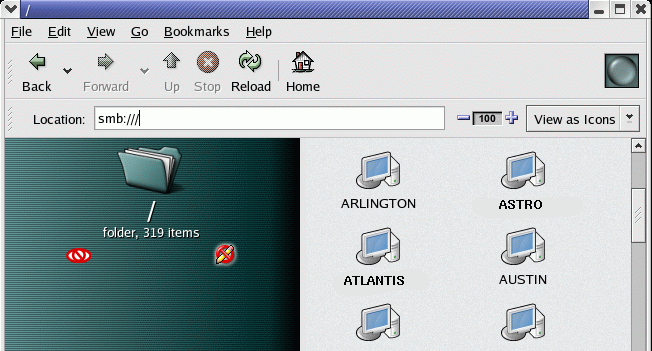
  • File browser access: The system browsers Gnome/Nautilus and newer versions of KDE/Konqueror can also browse the Microsoft file servers using the URL “smb://Nautilus icon view

    [Potential Pitfall]: The version of Nautius which ships with Red Hat 8.0 is limited to 12 character (8.3 legacy) problems.Start Nautilus (“Start Here” icon on desktop) and use URL “smb://
    Choose Domain folders then “Shares” folders. Login as MS-WINDOWS-DOMAIN\ms-windows-user-id and password.

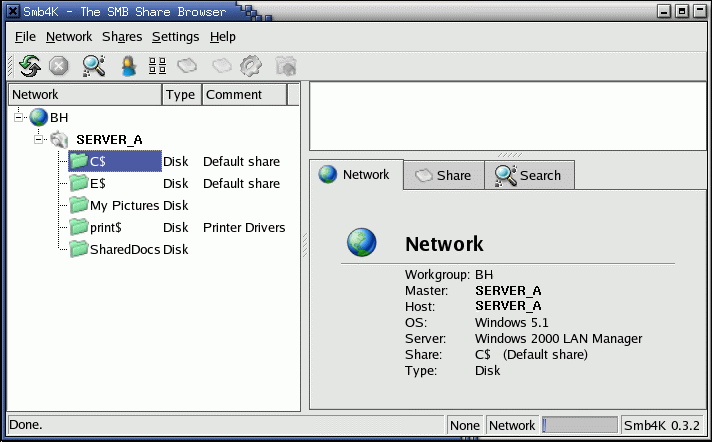
  • SMB4k: Sourceforge: SMB4K
    Scan for active workgroups, hosts and shares, mount/unmount, access files (using Konqueror), printer shares, …
    Requires QT libraries 3.1+. (RH 9.0 uses QT3.1 thus OK) Binaries for Fedora, SUSE and Debian.
    Note: Requires root access to dynamically mount MS/Windows shares. To give users this privilege, apply the “sticky bit” to smbmnt:
    chmod a+t /usr/bin/smbmnt
    SMB4k 
  • Also see:

Mounting a MS/Windows NTFS or DOS Hard Drive:

This procedure is common for dual boot systems and for those who wish to access legacy data. The NTFS file system is used with MS/Windows NT, 2000 and XP. Read only access is available with the NTFS kernel module. The default Red Hat compiled kernels support these NTFS modules. If compiling from source be sure to set the following in kernel-XXXXX.configCONFIG_NTFS_FS=m (read-only NTFS support. Write support is at your own risk: CONFIG_NTFS_RW=y)


  • Tuxera.com: Linux NTFS driver – included in all Linux 2.6 kernels
  • Download the appropriate NTFS driver source: Tuxera.com NTFS-3G community download
    The find the version of the kernel you are running, use the command: uname -r -p or cat /proc/version.
    Determine the target processor with the command uname -p
  • Install rpm as root: rpm -ivh kernel-ntfs-2.4.XXX.iX86.rpm
  • Load module: /sbin/modprobe ntfs
  • Check for errors: dmesg | grep NTFS
  • Verify: cat /proc/filesystems
    or modprobe -l | grep ntfs
  • Create mount point: mkdir /mnt/windows
  • Add line to /etc/fstab:
    /dev/hda1 /mnt/windows ntfs ro,umask=0222,uid=Linux-Login-ID             0 0
    
    • Uid is the Linux user login id which is allowed exclusive access to MS/Windows drive. Remove this to allow all system users access to the drive.
    • Device reflects that of the MS/Windows hard drive. First SCSI drive would be /dev/sda1. See YoLinux SCSI tutorial for more info.
  • mount /mnt/windows
    or
    mount -t ntfs -o nls=utf8 /dev/hdXX /mnt/windows

Note: DOS and MS/Windows 3.1, 95, 98 or 2000ME can be mounted for read/write using file system types, msdos, umsdos, vfat with no additional kernel module installation required. (NTFS requires extra module) Example for MS/Windows 95:

/dev/hda1 /mnt/win95 vfat defaults 0 0

For more information see the man pages for: modprobedmesgmountumountfstabdump and fs.


USB NTFS devices in userspace:

Many external drives and USB thumb drives can be found to be preformatted with NTFS. This requires a NTFS userspace driver.

Use NTFS-3G is a stable, open source, GPL licensed, POSIX, read/write NTFS driver for Linux developed by Tuxera 

Red Hat/Fedora/CentOS RPM based systems will require the following RPM packages:

  • ntfsprogs-gnomevfs – NTFS GNOME virtual filesystem module
  • ntfsprogs – NTFS filesystem libraries and utilities
  • ntfs-3g – Linux NTFS userspace driver
  • dkms – Dynamic Kernel Module Support Framework

These are available from the Extra Packages for Enterprise Linux (EPEL) repository 

[Potential Pitfall]: Without the proper driver you will get the following error:

Unable to mount Drive
Error mounting: mount: unknown filesystem type 'ntfs'

Interfacing with the Microsoft Exchange Mail Servers:

Email, Calendar, Outlook and Microsoft Exchange: Use (1) MS/Outlook on Linux, (2) MS/OWA webmail or (3) Linux Outlook clone, Ximian

  1. Run MS/Outlook on Linux:
    Run the Codeweavers Crossover commercial version of Wine and run Microsoft Outlook on Linux. See the YoLinux Tutorial on Installing Crossover and Outlook.
  2. MS/Exchange OWA webmail:
    Use your browser: http://webmail.megacorp.com (Company specific)
    Note: Java JVM must be installed and browser JVM support must be configured as described above to enable full appointment calendar functionality.
  3. Microsoft Exchange Access with Ximian Evolution email client and Ximian Connector: – Novell CONNECTOR REQUIRES EXCHANGE SERVER 2000! It does not work with MS/Exchange 5.5.
    Install Instructions: http://www.novell.com/products/connector/
    Red Hat Linux 8.0 comes with the Novell/Ximian/Evolution version 1.0 email client. The Novel MS/Exchange connector requires Evolution version 1.2.

    • Download Novell Red-Carpet, Novell/Ximian Evolution 1.2 and Novell/Ximian Connector:
    • Red Carpet:
    • Download Ximian Evolution 1.2 and Ximian Connector:
      • Run: /usr/bin/red-carpet
      • Configure HTTP Proxy if required.
      • You will be presented with packages to update. Select “Update Now”.
      • Choose “Unsubscribed Channels”
      • Select “Ximian Connector” + “Subscribe” button (lower right) + “Install” icon (upper right) + select the “check” box.
        This will install the connector and update Ximian Evolution (V1.2).
      • Select “OK” + “File” + “Exit”.
    • Install License:
      • File: connector-key.txt
        Place in directory: /home/user-dir/evolution/
    • Ximian Evolution Configuration:
      • Start Ximian Evolution email client: (Select envelope icon on the Linux desktop tool bar.)
      • Select “Tool” + “Setting”
      • Select the “Mail Accounts” icon (left hand panel) + “Add” button on right.
        • Exchange OWA server: webmail.megacorp.com

    Ximian Connector Notes:

    • Uses webdav protocol to a OWA (Outlook Web Access) server to support email, address book and calendar functions.
    • Ximian connector requires MS/Exchange server 2000 or better.
  4. KDE KMail and appointment calendar:
    Use KDE KMail and appointment calendar which interface with MS/Exchange 2000 using webdav interface.
  5. OMC: Open Message and Collaboration – MS/Exchange 5.5+ connector and Brutus development MAPI to CORBA framework.

IBM Lotus:

Lotus Notes:

On 07/10/2006, IBM announced Lotus Notes client for Linux.Installation: Notes 7.0.1 client on Red Hat Enterprise 4/CentOS 4

  • IBM customers can download the licensed C93D1NA.zip from the IBM “Partnerworld program“, “Passport Advantage” to a working directory. i.e. Lotus7.0.1
  • Perform this step as root – create target install directory: mkdir /opt/IBM/Workplace Managed Client
    chmod +w /opt/IBM/Workplace Managed Client
  • Uncompress: unzip C93D1NA.zip
    Results in Personality.zip, readme.pdf, setuplinux.bin
  • Uncompress: unzip Personality.zip
  • Set permissions: chmod +x setup_wct_platform.bin setuplinux.bin
  • cp setuplinux.bin updateSite/features/com.ibm.workplace.notesinstall.linux.feature_7.0.1.0000-0900/bin/linux/
  • Run install program: ./setup_wct_platform.bin
  • Accept license and specify target directory: /opt/IBM/Workplace Managed Client (default)
  • Select “Finish”

Lotus Notes client start script:

01 #!/bin/bash
02
03 NOTESBIN=~/notes
04 NOTESDATA=~/notes/data
05 NOTESDIR=~/notes/data
06 LD_LIBRARY_PATH=$NOTESBIN:$NOTESBIN/jvm/bin/classic:$NOTESBIN/jvm/bin:$LD_LIBRARY_PATH
07 PATH=$NOTESBIN/jvm/bin:$NOTESBIN:$PATH
08 CLASSPATH=./:$NOTESBIN/:$CLASSPATH
09 export NOTESBIN NOTESDATA NOTESDIR LD_LIBRARY_PATH PATH CLASSPATH
10
11 # Command to start Lotus Notes:
12 /opt/IBM/Workplace\ Managed\ Client/rcp/richclient \
13  -personality com.ibm.workplace.noteswc.standalone.linux.personality

Lotus Notes 7 documentation 


Lotus Sametime:

“Meanwhile” is an IBM/Lotus Sametime plugin which is available for the Linux IM client Gaim. Use the following RPM packages:

  • gaim
  • gaim-meanwhile

Connect with the user id (LDAP format): CN=Joe R Blow/OU=US/O=MegaCorp and regular Sametime password.

Links:

Printing:

The current and latest Linux printing system is the Common UNIX Printing System which supports the Internet Printing Protocol (IPP), MS/Windows printing via SAMBA (SMB), networked UNIX (lpd), networked Novell (NCP), HP JetDirect (App Socket), etc. This allows Linux to print directly to network or attached printers, independant of a Microsoft print server environment. the printer configuration GUI tools are sufficient and simple to use. Using CUPS is the preferred printer configuration but it should be known that Linux can be configured to work with Microsoft Windows print servers. CUPS has been available since RH 9.

Accessing The Local Microsoft Printer Network:

Configuring the printer and lpr command: (lprNG)

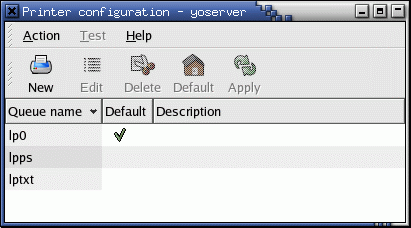
Red Hat printer config GUI

  1. As root run the CUPS GUI configuration tool command: /usr/bin/system-config-printer (RHEL 5/6 and Ubuntu 14.04) (older Red Hat systems: /usr/bin/redhat-config-printer)
  2. Select the “New” icon + “Next”.
  3. Give it a Queue name. (Make up your own name.)
    Select “Windows Printer”.
    Select “Forward”.
  4. Enter Ms/Windows info:
    (This example is for a Windows network printer.)
    Share: \\MS-SERVER-NAME\MS-Windows-Print-Share
    Host IP: XXX.XXX.XXX.XXX
    Workgroup: WORKGROUP-NAME
    User: Your MS/Windows login name
    Password: Your MS/Windows password
  5. Select a driver: If it is not listed, pick the closest you can find. Typically there will be an emulation mode for ljet4 or some other popular mode.
  6. Select “Apply”
  7. Select “File” + “Save Changes”.
  8. Select “File” + “Quit”.

Find the “Host IP” address with the command:

  • host MS-SERVER-NAME
    or
  • smbclient:
    [prompt]$ smbclient //MS-SERVER-NAME/
    added interface ip=your-ip-address bcast=XXX.XXX.XXX.255 nmask=255.255.255.0
    Got a positive name query response from ip-address-of-MS-SERVER ( ip-address-of-MS-SERVER )
    Password:

When multiple printers have been defined, use this gui to select the default. the command “lpr file-name” will use the default printer. Use the “-P queue-name” flag to specify a non-default printer.

When sending print jobs directly to an HP network printer (instead of through a MS/Windows print server), configure the queue to use TCP/IP port 9100.

The default Mozilla printer device specification: lpr ${MOZ_PRINTER_NAME:+'-P'}${MOZ_PRINTER_NAME} will print to the default unless modified.

Printing uses the following configuration files:

  • /etc/printcap – lpr config file (Generated by GUI. You don’t need to understand it.)
    or $HOME/.printcap

    joeshp:\
            :ml#0:\
            :mx#0:\
            :sd=/var/spool/lpd/joeshp:\
            :af=/var/spool/lpd/joeshp/joeshp.acct:\
            :sh:\
            :lp=|/usr/share/printconf/util/smbprint:\
            :lpd_bounce=true:\
            :if=/usr/share/printconf/util/mf_wrapper:
    
  • /etc/printcap.local
  • /usr/share/printconf/util/smbprint – Red Hat 8.0/9.0 shell script

Linux Printer Man pages:

  • lpr – print files
  • lpstat – print cups status information
  • lpq – show printer queue status
  • lprm – cancel print jobs
  • cancel – cancel existing print jobs
  • lpadmin – configure cups printers and classes
  • lpoptions – display or set printer options and defaults
  • printers.conf – printer configuration file for cups
  • cupsd – cups scheduler
  • cupsd.conf – server configuration file for cups
  • classes.conf – print class configuration file for cups

Links:


Create a script to print:

  1. Use smbclient shell:
    smbclient //MS-PRINT-SERVER/printer-share -U MS-WINDOWS-DOMAIN/ms-windows-login-name
    Use the command: smb: \> print file-name
  2. Command line: smbclient //MS-PRINT-SERVER/printer-share windows-login-password -N -U ms-windows-login-name -W MS-WINDOWS-DOMAIN -c "print file-to-print.ps"
  3. Shell script to print a PostScript or printer ready file: $HOME/bin/print
    1 #!/bin/sh
    2 /usr/bin/smbclient //<i>MS-PRINT-SERVER</i>/<i>printer-share</i> <i>windows-login-password</i> \
    3                    -N                       \
    4                    -U <i>ms-windows-login-name</i> \
    5                    -W <i>MS-WINDOWS-DOMAIN</i>     \
    6                    -c "print $1"
    7 echo "Printing file $1"
  4. Shell script to print a text file: $HOME/bin/printTXT
    1 #!/bin/bash
    2 BASENAME=`/bin/basename $1`
    3 /usr/bin/enscript -o /tmp/$BASENAME.ps $1
    4 /usr/bin/smbclient //<i>MS-PRINT-SERVER</i>/<i>printer-share</i> <i>windows-login-password</i> \
    5                    -N                       \
    6                    -U <i>ms-windows-login-name</i> \
    7                    -W <i>MS-WINDOWS-DOMAIN</i>     \
    8                    -c "print /tmp/$BASENAME.ps"
    9 echo "Printing file $1"

Links:

Granting remote shell access (telnet) and file transfer (ftp) access:

To turn on telnet and ftp access, edit the files /etc/xinetd.d/telnet and /etc/xinetd.d/ftp and change the line:

disable         = yes

to:

disable         = no

Restart xinetd: service xinetd restart (or: /etc/init.d/xinetd restart)Man pages:

Also see YoLinux tutorials on the following:

Remote access of Linux server by MS/Windows PC users:

There are three basic ways to access your Linux system remotely:

  1. Text terminal with telnet or SSH
  2. Text terminal with telnet or SSH to launch individual X-Window applications displayed by the local X-server.
  3. Full Linux desktop access using XDMCP by MS/Windows PC running the local X-server.

Remote X-Windows access by a MS/Windows PC requires the installation of X-Windows server software:

Open Source MS/Windows PC X-Windows server software:

Commercial MS/Windows PC X-Windows server software:

1) Text terminal access:

Grant Linux access to remote users. See xinetd configuration above.

Telnet and SHH text terminal client programs for MS/Windows:

  • Putty [Download putty.exe to your desktop]
    Putty: SSH configuration. Select from LHS:

    • Session >> Port 22 and SSH
    • Connection + SSH >> “Preferred SSH protocol version:” >> “2”
  • Cygwin – MS/Windows text terminal shell with telnet and ssh client (and an entire Linux shell environment with applications).

For SSHd server configuration see the YoLinux.com Internet security SSH server configuration tutorial.

For more information on xinetd, see the YoLinux.com Networking and xinetd configuration tutorial.

[Potential Pitfall]: When trying to connect to the Linux system using Putty we got the following error with Red Hat Enterprise 6.1:

Could not chdir to home directory /home/user1: Permission denied
/usr/bin/xauth:  timeout in locking authority file /home/user1/.Xauthority

also check the Linux log file /var/log/secure error

Oct  3 15:57:44 sil-lab sshd[25965]: Accepted password for user1 from 192.168.1.64 port 53950 ssh2
Oct  3 15:57:44 sil-lab sshd[25965]: pam_unix(sshd:session): session opened for user user1 by (uid=0)
Oct  3 15:58:04 sil-lab login: pam_securetty(login:auth): Error opening /etc/securetty: Permission denied

The temporary fix was to turn off SELinux: setenforce 0 

For more on SELinux see the YoLinux Systems Administrations tutorial: SELinux.

2) Launch individual X-Window applications from text terminal:

Steps:

  1. Launch X-Windows server: (Cygwin or XMing)Cygwin:

    Start X server on MS/Win32: C:\cygwin\lib\Singular\startxserver.bat

    X-Windows applications will be launched individually from the text terminal console.

    or

    Start X-server from a Cygwin shell: xwin -multiwindow -unixkill -multimonitors
    where:

    • -multiwindow: specifies the use of the MS/Windows window manager
    • -multimonitors: implied use of both monitors on dual headed displays
    • -unixkill: Ctrl+Alt+Backspace exits the server

    If your application requires the Motif Window Manager (mwm): xwin -rootless -unixkill -multimonitors
    Then start the Cygwin Motif Window Manager: /usr/bin/mwm &
    Then start your application.

    Note that the default Cygwin terminal window is not very X aware. The Cygwin rxvt terminal is superior and will set your X DISPLAY environment variables.


    XMing:Xming – [instructions] – X-Windows for MS/Windows

    Note that “Xming-mesa” has Open-GL 3D support while basic “Xming” has 2D X-windows support only. You don’t need both.

    Configure: Programs + Xming + XLaunch

    • Select “Multiple windows” + next
    • Select “Start no client” + next
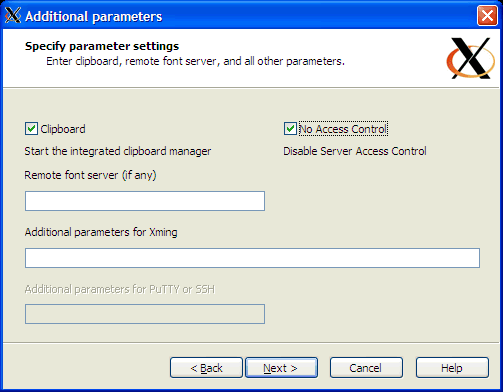
    • Select “No Access Control” (this allows remote Linux system to write to your local Xming X-server) + next

    Set remote access control to your local X-server:

    XMing server access controlNote that the default setting blocks remote access to your local X-server.
     

  2. Configure terminal and shell DISPLAY variable:
    • Putty: SSH configuration
      Select from LHS:

      • Session >> Port 22 and SSH
      • Connection + SSH >> “Preferred SSH protocol version:” >> “2”
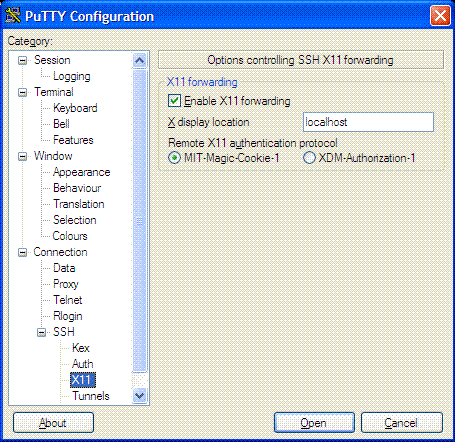
      • Connection + SSH >> “Enable X11 forwarding”
        Putty X-server forwarding configuration
    • Configure your environment to support display to remote X-server.
      Create script: /opt/bin/setip

      1 #!/bin/bash
      2 clientip=`echo $SSH_CLIENT | cut -d' ' -f1 | sed -e 's,::ffff:,,'`
      3 # Test for servers with hostname prefix server and gateway address
      4 if [[ ! ($clientip =~ "^server|^192.168.0.1") ]]; then
      5   export DISPLAY=$clientip:0.0
      6   echo DISPLAY set to SSH Client $DISPLAY
      7 else
      8   echo Server to Server SSH Detected.  Keeping DISPLAY set to $DISPLAY
      9 fi

      Note:

      • Do NOT add this to your ~/.bashrc as it will prevent XDMCP access as well as Linux console access.
      • Before switching to a root account (“sudo su -” or “su -“) allow the existing display to accept X protocol: xhost +
        A regular ssh connected user will often use display :10.0 while root will use :0.0

3) Full Linux desktop access using XDMCP:


Granting X-Window access to your PC using Xming (or Cygwin, ReflectionX, HummingBird Exceed):

To allow a full Linux login screen (GDM or XDM) and Linux desktop access to another Linux system or to a MS/Windows system requires allowing remote GDM (or XDM) and XDMCP X-Windows access. First configure the Linux system to allow remote access, then use X-Windows software to remotely access the system from MS/Windows (or another Linux system).

Step 1:

Allow remote XDMCP access

  • See the YoLinux GDM and XDMCP tutorial on configuring Linux to allow remote access.
    or
    You can use the config tool /usr/sbin/gdmsetup to configure GDM (Gnome login screen) and XDMCP (X-Windows remote full screen access).
  • You can test the GDM login screen locally: X -query localhost :1

Step 2:

Use X-Window software which runs on MS/Windows


Using XMing on your PC to connect to full Linux GUI desktop with XDMCP:

Xming – [instructions] – X-Windows for MS/Windows

Note that Xming-mesa has Open-GL 3D support while basic Xming has 2D X-windows support only. You don’t need both.

Configure Xming: Programs + Xming + XLaunch

  • Select “Full screen” + next
  • Select “Open session via XDMCP” + Next
  • Select “Connect to host” and enter IP address (or node name) of Linux system + next
  • next
  • Finish

Use MS/Windows alt-tab to leave the X-windows session.
Click (left mouse button) on the toolbar “X” icon to restore the session.
Click (right mouse button) on the toolbar “X” icon to terminate the session.


Using Cygwin on your PC to connect to full Linux GUI desktop with XDMCP:

  • Download XFree86 for MS/Windows and install. Be sure to select the “loop” graphic to change from “Default” to “Install” to install all packages. The default is to exclude the X-window server. Packages to install may be selected individually.
  • Start Cygwin: Windows 2000 menu: “Start” + “Programs” + “Cygwin” + “Cygwin Bash Shell”
  • Start MS/Windows X-Server for XDMCP connection: (/usr/X11R6/bin/xwin)
    • xwin -query Ip-address-of-Unix-computer
      Used to display Linux desktop on MS/Windows PC.
    • xwin -multiplemonitors -scrollbars -indirect Ip-address-of-Unix-computer
      Used to display Linux desktop on MS/Windows with multiple monitors.
    • xwin -ac -multiwindow Ip-address-of-Unix-computer
      Starts X server but does not generate a desktop window. Each Linux application will create its’ own window. In a shell set your display environment to the IP address of your PC and individual applications will be displayed to your MS/Windows desktop.
      In cygwin remote ssh or telnet shell: export DISPLAY=ip-of-local-pc:0.0
      The local IP address can be obtained on MS/Windows through the DOS command: IPCONFIG
  • [Potential Pitfall]: If your Cygwin bash shell command line prompt is “i have no name” then it is because your uid in the file /etc/passwd is too large. It must be less than the 16 bit limit of 65536. The uid is the third field demarked by the colon (“:”). Change the uid to an integer value less than 65536. This will also fix X/Server problems which arise when trying to connect to other computers using X.

Connecting to a Microsoft Windows Terminal Server (NT, 2000 or XP) using RDP:

One may graphically connect to a Microsoft Windows Terminal NT Server, server 2000 or a Microsoft Windows XP system (Professional and Home edition) with a Microsoft Windows Terminal RDP (Remote Desktop Protocol) client for Linux known as “rdesktop”. Use version 1.2 or later (which comes with Red Hat 9.0 or later). Version 1.1 which ships with Red Hat Linux 8.0 is buggy.

Note that Microsoft Windows XP uses RDP 5.2 (an extension to the ITU-T T.128 application sharing protocol) using 24 bit color and supports sound. The older RDP 4.0 only supported 8 bit color and did not support sound.

If there is an active rdesktop session, MS/Windows XP will not allow one to login at the console. You will get an error message which states that the system is locked. Only one active MS/Windows desktop is allowed. MS/Windows terminal server is required for more than one simultaneous user login.

Configure MS/Windows to allow a remote RDP connection:

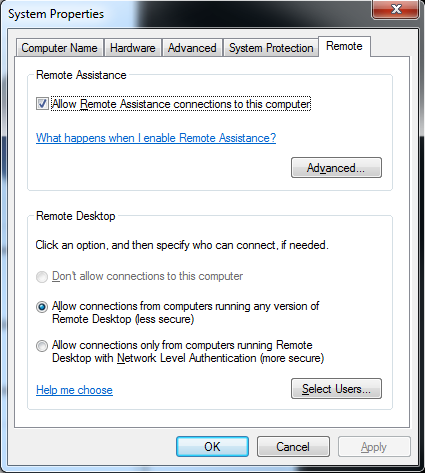
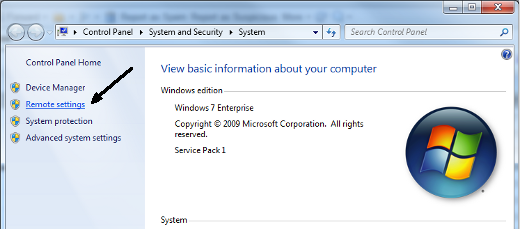
  • MS/Windows 7 configuration to allow remote RDP connections:
    • Click Windows start icon and select “Computer”:
    • Select the “Remote settings” option:Microsoft Windows 7 computer properties GUI
    • Select the “Remote” tab
      In the “Remote Desktop” section, check “Allow conections …”Microsoft Windows 7 system remote properties GUI
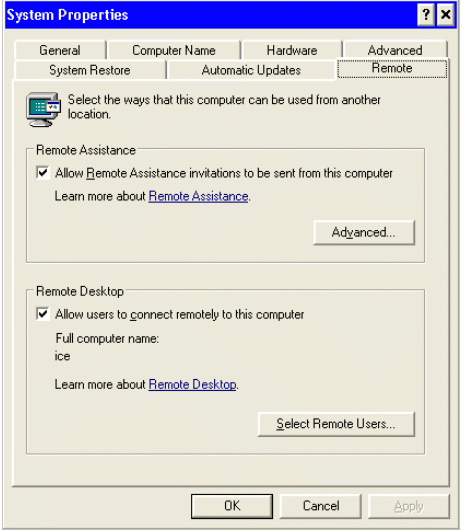
  • MS/Windows XP configuration to allow remote RDP connections:
    • Right click “My Computer” desktop icon.
    • Select “Properties”.
    • Select “Remote” tab
      Check “Remote Desktop”: “Allow users to connect remotely to this computer”.
      OK

    Microsoft Windows XP: Allow remote connection dialog


Using the Linux RDP rdesktop client:

  • Red Hat/CentOS/Fedora: Install RPM: rpm -ivh rdesktop-X.X.X-X.i386.rpm
    Note: Red Hat 8.0 (old) or other distributions of Linux which do not offer a binary package: Download source, untar, configure, make, make install.
  • Launch Linux desktop client:
    rdesktop -u windows-user-id -p windows-password -g 1200x950 ms-windows-terminal-server-host-name

    or

    rdesktop -u windows-user-id -g 1240x992 ms-windows-terminal-server-host-name


    option Description
    -a Color depth: 8, 16, 24
    -r Device redirection. i.e. Redirect sound on remote machine to local device.
    i.e. -0 -r sound (MS/Windows 2003)
    -g Geometry: widthxheight or 70% screen percentage.
    -p Use -p - to receive password prompt.
    -d Use -d - to specify a domain. No space is allowed between the “-d” and the domain name (V1.3.1).


    Note:

    • I can also connect to my dual monitor MS/Windows system from my dual monitor Linux system and display the full two monitors. I use the following geometry directive: -g 2540x992
    • To toggle rdesktop between full screen and the displayed window size, use the following keystroke: ctrl-alt-enter


Links:


Integrating with Citrix Winframe NT Application Servers:

Citrix Winframe ICA Client for Linux:
(ICA: Independent Computing Architecture)

  • Download: https://www.citrix.com/downloads/citrix-receiver/linux/receiver-for-linux-latest.html
    (Citrix ICA is now Citrix Receiver)

    • Select “RPM Packages”, “Debian Packages” or “Tarball Packages”
    • Select: “Download File”
  • As root Install: [root]# rpm -ivh ICAClient-8.0-1.i386.rpm
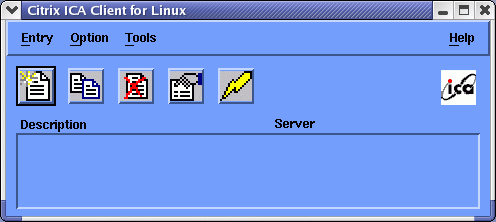
  • Run/Configure (as user) ICA Client Manager: /usr/lib/ICAClient/wfcmgr
    Note: This tool allows full capabilities to configure and run the ICA Citrix winframe client.
    Citrix ICA client for Linux

    • Select “Options” + “Settings…” [screenshot]
      • Select from pull-down menu: “Server Locations”
      • Network Protocol: TCP/IP
      • Server Group: Primary
      • Address List: (Auto-Locate)
    • Select “Entry” + “New…”
      • Select (default option showing: Network) radio button “Published Application”
      • Select button to the right ““.
      • Select “Citrix-App
  • Test Application:
    • Select the “Lightning Bolt” icon to connect.
    • This will bring up the Microsoft NT server login dialog box.
      • User name: NT-Login-Name
      • Password: NT-Password
      • Domain: MS-WINDOWS-DOMAIN
  • As a Linux user, run Citrix ICA Client only: First Citrix Application
    This will bring up the specified ICA application where the “description” is defined in $HOME/.ICAClient/appsrv.ini section heading. i.e. “Citrix-App
    You can also create a desktop launcher icon: right click on a free area of the desktop and select “New Launcher”. Use icon /usr/lib/ICAClient/icons/citrix48.xpm
    Application Command: /usr/lib/ICAClient/wfica -desc "Citrix-App" -username NT-Login-Name -password NT-Password -domain MS-WINDOWS-DOMAIN
  • ICA Client: Second, Third,… Citrix Application
    • Configure:
      • Start ICA manager: /usr/lib/ICAClient/wfcmgr
      • Select “New” Icon (or “Entry” + “New”)
        • Network:
          • Network Protocol: TCP/IP
          • Server Location: MS-NT-CITRIX-SERVER
          • Select “Server” radio button
          • Description: Application/Server Description
          • Server: MS-NT-CITRIX-SERVER
        • Login:
          • Username: ms-windows-login-name
          • Domain: MS-WINDOWS-DOMAIN
          • Password:
        • Select “Apply”
    • Run Application:
      • Launch command:
        # /usr/lib/ICAClient/wfica -desc "Application/Server Description" -username ms-windows-login-name -password your-password-goes-here -domain MS-WINDOWS-DOMAIN

        Other password options:

        • Option “-clearpassword” may need to be used instead.
        • The password may also be held in the Citrix configuration. Set the configuration with /usr/lib/ICAClient/wfcmgr and select “Connection” + “Properties” + “login” to store the password.
      • Use icon /usr/lib/ICAClient/icons/citrix48.xpm
  • FYI:
    • Help: wfica -h
    • If running programs where you have to share files with the Citrix Metaframe server, use SAMBA to export a MS/Windows NT share.
    • ICA client product number for Linux client: 81/7
    • Config files:
      • $HOME/.ICAClient/*.ini
      • /usr/lib/ICAClient/config/*.ini (not used)
      • /usr/lib/ICAClient/.config/*.ini (not used)
    • Launching from a browser: (Using ICA Citrix plug-in)
      • Mime type: application/x-ica
      • Application: /usr/lib/ICAClient/wfica -file %s

      Where “%s” refers to the “.ica” file being passed.

    • File: .mailcapapplication/x-ica; /usr/lib/ICAClient/wfica -file %s; x-mozilla-flags=plugin:Citrix ICA
    • Graphics capture utility: /usr/lib/ICAClient/util/xcapture
      Select window (middle mouse button), select region (corner to corner drag with left mouse button) or cancel (right mouse button).
  • Uninstall: (rpm -e) Manually delete cache: /usr/lib/ICAClient/cache/

Send/Receive a “WinPopup” Message:


Send a WinPopup Message:

MS/Windows can send a message to another MS/Windows PC which will pop-up (using “WinPopup” protocol) and appear in a dialog box. This is used by admins for notification purposes. The DOS command is:

NET SEND NetBIOS-computer-name "Message to send to user"

Linux can send the same message to a MS/Windows PC using the command:

[prompt]$ smbclient -M NetBIOS-computer-name
Message to send to user
ctrl-d

Notes:

  • Message limit is 1600 bytes.
  • Alternate method: cat mymessage.txt | smbclient -M NetBIOS-computer-name


Receive a WinPopup Message:

To handle incoming ” WinPopup” messages on Linux, set the “message command” parameter in the smb.conf.

message command = csh -c 'xedit %s;rm %s' &

This will use the application “xedit” to display the message. The message is then removed.

  • %s : The filename containing the message.
  • %t : Message destination (computer or server to which it was sent.)
  • %f : Message sender.

Default smb.conf config file is no message command.Notes:

  • Using mail to relay the incoming message. Linux smb.conf:
    message command = /bin/mail -s 'message from %f on %m' root < %s; rm %s
    
  • To handle incoming ” WinPopup” messages on MS/Windows, copy WinPopup into the startup group on your WfWg PC.
  • /etc/samba/lmhosts – NETBIOS name resolution

Also see LinPopUp available from LittleIgloo.org.

Authenticating Linux with Microsoft Active Directory:

The following approaches are available:

  1. Use a software package such as Likewise Open which allows the Linux system to connect to the MS/Active Directory in Microsoft native protocols.
  2. Use “Microsoft’s Unix services for Windows” to enhance AD to include Linux and Unix support. This will support NIS or LDAP protocols. LDAP can be used with or without Kerberos. Thus we have the following three options:
    1. Standard NIS authentication
    2. Standard LDAP authentication (with or without SSL)
    3. Kerberos authentication with LDAP

The following shows a basic LDAP only configuration.

This requires that the Microsoft Active Directory server have its schema enhanced to support Unix/Linux systems, specifically the uid and gid which are numerical representations of the user and group id.
This requires installing Microsoft’s Unix services for Windows server 2003 (and earlier) or for server 2008, Microsoft’s “Cross platform authentication utilites”:
Unix services for Windows Info and download

On the Linux system it requires adding the following /etc/ldap.conf file which defines the translation between native Linux LDAP attribute names and those used by Microsoft Active Directory:

host XXX.XXX.XXX.XXX XXX.XXX.XXX.XXX 
base dc=megacorp,dc=com
binddn cn=SysAdmin,dc=megacorp,dc=com
bindpw bindPassword
scope sub
ssl no

nss_base_passwd ou=accounts,dc=megacorp,dc=com
nss_base_shadow ou=accounts,dc=megacorp,dc=com
nss_base_group  ou=accounts,dc=megacorp,dc=com

nss_map_objectclass posixAccount user
nss_map_objectclass shadowAccount user
nss_map_objectclass posixGroup Group

nss_map_attribute uid sAMAccountName
nss_map_attribute uidNumber msSFU30UidNumber
nss_map_attribute gidNumber msSFU30GidNumber
nss_map_attribute loginShell msSFU30LoginShell
nss_map_attribute gecos name
nss_map_attribute userPassword msSFU30Password
nss_map_attribute homeDirectory msSFU30HomeDirectory
nss_map_attribute uniqueMember msSFU30PosixMember
nss_map_attribute cn cn

nss_login_attribute sAMAccountName
pam_member_attribute msSFU30PosixMember

Note:

  • The “host” statement lists the primary and failover AD servers.

The file /etc/pam.d/system_auth can be configured with the console tool /usr/bin/authconfig or the GUI configuration tool /usr/bin/system-config-authentication.
See the YoLinux LDAP authentication tutorialEdit /etc/nsswitch.conf so that Linux will authenticate to the Active Directory server using LDAP.

..
...
passwd files ldap
shadow files ldap
group  files ldap
...
..

This is the simplest authentication configuration. The prefered configuration will include Kerberos and SSL. (not covered here – yet) Microsoft’s Unix services for Windows also supports the use of Active directory as an NIS server although the LDAP configuration is more current and when used with SSL and Kerberos, it is also more secure.

Source: Configuring Linux Workstations for a Microsoft Windows Environment and Network