How to Control (start/stop/mask/unmask) Services Using Systemd

How to Control (start/stop/mask/unmask) Services Using Systemd

Starting and Stopping Services

Services need to be stopped or started manually for a number of reasons: perhaps the service needs to be updated; the configuration file may need to be changed; or a service may need to be uninstalled, or an administrator may manually start an infrequently used service.

To start a service, first verify that it is not running with systemctl status. Then, use the systemctl start command as the root user (using sudo if necessary). The example below shows how to start the sshd.service service:

[root@host ~]# systemctl start sshd.service

The systemd service looks for .service files for service management in commands in the absence of the service type with the service name. Thus the above command can be executed as:

[root@host ~]# systemctl start sshd

To stop a currently running service, use the stop argument with the systemctl command. The example below shows how to stop the sshd.service service:

[root@host ~]# systemctl stop sshd.service

Restarting and Reloading Services

During a restart of a running service, the service is stopped and then started. On the restart of service, the process ID changes and a new process ID gets associated during the startup. To restart a running service, use the restart argument with the systemctl command. The example below shows how to restart the sshd.service service:

[root@host ~]# systemctl restart sshd.service

Some services have the ability to reload their configuration files without requiring a restart. This process is called a service reload. Reloading a service does not change the process ID associated with various service processes. To reload a running service, use the reload argument with the systemctl command. The example below shows how to reload the sshd.service service after configuration changes:

[root@host ~]# systemctl reload sshd.service

In case you are not sure whether the service has the functionality to reload the configuration file changes, use the reload-or-restart argument with the systemctl command. The command reloads the configuration changes if the reloading functionality is available. Otherwise the command restarts the service to implements the new configuration changes:

[root@host ~]# systemctl reload-or-restart sshd.service

Listing Unit Dependencies

Some services require that other services be running first, creating dependencies on the other services. Other services are not started at boot time but rather only on demand. In both cases, systemd and systemctl start services as needed whether to resolve the dependency or to start an infrequently used service. For example, if the CUPS print service is not running and a file is placed into the print spool directory, then the system will start CUPS-related daemons or commands to satisfy the print request.

[root@host ~]# systemctl stop cups.service
Warning: Stopping cups, but it can still be activated by:
   cups.path
   cups.socket

To completely stop printing services on a system, stop all three units. Disabling the service disables the dependencies. The ‘systemctl list-dependencies UNIT’ command displays a hierarchy mapping of dependencies to start the service unit. To list reverse dependencies (units that depend on the specified unit), use the –reverse option with the command.

[root@host ~]# systemctl list-dependencies sshd.service
sshd.service
● ├─system.slice
● ├─sshd-keygen.target
● │ ├─sshd-keygen@ecdsa.service
● │ ├─sshd-keygen@ed25519.service
● │ └─sshd-keygen@rsa.service
● └─sysinit.target
...output omitted...

Masking and Unmasking Services

At times, a system may have different services installed that are conflicting with each other. For example, there are multiple methods to manage mail servers (postfix and sendmail, for example). Masking a service prevents an administrator from accidentally starting a service that conflicts with others. Masking creates a link in the configuration directories to the /dev/null file which prevents the service from starting.

[root@host ~]# systemctl mask sendmail.service
Created symlink /etc/systemd/system/sendmail.service → /dev/null.
[root@host ~]# systemctl list-unit-files --type=service
UNIT FILE                                   STATE
sendmail.service                            masked
...output omitted...

Attempting to start a masked service unit fails with the following output:

[root@host ~]# systemctl start sendmail.service
Failed to start sendmail.service: Unit sendmail.service is masked

Use the systemctl unmask command to unmask the service unit.

[root@host ~]# systemctl unmask sendmail
Removed /etc/systemd/system/sendmail.service.

Enabling Services to Start or Stop at Boot

Starting a service on a running system does not guarantee that the service automatically starts when the system reboots. Similarly, stopping a service on a running system does not keep it from starting again when the system reboots. Creating links in the systemd configuration directories enables the service to start at boot. The systemctl commands create and remove these links.

To start a service at boot, use the systemctl enable command.

[root@root ~]# systemctl enable sshd.service
Created symlink /etc/systemd/system/multi-user.target.wants/sshd.service → /usr/ lib/systemd/system/sshd.service.

The above command creates a symbolic link from the service unit file, usually in the /usr/lib/systemd/system directory, to the location on disk where systemd looks for files, which is in the /etc/systemd/system/TARGETNAME.target.wants directory. Enabling a service does not start the service in the current session. To start the service and enable it to start automatically during boot, execute both the systemctl start and systemctl enable commands.

To disable the service from starting automatically, use the following command, which removes the symbolic link created while enabling a service. Note that disabling a service does not stop the service.

[root@host ~]# systemctl disable sshd.service
Removed /etc/systemd/system/multi-user.target.wants/sshd.service.

To verify whether the service is enabled or disable, use the systemctl is-enabled command.

Summary of systemctl Commands

Services can be started and stopped on a running system and enabled or disabled for an automatic start at boot time.

Useful Service Management Commands:

TASK COMMAND
View detailed information about a unit state. systemctl status UNIT
Stop a service on a running system. systemctl stop UNIT
Start a service on a running system. systemctl start UNIT
Restart a service on a running system. systemctl restart UNIT
Reload the configuration file of a running service. systemctl reload UNIT
Completely disable a service from being started, both manually and at boot. systemctl mask UNIT
Make a masked service available. systemctl unmask UNIT
Configure a service to start at boot time. systemctl enable UNIT
Disable a service from starting at boot time. systemctl disable UNIT
List units required and wanted by the specified unit. systemctl list-dependencies UNIT

Source: How to Control (start/stop/mask/unmask) Services Using Systemd

How to install Firefox as a traditional deb package (without snap) in Ubuntu 22.04 or later versions?

This answer is for the latest stable version of Firefox. You can use the Firefox PPA maintained by Mozilla team.

sudo add-apt-repository ppa:mozillateam/ppa

Then, copy and paste the following code in a terminal in one go (don’t copy-paste line by line) to prioritize the apt version of firefox over the snap version.

echo '
Package: *
Pin: release o=LP-PPA-mozillateam
Pin-Priority: 1001

Package: firefox
Pin: version 1:1snap1-0ubuntu2
Pin-Priority: -1
' | sudo tee /etc/apt/preferences.d/mozilla-firefox

Next, remove the snap version of firefox

sudo snap remove firefox

Install Firefox with apt.

sudo apt install firefox

To ensure that unattended upgrades do not reinstall the snap version of Firefox, enter the following command. Alternatively, you can turn off unattended upgrades.

echo 'Unattended-Upgrade::Allowed-Origins:: "LP-PPA-mozillateam:${distro_codename}";' | sudo tee /etc/apt/apt.conf.d/51unattended-upgrades-firefox

To undo these changes

  1. Remove the firefox PPA.
sudo add-apt-repository -r ppa:mozillateam/ppa
  1. Remove the apt pin.
sudo rm -rf /etc/apt/preferences.d/mozilla-firefox
  1. Remove the apt version and reinstall snap.
sudo apt remove firefox && sudo snap install firefox

Source: software installation – How to install Firefox as a traditional deb package (without snap) in Ubuntu 22.04 or later versions? – Ask Ubuntu

kubuntu – KDE – Dolphin: Open folder in new window instead of new tab

How to open folders (e.g. by click from desktop) in a new window instead of a new tab?

You can go under File Associations and set your favorite application for folder, when choosing Dolphin, you can go in Application properties and add the command line parameter --new-window before the %u

On Kubuntu 22, Open start menu, find Dolphin, right click and choose “Edit Application”. Then on the Application tab


Source: kubuntu – KDE – Dolphin: Open folder in new window instead of new tab – Ask Ubuntu

KeysGen | Find Key Code

Caliper Method

You can measure the root depth of each key bitting and lookup the measurement on the manufacturer specification sheets to determine the key code. The following table provides the bitting depth to key codes for the popular Kwikset key brand used for most home front door locks.
Root Depth Key Code
0.329″ 1
0.306″ 2
0.283″ 3
0.260″ 4
0.237″ 5
0.214″ 6
0.191″ 7
Using calipers, measure each root depth (red lines in the following picture) and compare the measurement to the Kwikset lookup table above. For this picture, red line #1 measured as 0.214” which equals a key code of 6. The complete key code for this key is 63323.

Source: KeysGen | Find Key Code

How to Reuse Decals – Ramp-O-Matic

HOW TO REUSE DECALS

Posted by Ramp-O-Matic Staff on 

 One of the main hiccups in replacing your pinball machine ramp is finding replacement decals. Most of the time, you can actually reuse your decals! Follow along to see how.

Products I used for this tutorial:


Here we have a Stern Nascar ramp. These Stern decals are actually much thinner than the old Bally/Williams decals, but we can still reuse them!


Stern Nascar Ramp


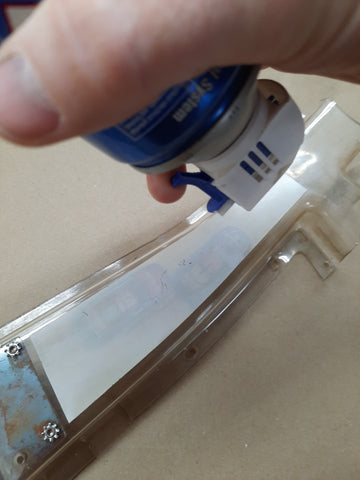
We will use a can of canned air while inverted to freeze the glue holding the decal on.

Canned Air
Invert the canned air, and spray the liquid all over the decal. Then use a fingernail or knife edge to peel a corner away. You should be able to freely begin dislodging the decal. If it stops peeling, stop pulling and reapply the liquid from the canned air.


Once you have the decal removed, use some goof off, goo gone or other cleaner to remove any remaining adhesive from the decal. Once the decal is clean, we can apply new adhesive.

We will use 3M brand 468MP adhesive sheets to reapply the decal. This material is nothing more than an extremely thin layer of adhesive with no substrate. This material is available on Amazon, and will most often be sold under the “Gizmodorks” label.

Peel some of the backer paper off, and carefully apply the decal to the adhesive.
Using a sharp blade, trim the decal away from the rest of the adhesive sheet.


Now you can apply the decal to the finished ramp. Looks like new!

Source: How to Reuse Decals – Ramp-O-Matic

How to Install and Configure Fail2ban on Ubuntu 20.04

Fail2ban Configuration

The default Fail2ban installation comes with two configuration files, /etc/fail2ban/jail.conf and /etc/fail2ban/jail.d/defaults-debian.conf. It is not recommended to modify these files as they may be overwritten when the package is updated.

Fail2ban reads the configuration files in the following order. Each .local file overrides the settings from the .conf file:

  • /etc/fail2ban/jail.conf
  • /etc/fail2ban/jail.d/*.conf
  • /etc/fail2ban/jail.local
  • /etc/fail2ban/jail.d/*.local

For most users, the easiest way to configure Fail2ban is to copy the jail.conf to jail.local and modify the .local file. More advanced users can build a .local configuration file from scratch. The .local file doesn’t have to include all settings from the corresponding .conf file, only those you want to override.

Create a .local configuration file from the default jail.conf file:

sudo cp /etc/fail2ban/jail.{conf,local}

To start configuring the Fail2ban server open, the jail.local file with your text editor :

sudo nano /etc/fail2ban/jail.local

The file includes comments describing what each configuration option does. In this example, we’ll change the basic settings.

Whitelist IP Addresses

IP addresses, IP ranges, or hosts that you want to exclude from banning can be added to the ignoreip directive. Here you should add your local PC IP address and all other machines that you want to whitelist.

Uncomment the line starting with ignoreip and add your IP addresses separated by space:

/etc/fail2ban/jail.local
ignoreip = 127.0.0.1/8 ::1 123.123.123.123 192.168.1.0/24

Ban Settings

The values of bantimefindtime, and maxretry options define the ban time and ban conditions.

bantime is the duration for which the IP is banned. When no suffix is specified, it defaults to seconds. By default, the bantime value is set to 10 minutes. Generally, most users will want to set a longer ban time. Change the value to your liking:

/etc/fail2ban/jail.local
bantime  = 1d

To permanently ban the IP use a negative number.

findtime is the duration between the number of failures before a ban is set. For example, if Fail2ban is set to ban an IP after five failures (maxretry, see below), those failures must occur within the findtime duration.


/etc/fail2ban/jail.local
findtime  = 10m

maxretry is the number of failures before an IP is banned. The default value is set to five, which should be fine for most users.

/etc/fail2ban/jail.local
maxretry = 5

Email Notifications

Fail2ban can send email alerts when an IP has been banned. To receive emails, you need to have an SMTP installed on your server and change the default action, which only bans the IP to %(action_mw)s, as shown below:

/etc/fail2ban/jail.local
action = %(action_mw)s

%(action_mw)s bans the offending IP and sends an email with a whois report. If you want to include the relevant logs in the email, set the action to %(action_mwl)s.

You can also adjust the sending and receiving email addresses:

/etc/fail2ban/jail.local
destemail = admin@linuxize.com

sender = root@linuxize.com

Fail2ban Jails

Fail2ban uses a concept of jails. A jail describes a service and includes filters and actions. Log entries matching the search pattern are counted, and when a predefined condition is met, the corresponding actions are executed.

Fail2ban ships with a number of jail for different services. You can also create your own jail configurations.

By default, only the ssh jail is enabled. To enable a jail, you need to add enabled = true after the jail title. The following example shows how to enable the proftpd jail:

/etc/fail2ban/jail.local
[proftpd]
enabled  = true
port     = ftp,ftp-data,ftps,ftps-data
logpath  = %(proftpd_log)s
backend  = %(proftpd_backend)s

The settings we discussed in the previous section, can be set per jail. Here is an example:

/etc/fail2ban/jail.local
[sshd]
enabled   = true
maxretry  = 3
findtime  = 1d
bantime   = 4w
ignoreip  = 127.0.0.1/8 23.34.45.56

The filters are located in the /etc/fail2ban/filter.d directory, stored in a file with the same name as the jail. If you have a custom setup and experience with regular expressions, you can fine-tune the filters.

Each time you edit a configuration file, you need to restart the Fail2ban service for changes to take effect:

sudo systemctl restart fail2ban

Fail2ban Client

Fail2ban ships with a command-line tool named fail2ban-client which you can use to interact with the Fail2ban service.

To view all available options, invoke the command with the -h option:

fail2ban-client -h

This tool can be used to ban/unban IP addresses, change settings, restart the service, and more. Here are a few examples:

  • Check the jail status:
    sudo fail2ban-client status sshd
  • Unban an IP:
    sudo fail2ban-client set sshd unbanip 23.34.45.56
  • Ban an IP:
    sudo fail2ban-client set sshd banip 23.34.45.56

Source: How to Install and Configure Fail2ban on Ubuntu 20.04 | Linuxize