Monthly Archives: February 2020
72 Shortcuts for Windows 10 File Explorer (Windows)
72 Shortcuts for Windows 10 File Explorer (Windows) [edit]
Platform: win [add]
Related: Windows 10 File Explorer Index, Windows built-in Apps Shortcuts, File Manager Shortcuts, Windows Shortcuts
Export as: PDF, Spreadsheet, Printer-friendly
Table of Contents:
- Manage Windows Explorer
- Address Bar – Basics
- Address Bar – Environment Variable Shorthands
- Address Bar – Add Custom Locations
- Windows Search Shortcuts
- Left Navigation Pane Shortctus
- Folder Content (Main Pane) – Navigate Files/ Folders
- Folder Content (Main Pane) – Manage File/ Folders
- Folder Content (Main Pane) – Change Views
- Folder Content (Main Pane) – Change Item Order
Hide all
Show all
1. Manage Windows Explorer
Win+E Open Explorer Alt+F, then N Duplicate Explorer Window via File, New Window Ctrl+Q Quit/ close Windows Explorer Alt+D, then Tab (forward) or Alt+Tab (backwards) Set baseline to Address Bar. Then navigate between (1) Address Bar, (2) Ribbon (3) Left Navigation Pane, (4) Folder Content Pane (Main Content Window), and (5) Sort Bar of Content Pane if present. F5 Refresh Explorer Window F11 Toggle Full Screen ▲ up
Alt+D Jump/ focus Address Bar with content selected Alt+D, then Ctrl+C Copy current path Alt+D, then c:\(directory name} With help of dropdown and Enter, select sub-directories. Note that the backslash is required for items in sub-directory to be visible. Alt+D, then Alt+Down Arrow Show previous locations Alt+Up Arrow Jump one level up Alt+D , press and hold Alt then press Left Arrow, Right Arrow Change focus from Address Bar to Folder Content (goes to previous/ next location and then changes focus to Folder Content; only works if a previous item is available) ▲ up
Press Alt+D, then type Variables below and press Enter %SystemDrive% or %HomeDrive% Typically C:\ %WinDir% or %SystemRoot% Typically C:\Windows %HomePath% Typically C:\Users\UserName %AppData% Typically C:\Users\UserName\AppData\Roaming %LocalAppData% Typically C:\Users\UserName\AppData\Local %Temp% or %Tmp% Typcially C:\Users\UserName\AppData\Local\Temp %Public% Typically C:\Users\Public %ProgramFiles% Typically C:\ProgramFiles %CommonProgramFiles% Typically C:\Program Files\Common Files %AllUserProfile% Typically C:\ProgramData %OneDrive% Typcially C:\Users\UserName\OneDrive ▲ up
You may want to add a custom location to the Explorer Addressbar. Assume you have your favorite applications in your u:\apps drive. Do the following.
1. Open System Properties via Win+Pause/Break key.
2. Select ‘Advanced System Settings (4th option on the left)
3. In the ‘Advanced’ Tab (3rd Tab on the Top), select ‘Environemnt Variables’ at the bottom
4. Select ‘New’. Set Variable name to e.g. ‘apps’, variable value e.g. ‘u:\apps’.
5. Click ‘ok’
6. Test in File Explorer via %apps%
To add a custom location to the Address Bar such as %apps%, do the following.▲ up
Recommend to increase the search bar size. Hover to the left of search field until you see double-pointed arrow. Drag to the left. This will be saved permanently for all new Explorer Windows *.docx Search for all files with ending .docx term1 AND term2 Search for term1 and term2 combined term1 OR term2 Search for files/ folders containing term1 or term2 term1 -term2 Search for files/ folders containing term1, but not term2 “term1 term2” Search for exact phrase term1 date:>1/1/2017 Search for files with timestamp greater Jan 1, 2017. < works equivalent term size:(small/medium/large/etc.) Search for files by size. After typing size:, options are offered in drop-down Esc Cancel Search ▲ up
Alt+D, then 2x Tab Jump/ focus Navigation Pane Arrow Up/Arrow Down One item up/ down Page Up/Page Down One page up/ down Home/End Go to first itme/ last item Ctrl+Arrow Up/Arrow Down Scroll directory tree up/ down without changing focus Arrow Left/ Right Arrow on tree parent Open/ close directory tree Shift+Arrow Left Change to parent element in tree when in sub-element ▲ up
Alt+D, then 3x Tab Jump/ focus Folder Content Pane Alt+H, then SA Select all items via Home, Select All. Also shorthand for changing focus to Folder Content Arrow Up/Arrow Down One item up/ down Page Up/Page Down One page up/ down Home/End Go to first itme/ last item Ctrl+Arrow Up/Arrow Down Scroll directory tree up/ down without changing focus Shift+Arrow Up/Arrow Down Select multiple (adjacent) items Press and hold Ctrl, Arow Keys, and press Space on multiple items Select multiple (non-adjacent) items Alt+Arrow Left/Arrow Right Go to previous/ next location Alt+Up Arrrow Up one level. There is no down one level, but you may use Alt+left to go to previous location Alt+Enter on item Show properties of file or folder Shift+F10 on item Open context menu of file or folder ▲ up
Ctrl+Shift+N Create new folder Ctrl+C, Ctrl+X, Ctrl+V Copy, cut, paste Ctrl+Z Undo an action Ctrl+Y Redo an action Delete Delete an item and place it into the Recycle Bin Shift+Delete Delete an item permanently without placing it into the Recycle Bin F2 Edit Item. Select name excluding file extension ▲ up
Alt+D, then 3x Tab Jump/ focus Folder Content Pane (required for changing views with Ctrl+Shift+1…8 Ctrl+Shift+1 Change View to Extra Large Icons Ctrl+Shift+2 Change View to Large Icons Ctrl+Shift+3 Change View to Medium Icons Ctrl+Shift+4 Change View to Small Icons Ctrl+Shift+5 Change View to List View Ctrl+Shift+6 Change View to Details View Ctrl+Shift+7 Change View to Tiles View Ctrl+Shift+8 Change View to Content View Alt+V, then SF Change View to Size Fit all items within column width ▲ up
With focus anywhere, Alt+D, then 4x Tab, then Enter Jump/ focus Sort Bar (Content Area Table Header) With focus on Folder Content Pane, 1x Tab Jump/ focus Sort Bar (Content Area Table Header). Use after changing sort order to change again. Arrow Left/Right Arrow on Sort Bar Select sort column Press Enter on Sort Bar Item Change sort order ascending (or descending) by name, date, etc. After changing sort order, press Tab, then Enter Change sort order descending (or ascending) ▲ up
tomvandeneede/p2pp: Palette2 Post Processing tool for Slic3r
SKS Bottle & Packaging – Cap and Neck Finishes
Cap and Neck Finishes
A container’s neck finish holds the cap, stopper, or closure with protruding threads. A container and its corresponding cap must have matching finishes. For example, a 24/400 bottle will only accept a 24/400 closure.
Screw thread or continuous thread closure sizes are expressed with two numbers separated by a hyphen or slash. The first number refers to the millimeter diameter measured across the inside of the cap’s opening or the outside of the bottle’s threads. The second number refers to the thread style, “GPI” or “SPI” finish. The Glass Packaging Institute (GPI) and Society of the Plastics Industry (SPI) are responsible for establishing uniform standards for glass and plastic container neck finishes. The closure industry does not necessarily adhere to the same standards, so it is often best practice to purchase containers and caps from the same manufacturer when possible.
For information about proper torque when applying closures to containers, visit our Torque Guide page.
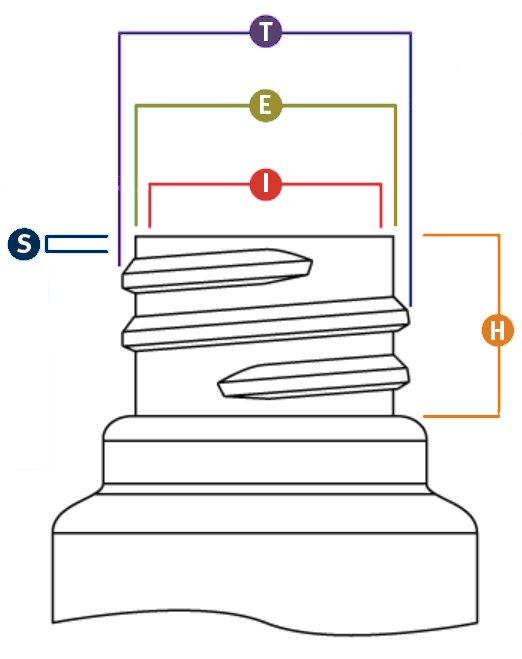
“T” Dimension
Outside diameter of the thread. The tolerance range of the “T” dimension will determine the mate between bottle and closure.
“E” Dimension
Outside diameter of the neck. The difference between the “E” and “T” dimensions divided by two determines the thread depth.
“I” Dimension
Inner diameter of bottle neck. Specifications require a minimum “I” to allow sufficient clearance for filling tubes. Linerless closures w/ plug or land seal & dispensing plugs/fitments require controlled “I” dimension for proper fit.
“S” Dimension
Measured from the top of the finish to the top edge of the first thread. The “S” dimension is the key factor that determines orientation of the closure to bottle and the amount of thread engagement between the bottle and cap.
“H” Dimension
The height of the neck finish. Measured from the top of the neck to the point where the diameter “T”, extended down, intersects the shoulder.
Common GPI / SPI Neck Finishes
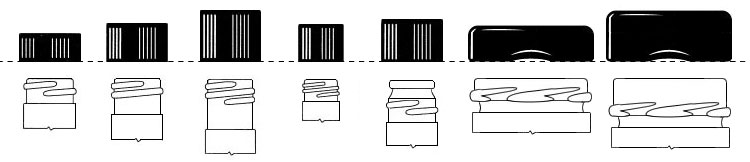
- 400
- 410
- 415
- 425
- 430
- 2030
- 2035
- 400: 1 thread turn
- 410: 1.5 thread turns
- 415: 2 thread turns, narrow threads
- 425: Buttress Finish – thick threads & top bead (better seal, more application torque)
- 2030: Lug Finish – Non-continuous threads
- 2035: Lug Finish – Non-continuous threads, tall “H” dimension
How to Measure a Neck Finish
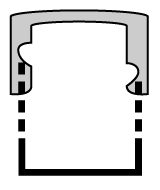
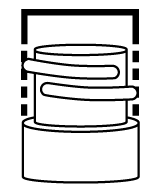
To find a cap’s diameter, measure from one side of the inner wall to the opposite side. Calculate a bottle’s neck finish by measuring the diameter of the outermost threads. The resulting millimeter measurement will be the “T” dimension.
Then, see how many times the threads pass one another to determine the finish.
(ex. 24 mm “T” dimension with 1.5 thread turns = 24/410 neck finish)
Source: SKS Bottle & Packaging – Cap and Neck Finishes
See also: http://www.qorpak.com/pages/HowtoSelecttheRightSizeCapforyourBottle
Ubuntu Server 18.04 LVM out of space with improper default partitioning – Ask Ubuntu
Best solution for Office365 with Thunderbird in 2020 : Thunderbird
Best solution for Office365 with Thunderbird in 2020
byu/ntropia64 inThunderbird
I have a premium Outlook.com account (part of Office 365 subscription). Normally I use it with Outlook 365 (desktop program) and have for many, many years. Through all my testing and research I have found that basic Thunderbird cannot work with Outlook.com/Exchange without addons. At the very minimum I require:
Lighting calendar addon (technically it appears to be part of ‘basic’ Thunderbird these days)
TB Sync (this will allow me to configure and setup my Microsoft Account in Thunderbird)
Provider for Exchange Sync (which required TB Sync and allows me to sync my Outlook calendars, tasks and contacts)
Once those addons are installed, for me, it actually works quite well. And I can use Thunderbird on Linux or Windows without any problem. All of those addons are free and updated frequently. They also allow me to use other providers if I decided to change to Google or some other lesser known free or paid mail/calendar/tasks/contacts options.