Configure Windows diagnostic data in your organization (Windows 10) | Microsoft Docs

Endpoints The Microsoft Data Management Service routes data back to our secure cloud storage. Only Microsoft personnel with a valid business justification are permitted access. The following table defines the endpoints for Connected User Experiences and Telemetry component: Windows release Endpoint Windows 10, versions 1703 and 1709 Diagnostics data: v10.vortex-win.data.microsoft.com/collect/v1 Functional: v20.vortex-win.data.microsoft.com/collect/v1 Windows Advanced Threat Protection is country specific

Source: Configure Windows diagnostic data in your organization (Windows 10) | Microsoft Docs
Sysinternals Suite – Windows Sysinternals | Microsoft Docs

Sysinternals Suite

By Mark Russinovich
Updated: February 18, 2019
Download Sysinternals Suite (23.2 MB)
Download Sysinternals Suite for Nano Server (4.6 MB)

Introduction

The Sysinternals Troubleshooting Utilities have been rolled up into a single Suite of tools. This file contains the individual troubleshooting tools and help files. It does not contain non-troubleshooting tools like the BSOD Screen Saver.

The Suite is a bundling of the following selected Sysinternals Utilities: AccessChkAccessEnumAdExplorerAdInsightAdRestoreAutologonAutorunsBgInfoBlueScreenCacheSetClockResContigCoreinfoCtrl2CapDebugViewDesktopsDisk2vhdDiskExtDiskMonDiskViewDisk Usage (DU)EFSDumpFindLinksHandleHex2decJunctionLDMDumpListDLLsLiveKdLoadOrderLogonSessionsMoveFileNotMyFaultNTFSInfoPageDefragPendMovesPipeListPortMonProcDumpProcess ExplorerProcess MonitorPsExecPsFilePsGetSidPsInfoPsKillPsListPsLoggedOnPsLogListPsPasswdPsPingPsServicePsShutdownPsSuspendPsToolsRAMMapRegDelNullRegHideRegJumpRegistry Usage (RU)SDeleteShareEnumShellRunasSigcheckStreamsStringsSyncSysmonTCPViewVMMapVolumeIDWhoIsWinObjZoomIt

Download Sysinternals Suite (22.6 MB)
Download Sysinternals Suite for Nano Server (4.7 MB)


Source: Sysinternals Suite – Windows Sysinternals | Microsoft Docs

How to Disable Windows 10 Update in Every Way – EaseUS


Change the way Windows 10 Updates Using Registry

Customize a Windows 10 update without receiving any forced updates on your computer. Here’s how to make the change in Registry:

1. Use the Windows key + R keyboard shortcut to open the Run command.

2. Type regedit, and click OK to open the Registry.
Browse the following path:

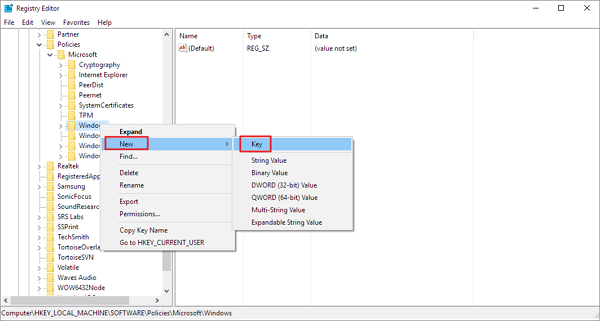
HKEY_LOCAL_MACHINE\SOFTWARE\Policies\Microsoft\Windows

3. Right-click the Windows (folder) key, select New, and then click Key.

4. Name the new key WindowsUpdate and press Enter.

5. Right-click the newly created key, select new, and click Key.

disable windows 10 update in registry

6. Name the new key AU and press Enter.
Inside the newly created key, right-click on the right side, select New, and click on DWORD (32-bit) Value.

7. Name the new key AUOptions and press Enter.
Double-click the newly created key and change its value to 2. It’s for “Notify for download and notify for install”. Click OK.

8. Close the Registry to complete the task.

Using this value prevents Windows 10 from downloading updates automatically, and you’ll get a notification when new updates are available. By this way, you can avoid any auto Windows 10 update effectively.

Source: How to Disable Windows 10 Update in Every Way – EaseUS

How to Find Your Lost Windows or Office Product Keys

Set WshShell = CreateObject(“WScript.Shell”) MsgBox ConvertToKey(WshShell.RegRead(“HKLM\SOFTWARE\Microsoft\Windows NT\CurrentVersion\DigitalProductId”)) Function ConvertToKey(Key) Const KeyOffset = 52 i = 28 Chars = “BCDFGHJKMPQRTVWXY2346789” Do Cur = 0 x = 14 Do Cur = Cur * 256 Cur = Key(x + KeyOffset) + Cur Key(x + KeyOffset) = (Cur \ 24) And 255 Cur = Cur Mod 24 x = x -1 Loop While x >= 0 i = i -1 KeyOutput = Mid(Chars, Cur + 1, 1) & KeyOutput If (((29 – i) Mod 6) = 0) And (i -1) Then i = i -1 KeyOutp

Source: How to Find Your Lost Windows or Office Product Keys